Credit notes
An invoice is a document you gave a customer. Once it exists, you don't edit it -- you issue a credit note that corrects it, and both documents stay on the record.
When you need one
- You overcharged, or billed for work that wasn't done.
- A goodwill gesture on a job that came back.
- A part was returned after invoicing.
- The invoice was raised against the wrong customer or job.
If the invoice hasn't been raised yet, you don't need any of this -- change the job's lines and invoice it correctly, or give a discount (on a line or the whole bill, with a reason) on the quote, on Parts & labour or at checkout: see Invoicing and Checkout. A discount comes off the price before VAT and posts to the same sales account as the line it is on. Credit notes are for what has already gone out.
To correct the job and invoice it again (a price change, the wrong VAT), use Credit & amend instead of a plain credit note: it credits the invoice in full and reopens the same job with its lines, so you change what's needed and invoice it again under a new number. See Changing an invoice after checkout.
Raising a customer credit note
Go to Accounts → Invoices, open the ⋯ menu on the invoice and choose Raise credit note. For a job's invoice the dialog first asks Credit & amend the job or Credit note only -- pick Credit note only for a refund or goodwill credit that leaves the job as it is.
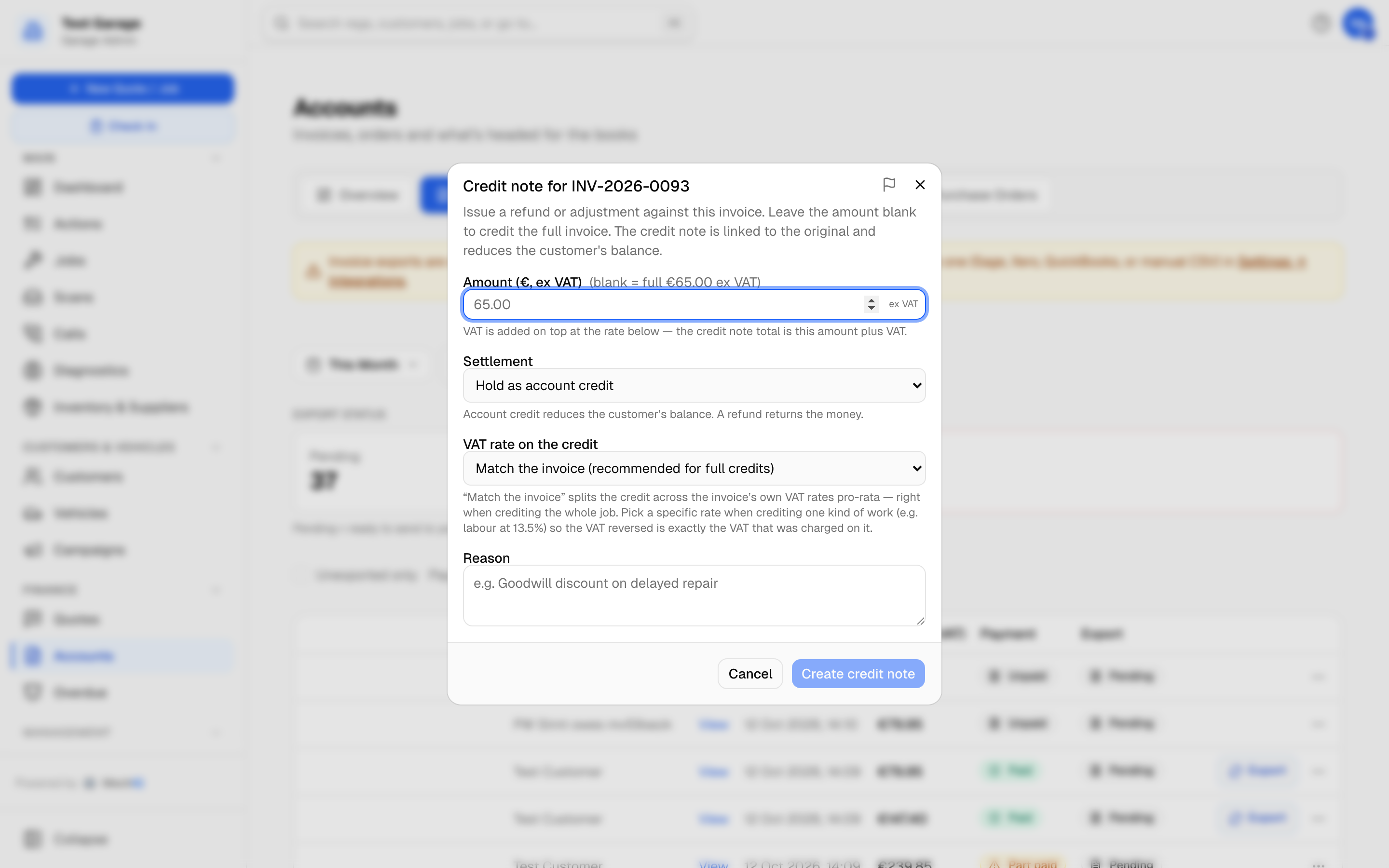
- What is credited -- Chosen lines (the default): the invoice's lines are listed as the invoice carries them, ex VAT and after any discount, with what each has left to credit. Tick a line to credit all it has left, or type a smaller amount before VAT. Each line is credited at its own VAT rate and to its own sales account -- a labour credit reverses labour sales, never part of it parts. A line is never credited for more than it has left. Or An amount across the whole invoice: one amount before VAT (blank = the full invoice), spread over every line in proportion to what each has left.
- Hold it, or pay it back -- Hold as account credit reduces what the customer owes and sits on their account for future work. Pay it back now -- Card, Cash or Bank transfer records the money going back (make the bank transfer yourself). It is the same refund, with the same words, as paying back a customer's credit. A refund can be no more than the money paid on the invoice; on an unpaid invoice, hold the credit on account.
- VAT rate on the credit (an amount across the whole invoice only) -- Match the invoice splits the credit across the invoice's own VAT rates pro rata, which is right when crediting the whole job. To credit one kind of work, use Chosen lines: each line is credited at the rate it was charged.
- Before you create it the dialog shows the credit note's Net, VAT (per rate) and total inc VAT.
- Reason -- required. It's printed on the credit note and it's what your accountant will read.
Press Create credit note. Credit notes run on their own sequence -- CN-2026-0001 and up, separate from your invoice numbers -- so the number tells you at a glance which document you're looking at. It's linked to the original and appears in the list under the invoice it credits with a Credit note badge. Filter the list by Payment: Credit notes to see them all.
A credit note is a negative invoice. It reduces what the customer owes and carries the VAT back out, so your VAT return stays right without anyone doing arithmetic.
Why not just delete the invoice
Because an invoice number that vanishes is a hole in your books, and your accountant will ask about it. Revenue expects a continuous sequence. A credit note leaves the trail intact: here is what we charged, here is what we took back, here is why.
Supplier credit notes
When a supplier credits you -- a returned part, a pricing error -- record it on Accounts → Supplier invoices → Add supplier invoice and tick Credit note, or scan it. Enter it with positive figures; MechIQ applies it as a credit against what you owe that supplier. It shows on their statement as (credit) and reduces the Amount owed. See Supplier invoices.
A return you've raised from a job is tracked separately on the Supplier returns card until the credit note arrives. See Purchase orders and receiving.
Reaching your accounts package
Customer credit notes go into the same export as invoices -- as SC rows in the Sage Audit Trail format, next to the SI invoices -- and post to a connected package when Send credit notes is on in Settings → Accounting. Supplier credit notes go as PC rows beside PI bills. Every document exports once.
Related: How MechIQ handles VAT and accounts · Chasing overdue money