Taking a deposit
Some jobs want money up front -- a special-order part, a big repair, a customer you would rather not chase afterwards. A deposit is real money received, recorded before the invoice exists.
Every garage can take deposits -- there is nothing to switch on.
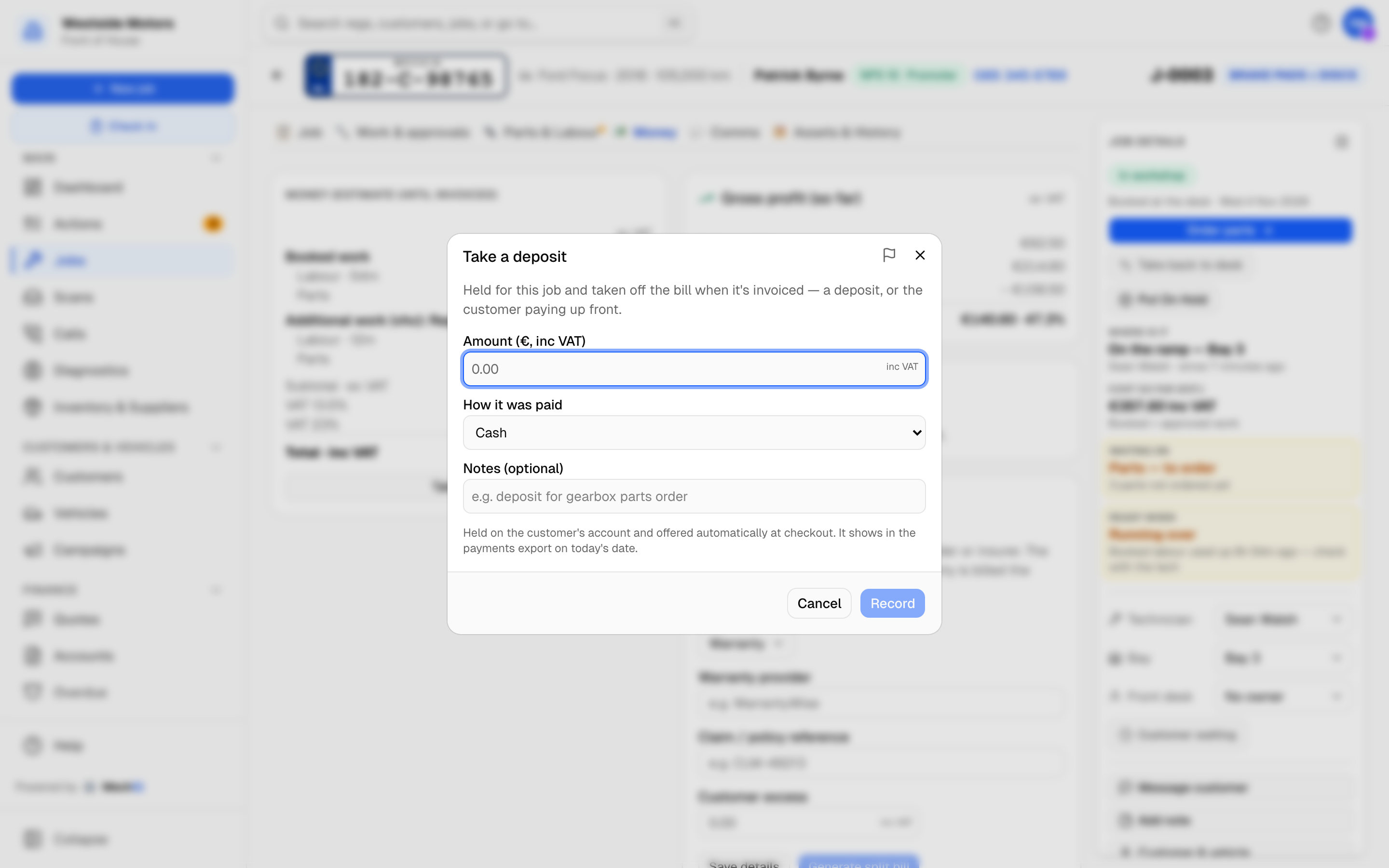 Take a deposit from the job's Money summary or Money tab. Before the job is invoiced, the money is held on the customer's account and comes off the bill at checkout.
Taking one on a job
- Open the job. In the Money summary on the Overview (or on the Money tab), click Take deposit. The dialog is Take a deposit.
- Enter the Amount (inc VAT -- the money actually taken), choose How it was paid -- the same list as checkout, in the same order: Card, Cash, Bank transfer, Cheque, less any your garage has turned off in Settings -> Payments -- and fill in Notes (optional) if useful (for example "deposit for gearbox parts order").
- Click Record.
The money is called a deposit everywhere: on the job's Money tab the row reads Deposit · Card (or the way it was paid), and on the invoice it is listed under Payments received as Deposit: Card.
You can take money at any stage. Before the job is invoiced the money is held for it and comes off the bill at checkout. While the car is ready to collect, Check out in the panel on the right of the job page is the one door to payment, so the button is not shown. Once the car has gone and the invoice is still owed (Pay later, on account, part paid), the button reads Take payment and opens the payment screen on that invoice -- part payment, or a discount with a reason, are both there (see Taking a payment). The button isn't shown on a cancelled job or a job with no customer.
You can also type deposit or take payment in the search box at the top while the job is open. The row follows the same rule: Take deposit when there is no invoice yet, Take payment when the invoice is still owed. It opens that dialog straight away, and you stay on the tab you were on.
Taking one while booking
The Schedule step of the New job dialog has a Deposit taken box. Tick it, enter the amount and method, and the deposit is recorded with the booking.
Customers who book through your online booking page can also be asked for a deposit online (Settings -> Online Booking). A paid online deposit confirms the booking and is held in the same way.
What happens at checkout
The deposit is money you already hold, so it comes off what is left to pay. At the payment step, a green box says Use €150.00 held on account (deposit / credit) -- €300.00 left to pay. It is ticked already, so the amount due drops whatever you choose -- card, cash, a payment link, the card terminal, Put on account or Pay later all deal with what is left. Untick it to keep the money for another job. If the deposit covers the whole invoice, the invoice is settled from the credit and no further payment is taken.
If the job comes in under the deposit, the difference stays on the customer's account. It is not written off and it is not refunded automatically -- it is used against their next invoice.
Where to see it
- The customer's Account tab -> Payments received card lists the deposit with On account showing how much of it is still unapplied.
- Accounts -> Payments shows the same across all customers, with an amber €X on account tag on any payment not yet fully applied.
- The deposit appears in the payments export on the date it was taken.
Why it is held against the customer, not the job
A deposit is the customer's money that you are holding until work is done to earn it. Booking it straight into a job total would make it look like revenue already earned and would lose track of it if the job were cancelled. If a job is cancelled after a deposit is taken, the money is still on the customer's account, ready for the rebooking.
Related: Invoicing and Checkout · Taking a payment · Credit notes and refunds