Invoicing and Checkout
When a job is Complete, FOH runs checkout: confirm the costs, raise the invoice, take payment, give the customer their receipt and hand the vehicle back. Technicians cannot run checkout.
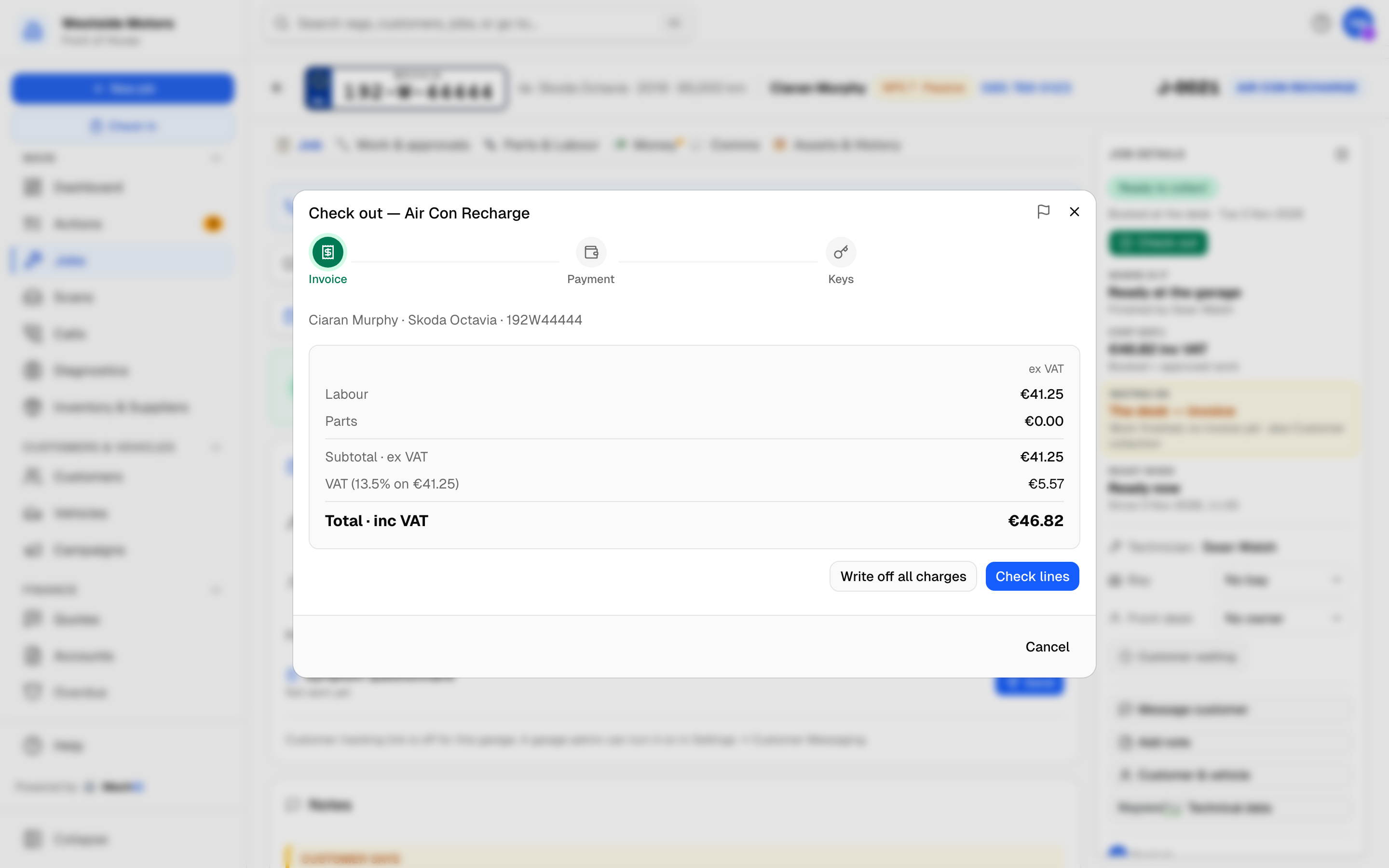 The Invoice step: ex VAT lines and subtotal, VAT, and the total inc VAT.
Starting checkout
Open the job and click the green Check out button in the panel on the right of the job page. It is the one door to checkout. The dialog has three steps, Invoice, Payment and Keys, shown across the top.
If the job's timer is still running you get an amber warning -- stop it on the job page first, or the labour keeps accumulating.
Step 1: Invoice
The cost box shows Labour, Parts, Consumables (if your garage charges sundries) and any Account discount for a trade customer -- all ex VAT -- then the Subtotal · ex VAT, VAT and the Total · inc VAT. These are the invoice's own figures, computed by the server, so what you see is what prints.
Labour and parts can carry different VAT rates -- in Ireland typically 13.5% on labour and 23% on parts. The box shows a line per band, e.g. VAT (13.5% on €260.00) and VAT (23% on €167.20), so the total is traceable. The rates come from Settings -> Tax & VAT.
Giving a discount. A discount is given before the invoice is raised -- as a percentage or an amount ex VAT, on one line or on the whole bill, always with a reason (it is printed on the invoice):
- On one line -- click Check lines, then Discount on a labour or part line (Change discount once it has one). (The same button is on every line of Parts & labour, and on a quote's lines.)
- On the whole bill -- Discount on the whole bill, under the cost box (also on the job's Money card, and Discount on the whole quote on a quote). It is spread over the lines in proportion to each line. A charge you pass on (a test fee, a levy) takes none of it.
A discount comes off the price before VAT, so VAT is charged on the discounted price, at each line's own rate. The line keeps its price; the discount shows as its own row with its reason, and the rows add up to the Subtotal. A discount is never more than the line (or the bill) comes to. A discount on a quote carries onto the job when the quote is booked. To take one off again, open it and press Remove the discount. Once you press Create invoice the bill is fixed: the way to reduce it after that is a credit note.
A bill discounted to nothing (warranty work, goodwill -- a 100% discount) is still invoiced. The checkout says Nothing to pay; Create invoice raises a numbered invoice at 0.00 with the discount on it, and it is marked paid at once -- there is no payment step and no payment is recorded. It counts no sales. There is nothing to post, so it never goes to your accounting package: no export file carries it and it is not sent to Sage, Xero or QuickBooks. Its books column reads Nothing to post — no charge, and the Books check does not look for it.
Leaving the consumables charge off this job. Below the cost box, Remove consumables charge takes it off before the invoice is raised -- add a reason if you like ("customer brought their own oil"), then Remove charge. The box re-totals at once and shows Consumables charge removed from this job, with Add it back if you change your mind. Once you press Create invoice the invoice is the record: the option disappears, and the way to give the charge back after that is a credit note.
To check -- MechIQ estimated these. When MechIQ's work plan wrote labour or parts onto the job (each one carries an AI estimate badge on Parts & labour), checkout lists every such line nobody has checked yet in its own amber group, above the lines: the description, the hours or quantity, the amount ex VAT and where it came from. For each one:
- Confirm -- the line is right as it stands. One tap.
- Edit -- change its hours (labour), or its quantity and sell price each (a part). Saving your figure checks the line.
- Remove -- MechIQ asks Remove this line? first; the line comes off the job and off the bill, and the plan's task follows.
Confirm all (shown when two or more lines can be confirmed) confirms them all in one go -- it is the quieter button on purpose. A part with no price yet or a quantity still showing Confirm cannot be confirmed as it stands: it says Enter its price or quantity -- Edit. Write off all charges never waits for them: nothing is charged, so the lines are written off with the rest and are not asked about afterwards. Until every line is checked, Create invoice waits, with N lines MechIQ estimated still to check -- confirm, edit or remove each one under Check lines before you create the invoice. MechIQ refuses the invoice with the same words on every path (the job's Money tab, a warranty or insurance split, an account customer, a re-issue after Credit & amend).
A line is checked as soon as someone stands behind it: you confirm it here or on Parts & labour (the same group shows there, with the count, so you can do it before checkout), you change its hours, description, quantity or price at the desk, or the technician confirms the part as used. A part you ordered from a supplier is not asked again. Who checked what, and when, is on the job's timeline (MechIQ's estimate confirmed / edited). A checked labour line keeps its badge as AI estimate · checked.
Unconfirmed AI parts are no longer removed when the job is completed: they stay on the job, marked, and appear here for you to confirm, edit or remove.
Then choose:
- Check lines -- MechIQ shows Invoice lines: every labour, part and consumables line the invoice will carry, ex VAT, with its VAT rate. Nothing is raised yet. When the job has a charge you pass on (a CVRT / NCT / MOT test fee, a tyre levy), the lines are listed in sections -- Labour, Parts, Charges -- each with its subtotal: a charge is never among the parts, and the Parts figure leaves it out. Each charge keeps its own VAT rate. A part that is not here yet (still to order, on order or short) carries an amber flag: Not here yet -- it can't have been fitted. Check it before you bill it. Create invoice then asks once -- 2 parts not received -- invoice anyway? -- Back raises nothing; Invoice anyway raises the invoice with them. To change a line, close checkout and edit it on Parts & labour first. Then click Create invoice.
- The Labour check runs once, when you click Check lines. If the logged hours look wrong for the job, a Labour check panel says why and asks: Charge as logged (the main choice -- the invoice charges what was logged) or Charge the estimate (2h) (it cuts the labour to the estimate; then check the lines again). If the check cannot run, the lines still show with Labour check not done and the reason -- you decide. MechIQ never raises the invoice by itself.
- Write off all charges -- no charge at all (a comeback, goodwill). MechIQ asks you to confirm, raises the invoice for the full amount and writes it off, then goes straight to the keys. Nothing is recorded as money received. On a comeback job this is the main button and Check lines is the other choice.
A split bill (a warranty company or insurer pays part) is raised from the job's Money tab, then checked out here, one payer under the other. See Warranty and Insurance Invoices.
Once the invoice exists the dialog moves to Payment. For an account customer over their credit limit you also see a Credit limit advisory -- you can still continue.
Step 2: Payment
The line at the top names the invoice and its status, e.g. Invoice INV-2026-0045 · Owed. How is the customer paying? Pick a tile. The list is the same on every checkout and in Take payment, and it follows Settings -> Payments:
- Card -- see below. Card terminals are not connected to MechIQ: you key the amount on your own terminal, so it is Card here, on a deposit and on a refund.
- Cash -- hidden if your garage has turned cash off.
- Bank transfer -- only if your garage accepts it. Your IBAN and BIC print in the footer of every invoice, so the customer knows where to send it.
- Cheque
- Put on account -- only for an account customer. It bills the invoice to their account: no money is received, so it is not a payment. The invoice stays owed on their account and their next statement.
- Pay later -- the customer pays later. It is not a payment either: the invoice stays owed. If your garage has pay-later reminders switched on, the checkout tells you the date the automatic reminder will go; if they are off, it says no reminder is set up, so you know to follow it up yourself.
If the customer holds money with you (a deposit, an overpayment or a credit note on account), a green box says Use €X held on account and what is left to pay. It is ticked already. The money held is used first, whatever you choose: a card, cash, a payment link, the card terminal, Put on account and Pay later all deal with what is left. Untick it to keep the credit for another job. See Taking a deposit.
The Amount due box (inc VAT) shows what the customer still owes on the invoice -- the total less anything already paid against it (and less the credit held, when it is ticked). After a part payment, it is the balance, not the total. Amount received is the full amount due. Click Received a different amount? only when the money differs, and type the amount:
- Less than due -- choose Part payment -- the rest is Pay later (the default: the rest stays owed and the car can go) or Write off the rest (type the reason in Reason for the write-off (required) -- the button stays off until you do). The invoice stays exactly as it was issued: the shortfall is written off by its own credit note, INV-...-WO, dated today, with the VAT at each of the invoice's rates, and the invoice is settled. Your books get the invoice, the money taken and the write-off credit. A write-off never takes off money that was already paid.
- More than due -- the extra is held on the customer's account as credit for their next job.
The main button says what it will do:
| You chose | Button | Result line |
|---|---|---|
| Card, cash, bank transfer, cheque (full amount) | Take €X -- Card | €X taken -- Card. |
| A short amount, part payment | Record €X part payment | €X taken -- Cash. and €Y still owed -- Pay later. |
| A short amount, write off | Take €X -- write off the rest | €X taken -- Cash. and €Y written off. |
| Put on account | Put €X on account | €X put on account -- still owed on their account. |
| Pay later | Leave €X to pay later | Pay later -- €X owed. |
Every payment is recorded as a payment from the customer, against this invoice -- the same record as Accounts -> Payments. When credit held was used, the result line says so.
Card payments
Choosing Card can show one extra panel, depending on Settings -> Payments: a Payment link panel -- show or send the link. If your garage has a connected payment provider, the link is a payment request on that account and the invoice is marked paid automatically when they pay. The link asks for what is owed, less the credit held when that box is ticked. If they pay another way, click Take €X -- Card.
Without a link, take the card on your own machine, then click Take €X -- Card. See Taking a Card Payment.
Receipt or invoice
Once the payment step is done, the customer gets their copy. Paid in full, it's the receipt: How would the customer like their receipt? Still owed -- Pay later, Put on account, or a part payment -- it's the invoice, with the amount to pay: Send [customer] the invoice?
Print -- opens the PDF in your browser's print window. The green line only appears once the PDF has loaded; if it can't be loaded you see why, and can try again. Nothing goes on the click. Email and Text open Send [invoice] to [customer]: the channel, What they'll get (who it goes to, the subject, the words exactly as they go, and the PDF attached), then Send email or Send text. A link that is only made when you press Send shows as (link).
Email -- emails the PDF to the customer's address. An invoice that is still owed includes a Pay online link when it can be paid online -- your connected payment account (Stripe, Revolut Business, SumUp or AIB Merchant Services), or your own payment link when Card Payment Method is Payment link; an account invoice says it will appear on their next statement instead.
Email another address (e.g. their accounts department) -- emails it somewhere else, such as a trade customer's accounts payable address.
Text -- texts a secure link to the PDF and, for an invoice still owed, the same Pay online link as the email. The pay link always asks for what is owed when the customer taps it -- a part payment made after the text went is never asked for twice. A send to an address that can't work (an email with no domain, a phone number under 7 digits) is not sent: the message shows as failed, with the reason.
No receipt (or Not now when it is the invoice) -- the fourth choice beside Print, Email and Text: nothing is sent, and the box says so (No receipt -- none sent.).
You can send more than one copy -- print one for the driver and email the accounts department.
No email or mobile on file. The Email button then says No email on file -- type an address, and Text says No mobile on file -- type a number (a landline counts as no mobile). Click it, type where to send it, check What they'll get, and click Send email (or Send text). Nothing is sent to an empty address. To keep the address for next time, add it to the customer.
Not now. The invoice can be sent later: Send invoice… on the job's Money tab (under the invoice) or in Accounts -> Invoices (the row's Actions menu). It is the same send, with What they'll get first. Only the desk can send.
Handover
Click Hand over keys. The job moves to Collected. The button shows once the receipt is sent or you choose No receipt (with Pay later, straight after the payment step). After the payment step there is no going back and no cancel -- the money has moved.
While money is still owed (Pay later, Put on account, a part payment) Hand over keys is the secondary button, and it asks first: €X is still owed. Hand over the keys anyway? with Hand over keys -- €X owed. It never stops you -- an account customer leaves owing -- but the keys can't go with money owed in one click.
The keys can go only when the bill is dealt with: Paid, Written off, On account or Pay later. A job with no invoice, or with an invoice that is still owed, can't be marked collected -- checkout shows Take payment, put it on account, or mark it Pay later before the keys go and Go to checkout takes you back to the payment step. After a part payment, the rest is Pay later at once, so the car can go and the balance stays owed.
The invoice status words
Every invoice has ONE status, worked out by MechIQ from its total, the money paid against it, how it was billed and its credit notes. The job page, checkout, Accounts, the customer page, the app, the invoice PDF, the tracking page and the customer portal all show the same words:
| Status | Means |
|---|---|
| Owed | Raised, nothing paid yet. |
| Part paid | Some money received, the rest still owed. |
| Pay later | The customer pays later -- a promise, not a payment. |
| On account | Billed to an account customer's account -- still owed, not paid. |
| Paid | Nothing left to pay. |
| Written off | All charges written off -- the customer pays nothing. |
| Credited | Cancelled in full by its credit note. |
| Credit note | The credit note itself. |
What the invoice shows
The invoice PDF (and a credit note, which uses the same layout) is laid out for posting in a window envelope:
- Top left -- the title (Invoice or Credit Note) and the details: Invoice No with Page 1 / N, Invoice Date, Jobsheet No, Customer No and Purch. Order. A credit note shows Credits Invoice -- the invoice it credits. Your logo is top right.
- The customer's name and postal address on the left, positioned to show through a standard DL window envelope. It comes from the customer's Address; give each line its own line, or separate them with commas.
- The vehicle on the right -- Vehicle Reg., Make, Model, Production Year, VIN and Mileage, as recorded on the job (in km or miles, per Settings -> Garage Profile). A job with No registration shows No reg and what the item is; anything not recorded is left off.
- The customer's email, phone number and payment method are not printed.
- The lines, grouped -- the booked work under the job type, each approved extra-work package under its own title, the charges you pass on (a test fee, a levy) under Charges, and consumables or discounts under Other, each with a Sub Total ex VAT. A charge is listed under Charges whichever work it was billed with, at its own VAT rate; the work's sub total is its labour and parts without it. A quote and a credit note list charges the same way. The invoice's totals and its VAT per rate are the same either way. The columns are Description, Qty, Unit Price ex VAT, VAT and Amount ex VAT; long descriptions wrap rather than being cut off. A labour line names the work (Labour: Front brake pads), never the technician who did it.
- The totals -- Total Net ex VAT, a Net / VAT Amount line for each VAT rate, and the Total Invoice inc VAT, then the Due Date (or Paid and the date, once it is settled). An invoice that is not simply owed prints its status beside the due date, e.g. Part paid · Due Date: 12 Nov 2026.
- Paid so far and the balance -- Payments received, each with its date, how it was paid and the amount (a credit note against the invoice is listed too), then Balance due: what is left to pay, 0.00 once the invoice is paid.
- How to pay (an invoice still owed) -- under the balance: Pay online with the invoice's pay link when it can be paid online, and Bank transfer with your bank details and the invoice number as the reference, when you have set bank details.
- The footer, on every page -- your garage name and address; phone, email and website; VAT number, IBAN and BIC; and Powered by MechIQ. Thank you for choosing your garage sits just above the footer line on the last page.
Customer No is the customer's account reference in your accounting package (the one your accountant files them under). Purch. Order is the customer's own order or authorisation number from the job. The footer details come from Settings -> Garage Profile (name, address, phone, email, Website, VAT number) and your bank details from Settings -> Payments (or, if you don't take bank transfers, the payment details you print on statements). A long invoice runs onto further pages, with the table headings repeated and Page 2 / N at the top.
If you close checkout part way
Once the invoice exists, closing the dialog (X, Escape or Cancel) asks first: Invoice INV-... is raised but the job isn't checked out yet. Leave anyway keeps the job on the board as invoiced-but-not-collected; the job page then shows an amber Invoiced, not checked out banner. It names the invoice, its status and what is still owed, e.g. INV-2026-0045 -- Pay later · €65.55 owed. The banner has no button: click Check out at the top of the job page, and checkout opens on the same invoice's payment step (a bill already dealt with goes straight to its result and the keys). After a part payment, it asks for the balance only. MechIQ never raises a second invoice for the same job.
Where the invoice lives afterwards
- On the job page, the Invoice card lists each invoice with its status (Owed, Part paid, Pay later, On account, Paid, Written off, Credited), total and paid date, and whether it reached your accounting package. Click it to open the PDF.
- You can also remove the consumables charge from a job during the work: the Money card has the same Remove consumables charge / Add it back option until the job is invoiced. The removal (who, when and why) is recorded on the job's Timeline, and the Money card, checkout, the customer's approval and tracking pages and the invoice all follow it. Technicians can't change it. A job booked from a quote that had the charge removed starts with it removed.
- The Money card on the job page shows the live estimate until invoiced, grouped by booked work and each approved package, with VAT per band. Once the job is invoiced it shows the invoice's own figures instead, headed As invoiced · INV-...: subtotal, VAT per band, total, any credit note against it and the total after credit, then what's been paid. It never recalculates an invoiced job, so a later change to your consumables charge or VAT rates can't make it disagree with the invoice. An invoice imported from your old system (e.g. As invoiced in Garage Hive · SJ018980) carries only its totals, so it shows one VAT line. The Cost tile at the top of the job page and the Customer Update line use the same figure. An invoice fully cancelled by a credit note no longer counts — the card goes back to the estimate until the job is invoiced again.
- On Accounts -> Invoices, where you can preview it, Take payment… for a late payment, raise a credit note or export it. See Accounts.
Invoice numbers are sequential (e.g. INV-2026-0045) and are never reused.
Changing an invoice after checkout: Credit & amend
Once the invoice is raised it is fixed: its lines, prices and VAT can't be changed, by anyone, and there is no price adjustment. Credit & amend is the only way to change it.
To change a price, the VAT or a line on a job that's already invoiced, open the job's Money tab and press Credit & amend under its invoice (or choose Credit & amend the job in the credit note dialog on Accounts -> Invoices). Say what's being amended and press Credit & reopen the job.
- The invoice is credited in full (a credit note,
CN-...), and the same job reopens with all its lines -- nothing to re-key. An Open to amend banner says so. - Change what you need on Parts & Labour (prices, VAT, lines), then press Invoice again. Checkout raises a new invoice with a new number.
- Anything the customer already paid is held on their account -- Use ... held on account is ticked at checkout and it comes off the new invoice. If the original wasn't paid (pay later, account), the credit note settles it, so it isn't chased.
- A job the customer already collected stays collected: the checkout ends with Done, not a second handover.
- The original invoice, the credit note and the new invoice all stay on the record and all go to your accounts package.
On the native app
FOH and the owner run the same checkout on the phone or tablet, payment included: the same lines and labour check, the To check -- MechIQ estimated these group with Confirm and Confirm all (to edit or remove a line, use Parts & labour at the desk), Create invoice, the same method list, the credit held ticked, Received a different amount? with part payment or write-off, the same buttons and result lines, Send receipt by Email or Text (a channel with no email or mobile on file is greyed out, with the reason under it; a tap shows What they'll get, then Send email / Send text), Photo vehicle condition and Hand over keys (with money still owed it asks first, naming the amount). See Mobile App.
Cancelling a job with costs on it
Cancelling a job (Cancel Job) is the same checkout, charging only for the work done:
- Reason -- why the job is cancelled. Under it the dialog says what cancelling does to money and parts: a deposit already taken is not refunded by cancelling -- it stays on the customer's account as credit (it comes off the charge for the work done if you raise one; use the rest on their next job, or pay it back with Refund on the customer's page); a part on order from a supplier is not cancelled with the supplier -- cancel it with them, or it goes into stock when it arrives; parts set aside from stock go back on the shelf.
- Parts -- for each part, Return (it goes back to stock and comes off the bill now) or Used. Return all / All used set every part.
- Charge -- the same Invoice step as checkout: Check lines, the labour check, Create invoice. Or Charge nothing -- no invoice is raised.
- Payment -- the same payment step, then the receipt.
- Keys -- Cancel job.
Keep job open closes it without cancelling (until an invoice is raised). See Job Status Transitions.
Tips
- Check the labour and parts on the Invoice step before taking payment. Add any parts that were used but not logged first -- an invoice cannot be edited afterwards, only credited.
- Use Pay later for a customer collecting now and paying later. It keeps the job moving and the invoice shows on Overdue once past its due date.
Related: Taking a payment · End-of-Day Cash-Up · Credit notes and refunds