Customer statements
A statement is the customer's view of their account with you: the invoices, the payments, and what is still owed. Statements are for account (trade/fleet) customers -- the ones who pay on terms and want one document rather than a stack of invoice copies. For a pay-as-you-go customer, print or email the invoice instead.
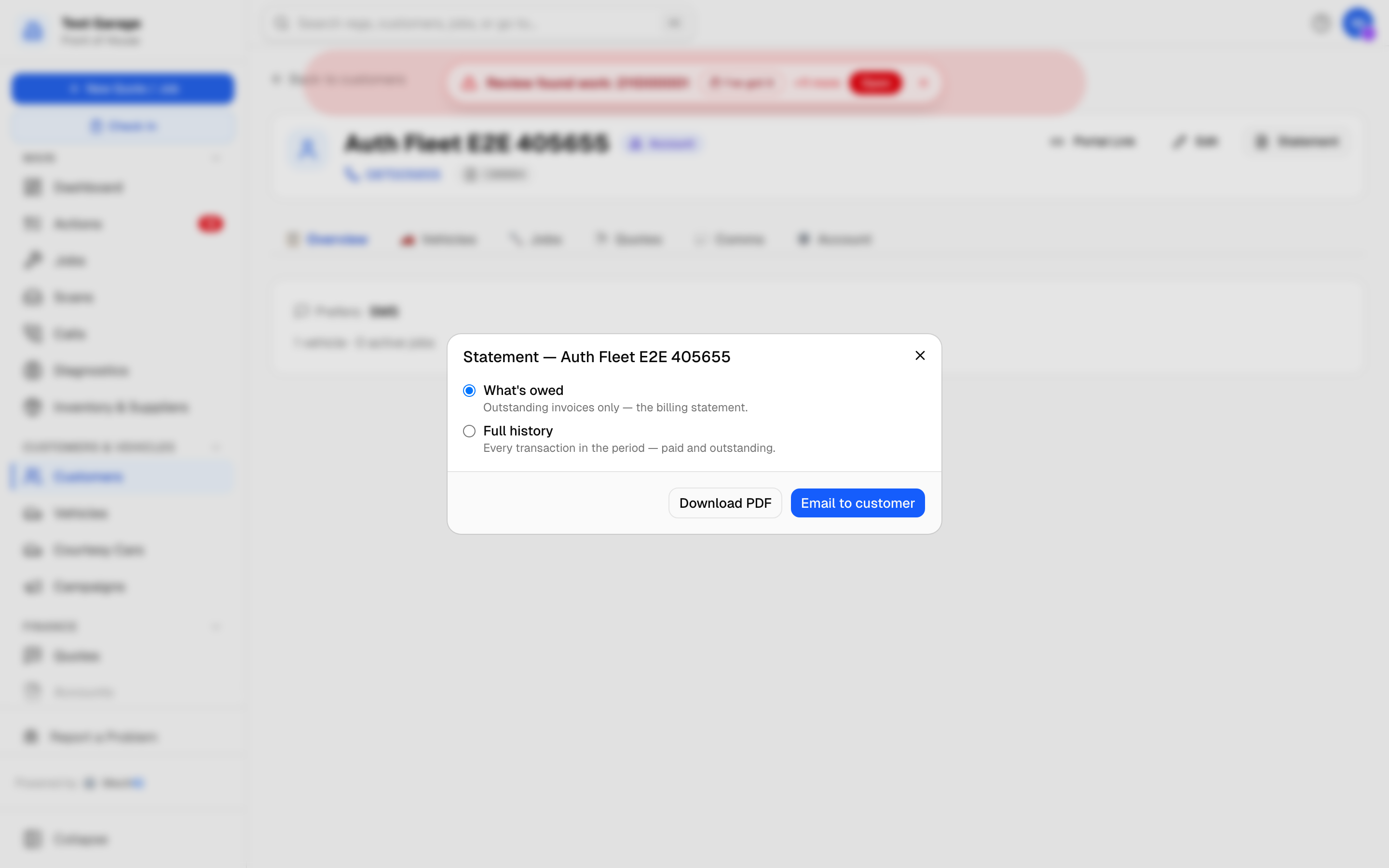 Statement. "What's owed" is the chase document; "Full history" is what an accounts department asks for.
Sending one
Open the customer and click Statement (top right, beside Edit). Any customer can be given one -- account or not. Choose:
- What's owed -- outstanding invoices, credit notes kept on account and any money held for them. Set the Statement date (today by default) to draw it up as at the end of that day: anything invoiced or paid after it is left off, and the ageing counts from it -- the month-end statement.
- Full history -- every transaction between two dates, paid and outstanding. Set From and To.
Then Download PDF to print or attach, or Email to customer… to send it from MechIQ to their email address on file. Nothing goes on that click: the dialog shows What they'll get -- the address, the subject, the words and the statement PDF it carries -- then Send email sends it (Back returns to the options). With no email address on file Email to customer… is greyed out with the reason -- add one on their record first.
You can also send a What's owed statement from Accounts -> Invoices: on an outstanding invoice, open the ... menu and choose Send statement of what's owed.
Reading it
- Invoices show the date, number, total and what is still outstanding on each, with the customer's authorisation reference where one was captured. A credit note kept on account appears as a negative line.
- Payments show the date, method, reference and the invoices they were applied to; a refund shows as money paid back. Money taken online (a pay link) reads Card (online) -- the payment provider's own reference is never printed. Money held on account (a deposit or overpayment not yet applied) is shown separately.
- VAT is shown per rate: an invoice with parts at 23% and labour at 13.5% shows a line for each.
- The balance is everything outstanding less anything held on account. A customer in credit gets a statement too -- it closes in credit rather than with an amount to pay.
Money on account and part payments are explained in Taking a payment.
Sending statements to everyone at once
Customers -> Outstanding Balances -> Send statements... (also on Reports -> Customers) is the statement run, for the front desk and garage admins.
At the start of each month the Actions list shows one action: Send statements — N account customers owe. It opens this run. Nothing is sent automatically -- you choose who gets one and press Send. The action closes when you do the run. You can still send one customer a statement at any time from the customer page.
- Statement date at the top -- today by default. Change it to run the statements as at that day (end of the month, say): the list is everyone with a balance at that date, and each statement is drawn up as at that date.
- The list is every customer with a balance -- account customers and everyone else; anyone at zero is left out: name, email, balance and invoice count. The balance is the figure their statement asks them to pay: what they owe less any money held on account -- the same figure the PDF prints. Everyone with something to pay starts ticked. A customer with nothing to pay -- in credit, or holding exactly what they owe (nothing due (€X held on account)) -- starts unticked; tick one to send them a statement showing it. The total on the Send button adds up what the ticked statements ask for.
- Customers who can't be emailed (no address, or a bounced one) are listed underneath with the reason, each with its own tick -- owing ones ticked, credit ones not.
- Review N statements · €X… shows what goes before anything is sent: how many will be emailed, each customer (open one to see their exact email -- address, subject, words and the PDF), and who will not be sent with the reason. Send N statements then emails them (Back returns to the list); afterwards the dialog reports who it reached and who it didn't.
- Download N PDFs saves exactly the ticked customers -- from both lists -- as a ZIP: that's how you post a statement to someone with no email.
The Outstanding Balances panel itself lists every customer who owes money, not only account customers; the ones on account carry an Account pill. Each row shows the total, invoice count, oldest debt and the amounts in the Current, 30d, 60d and 90d+ columns.
What the statement looks like
Your garage admin sets the bank details in Settings -> Payments -> Your bank details -- the same details print on invoices and statements. Ask them if the bank details need changing.
Related: Taking a payment · Chasing overdue money · Customers