Customers
Every job and vehicle hangs off a customer record. Customers sits in the sidebar under Customers & Vehicles.
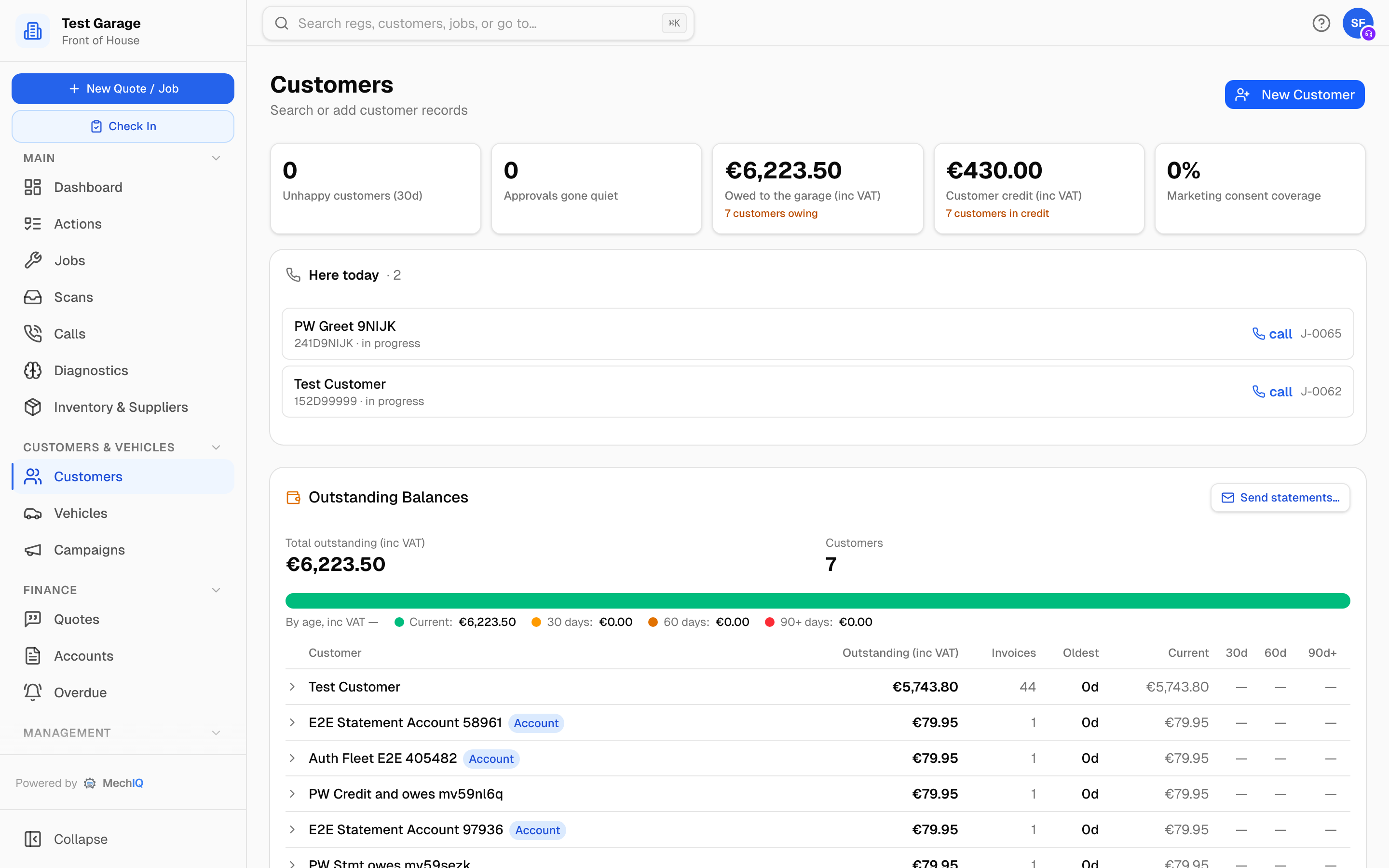 The Customers page: the tiles and queues worth working, then money owed and customer credit, then search.
The tiles and queues
Five tiles across the top (money figures are inc VAT): Unhappy customers (30d) (NPS scores of 6 or under in the last 30 days), Approvals gone quiet (approval links sent three or more days ago with no answer), Owed to the garage (everything customers owe, account or not, and how many customers owe it -- click it to jump to Outstanding Balances further down the page), Customer credit (money customers have paid that isn't used against an invoice yet, and how many customers are in credit -- click it to jump to the list) and Marketing consent coverage (the share of customers who have said yes to marketing).
Below them, the queues. Each only appears when it has something in it, except Here today:
- Ring back -- unhappy after their visit -- customers who scored you 6 or less, with their comment and a call link. Click through to the job.
- Approvals gone quiet -- chase -- sent 12 Sep 2026 · no answer in 4 days. Ring them.
- Accounts near their credit limit -- account customers whose balance is at 80% or more of their limit.
- Here today -- every customer with a vehicle in the workshop right now, the registration, the job status and a call link.
Money owed and customer credit
Under the queues, two lists of money -- the Owed to the garage and Customer credit tiles jump straight to them. Search aged debtors, outstanding or credit from the search bar to land on them too.
Outstanding Balances is everyone who owes the garage money, account customers or not -- the total, the ageing bar (current, 30, 60 and 90+ days) and a row per customer you can open to see their invoices. Send statements… emails a statement to everyone who owes (see Customer statements). When nobody owes anything it says so.
Customer credit is every customer in credit -- money they've paid that isn't used against an invoice yet -- largest first: how much, where it came from (a payment not yet applied to an invoice -- an overpayment, a deposit, money sent early -- or a credit note kept on account), since when, and whether they also owe money. Credit beside a debt usually means a payment waiting to be applied -- do it from Accounts -> Payments -> Reallocate, or at checkout with use credit. Credit with nothing owed is used up at their next checkout, or paid back with Refund… on the row (see Credit notes and refunds). Click a name to open the customer's Account tab, where their payments and what's on account are listed.
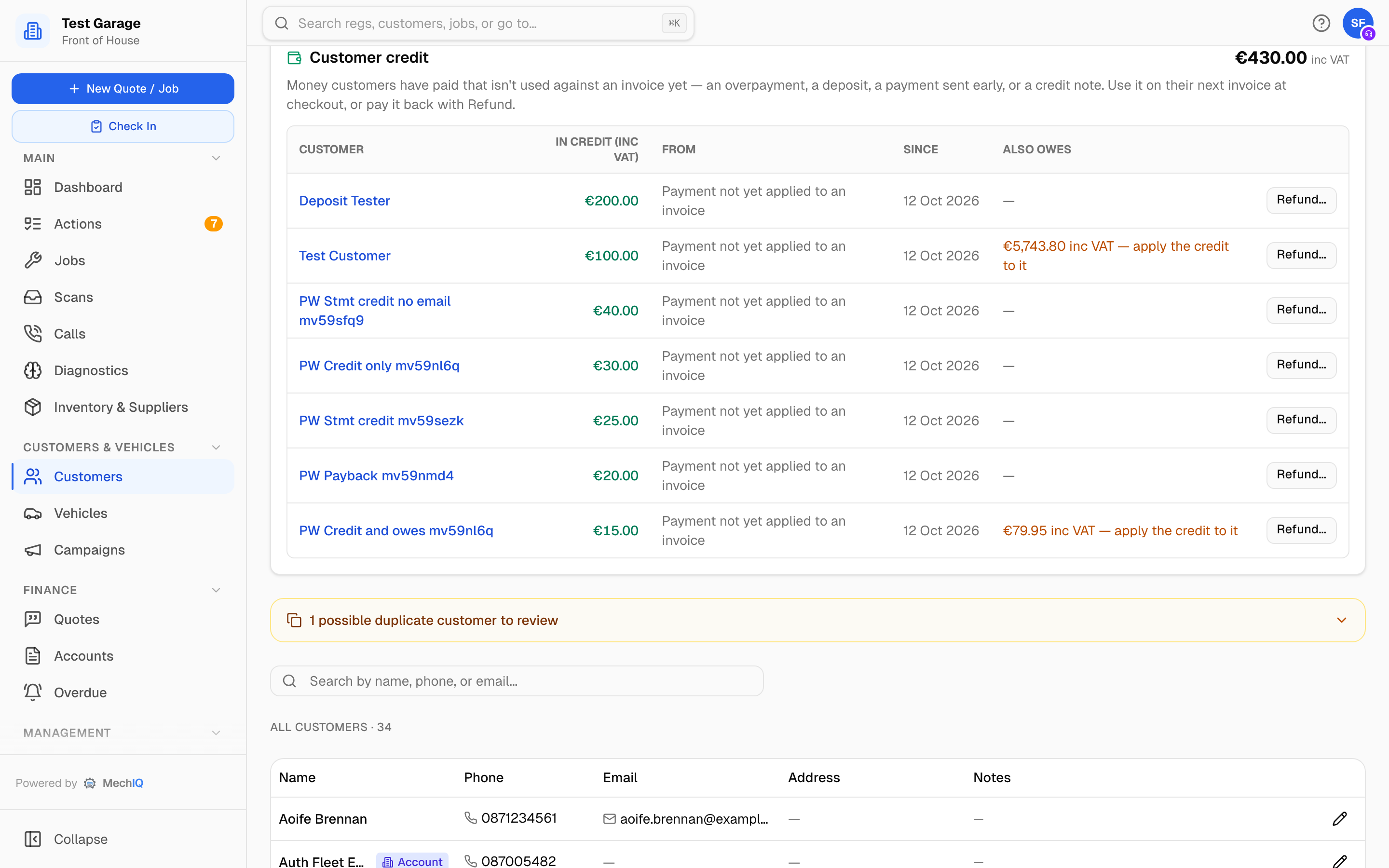 Customer credit. A customer who also owes is flagged -- that's usually a payment waiting to be applied.
The two never overlap: a credit note kept on account already reduces what a customer owes, so only the part of it beyond their debt counts as credit.
Search
Type a name, phone number or email. The list shows Name, Phone, Email, Address and Notes; account customers carry an Account badge and important customers an Important badge. Click a row to open the record, or the pencil to edit the basics in place.
Add a customer
- Click New Customer.
- Enter the Name and Phone. Email, address (type an Eircode to look it up) and notes are optional. If the number is a landline you are warned that texts can't reach it -- updates go by email instead.
- Set How did they find you? if you know: Word of mouth, Returning customer, Google, Online booking, Facebook, Instagram, TikTok, Drive-by / local, Radio / press or Other. It feeds the marketing-channel report.
- For a trade customer, tick Trade account and set the payment terms, labour discount, parts markup and credit limit. See Customer Account Settings.
- Click Add Customer.
MechIQ refuses a second record with a phone number or email that is already on file -- A customer with phone '087 123 4567' already exists. Search for them instead.
Customers who book online are created with Online booking as their source. Customers imported from your old system keep their marketing channel.
A walk-in with no contact details
Most customers must have a phone number. The exception is a walk-in who will not give one -- a quick puncture repair, paid at the counter. Leave Phone blank and tick No contact details (walk-in). The same tick sits under the phone field in the New job dialog when you add a customer there.
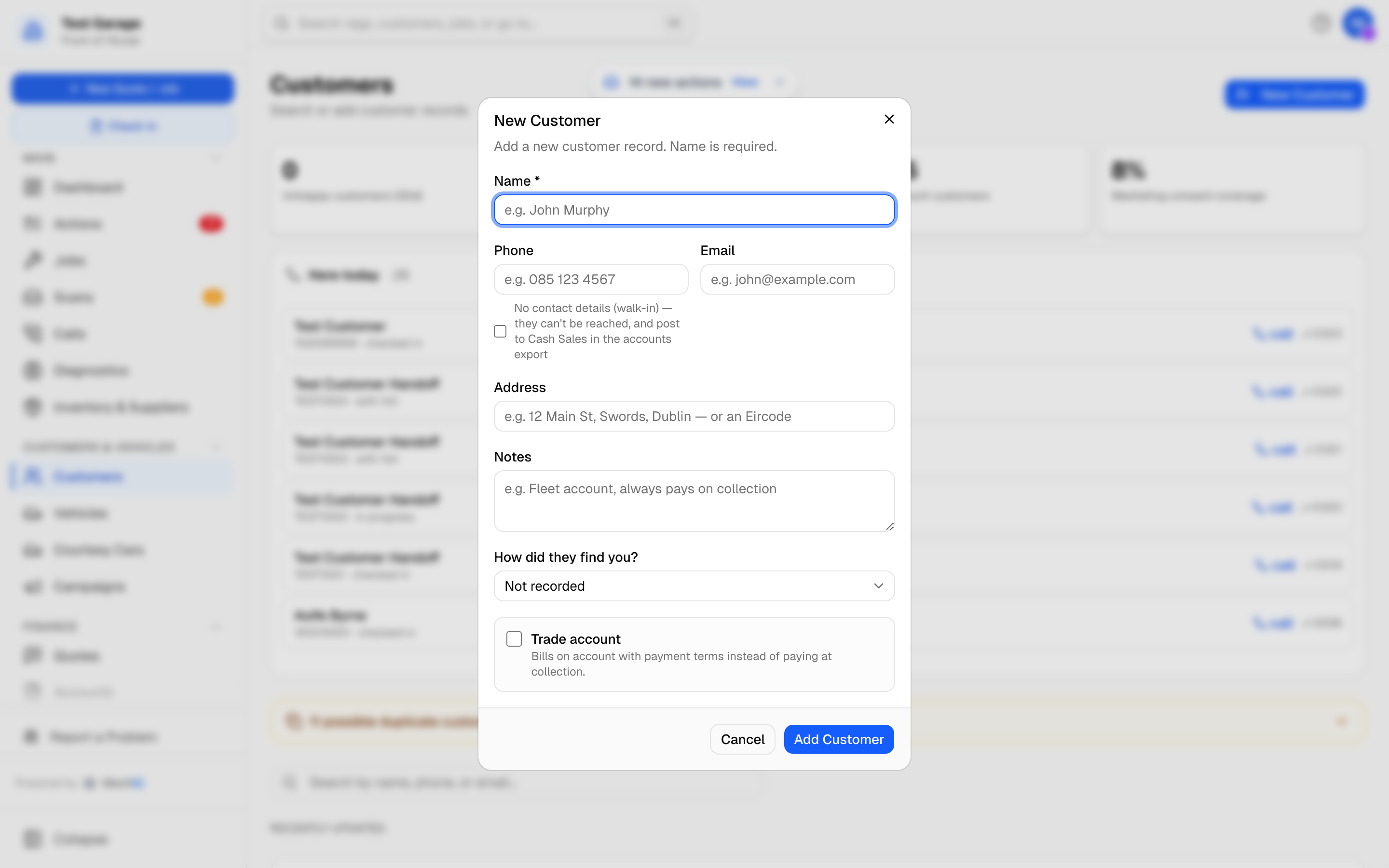 The walk-in tick only appears while the phone field is empty.
Two things follow from having no phone and no email:
- MechIQ cannot send them anything -- no approval link, no ready-for-collection text, no reminders. Anything you need to tell them, you tell them at the counter.
- In the accounts export they do not get a customer account of their own. Their invoices post to the shared Cash Sales account, which your admin sets up in Settings -> Accounting under Cash account references.
If they give you a number later, add it and they become a normal customer with their own account.
Accounting reference
Every customer's Edit form has an Accounting reference field, not just trade accounts. It shows the reference the export uses: the one matched from your Sage list (Match to my Sage accounts), or the one MechIQ assigned the first time the customer went in an export -- numbered above your old system's numbers, so it never reuses one. A garage admin can type a different one, for example the code a customer already has in Sage. Clear the field to go back to the assigned reference. For a walk-in with no phone or email, the field says which cash sales account their invoices go to.
The customer record
The header shows the name, the Important badge (or Mark as important), an Account badge for trade customers, the staff star rating, an NPS badge if they have answered a survey (Promoter 9-10, Passive 7-8, Detractor 0-6), the phone (click to dial), email, a chip that says how messages REALLY reach them, a chip with what they owe, and the accounts reference. Three buttons sit on the right:
The channel chip reads Messages by SMS or Messages by email -- the channel the next message will use, by the same rule the send uses. It turns amber when that is not their preference (a landline on file goes by email) and reads Can't be messaged when there is no mobile and no email. The balance chip reads Owes €… (red), In credit €… or Nothing owed; click it for the Account tab.
- Portal link -- a menu: Send by text…, Send by email…, Copy link, Stop the current link. A send shows What they'll get before Send. See Customer Portal.
- Edit -- opens the full edit form (contact details, rating, preferred contact channel, how they found you, and all trade-account settings).
- Statement -- any customer: what they owe, or have on account. See Customer Statements.
Below the header are six tabs.
- Overview -- address, Preference: SMS / Email (with the reason when messages go another way), Found via, notes, and a count of vehicles and active jobs.
- Vehicles -- every car on file, with mileage, NCT/MOT date (amber within 30 days, red when overdue) and last service. Click one to open it.
- Jobs -- Active Jobs and Service History across all their vehicles.
- Quotes -- quotes not yet converted to jobs, with their status. Click one to see it and book it.
- Messages -- every message, call and feedback rating in one timeline, with the Message customer composer and Log Call. See Message History and Receipts.
- Account -- trade terms, Payments received, the Group Account link, Marketing consent and, for admins, Data Privacy (GDPR). See Customer Account Settings.
Shared phone number or email
A phone number or email belongs to one customer -- it's what rings up when they call and where their texts go. When an import brought in two different customers who use the same number (a company and its sister company, a parent and their son), the first keeps it and the other shows a line under their contact details: Shared phone 087 123 4567 -- also on C00842 Smith Motors. Messages go to that customer, not this one. Searching the number finds both.
Unassigned vehicles (imported)
If your import had vehicles with no known owner, they sit on a customer called Unassigned vehicles (imported). It isn't a real customer: it has no contact details, is never messaged and isn't counted in your customer numbers, and it has no Portal Link or Statement buttons. Open its Vehicles tab and click Move to customer on each car -- its jobs, quotes, invoices and payments move with it. See Data Import.
Important customers
Flag a customer who needs handling with care -- a fleet manager, a VIP, a friend of the owner -- so everyone at the desk knows before they pick up the phone.
- On the customer's record or on any of their jobs, click Mark as important.
- Optionally add Why -- Fleet manager for 12 vans (up to 200 characters).
- Click Mark as important.
The Important badge (with the reason when you hover it) then shows on their record, in the customer list, on their jobs, in the customer picker when you create a job, and on the check-in screen -- on the web and in the MechIQ app. Front desk and garage admins can set it, change the reason (Edit) or Remove flag; technicians see it but can't change it. It is staff-only and never shown to the customer.
Tips
- Capture a mobile number. Ready-for-collection texts, booking confirmations and NCT/MOT reminders all depend on it. Approval requests go by email, so capture an address too -- a customer with neither cannot be asked to approve extra work.
- Use notes for standing instructions -- always wants a call before any extra work. They show on the Overview tab and in the list.
- If you cannot find a customer by name, try their phone number -- and check the duplicate review bar; they may be on file twice.