Customer Account Settings
The Account tab on a customer record is where the money side of the customer lives. Most of it applies to every customer; the trade terms only appear once the customer is on account.
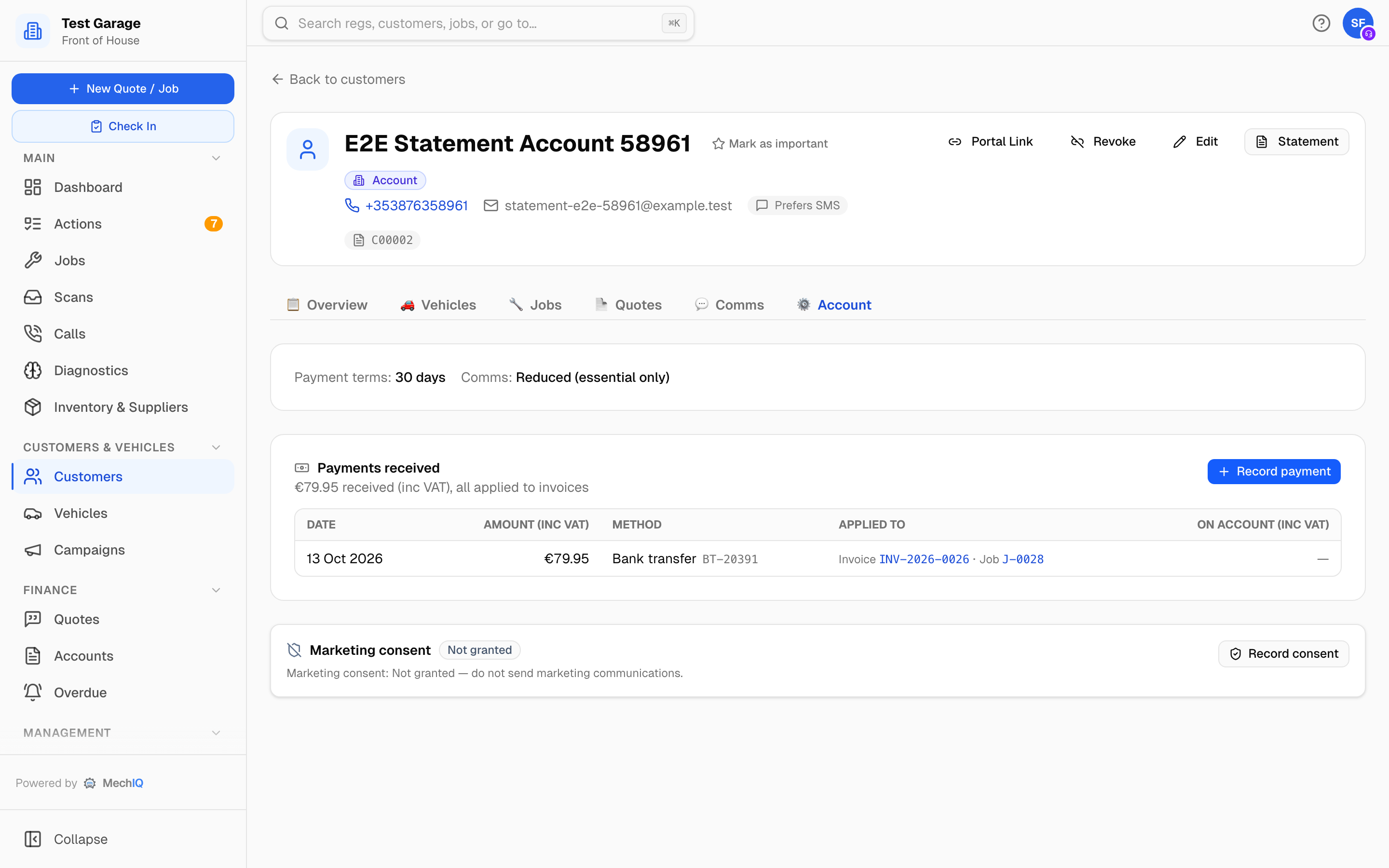 A trade customer's Account tab.
Put a customer on account
Some customers don't pay at collection: each job is invoiced and put on their account, and they pay from a Statement (there are no periodic statement invoices). To set that up, open the customer, click Edit and tick Trade / Account Customer. The trade fields then appear:
- Labour Discount (%) -- a percentage off your labour rate on their jobs.
- Parts Markup (%) -- their own parts markup, overriding your garage default. It is a markup, not a discount: set it lower than your default to charge them less.
- Credit limit -- checkout warns when their outstanding balance would pass this. It warns only; nothing is blocked. Customers at 80% or more of their limit appear in Accounts near their credit limit on the Customers page.
- Payment terms -- Net days (30 days from invoice) or End of month, optionally plus up to twelve months after month-end. (The New Customer dialog only offers up to three months; the Account form takes any number from 0 to 12.)
- Authorisation reference -- whether the customer gives you a purchase order or authorisation number for each job: Not used, Optional -- ask, but don't insist, or Required -- needed to book a job. A required reference appears on their statement.
- Reduced communications -- ready to collect is the only message this customer still gets automatically. Everything else MechIQ would draft or send on its own is skipped for them, approval requests and booking confirmations included, so a fleet contact isn't messaged on every job. You can still send them anything by hand from the job's Comms tab -- including an approval request.
- The accounts reference -- the code your accounting package knows this customer by.
Click Save Changes. The Account tab then shows the trade terms as a one-line summary: Labour Discount: 10% · Parts Markup: 15% · Payment terms: 30 days · Comms: Reduced (essential only).
You can also tick Trade account when creating a customer, with the same terms.
Extra work for account customers is approved on their behalf without a link only if your garage has Auto-Approve Account Customers switched on in Settings -> Quotes. It is one garage-wide switch, not a per-customer setting.
What they owe
The top of the Account tab answers how much does this customer owe? -- for every customer, account or not:
- Owed (inc VAT) -- what they owe the garage now, the same figure as their statement.
- Credit limit (or None set) and Credit left -- the limit less what they owe.
- Credit due to customer -- money they hold with you (a deposit, an overpayment, a credit note on account). It is ticked at their next checkout.
- Open invoices -- each invoice still owed (and any credit note on account): number, job, date, due date, total, what is still owed and its status (Owed, Part paid, Pay later, On account…). An invoice past its due date is marked (overdue).
- Statement -- opens the same statement as the header button.
Payments received
The Payments received card lists every payment this customer has made -- Date, Amount, Method (Cash, Card, Cheque, Bank transfer, Other on older payments, or Brought forward for credit the customer held on account in your old system, brought across by the import), Applied to (the invoices it settled, with links) and On account (money received but not yet applied to an invoice). The line under the title sums it up: €1,240.00 received (inc VAT) · €150.00 held on account, not yet applied to an invoice.
Take payment opens the payment screen for this customer. Enter the date, amount, method and reference, then tick the outstanding invoices it covers under What does it cover?. Anything not allocated stays on account for the next invoice. See Recording Payments for the full flow.
Statements
Every customer has a Statement button in the header -- account or not, since anyone can owe money or have money on account. It offers What's owed (outstanding invoices only) or Full history for a date range, as a Download PDF or Email to customer. See Customer Statements.
Group Account
If your garage is part of a group that runs Group accounts across several garages, the Group Account card lets you link this customer to one. The Group account's terms then override the customer's own. See Group Accounts. The card is absent when your group has no Group accounts.
Marketing consent
The Marketing consent card shows Granted or Not granted, with the date and who recorded it. Record consent and Withdraw consent live here. Only consented customers are included in campaigns. See Marketing Consent.
Data Privacy (GDPR)
Garage admins also see a Data Privacy (GDPR) card with Export Customer Data (a JSON file of everything held on the customer) and Erase Personal Data. Erasure removes name, contact details, registrations, VINs, message content and NPS comments; financial records are kept because the law requires it. You must type ERASE to confirm, and it cannot be undone. Every export and erasure is listed in the GDPR Audit Log on the card.
Tips
- A customer with no phone and no email (a walk-in) posts to the shared Cash Sales account in the accounts export rather than getting an account of their own. See Customers.
- Trade terms are edited through the header Edit button. The pencil on the Customers list only edits contact details.