Accounting settings
Settings → Accounting (under Integrations & data) is where a garage admin decides how MechIQ's figures reach the books.
MechIQ never fills in an accounting code for you. Nominal codes and tax codes start empty and are yours to type -- your accountant's, not a package's standard ones. Nothing on this page saves by itself either: a change waits for Save changes in the bar at the bottom of the page, and Discard drops it. The exceptions are actions that say what they do: connecting or disconnecting a package, a row of the chart of accounts (Save, Retire, Restore, Add account), uploading a Sage list, and re-opening an export. Transactions travel one way -- from MechIQ into your accounting package; nothing is ever imported back as a transaction. A connected package is read from, though: its chart of accounts (the Refresh from Sage / Xero / QuickBooks button below), its bank accounts for the payment pickers, and its invoice list for the reconciliation reports.
What you need to set
The top of Settings → Accounting lists every setting your way of feeding the books needs: Before your first export for a file (Sage 50, General or Xero), Before MechIQ can post to Sage (or Xero, or QuickBooks) for a connection. Each setting shows a tick when it is set or a warning when it is not, one line saying why it is needed, how many documents it is holding back right now, and a Set it link that scrolls to the box and rings it. A line above the list counts them (Sage 50 file: 4 of 6 done). Settings your garage does not use yet -- a VAT rate nothing is sold at, a kind of sale you have never invoiced -- fold under N not needed for your route. When everything is set the list closes to one line: Accounting is set up.
The list is the export's own check. Every code an export would refuse for, and every setting a connected package is holding a document for, is on it, missing, under the same name the refusal or the hold uses. While something is missing, Accounts → Overview and the Export to accounts dialog say Accounting setup isn't finished — 2 settings missing and open this list, and the dashboard's Finish setting up card shows Accounting until it is done.
Sage 50 file, General file, Xero file
In this order:
- Sales nominal code for each kind of sale -- Labour, Diagnostic labour, Parts, Tyres (and tyre levies), Oils & fluids, Consumables / sundries, Sublet work, MOT / NCT, Charges and fees. Every line of that kind posts to this sales (income) account; e.g. Tyres -- 4003. Only the kinds in your invoices or catalogue are needed. A kind you leave empty uses your Labour, Parts or Default code, and reads done when that one is set.
- Default sales nominal code (for lines of no known kind) -- an invoice with no lines (one brought in from your old system) or a line of no known kind posts here; e.g. 4009.
- Tax code for each VAT rate -- every line at that rate, on invoices and supplier bills, carries this code; e.g. Tax code for 23% VAT -- T1. Only the rates you sell or buy at are needed.
- Account code for each payment method -- the bank or cash account those payments land in on the payments file; e.g. Account code for card payments -- 1240. Needed for every method you take at the desk or any payment used.
- Nominal code for supplier discounts taken -- where a settlement discount a supplier gave you posts; e.g. 5009. Only once you have taken one.
- Cash sales account reference -- the account in your books every walk-in (no phone or email) posts to; e.g. CASHSALES. In Sage at most 10 characters.
- Cash purchases account reference -- the account every over-the-counter supplier posts to; e.g. CASHPURCH.
- Match to my Sage accounts -- customers and -- suppliers -- only for a Sage garage whose customers or suppliers came from an old system: they are already in Sage under its references, so match them first (see below).
Sage Business Cloud, Xero, QuickBooks (connected)
- Connection -- connected, the business's name read, and the business in your garage's country; e.g. Connected to Kevs Garage Ltd (IE). A business in another country is a warning: its VAT rates and accounts may be the wrong ones.
- Sales nominal code for each kind of sale and the default sales nominal code -- as for a file: the package's account for a line is found by this code.
- Sage sales account for nominal code … (Xero / QuickBooks the same) -- the package's account for each code your lines use; e.g. Sage sales account for nominal code 4003 -- Tyre Sales.
- Sage tax rate for each VAT rate -- e.g. Sage tax rate for 13.5% VAT -- Lower Rate 13.50%.
- Sage payment method for … payments (Sage only) and Sage bank account for … payments -- the account each kind of payment posts to (the default account counts). Only needed while Mark invoices paid is on.
- Cash sales account reference -- as above; Sage holds at most 10 characters.
- Supplier purchases: send or don't send -- choose Don't send, Cost note on invoices or Post supplier bills. Not sure? Don't send.
- Cash purchases account reference and, on Xero, Xero purchase tax rate for each VAT rate -- only when you post supplier bills.
- Match to my Sage accounts -- customers and -- suppliers (Sage only).
A package row MechIQ matched exactly by itself (Matched automatically under How MechIQ matches) counts as set.
Choose one method
Before anything is connected, the page asks one question: Which accounts package does your bookkeeper use? Pick Sage 50, Sage Business Cloud, Xero, QuickBooks or Something else, and only the way that fits is shown — Sage 50 and anything else use Manual CSV Export (Sage 50 has no online link; you export a file it imports). Show every way to connect brings all four back.
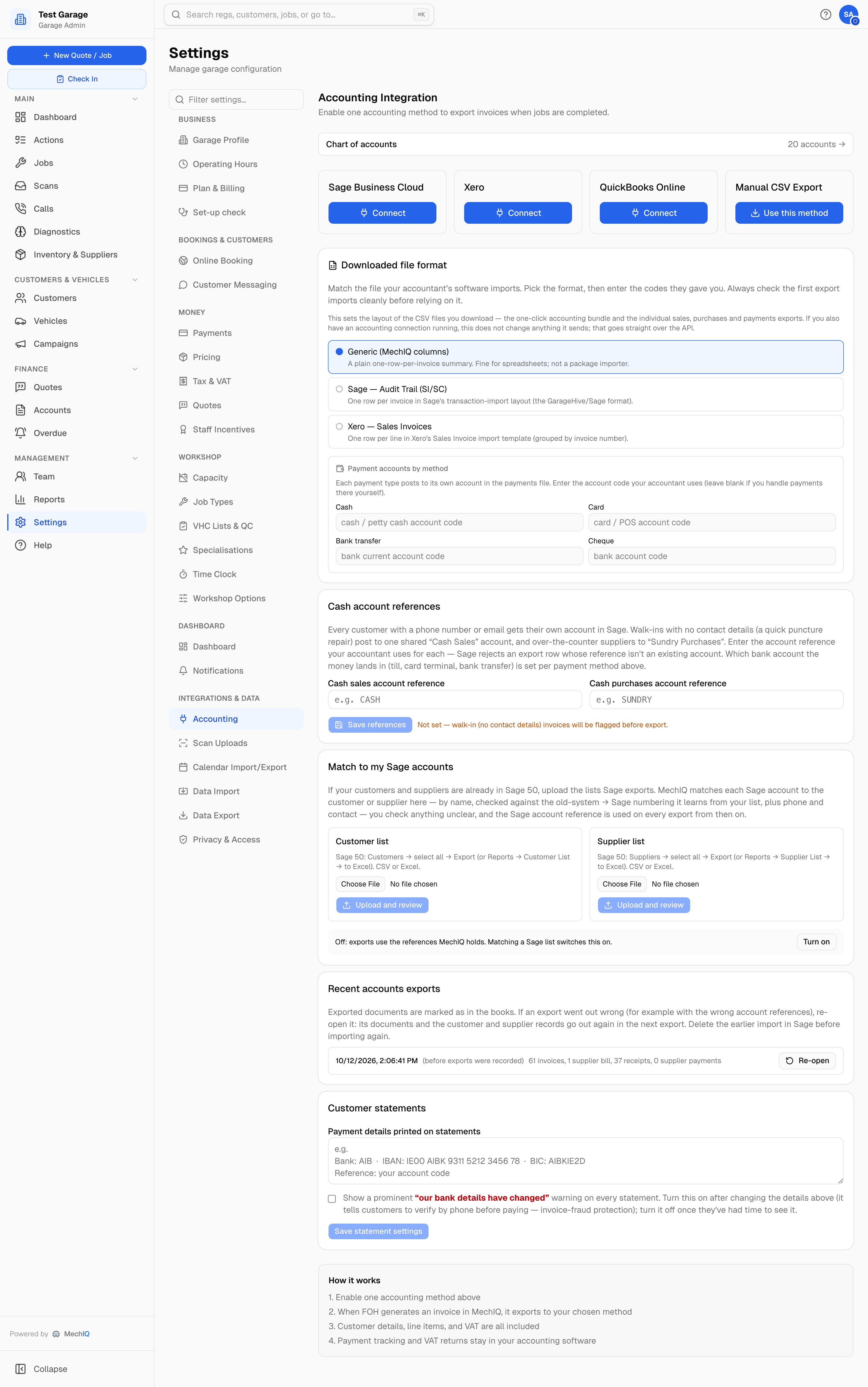
Four boxes sit under the heading: Sage Business Cloud, Xero, QuickBooks Online and Manual CSV Export. You use one at a time. Once one is active, the others read Disconnect active first.
Connecting a package
Press Connect on Sage, Xero or QuickBooks. You're sent to the package to sign in and pick the organisation or company, then brought back. The box then shows Connected to package and Account: business name.
Controls on a connected package:
- Auto-Export On / Off -- whether invoices are sent automatically. Pressing it does not switch it: the page says Not saved yet until you press Save changes. With it on, Push invoices decides when: When invoice is created, When invoice is paid, or Manual only (you export from the invoice list yourself).
- What we send to package -- Mark invoices paid, Send credit notes, the Default account — payments post here (pick the bank account in your package), an optional split of Cash / Card / Bank transfer / Cheque to different accounts, and Supplier purchases (cost of goods): Don't send, Cost note on invoices, or Post supplier bills. Each switch shows On or Off. Nothing here changes what is sent until you press Save changes at the bottom of the page. A payment whose payment type has no account chosen (and no default account) is not sent to a guessed account: it is held, with the reason (Held -- choose the Sage bank account for card payments), and goes by itself once you choose the account and save. If a saved account is no longer in your package (you connected a different company, or closed the account), the page says so and offers Remove it; MechIQ never clears it for you.
- With Mark invoices paid on, every payment reaches the package the day the money moves, from its own method's account -- the same money the export file carries. On Sage, money taken before there is an invoice (a deposit, a payment on account, the rest of an overpayment) goes in as a payment on account to the customer, and is allocated to the invoice when it is used -- never recorded twice. Sage Start takes no money on account and no supplier bills, and takes an invoice without its due date: MechIQ reads your plan and fits what it sends, and What we send to Sage lists what your plan changes (see Sage Business Cloud plans). Every refund -- a credit note paid back now, or a customer's credit paid back -- goes in once, as a customer refund against what it pays back (the credit note, or the money on account), after the credit note is in the package. Xero and QuickBooks record money on account only once it is applied to an invoice: a credit note paid back goes in as that note's refund, but a refund of account credit does not go -- record those in the package yourself.
- Customers and suppliers are found in the package by their account reference only -- the same C00001 / S00001 code the export file uses -- never by name or email. After the first document, MechIQ keeps the package's own id for the account and uses that. When the package has no account under that reference, MechIQ creates it there (name, email, phone, address, and the reference), then sends the document. A customer or supplier with no reference yet is given the next one first (for example
C00412), exactly as the export file does. Walk-ins with no contact details go to your Cash Sales account, and pay-now suppliers to your Cash Purchases account, found by the reference you set below (created once if the package doesn't have it yet). If the package refuses to create an account (for example the reference is already used by another account), the document is held with the package's own words under Held back on the Accounts page. Fix it, then Retry export. On Sage, an account reference can be at most 10 characters; a longer one is held with that reason, never cut short. Paid status is never read back from the package: an invoice is paid in MechIQ only when its money is recorded in MechIQ. - Customers and suppliers imported from your old system are held back on a Sage connection until you have done Match to my Sage accounts -- they are already in your Sage under references MechIQ doesn't know yet, so MechIQ never creates them a second time under a new reference. Settings → Accounting offers the match right after you connect Sage.
- Test Connection and Disconnect. Disconnecting stops the sync but keeps these settings, so reconnecting later doesn't mean starting over.
If the box says Token expired — click Test Connection or reconnect, the package has dropped the authorisation. Reconnect and any failed exports can be retried from the Accounts page.
Manual CSV export
Press Use this method on Manual CSV Export. Nothing to sign in to. From then on Export to accounts on the Accounts page (the Export tab) builds a ZIP your bookkeeper imports. The panels below appear inside the box.
Chart of accounts
The Chart of accounts row sits above the method boxes because it applies to every method. Every supplier bill -- parts, electricity, phones, postage -- is coded to one of these accounts and reaches your package under its nominal code.
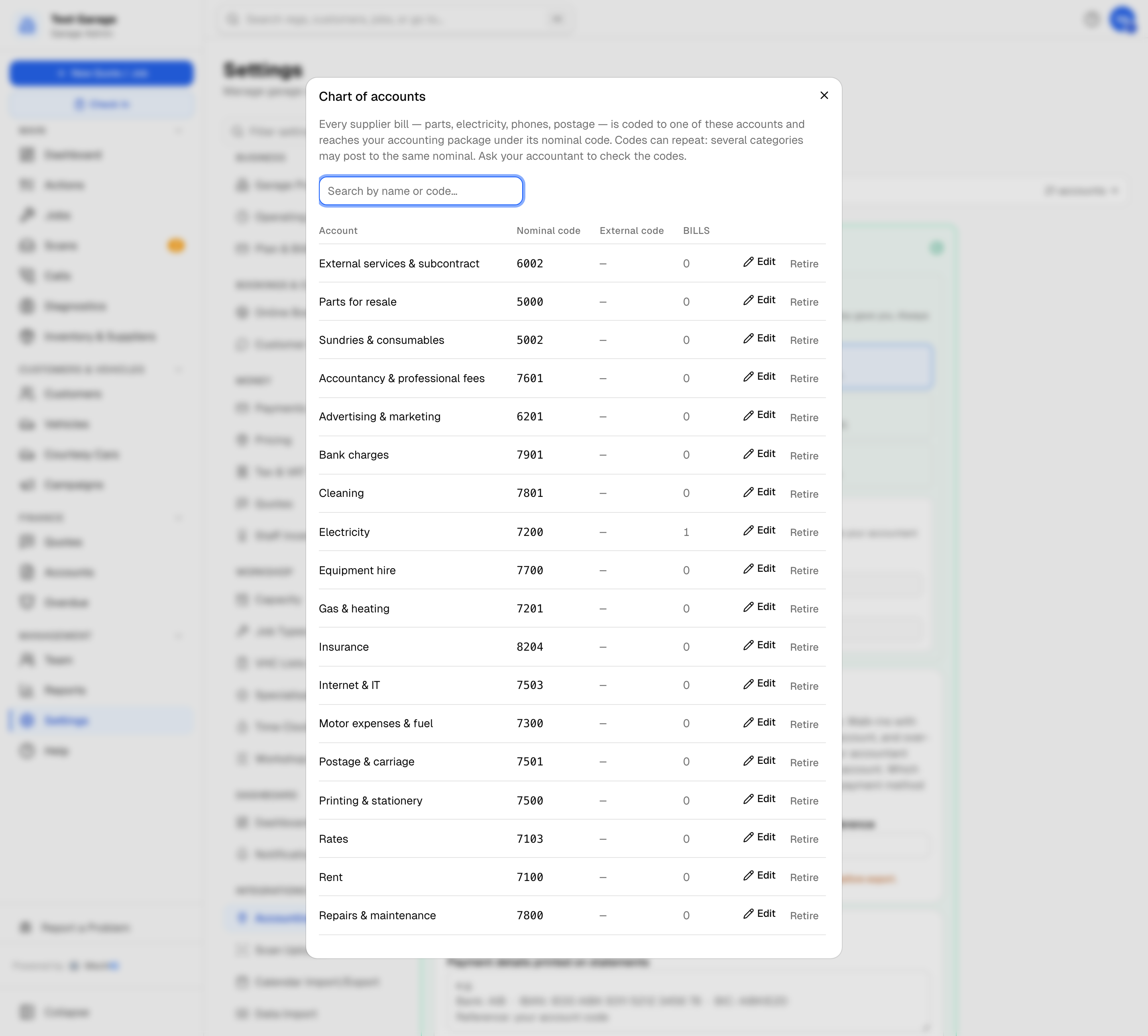
MechIQ starts you with the usual account names (Parts for resale, Electricity, Telephone & mobile and so on) so there is something to code a bill to. It does not fill in their nominal codes: each one reads Not set until you Edit the row and type the code your accountant uses. Importing your old system's chart, or connecting Sage, Xero or QuickBooks, fills in the codes those already hold. A bill coded to an account with no code is held back from the export, with the reason, until the account has one. A parts bill with no account of its own posts to the code on Parts for resale.
Click any of the Account, Nominal code or Old system no. headings to sort.
- Edit a row to change its name or codes, then Save on that row. Retire one you don't use; Restore brings it back. Both ask first (Retire Rent?) and then say what was done.
- Add account at the bottom -- a name and a nominal code.
- Nominal code -- the code your accounts package uses for the account. It is the only code that is ever exported, on supplier bills and on sales. If your package's code differs, change the nominal code itself.
- Old system no. -- your previous system's own number for the account, kept for reference only and never exported. A Garage Hive chart import fills it with Garage Hive's G/L No. (for example 4300 for Service - Tyre Sales), and puts the Sage nominal from the External System No. column into Nominal code.
- Bills -- how many bills are coded to that account.
- On a connected package, Refresh from Sage / Xero / QuickBooks reads the package's own chart and adds any accounts you're missing. Codes not in your package are flagged so you can fix them before a bill fails to import.
Codes can repeat -- several categories may post to the same nominal. Ask your accountant to check them.
Each supplier has a Usual account on their record, so their bills are coded without anyone choosing. See Suppliers.
Downloaded file format
The Downloaded file format card, below the method boxes. It sets the layout of the files you download, whichever method you use. Match the file your accountant's software imports:
- General (any package or a spreadsheet) -- for a bookkeeper whose package has no layout of its own here. One row for each invoice, nominal code and VAT rate, with the columns Type (Invoice or Credit note), Invoice number, Date, Customer, Account reference, Vehicle, Nominal code, VAT rate %, Tax code, Net, VAT and Gross. An invoice with labour at 13.5% and parts at 23% is two rows that add up to the invoice. A credit note's amounts are minus figures, so each column adds up to your sales. Payments are not in this file: each payment is its own row, with how it was paid, in the payments file.
- Sage — Audit Trail (SI/SC) -- Sage's transaction-import layout. Invoices go as SI, credit notes as SC, supplier bills as PI/PC, payments as SA. Expect more than one row per invoice: there is a row per nominal code and tax code, so a job with labour at 13.5% and parts at 23% produces a row for each band. They all carry the same invoice reference, which is how Sage groups them back into one transaction.
- Xero — Sales Invoices -- one row per line in Xero's Sales Invoice import template.
Choosing a format or typing a code saves nothing until you press Save changes at the bottom of the page.
Codes from your accountant (every format): the Labour, Parts and Default (fallback) nominal codes, an optional Department / tracking code, the Supplier discounts taken code, and the VAT rate → tax code table, with a row for each VAT rate your garage has. Every box starts empty. The grey text in a box (e.g. 4000) is an example, not a value: type the codes your accountant gave you. One bookkeeper's code for 23% is T1 and another's is T2, which is why MechIQ does not choose. The columns each format produces are listed under the card.
An export never guesses a code. If a file needs a code you have not set -- the nominal for a kind of sale, the tax code for a VAT rate on an invoice or a supplier bill, the code for a supplier discount -- the export stops before it writes anything, marks nothing as in your books, and names each missing code. The export dialog shows the same list before you press Export. Set them here, save, and export again.
Sales account for each kind of sale
Under the codes, type the account each kind of sale posts to: Labour, Diagnostic labour, Parts, Tyres (and tyre levies), Oils & fluids, Consumables / sundries, Sublet work, MOT / NCT and Charges and fees. The box suggests the income accounts in your chart of accounts and the codes your sales use now. These are saved with the rest of the page: Save changes in the bar at the bottom, or Discard.
MechIQ works out what each invoice line is:
- Tyres -- a part whose stock item is in a tyre category (including a Garage Hive item category or posting group), or whose part number or name is a tyre size such as 225/45R18. Tyre levies such as VEMC go with the tyres.
- Oils & fluids -- a part in an oil or fluids category. A part with no category whose name is clearly an oil or fluid (for example 5W30) counts too. Oil filters stay under parts.
- Consumables / sundries -- the consumables charge on the invoice.
- MOT / NCT -- a charge named like a test fee (CVRT test), or any charge on a CVRT, NCT or MOT job.
- Charges and fees -- any other charge you pass on (an environmental fee, for example). Not set, it posts with your parts.
- Diagnostic labour -- labour on a diagnostic job type, or labour described as a diagnosis.
- Parts and Labour -- everything else.
A credit note splits the same way as the invoice it credits. A discount comes off the line it was given on; a discount on the whole bill is shared over the lines pro-rata. An older discount that names no line (an account discount, for example) comes off its VAT rate and goes on the largest line at that rate, as your Sage 50 file has always posted it. The export file and a connected package post every discount the same way. A kind of sale you leave Not set uses your Labour, Parts or Default code above. If that one is empty too, an export with that kind of sale in it stops and names it.
The same codes reach a connected package. Sage, Xero and QuickBooks get each line on the same code as the export file: under What we send, the package's sales accounts are listed by these codes (4003 Tyre Sales), and MechIQ uses the package's account that carries the code, or the one you choose. A code with no account in the package holds the invoice with the reason (Held -- choose the Sage sales account for nominal code 4003).
When you import a Garage Hive chart of accounts, MechIQ fills these in from your sales account names (Service - Tyre Sales, Service - Parts Sales, Service - Oil & Fluids Sales and so on). Consumables go to the parts sales account unless your chart has its own consumables sales account. It never overwrites one you've already set.
Supplier bills work the same way. A bill on your general parts account (Parts for resale or Cost of Parts Sold, or no account) posts each line to the cost account for what it is. Tyres and tyre levies go to Cost of Tyres Sold, consumables to their cost account, and other parts stay on the parts account. A bill you, or the supplier's usual account, coded to anything else (Cost of Tyres Sold, Electricity...) posts whole to that account. The cost codes come from the same category map. A Garage Hive chart import fills them from your Cost of ... Sold accounts. A bill whose account has no nominal code is held back, in the export file and on a connected package alike (no nominal code): give the account its code in the chart of accounts and it goes with the next export or push.
On the Sage audit-trail file, lines that share an account and a tax code still make one row. A tyre job with labour and consumables, for example, gives 4003 T2 for the tyres and levy, 4000 T1 for the labour and 4001 T2 for the consumables.
Payment accounts by method
Each payment type posts to its own account in the payments file. Enter the bank or cash account code your accountant uses for Cash (till or petty cash), Card (POS or merchant clearing), Bank transfer (current account), Cheque and Other. They start empty and save with Save changes. The next export needs a code for every payment type its payments use (customer payments, refunds and supplier payments), whether or not you take that type at the desk now: a type you switched off but used still needs its code, and a type nobody paid by does not. Each type the next export needs is marked beside its box with how many payments use it (Needed: 3 payments in the next export when it has no code yet). An export with a payment of a type that has no account code stops, like any other missing code, and names the payment type with how many payments use it: a payment row with no account is a row with no nominal code, which Sage rejects. On a connected package Cash, Card, Bank transfer and Cheque are dropdowns of the package's real bank accounts, under What we send.
Cash account references
Every customer with a phone number or email gets their own account in your package, with a reference MechIQ assigns (C00001, C00002...) unless you've set one on the customer. Suppliers get S00001, S00002... The record files in every export keep those accounts in sync.
Two pooled accounts cover the exceptions:
- Cash sales account reference -- walk-ins recorded with no contact details at all (a quick puncture repair) post here as one shared "Cash Sales" account.
- Cash purchases account reference -- over-the-counter suppliers on 0-day terms post to one shared "Sundry Purchases" account.
Enter the reference your accountant uses for each (for example CASHSALES and CASHPURCH; in Sage at most 10 characters) and press Save changes at the bottom of the page (the card says Not saved yet until you do). Until they're set, the card says Not set and walk-in invoices are flagged before export, each one listed in the export dialog.
A customer called "CASH SALE" imported from Garage Hive works the same way: with no phone or email it posts to the cash sales reference above. If it has contact details it keeps its own imported reference (shown on the customer, under Edit → Accounting reference). To send it to the cash sales account instead, type the cash sales reference there.
Which bank account the money lands in (till, card terminal, bank transfer) is the payment-accounts setting above, not this one.
Match to my Sage accounts
For a garage whose customers and suppliers already exist in Sage 50 (for example after moving from Garage Hive). MechIQ uses your Sage account references instead of its own.
Check your old system first. Garage Hive keeps each customer's and supplier's accounts reference in External System No.. Import that (see Garage Hive data export — it comes from a Configuration Package, because Open in Excel leaves the field out) and those customers and suppliers already have their Sage reference: they export under it and are never held back. Matching a Sage list is the fallback for the ones your old system has no reference for. Applying a list later still lets Sage decide: a reference that isn't on your Sage list is taken off, as for any other customer or supplier.
Connected to Sage Business Cloud? There is nothing to export or upload. Right after you connect, the Sage box says Next: match to your Sage accounts (and the Accounts overview warns until it's done). In the Match to my Sage accounts card press Read from Sage and review under Customer list, then under Supplier list. MechIQ reads each list straight from Sage -- it changes nothing in Sage -- and the review and Apply Sage references below work exactly as for an upload. Until a list is matched, customers or suppliers brought in from your old system are held back from Sage, never created there a second time under a new reference (new customers and suppliers you add in MechIQ go across as normal). On a Sage Business Cloud connection this hold is on from the start; you can turn it off on the card.
- Export from Sage 50: your customer list and your supplier list, as CSV or Excel. MechIQ reads Sage's column names (
A/C,Name,Contact,Telephone, address and postcode columns) and skips any title rows above them. - Upload each list in the Match to my Sage accounts card and click Upload and review.
- Review. The counts show what MechIQ found:
- Confident (name + number) — the name matches and the Sage number fits how your Sage numbers follow the Garage Hive numbers. MechIQ learns that from the list itself and shows it above the results (for example
C00902–C01818 → SC + number,C01820–C03881 → SC + number + 5). - Matched by name (different number) — the name matches exactly one customer, but the reference is something else (often an older name code like
MCG001). Phone or contact name raise the confidence. - Placed by Sage number — no exact name match, but the learned numbering points at a customer whose name is close.
- Conflicts — the name and the Sage number point at two different customers. Pick the right one, or None of these — skip.
- Ambiguous — more than one customer with that name and nothing to tell them apart. Pick one, or skip.
- In Sage, not in MechIQ — left alone. Cash / pool accounts (e.g.
CAS001CASH SALE) keep the cash sales reference. Accept the suggestions picks MechIQ's suggestion for every conflict and ambiguous account that has one. Under Matched automatically you can untick any match that's wrong.
- Confident (name + number) — the name matches and the Sage number fits how your Sage numbers follow the Garage Hive numbers. MechIQ learns that from the list itself and shows it above the results (for example
- Apply Sage references. Matched customers and suppliers take their Sage reference (replacing the one MechIQ gave them). Every change is recorded.
Applying a list switches on export imported customers and suppliers only under their Sage reference (shown on the card, with Turn off / Turn on -- a change you make there is saved with Save changes, like the rest of the page). Your Sage list is then taken as the complete set of your Sage accounts:
- A customer or supplier not on the list isn't in Sage yet. The first time one of their invoices, bills or payments is exported they get the next number in your Sage series (for example
SC004189), and their record goes in the customer or supplier records file so Sage creates the account. The same goes for new customers and suppliers you create in MechIQ. - A customer or supplier you left unpicked in the review is held back from exports (and listed in the export preview) until you upload the list again and pick.
- While the setting is on, imported customers or suppliers whose list you haven't uploaded yet (for example, you've matched customers but not suppliers) are all held back until you do — except the ones that got their reference from External System No. in your old system.
- The customer and supplier record files carry every account with activity in that export (an invoice, credit note, bill or payment), under its Sage reference. An account with no activity isn't sent, so matching a list never re-sends all your accounts.
Uploading the same list again is safe: anything already matched shows as already set and nothing changes.
Re-open an export
Recent accounts exports lists your last exports. If one went out wrong — for example with MechIQ's references before you matched your Sage accounts — click Re-open. Its invoices, supplier bills and payments are included again in your next export, and so are the customer and supplier record files. Delete the earlier import in Sage first (or don't import that file), or they'll be in the books twice. An export can't be re-opened if any of it was also sent through a live Sage, Xero or QuickBooks connection.
Customer statements
Your bank details print on invoices and statements. You set them once, in Settings → Payments → Your bank details (with the "our bank details have changed" warning). See Payments.
When an API provider (Sage, Xero or QuickBooks) is connected, the payment accounts by method are set in What we send to
Sending statements is done from Customers → Outstanding Balances → Send statements… (also on Reports → Customers). See Customer statements.
Who can change what
Only a garage admin sees this tab. Front of house can see the export status on the Accounts page and run the export, but can't change the method, codes or references.
Related
- Sage Business Cloud plans: what MechIQ can post -- what Sage Start, Standard and Plus take
- The Accounts page -- where the export button is
- How MechIQ handles VAT and your accounts
- Supplier invoices