Payments
How your garage takes money lives on one tab: Settings → Payments (garage admin only). MechIQ doesn't process or move money itself — it records how each customer paid and, where useful, shows them where to pay. You keep your own payment rails.
 Settings → Payments. Changes are saved with the sticky Save bar at the bottom of the page.
Card payments
Card Payment Method — how card payment is handled at checkout:
- Manual terminal (default) — FOH takes payment on your own card machine and confirms it in MechIQ.
- Payment link — customers pay by link at checkout and from invoice messages. Which link, and whether MechIQ can see it being paid, depends on the provider you choose under How customers pay you online below.
Card reader at the desk — FOH keys the amount into your own reader and confirms the payment in MechIQ. Pushing the charge to a SumUp or Square reader so the reader confirms it is not built; most garages take cards on a bank-supplied terminal without an API.
Checkout options
These choices make ONE method list: checkout (web and app), the cancel-job checkout and Take payment all show the same methods -- Card, Cash, Bank transfer, Cheque, plus Put on account for account customers and Pay later at checkout. A method you switch off is off everywhere.
- Accept Cash Payments — on by default. Untick it and Cash disappears from every payment list.
- Accept cheques — on by default. Untick it and Cheque is not offered at checkout, for a deposit or for a refund.
- There is no card surcharge: surcharging consumer cards is restricted in Ireland and the UK, and MechIQ never charges or records one.
- Bank Transfer — tick Accept bank transfer so FOH can record payments made straight into your account. MechIQ doesn't move or check the transfer; it records the payment once FOH confirms it landed.
- Your bank details — printed on invoices and statements — account name, IBAN, BIC (free text, one item per line). This is the one place for them: the same lines print on customer invoices and on statements. Leave it empty to print none. Tick Show a prominent "our bank details have changed" warning after you change them -- it tells customers to check by phone before they pay (the standard defence against invoice fraud). Turn it off when customers have seen it. Save changes on the bar saves both.
- Pay-later reminders — FOH can always leave an invoice unpaid at checkout ("Pay later"). The automatic payment reminder is a customer message, so it is set with the other messages on Settings → Messages → What your customers receive: on/off, the number of days and the wording. Unpaid invoices show on Customers → Outstanding Balances until paid.
How customers pay you online
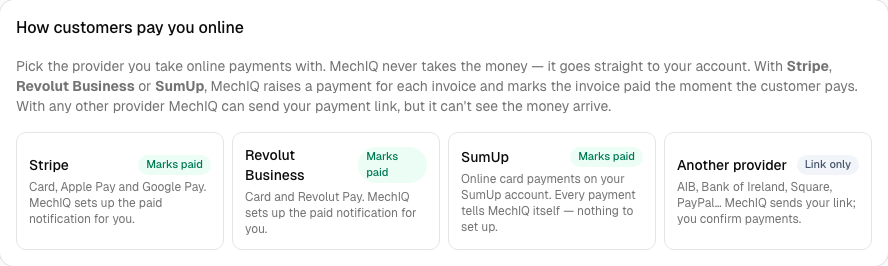
Pick the provider you take online payments with. MechIQ never takes the money -- it goes straight to your own account. What MechIQ can do depends on the provider:
| Provider | Pay link on every invoice | Marks the invoice paid itself | Online-booking deposits |
|---|---|---|---|
| Stripe | Yes -- one per invoice | Yes | Yes |
| Revolut Business | Yes -- one per invoice | Yes | Yes |
| SumUp | Yes -- one per invoice | Yes | Yes |
| AIB Merchant Services (Authipay) -- once AIBMS switches Connect on for your store | Yes -- one per invoice | Yes | Yes |
| Another provider (Bank of Ireland, Square, PayPal, anything else -- or AIBMS before Connect is on) | Your one link, sent with every unpaid invoice | No -- FOH records the payment | No |
With Stripe, Revolut Business, SumUp or AIB Merchant Services, MechIQ raises a payment for each invoice, and the provider tells MechIQ the moment the customer pays -- nobody has to check the bank and tick the invoice. With any other provider MechIQ can only send your link: the link doesn't say which invoice it's for, and those providers don't tell MechIQ when it's paid.
The pay link is only offered on invoices when Card Payment Method (above) is set to Payment link -- if it isn't, the page shows Switch to Payment link.
When MechIQ can't mark an invoice paid
There are two different reasons, and they need different fixes:
- It isn't possible with that provider. Bank of Ireland, Square, PayPal and other link-only providers don't tell anyone when a link is paid, and their link isn't tied to an invoice. Nothing on your side changes that. When the money lands, FOH records it with Take payment (see below). If the customer's payment carries the invoice number as its reference, matching it takes seconds.
- It's possible, but it isn't set up yet, or has stopped working. With Stripe, Revolut Business, SumUp or AIB Merchant Services, MechIQ needs two things: a key (or for AIBMS, the Store Name and Shared Secret) to raise a payment for each invoice, and paid notifications so the provider can tell MechIQ when the customer pays.
- No key yet (provider picked, never connected): there's no per-invoice payment to raise. If you still have a plain payment link saved from Another provider, invoices carry that instead, and FOH records the payment when it lands. With no link saved, invoices go out without one, and FOH takes the card at the desk and marks it paid as usual.
- Key works, but paid notifications don't: the customer can pay and the money reaches your account, but MechIQ never hears, so the invoice stays unpaid until FOH records it. This is the one to watch for. Click Test connection (Stripe) or Connect again, and look for the Paid notifications tick. For AIBMS, check Allow URLs to be overwritten (step 4 above) and make a small test payment.
- The provider is down when a link is needed: the invoice message still goes out, with your saved plain link if you have one, otherwise without a link. FOH records the payment.
In every case nothing is lost: an unpaid invoice stays on Accounts → Invoices and in Outstanding, and the payment can always be recorded by hand.
Stripe
- Click Stripe.
- In your Stripe Dashboard open Developers → API keys and click Create restricted key. Name it "MechIQ".
- Set Checkout Sessions to Write and Webhook Endpoints to Write. Leave everything else as None.
- Create the key, copy it (it starts
rk_live_) and paste it into Restricted key in MechIQ. (A full secret key,sk_live_…, also works.) - Click Save in the bar at the bottom, then Connect.
Connect checks the key and creates the paid-notification webhook on your Stripe account for you -- you don't visit Stripe's webhook settings. The result shows two ticks: Key and Paid notifications.
If MechIQ can't create the webhook (usually because the key doesn't have Webhook Endpoints: Write), the page shows the steps to do it yourself: in Stripe open Developers → Webhooks → Add endpoint, paste the Endpoint URL MechIQ shows (there's a Copy button), select only the checkout.session.completed event, add the endpoint, then click Reveal under Signing secret and paste it (whsec_…) into MechIQ. Save, then Test connection.
Revolut Business
- Click Revolut Business.
- In Revolut Business on the web open Merchant → APIs → Merchant API and copy the Production Secret key.
- Paste it into Merchant API secret key in MechIQ. (Testing with a Revolut sandbox account? Tick Sandbox account.)
- Click Save, then Connect. MechIQ checks the key and creates the paid-notification webhook on your Revolut account.
If the webhook can't be created, check you pasted the Merchant API secret key (not a Business API key), save it, and click Connect again.
SumUp
- Click SumUp.
- In your SumUp dashboard (me.sumup.com) open Settings → API keys, create a key named "MechIQ" and copy it.
- Copy your merchant code from your SumUp profile / account page.
- Paste both into MechIQ (API key and Merchant code), click Save, then Connect.
There's nothing else to set up: every SumUp payment MechIQ raises carries its own notification address, and MechIQ checks each payment with SumUp before marking the invoice paid.
AIB Merchant Services (Authipay)
MechIQ uses Authipay Connect -- AIBMS's secure payment page. The customer's pay link first shows what they are paying on your page -- the amount, the invoice and your garage name -- and goes to AIBMS only when they tap Pay €X. It needs no API account, just two things from AIBMS. First ask AIBMS (Authipay support):
- "Please enable Connect (the hosted payment page) on our Authipay store."
- "Please send us the Shared Secret for Connect on our store."
- "What is the live (production) Connect URL for our store?"
Then:
- Click AIB Merchant Services.
- Enter your Store Name -- the store ID you sign in to the Authipay Virtual Terminal with -- and the Shared Secret from AIBMS.
- Choose Live and paste the Live Connect URL AIBMS gave you. (Want to try it first? Choose Test -- that uses Authipay's test system, and needs a test store from AIBMS.)
- In the Authipay Virtual Terminal open Customisation → Define the URLs for the integration with your online store and tick Allow URLs to be overwritten by those in the transaction request (or leave the Transaction Notification URL there empty). Each payment MechIQ raises tells Authipay where to send its result; if your store has its own address set and this isn't ticked, MechIQ never hears the payment.
- Click Save, then Connect.
Connect checks the details are complete, but Authipay can't check a Shared Secret without a payment -- so make one small payment on a test invoice to prove it end to end.
When FOH sends a pay link, the customer opens a MechIQ page that hands them straight on to AIBMS's secure payment page for exactly what that invoice owes, with the invoice number on the payment. When they pay, Authipay tells MechIQ and the invoice is marked paid -- no logging in to the portal to make a link, and no morning check. The same works for online-booking deposits.
Another provider (payment link only)
Click Another provider and paste Your payment link -- the page your customers pay on (for example a Bank of Ireland pay-by-link, a Square or PayPal link, or an AIBMS link you make by hand before Connect is on). MechIQ sends it with every unpaid invoice.
MechIQ can't see these payments arrive. When the money lands, FOH records it with Take payment… on the invoice under Accounts → Invoices; the Customers owe you tile on Accounts → Overview opens every invoice still owed. Online-booking deposits need Stripe, Revolut Business, SumUp or AIB Merchant Services.
Still making AIBMS links by hand in the Virtual Terminal? Type the MechIQ invoice number (for example INV-0123) in the link's Order number field. Your Authipay reports then show which invoice was paid, so FOH can record it in seconds.
Keys and switching provider
Keys are write-only: MechIQ only ever shows whether a key is stored, never the key itself. Replace key lets you enter a new one; a blank field never wipes a stored key. Choosing a different provider starts that provider with no keys -- the old provider's key is never carried over.
Deposit for online bookings
Below your payment account, Deposit for online bookings asks a customer who books on your booking page to pay a deposit (a flat amount inc VAT, default €100). A paid deposit confirms the booking in full. It is paid on the connected account above, which is why it is set here; Online Booking shows whether it is on and links back. It waits for the Save bar like every other setting.
Deposits on jobs (not online)
FOH can take a deposit on any job at the desk -- from the job's Money summary or Money tab, or the Deposit taken box when booking. There's nothing to switch on. See Taking a deposit. Asking for a deposit at online booking is a setting under Online Booking.
Tips
- Bank transfer suits trade and account customers who settle by transfer — your IBAN on the invoice means they don't have to ask for it.
- These settings drive which buttons FOH sees at checkout — see the FOH "Invoicing & checkout" article.