Accounts
Accounts (under Finance in the sidebar) is the one home for money and the books. The Overview tab shows what matters at a glance. The documents are on the tabs beneath. The export to your books is on the Export tab. At the top right of the Overview, Add supplier invoice brings in a supplier invoice or credit note -- from a PDF or photo on your computer, or typed in by hand (see Supplier invoices). Cash-up is beside it.
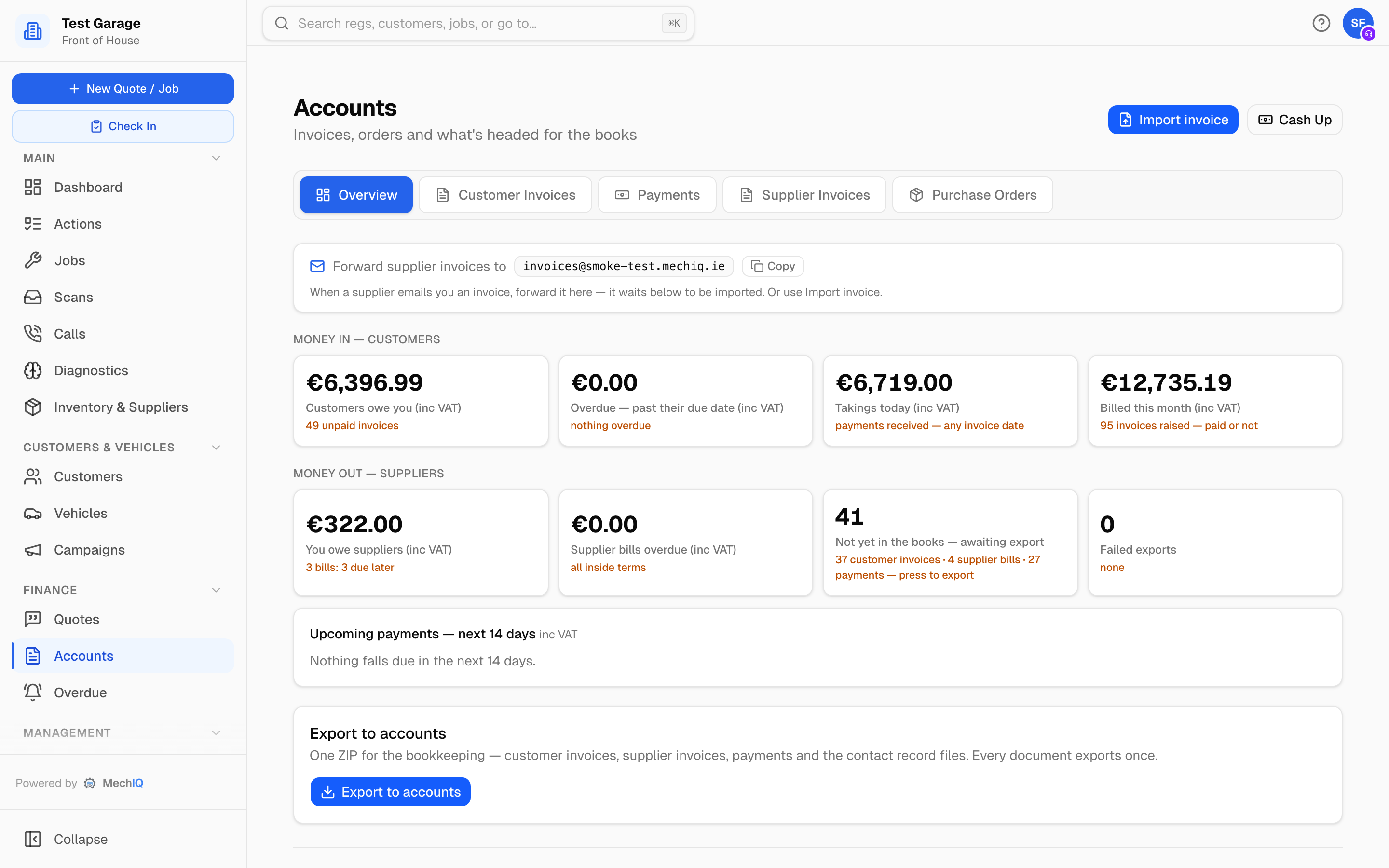 Accounts -> Overview. Every tile says whose money it is and clicks through to the place you act on it.
The tabs
- Overview -- the summary below.
- Invoices -- every invoice and credit note you have raised.
- Payments -- every payment received. See Taking a payment.
- Supplier invoices -- the bills from your suppliers. See Supplier invoices.
- Purchase orders -- the record of every order sent to a supplier. It is read only: you order parts from the job's Order parts box or the Order basket, and you receive deliveries in Inventory -> On order. See Supplier Orders, Receiving and Bills.
- Export -- the month-end check and the one export to your books (below).
The Cash-up button at the top right runs the end-of-day reconciliation. See End-of-Day Cash-Up.
Overview
Every money tile is inc VAT and says so. Every tile opens the list behind its number, already filtered. A bar above the list names the filter and gives the count, which matches the tile. Show all takes the filter off.
Money in -- customers
- Customers owe you -- the total outstanding and the number of unpaid invoices. Opens Invoices filtered to Outstanding.
- Overdue -- past their due date -- the part of that money that is late. Opens Invoices filtered to Overdue. The Overdue page still has the same invoices grouped by how late they are.
- Takings today -- payments received today, whatever the invoice date (inc VAT, any method, less refunds paid out). Opens the Payments tab showing today's payments and their total.
- Billed this month -- invoices raised this month, paid or not. Opens Invoices filtered to Billed this month.
Money out -- suppliers
- You owe suppliers -- unpaid supplier bills, split into overdue, due within 14 days and due later. Opens Supplier invoices showing only the unpaid bills.
- Supplier bills overdue -- bills past their due date. Opens Supplier invoices showing only the overdue bills.
- Not yet in the books -- awaiting export -- documents recorded in MechIQ but not yet handed to your accounting package. Opens the Export tab with the export preview, which counts the same customer invoices, credit notes and supplier invoices.
- Failed exports -- invoices whose last export attempt failed. Opens Invoices filtered to the failed ones, so you can retry them.
Each bill under Upcoming payments opens Supplier invoices with that bill highlighted.
Upcoming payments -- next 14 days lists supplier bills falling due, with the supplier, invoice number, how long until it is due (due today, due tomorrow, due in 9 days) and the amount. It shows the six closest; a + N more -- see Supplier invoices line covers the rest.
Export
The Export tab has three parts: the month-end check, the export, and the export history.
Each document's state with your books
Every invoice, credit note, payment and supplier invoice shows one state with your books. The same words show on the Invoices, Payments and Supplier invoices lists and on the month-end check:
- In your books -- your accounting package has it.
- Not in your books yet -- it goes in the next export (or the next push to Sage, Xero or QuickBooks).
- Didn't reach your books -- the push failed. Hover over the badge to see why. Fix the cause, then retry.
- Needs an Accounts reference -- the document is held back until something is fixed: the customer or supplier was imported from your old system and isn't matched to its Sage account yet (Match to my Sage accounts), the cash sales or cash purchases reference isn't set, or your package refused to create the account (its own reason is shown). Fix it, then Retry export. A customer or supplier simply missing from a connected package is not held: MechIQ creates the account there under its reference.
- Changed after sending -- your books carry other figures than the document (the package recorded it at other figures, or an invoice a write-off rewrote before 16 November 2026). A garage admin voids it in the package and presses Send again: MechIQ reads the package first and sends it again only once the old copy is voided (see Sage plans).
Month end
Pick a month (the last month is shown first). The check shows, for that month, how many invoices, credit notes, payments received, supplier invoices and supplier payments there are, their net, VAT and gross, and how many are in your books. The headline says All in your books, or how many documents are not. Each document that is not in your books is listed with its state and the reason. Export
Export to accounts
One ZIP for the bookkeeping: customer invoices and credit notes, supplier invoices, payments received, payments to suppliers, and the record files for the customers and suppliers in this export. Choose what goes:
- Everything not in your books yet (the usual choice).
- Dates -- type a From and a To date. Only the documents dated in that range that are not in your books yet go.
Every document exports once. After a download it is marked as in your books and is not included again, so save the file. (If an export went out wrong, a garage admin can re-open it -- see Accounting settings.) A payment that no earlier ZIP carried goes in the next one, whatever month it was dated.
Click Export to accounts. The confirm dialog says which documents go and counts them (Customer invoices, Supplier invoices, Payments received, Supplier payments, discounts & refunds). It warns about anything your accounting package would reject: a VAT rate with no tax code, walk-in invoices while the cash sales reference is not set, supplier bills held back because a field is missing, or documents held back until their customer or supplier has an Accounts reference. Each one is listed with the reason and a link to fix it. Fix those, then Export.
If the garage is connected to Sage, Xero or QuickBooks with auto-export on, you seldom need the export. By default an invoice is pushed when it is raised, not when it is paid, and the payment is pushed separately when it settles. A garage admin can change the invoice push to on-payment, or to manual, in Settings -> Accounting.
Export History lists recent exports, manual and automatic, with any error. The parallel-run workbook below it is a comparison file only. It never marks anything as in your books.
Invoices
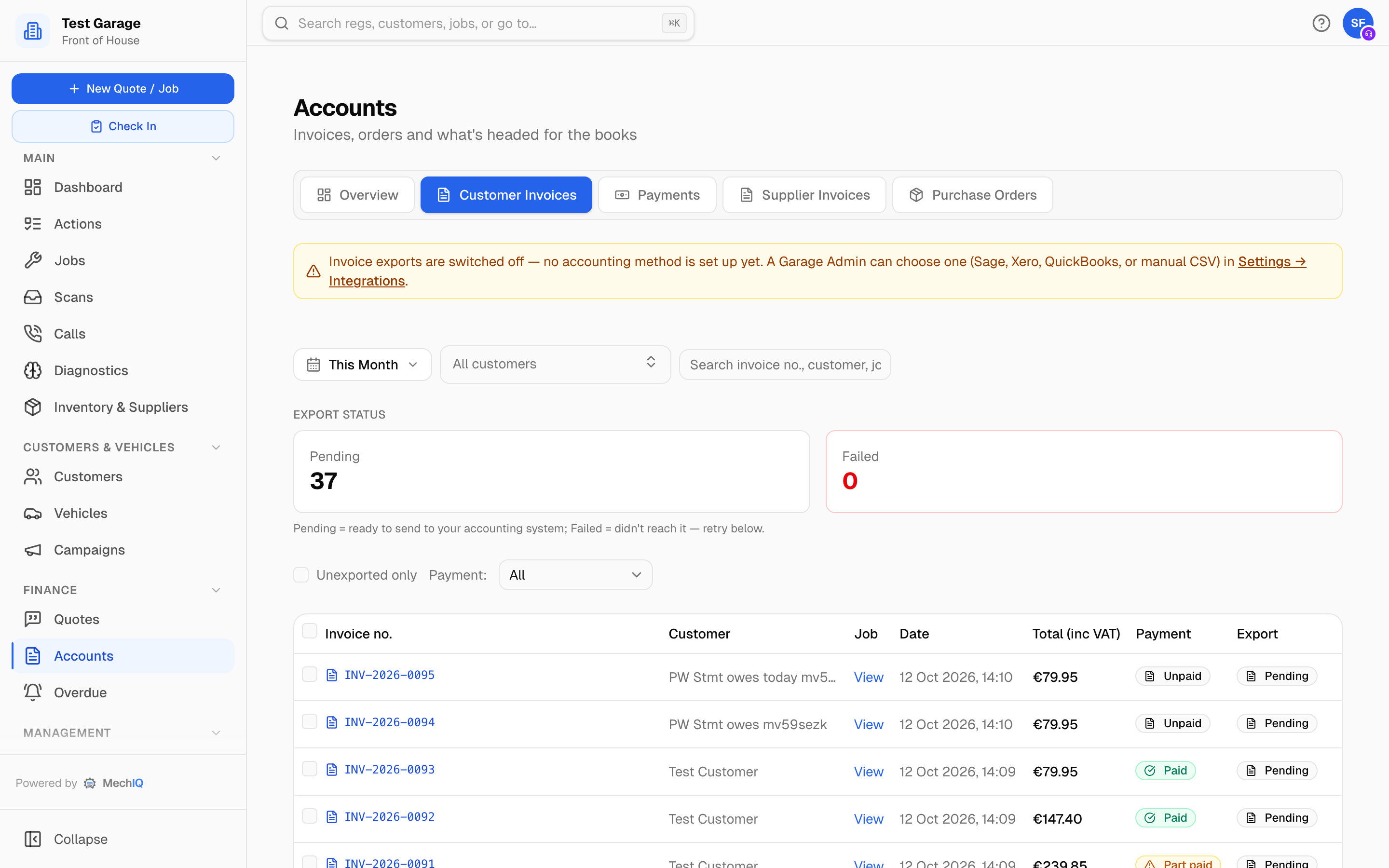 Invoices. Filter by date, customer and payment status; each row has an actions menu.
Filters along the top: a date range (defaults to This Month, which is a rolling month back from today rather than the calendar month -- pick Custom if you need the calendar month exactly), All Customers, an Unexported only box, and Payment (All, Outstanding, Overdue, Billed this month, Owed, Part paid, Pay later, On account, Paid, Written off, Credited, Credit notes). The Export Status tiles -- Pending and Failed -- filter the list when clicked. A search box finds an invoice or credit note by number, customer or job number -- across every invoice, not just the ones on screen -- and All Customers is a searchable picker that reaches every customer. The list shows 200 at a time; Show more loads the next 200. The Pending and Failed tile numbers count every invoice, not just the ones listed.
Each row shows the invoice number, customer (or the second payer on a split invoice), a View link to the job, the date, Total (inc VAT), the Payment badge (Owed, Part paid, Pay later, On account, Paid, Written off or Credited -- the one status every screen shows (see Invoicing and Checkout)) and the Books badge (one of the five states above). Split invoices carry 1/2 and 2/2; a credit note sits indented under the invoice it credits with a Credit note badge.
Click an invoice number to preview the PDF in place, with Download and Open in new tab.
The ... menu at the end of a row offers, depending on the invoice:
- View invoice and Open job. A paid invoice opens as View receipt, a credit note as View credit note.
- Take payment… -- opens the one payment screen on that invoice, ticked at what it still owes. Pick the method, then pay it in full, pay part, write off the rest (with a reason -- its own credit note, INV-...-WO), or tick more of the customer's invoices for one payment across several. Confirm the summary. Nothing is recorded on the click alone. See Taking a payment.
- Send statement of what's owed -- any customer with money outstanding. See Customer statements.
- Raise credit note. See Credit notes and refunds.
A paid invoice whose export is pending or failed has an Export / Retry export button on the row. Failed exports are also listed under Export Errors, each as the invoice number and the error the provider gave back. If the connection has expired, a red banner above the table says so -- a garage admin needs to reconnect in Settings -> Accounting before retrying is worth anything.
Tick rows and click Export Selected (N) to download a CSV of just those invoices. It works whether or not an accounting method is set up -- the CSV is a plain file either way -- and already-exported invoices are skipped. Export History is on the Export tab.
Related: Invoicing and Checkout · Chasing overdue money · Supplier Orders, Receiving and Bills