Supplier invoices
Accounts → Supplier invoices lists every supplier bill and credit note MechIQ knows about, whether it arrived by scan, by receiving an order, or by typing it in. It's the money-out side of the books.
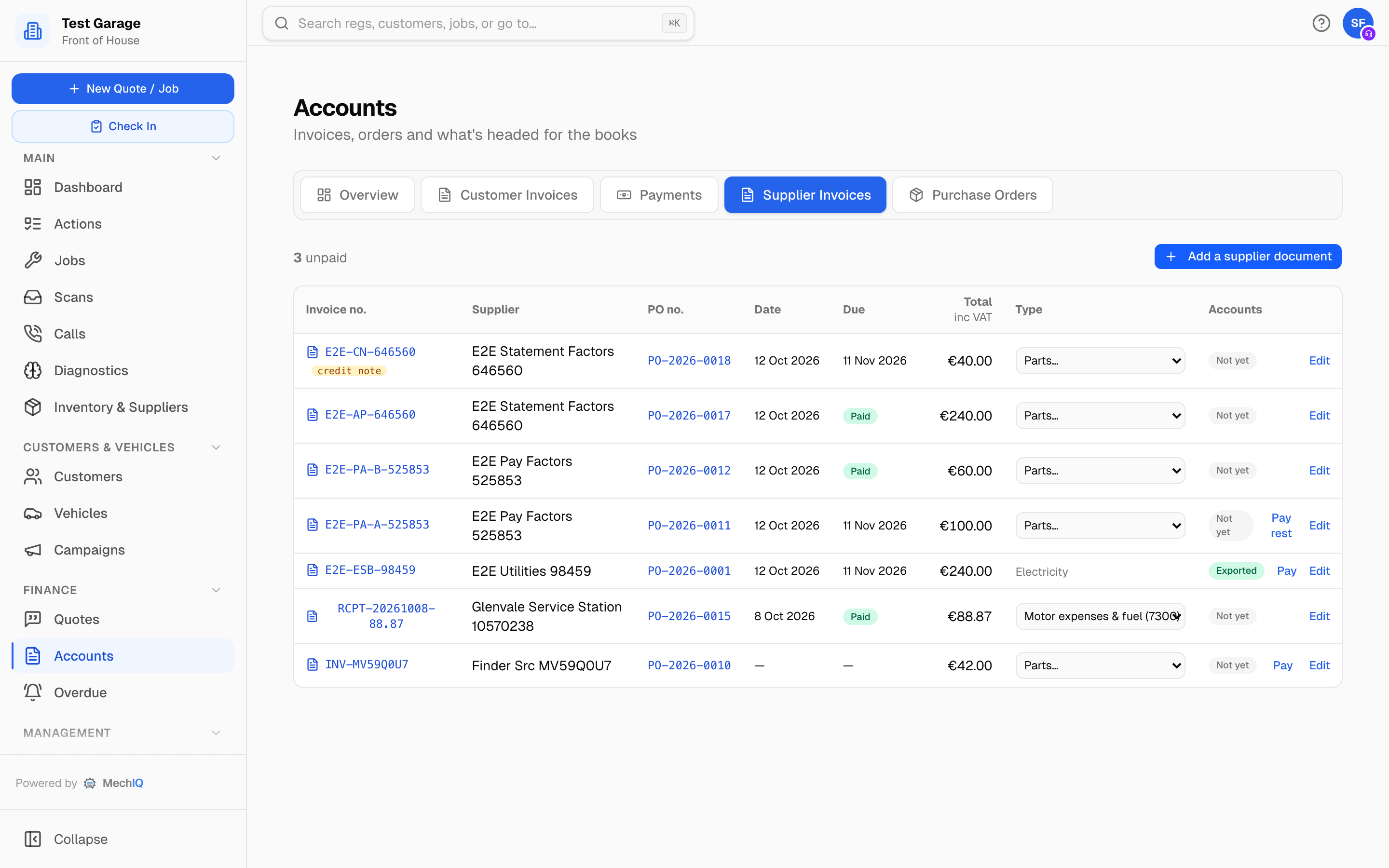
Reading the list
The header says how many are unpaid, how many are overdue, and how many are due within 7 days.
| Column | What it shows |
|---|---|
| Invoice no. | Click it to see the document -- the scanned photo if there is one. A credit note pill marks credits. |
| Supplier | Who it came from. |
| PO no. | The purchase order it belongs to. Click it for the PO document. |
| Date | The invoice date. |
| Due | Worked out from the supplier's payment terms: Paid, Overdue date in red, Due date in amber. |
| Total | Including VAT (the heading says inc VAT). |
| Type | The chart-of-accounts line the bill is coded to. Until the bill is exported you can change it here -- Parts for resale, Electricity, External services. After export it's fixed. |
| Accounts | Exported once it has reached your bookkeeping, otherwise Not yet. |
There are no filters on this tab. For one supplier's bills, use their statement.
Adding a supplier invoice
Every supplier invoice or credit note that has no order behind it goes in through ONE button: Add supplier invoice (here, and at the top of the Accounts Overview -- the same screen). The electricity bill, a subcontractor's invoice, a till receipt, a credit note the supplier emailed, a walk-in purchase.
- Choose the invoice file (a PDF or photo) and MechIQ reads it -- or click Type it in instead for a paper document with no file. If the read fails (the photo is unclear, or reading is switched off), the screen says We couldn't read this document and the same form opens to type it in. Nothing is a dead end.
- Supplier -- recognised from the document, or pick one on file.
- Invoice number and Invoice date (day first: dd/mm/yyyy) -- as printed. Tick Credit note for a credit.
- VAT on the document and Total on the document (inc VAT) -- the two figures printed at the foot of the document. The bill is for that total, and carries that VAT.
- Lines -- Description, Part number (only for stock), Qty, Unit price (ex VAT) and VAT %. Add line for more; × takes a line off. Quantities can be decimal: 4.5 litres of oil is entered as 4.5.
- Below the lines, MechIQ shows Net, VAT and Owed -- worked out the same way they are saved. If the lines' VAT is a cent away from the document's (suppliers round per line), the document's figure is used and the screen says includes €0.01 rounding to match the document. If the lines don't add up to the document at all, a red note says so: check for a misread figure or a missing line. The bill is still recorded at the document's total, and is held back from your accounts until the two agree.
- What is this for? -- Stock, A job, or Expense (nothing goes on a shelf). Account is where the bill is coded -- blank uses the supplier's usual account.
- Record supplier invoice, Record expense, or Record credit note.
Where are these parts? A supplier invoice is a money document. For stock or a job, the form asks where its parts are:
- Received now -- they are here: bought at the counter, or delivered with this invoice. They are received into stock (or to the job) as you record the invoice.
- Received earlier -- delivery PO-…: they came in on a delivery you already received in Inventory → On order. The invoice is recorded on that delivery. Nothing is received a second time. When no delivery from that supplier waits for its invoice, the form says so.
- Still to come -- the invoice is recorded, and its parts wait in Inventory → On order. Receive them there when they arrive.
A bill you tick Paid at the till starts on Received now, because you paid for parts in your hand. Any other bill starts on Still to come. You can change the choice before you record. The message after you record says what happened to the parts. On the phone app, Scan invoice asks the same question.
A bill with no order gets no PO number -- no purchase order was raised for it, so none is shown. It doesn't appear on the Purchase Orders tab.
Enter a credit note with positive figures -- MechIQ applies it as a credit against what you owe that supplier. Give a Part number for anything that goes on the shelf so it lands on the right catalogue part; leave it blank for a service or a utility -- the line is still recorded against the bill.
Correcting a bill
Edit on a bill corrects its supplier, number, date, total and the VAT printed on it. The bill's status follows at once: correct the total down to what you have already paid and it shows Paid -- never Part paid with nothing outstanding.
Paying a supplier
Click Pay on an unpaid bill (Pay rest on one that's part paid). The payment screen opens with that bill ticked and the supplier's other open bills listed, so one transfer can cover several bills. You can part pay, take a settlement discount, or pay more and hold the rest on account. Refunds from a supplier are recorded from their statement. See Paying suppliers.
Paid bills show Paid in the Due column. Credit notes that have been used or refunded show Applied.
Getting bills into the books
- Manual CSV export -- every bill that isn't yet exported goes into the next Export to accounts ZIP from the Accounts Overview, coded to its Type account. A bill on your general parts account is split by what each line is -- tyres to Cost of Tyres Sold, consumables to their cost account, other parts staying on parts (see Accounting settings). A bill with no invoice date or no supplier account is held back and listed in the export dialog until you fix it. See The Accounts page.
- Connected package (Sage, Xero, QuickBooks) with Post supplier bills switched on -- the bill posts when you receive the order (Received & Post to provider) or later from the order (Post bill to provider). A Bill posted badge shows on the order. A bill only ever posts once.
Related
- Scanning a supplier invoice
- Purchase orders and receiving
- Accounting settings -- the chart of accounts and export codes