Scanning a supplier invoice
The fastest way to book parts in is to photograph the invoice that came with them. MechIQ reads it, matches it to the open order, and shows you where the two disagree. If there was no order -- a counter purchase, a van drop -- the same scan becomes the purchase record. A till receipt -- diesel for the van, gloves from the hardware shop -- is recorded as an expense that's already paid (see Scanning a receipt).
There are three ways in, and they all lead to the same screens:
- On the phone: Scan Invoice or Receipt from the mobile home screen, or search for Scan a supplier invoice. Nothing to photograph? Type it in instead (under the camera button in the native app) opens the same form empty.
- On the desk: Accounts → Add supplier invoice (top right of the Overview, and on the Supplier Invoices tab -- the same screen). Choose the PDF the supplier sent, or a photo of the paper invoice -- or Type it in instead.
- By email: forward it to your garage's invoices address -- see Invoices that arrive by email below.
You receive deliveries in Inventory → On order. Scan supplier invoice there matches a photo against an open order only: an invoice with nothing to match is refused there. Use Add supplier invoice for one nobody ordered. Scan supplier invoice reads the invoice and opens the same receive screen as the order, with the invoice's quantities filled in. Check each line, the shelf and the price, then receive. See Purchase orders and receiving.
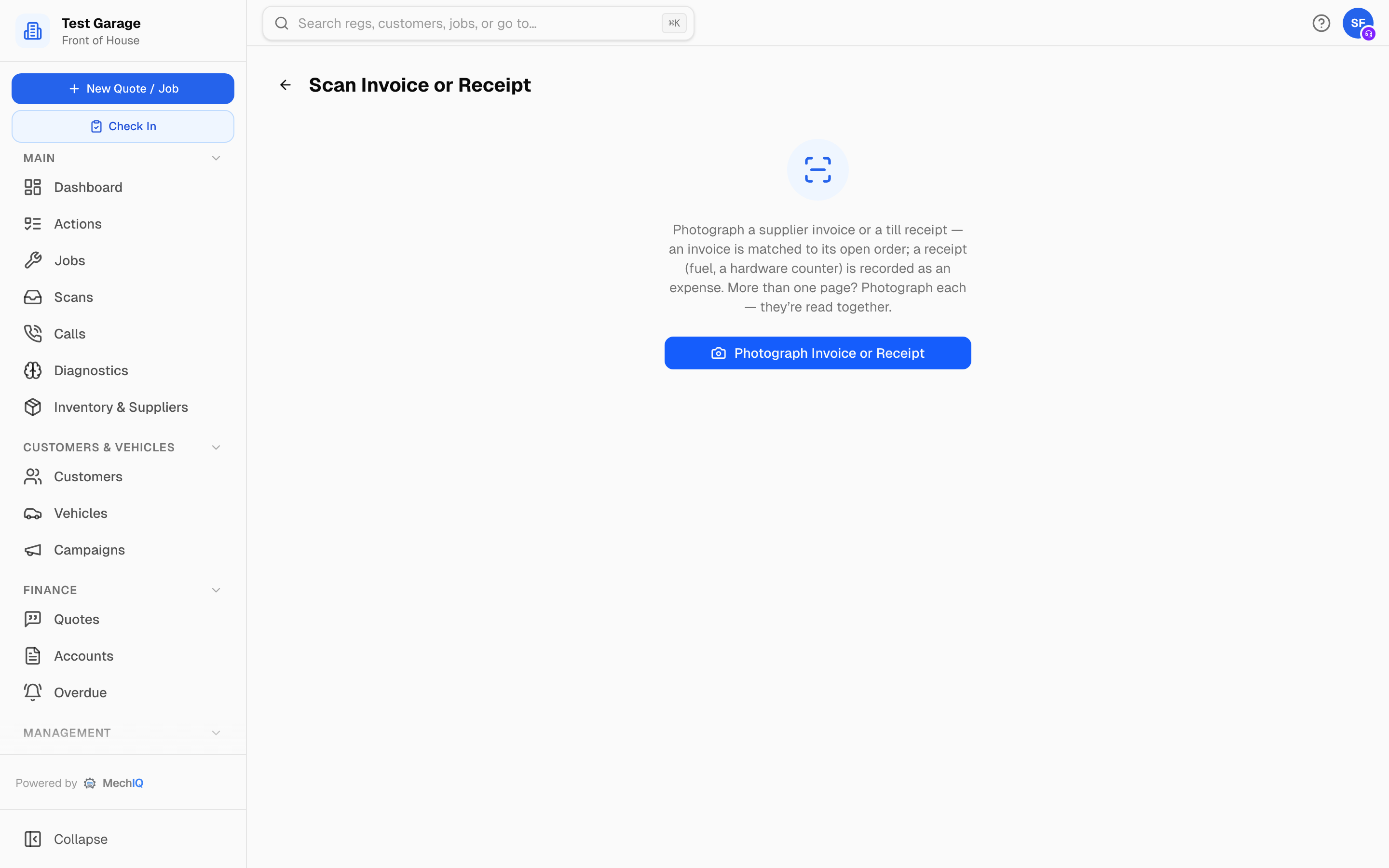
Take the photo
Press Photograph Invoice or Receipt (on the desk, Choose invoice file). Get the whole page in, flat and in good light. MechIQ accepts PDF, JPEG, PNG, WebP and HEIC up to 10 MB a page -- the phone camera takes photos; a PDF comes from the desk or by email. It reads the supplier, invoice number, date and total, whether it's a credit note or a till receipt, whether it was paid there and then, and every line -- part number, description, quantity, unit cost and VAT rate. Dates are read day first, so 08/10/26 is 8 October 2026 and 05/10/2026 is 5 October, never 10 May. A date printed in words (5 Oct 2026) is read as written.
Each photo shows as a page. A one-page invoice: press Read invoice (in the native app, Send). A PDF chosen on the desk is read straight away -- it already holds all its pages.
If it can't read the page you'll see Photo unclear — please retake. Press Retake Photo. (A file chosen on the desk says Couldn’t read that file — try a clearer copy.) A very long invoice -- dozens of lines -- may instead say This invoice is too long to read in one go — scan it in two parts, or send the PDF: the photo was fine, there was just too much on it.
Invoices with more than one page
A delivery docket or invoice that runs to two pages is one document -- the invoice number is on page 1, more lines and the total on page 2. Scan every page before reading it, and MechIQ reads them together as one invoice:
- Native app: photograph page 1, then page 2, and so on -- each one appears as a numbered thumbnail along the bottom. Photos adds pages you've already taken. Then press Send 2 (the number is how many pages).
- Web (phone or desk): after the first page press Photograph another page (on the desk, Add another page), or pick several photos at once. Then press Read invoice (2 pages).
Before you send, put page 1 first -- the page with the invoice number. Use the arrows on a page to move it earlier or later, and X to take a page off (a blurred one, or one you took twice). Up to 10 pages.
The pages are kept together as one document: lines are read from every page, the invoice number and date from wherever they're printed, and the total from the last page. "Carried forward" rows at a page break aren't counted as parts, and a line repeated at the top of the next page is counted once. On the desk, Scanned invoice · 2 pages → View shows every page while you check the lines; afterwards, opening the invoice from Accounts → Supplier invoices shows all the pages too.
If MechIQ can't read the pages, retake any that are blurred and read again -- the others stay where they are.
When it matches an open order
MechIQ works out who the invoice is from first (see Recognising the supplier), then compares it against that supplier's orders that are Ordered, Confirmed, Shipped or Partially Received. An order from a different supplier is never matched, however many part numbers it shares. When it finds the one, you'll see Matched to supplier. If it's unsure it adds Low confidence — please verify the lines below.
The order opens with the invoice laid over it:
- Invoice matches the order — check the delivery and confirm -- every line agrees.
- Invoice differs from the order — differences highlighted below -- read each line. Ordered 2 · invoice says 1, not on this invoice, or a price with (was €38.50) after it.
For each line, confirm the shelf and the quantity that physically arrived. Lines that were on the invoice but not on your order are listed under On the invoice but not on this order — tick to receive.
Press Confirm receipt (N) -- the figure in brackets is how many units you are booking in, not a money total. Stock goes up, job-linked parts are marked arrived, and the invoice's prices become the real costs. If your garage posts bills to an accounting package you'll see Confirm & Post to provider as well. See Purchase orders and receiving for what confirming does.
When there's no order
This works from Scan Invoice or Receipt on the phone, the native app, and Accounts → Add supplier invoice on the desk -- not from Scan supplier invoice in Inventory → On order.
If nothing matches you'll see No matching order — receive this as a new purchase. The scan becomes the purchase itself:
Invoice details -- check the Invoice number, Invoice date and Total (inc VAT) — amount owed. Tick Credit note if that's what it is. The date shows and is typed day first -- dd/mm/yyyy, e.g. 05/10/2026 for 5 October. 5/10/26 is fine too; it's tidied to 05/10/2026 when you move on. Anything that isn't a real date turns red with Day first: dd/mm/yyyy, and the invoice can't be received until it's fixed (or cleared).
Supplier -- if MechIQ knows them: Supplier: name — recognised by its VAT number (or by name, by its email address...), with the supplier's name as you have it on file. Not them? undoes it. If MechIQ isn't sure -- the name is close to more than one of your suppliers -- it asks: This could be one of your suppliers — which is it? with a button for each. If it doesn't know them at all, it shows the name, address and VAT number it read and offers Set up from invoice (creates the supplier with those details, VAT number included) or Skip — set up later (an action lands on the desk to finish it). You can also pick any supplier you already have under Or choose a supplier you already have.
Lines -- correct the description, part number, Qty, Unit price ex VAT or VAT % on any line, press X to take a line off, or Add line for one that was missed. A quantity is typed as printed -- 4.5 litres of oil stays 4.5. Money and quantities take a comma or a point (110,45 and 110.45 are the same). Fill in VAT on the document and the total as printed: the totals under the lines are worked out by MechIQ's server, and when the lines and the printed VAT differ by a rounding cent the VAT is fitted to the document (shown as includes €0.01 rounding to match the document). A bigger gap is shown in red -- check for a misread or a missing line. What you submit is what's saved, not what the AI first read.
If MechIQ could not read the document at all you'll see We couldn't read this document -- the photo is kept, and you type the details in on the same form (pick the supplier, then add the lines). Tyres get their size as the part number -- see Tyres below.
What is this for? -- Stock, A job, or Expense (nothing goes on a shelf -- see Scanning a receipt). For A job, the open jobs are listed; type in Search reg, job number or customer to find the one the parts are for. The reg can be typed any way -- 26D1234, 26-D-1234 or 26 d 1234 all find the same car, and every open job on it is shown. Each job shows its reg, make and model, customer, job number and status. Parts that turn up after the car has gone? Tick Include finished jobs (in the native app, switch it on). Tap the job -- For 26-D-1234 · customer · job number confirms which one.
Receive to stock (N), Receive to job (N), Record expense or Record credit note (N).
The parts are booked in, a received order is created carrying the invoice, and the bill appears on the supplier's statement and on Accounts → Supplier invoices.
If the same invoice number has been captured before you'll see ⚠ Already processed. Only continue if this is a re-issue or a correction.
Recognising the supplier
An invoice can print the trading name in the logo and a legal company name in the small print, so MechIQ goes by the strongest thing on it, in this order:
- The supplier's VAT number.
- Their email address, then their web address (a Gmail or Outlook address doesn't count -- anyone can have one).
- Their phone number.
- Their name -- including names it knew them by before suppliers were merged. Top Parts Ltd and TOP PART are the same name; Top Auto Support Services is not.
A close name (Top Part and Top Part Motor Factors) is never taken on its own: MechIQ asks which supplier it is. When you receive an invoice against a supplier, MechIQ keeps the VAT number it read on that supplier if it had none, so their next invoice is recognised by it. You can also type it into the supplier's VAT number field (Inventory & Suppliers → the supplier → Edit).
Tyres
A tyre is stocked and searched by its size, so a tyre line on a scanned invoice gets the size as its part number: 205/55R16 -- width / profile R rim, no spaces. The load index and speed rating (91V) stay in the description, where they were printed, because the same size is sold at several ratings.
- MechIQ spots a tyre line from the size in it, written any of the usual ways -- 205/55R16, 205/55 R16 91V, 225/45ZR17, 255/45R19Y -- or the run-together 2055516 that wholesalers print, when the line also says it's a tyre (a tyre brand, the word tyre, or a load/speed index after it).
- The supplier's own code for the tyre gives way to the size. You can still change the part number on the line before you receive it.
- A tyre line you leave with no part number is received under its size too, and a size typed another way (2055516 on a tyre line) is tidied to 205/55R16.
- Received tyres go into the catalogue as tyres, so online tyre bookings see them as in stock.
Finding them again: the part search finds a tyre by its size however it's typed -- 205/55R16, 205 55 16, 2055516, 205/55/16 -- and only that size (a 205/60R16 is a different tyre and isn't offered).
Scanning a receipt
Photograph a till receipt the same way -- a fill of diesel, a box of gloves, a part bought over a counter. MechIQ recognises it as a receipt and starts it as an Expense that was Paid at the till:
- Receipt details -- the Receipt number is optional. Receipts rarely have an invoice number, so if it's blank MechIQ gives the receipt a reference made from its date and total (for example RCPT-20261008-88.87). The same receipt scanned twice gets the same reference, so you'll be warned.
- Paid at the till (card) is ticked when the receipt shows it was paid. The expense is recorded as paid -- it never shows as money you owe the filling station. Untick it if it's on account.
- Fuel is one line at its net price, with the litres kept in the description (Pump 4 DIESEL (52.31 L)), and filed under your Motor expenses & fuel account automatically (any account with fuel in its name). Change the Account if it belongs somewhere else; leave it blank to use the supplier's usual account.
- Lines that aren't a business cost -- the coffee on the fuel receipt -- press X to take them off. The total comes down to match.
- Nothing goes into stock for an expense, even if the till printed product codes. If the receipt was really parts for a job, choose A job or Stock instead.
Press Record expense (paid). It appears on Accounts → Supplier invoices against that account, already paid, and travels with your other supplier bills to your accounts package (by export or posting, whichever your garage uses) under that account's nominal code.
Invoices that arrive by email
Each garage has an invoices address: invoices@yourgarage.mechiq.ie. It's shown at the top of Accounts → Overview with a Copy button. When a supplier emails you an invoice, forward it there. It's for the front desk to forward to, not an address to give suppliers: an invoice a supplier sends you is one you've seen, and nothing slips through unnoticed. (Or skip the email and use Add supplier invoice.)
- Every PDF or photo attached to the email waits on Accounts → Overview under Emailed — waiting to import, with the supplier, date, file name and total where MechIQ could see them. Several invoices in one email each get their own line. FOH and the garage admin get an Invoice to import notification.
- The pages of one bill as separate attachments (a scanner that emails page1.jpg and page2.jpg): MechIQ never joins attachments by itself, because one email often carries several separate bills. When an email brought more than one, you'll see 2 attachments from one email (page1.jpg, page2.jpg) — pages of one bill? with Combine as one invoice. Press it and they become one invoice, in file-name order, read together; the other line leaves the list (it's kept in the history as Combined into one bill). A multi-page PDF is already one invoice -- nothing to combine.
- An email that arrives with no PDF or photo in it (forwarded without the attachment, or the invoice was only a link) isn't lost silently: FOH and the admin get an Invoice email had no invoice notification saying what came in. Forward it again with the attachment, or use Add supplier invoice.
- Press Import on a line. MechIQ reads it then -- exactly as it reads a scanned one -- and you land on the same screens: matched to an open order, or No matching order — receive this as a new purchase. When you've received it, it leaves the list.
- Not an invoice, or a duplicate? Press the bin to discard it.
- If MechIQ can't read the file you'll see why, with Open the file, Try again and Discard.
An invoice sent to your scan address (uploads@...) by mistake is recognised too and ends up in the same list -- see Emailing diagnostic scans.
After the scan
- The bill sits on Accounts → Supplier invoices with the photo attached -- every page of it -- click the invoice number to see it. See Supplier invoices.
- It counts against what you owe the supplier and appears on their statement.
- It's included in the next accounts export.
Tips
- Scan the delivery note if it has prices; scan the invoice if it doesn't. What matters is that the prices are real.
- A two-page invoice is one scan, not two. Scanning page 2 on its own gives a "invoice" with no number and only half the lines.
- If the supplier isn't set up, Set up from invoice is quicker than skipping. Skipping leaves the bill unlinked until someone assigns it. For a filling station you use every week, set it up once -- the next receipt is recognised.
- A credit note scanned this way reduces what you owe; it doesn't put parts back on the shelf.