Parts on a job -- stock, ordering and costs
The Parts & Labour tab is where a job's money lives: the VAT rate, the labour lines, and the parts from the AI's first suggestion through ordering and arrival to what ends up on the customer's bill. The tab shows an amber dot while any part still needs a part number.
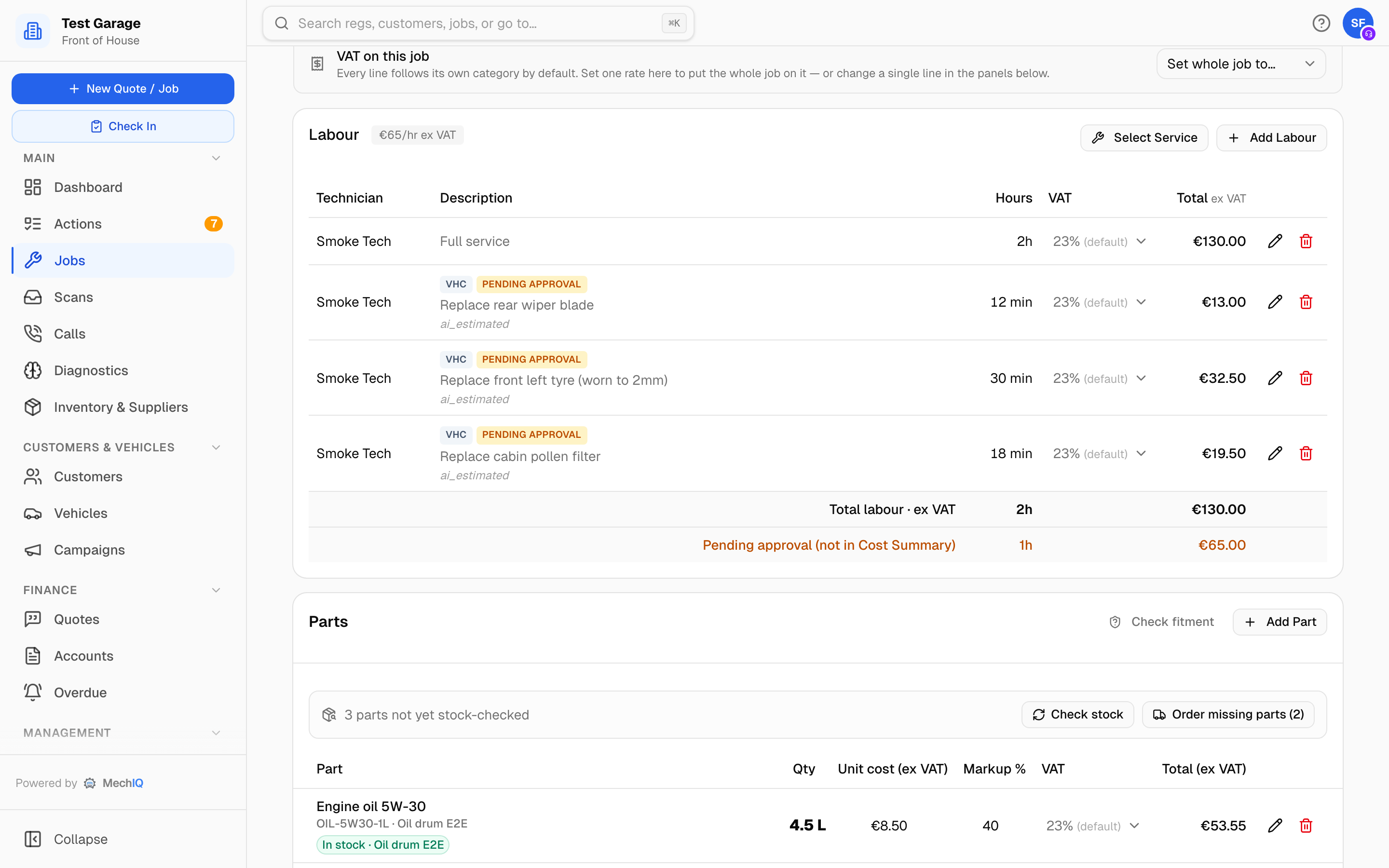 The top of the tab: VAT, labour, then parts.
Sort parts on an Actions row -- or on the job's own Open actions for this job card -- opens this tab with the parts panel in view, so you can order straight away. So do the other parts actions (Send order, parts arrived).
Everything here is editable by FOH and garage admins until the job is invoiced. After that both panels go read-only, and the Parts panel says why with a Locked -- job invoiced badge: the invoice is the record of what was charged, so to change a line you raise a credit note instead. The raise a credit note link opens the job's Money tab with Credit & amend open on the invoice.
A tab dot on Parts & Labour means a line is still to order (or has no part number yet) or came in short. The Waiting on box at the top of the job says the same: Parts -- to order with the count, until the parts are ordered.
When the AI's work plan decided a job's lines, MechIQ checks them against the manufacturer's book times, as it does on a quote. An amber Work plan -- check before quoting panel in the job's side panel says what it found: a part the manufacturer requires that it added, hours with no book time, or a car it could not check. Parts added this way take a price from your catalogue and price lists; with none they read Needs a price, and a fluid with no known capacity carries no money until you set its quantity. The panel goes once the costs are confirmed. Technicians don't see it.
VAT on this job
Every line follows its own VAT category by default. The VAT on this job bar has a Set whole job to… dropdown listing your VAT rates plus Back to category defaults -- pick one to put every labour and parts line -- and the consumables charge -- on that rate in one go (Back to category defaults puts the consumables line back on the rate set in Inventory → Charges). Individual lines can still be changed in the panels below (each line has its own VAT dropdown, Default meaning no override). MechIQ does not decide whether a reduced rate applies to a job; that is your call.
Labour
The Labour panel lists each labour line with technician, description, hours, VAT and total (the technician is for your records -- the invoice names the work only, never who did it), and a Total Labour footer. Lines that belong to a package still awaiting approval are totalled separately.
- The chip beside the heading (for example €65/hr) is the rate this job is priced at. Click it to type a different rate for this job only -- it then reads (custom). Set it to 0 to go back to the garage default.
- Add Labour opens a row: technician, description, hours. Once the car is checked in, a labour line you add is also a task on the technician's plan, after the tasks already there; the technician is told (The desk added: …). Change the description and the task is renamed; delete the line and its task comes off the plan (a task the technician already ticked stays, struck through as not needed). So the technician's list and the bill say the same work. Add service or charge adds a canned service (its labour and parts) from your list, or one of your charges (a CVRT test, a levy) at its own price.
- Hours and VAT are editable inline; the pencil edits the description, the bin deletes the line (with a confirmation).
Service parts -- due per manufacturer schedule
On a manufacturer-schedule service, a Service parts -- due per manufacturer schedule card lists the renewals HaynesPro says are due at this car's age and mileage. Untick anything the customer declines and it drops from the total (struck through, still on the job); tick it to add it back. The service labour is unchanged.
The parts board
Above the parts table sits the parts board -- one place for a job's parts logistics.
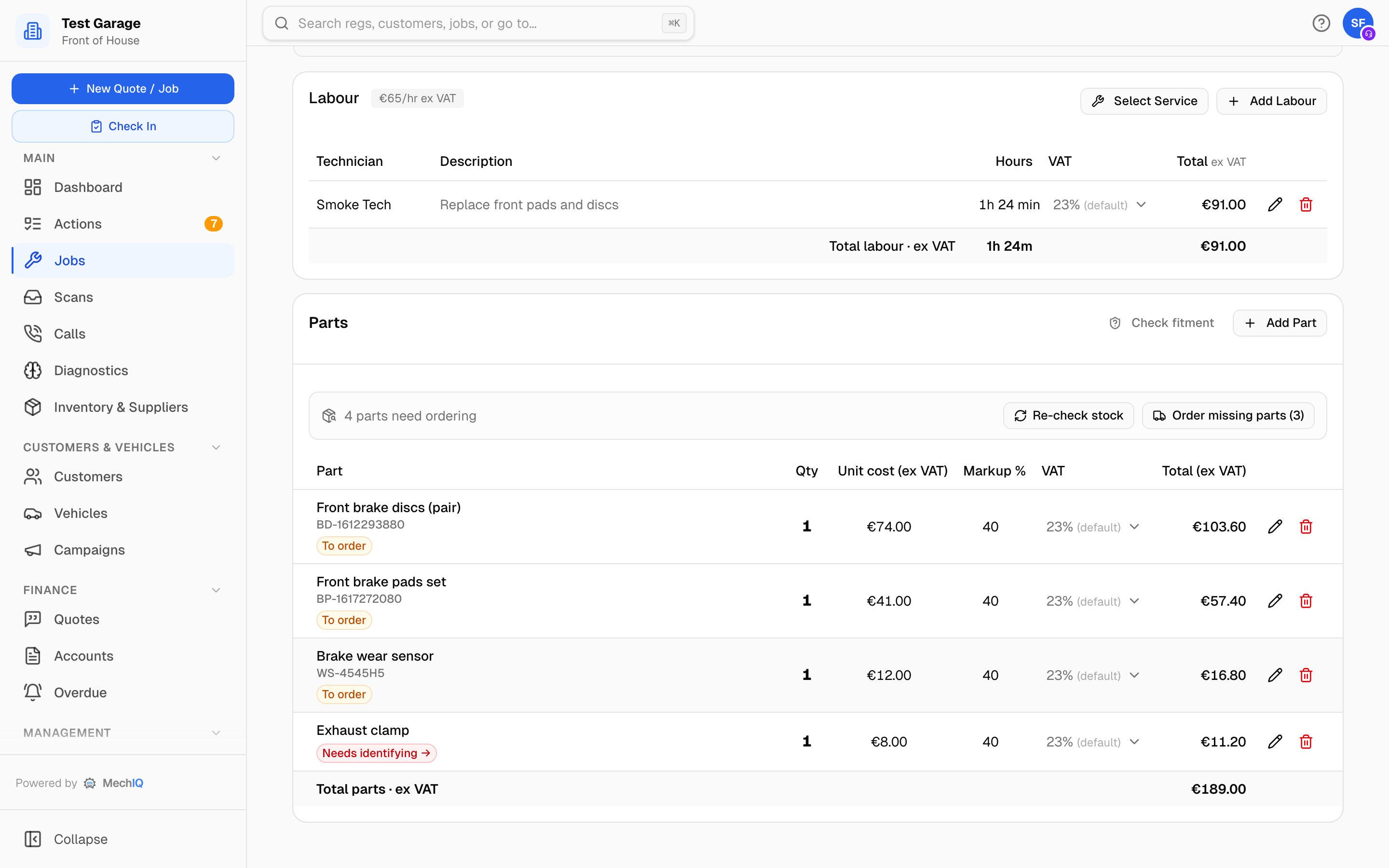 Four parts on a job after a stock check. The Coolant line has no number the parts data recognises, so it needs a part number before it can be ordered.
Check stock (later Re-check stock) matches every line against your inventory and puts a status chip on each row. New jobs are checked automatically; the button is a re-run.
Identify the car -- when parts still need numbers, a strip explains why and offers to confirm which car this is; once the car is confirmed, MechIQ matches the parts from the parts data. If the car has no VIN or is not covered you identify each part from its row instead.
Picking list (N) -- the in-stock lines with their shelf locations, so someone can pull them for the technician.
Order parts (N) -- opens the order box with one row per part still to order. Nothing is ordered until you press Order parts inside it (see Sending the order below). For each row you set:
- Supplier -- your choice; MechIQ never picks it. Where it knows something about this part it offers it underneath as a one-tap suggestion that says why: Use Denis Mahony -- on your parts list, -- last ordered 3 Oct, or -- in TOP PART's price list (with their price).
- Part number -- the number to order by. Type the number the supplier gave you, or leave it blank to order with the placeholder TBD. A number that is only the AI's guess is shown as a hint (AI guess: ...) with Use [number] under the box -- it is never filled in for you.
- Qty -- whole packs (a 4.5 L oil line orders one 5 L can when the pack size is known).
- Unit cost (ex VAT) -- what you'll pay per pack. Under it, the chosen supplier's own recorded price for this part shows with where and when it was seen (delivered, catalogue basket, price list, supplier's system or typed on an order) -- Use puts it on the line.
The shelf comes first. When the box opens, MechIQ checks your shelf again. A part on the shelf with the same part number is set aside for the job and leaves the box -- you never order a part you already have. A shelf part with the same name but another number is a different part, so MechIQ only suggests it under the line: On shelf B-7: Oil filter OF-001 -- use it. Click use it to put that number on the line and set the part aside from the shelf -- the line then takes that part's price, the same as adding it from your parts list; otherwise order the line as it is.
A cost you typed is yours. If you typed a cost on the line and the shelf part's cost is different, use it asks first: This part is on the shelf (B-7), so it won't be ordered. Which cost for this line? Click Shelf cost to bill it at the shelf part's price, or Keep my cost to keep the cost you typed. Cancel leaves the line as it was. Either way the part is set aside from the shelf and is not ordered.
The same order box restocks the shelf: Order basket on the Inventory page opens it with your basket's parts (see Inventory).
Choosing suppliers in the order box
- Your usual supplier is already filled in on every row, if your garage has chosen one (Inventory → Suppliers). Change any row you like.
- Supplier for all lines in the heading of the Supplier column fills every row that has no supplier. If you change it later, rows it filled change with it. If some rows have a supplier you chose by hand, MechIQ asks: Keep it (or Keep those) or Change all.
- The supplier list shows your usual supplier first, then the suppliers you ordered from most recently. Show all suppliers shows the rest.
- Each supplier shows how its orders go out: Online, Email or Phone. No contact means MechIQ has no email address or phone number for it.
- Not needed under a part takes it off this order. It folds under Not needed (N) at the bottom of the box; Needed after all puts it back.
- A line with no supplier is not ordered. It stays To order.
- Delivery note for the supplier is optional. It goes on every purchase order (PO) in this order.
- A summary per supplier sits above the buttons -- for example Top Part: 5 lines, €184.20 ex VAT -- PO by email, Motor Factors: 1 line, €12.00 ex VAT -- ring it in, then Phoned in and Napa Auto Parts: 2 lines, €61.40 ex VAT -- placed online. How each supplier's orders go out is set in the supplier's Edit → Ordering (see Suppliers).
Find parts in a supplier's catalogue (Napa Auto Parts · Parts360)
If your garage uses Napa Auto Parts from Online suppliers (Inventory → Suppliers), Find in Parts360 shows once a row goes to that supplier. You need your own Parts360 login first, under My profile → Supplier logins. Without it, MechIQ says Add your own Napa Auto Parts · Parts360 login first: your name (top right) → My profile → Supplier logins.
Find in Parts360 opens their catalogue for this car in a new tab. Pick the parts into the basket there, then come back here. Don't press Order Now (or whatever the catalogue calls placing an order) inside it: MechIQ places the order from the basket, not the catalogue. When their site brings you back to the job, or when you press I've finished -- get my basket, the basket's parts become rows with that supplier, their part number, quantity and price.
- Each basket part fills a row already on the job: the row with its number, else the row naming the same part, else the one row you opened the catalogue for.
- A part that fills none of them asks you to choose under Fills: a row on the job, or a new part line. Order parts waits until you do.
- A basket that is already on an order cannot be read in again (from an old tab, say). Open the catalogue again for a new basket.
See Napa Auto Parts · Parts360.
Sending the order
The box has two buttons: Order parts and Save for later.
Order parts first shows a preview: for each supplier, the email it will send, the words to read out on the phone, or the lines placed online. Nothing is sent from the preview. Press Back to the order to change something, or Send to place the orders. Each order then goes at once, by that supplier's route. Booked work and approved additional work for the same supplier go on the same PO. Lines of additional work that the customer has not approved yet go on a separate PO that is held. The summary row for that supplier tells you how many lines are held. MechIQ sends the held PO when the customer approves.
- Online -- MechIQ places the order in the supplier's system straight away, using your PO number, and shows their order number. Every line ordered online needs the supplier's own part number.
- Email -- this depends on Email orders in Settings → Workshop Options. When MechIQ sends them, the supplier gets the PO as a PDF from your garage's name. Their reply goes to your garage email, and you get a copy. When you send them yourself, the box shows Copy order and Open in my email. Send it, then press Sent.
- Phone -- the box shows the number and the lines to read out. Type the supplier's reference if you want to, then press Phoned in.
- No contact -- the box asks for the email address or phone number there and then. Or press Save for later.
After Order parts, the box says what happened to each PO. If an email fails, the PO is saved for later and the box shows why. The parts never read On order until the PO has gone.
For an online supplier:
- NOT sent -- the supplier refused the order (for example, a part that can't be ordered). The box shows their reason. The PO is saved for later: fix it, then press Order now.
- NOT CONFIRMED -- MechIQ sent the order but got no clear answer. It may or may not have reached the supplier. MechIQ never sends it again by itself, because the supplier could deliver it twice.
An order the supplier didn't confirm is listed in Inventory → On order marked Not confirmed by supplier, and the desk gets a Check an online order action, so it is not missed. The job's parts board says … didn't confirm this job's order — check it with them (press it to open On order); the order is not "saved for later" and Order parts never offers its parts again. Check with the supplier, then on its card in On order:
- … has it -- type their order number and press it. The order is Ordered and waits in On order like any other.
- Mark as delivered -- the parts came. The order is received in full: the parts go into stock or onto the job, which reads them as arrived.
- Cancel order -- not wanted, or the supplier hasn't got it. The order is cancelled (it stays in the history) and its parts are To order again, from this supplier or another. MechIQ cancels nothing with the supplier: if they do have it, cancel it with them too.
Genuine parts -- partslink24. When your garage uses partslink24 (Inventory → Suppliers → Online suppliers), the supplier list has Genuine parts (partslink24). Choose it for the lines you want as genuine parts. Then click Find in partslink24 in that supplier's summary row. partslink24 opens for this car in a new tab. Lines with an OEM number are in the basket already. Choose the dealer and place the order in partslink24. Order parts does not send these lines. When you come back (or click I've ordered -- get my order), the order shows on the job as a PO that is sent: status Ordered, its PO number and the partslink24 order number. The dealer is the supplier on the PO. MechIQ also checks for the order every 10 minutes. While a partslink24 order is open, the board shows it with Open, Check for order and Reset. partslink24 lets a garage have only one open order at a time. If the car can't be ordered through partslink24, the board says partslink24 unavailable and why. See Genuine parts via partslink24.
A PO that is saved for later opens again in the same box. The board shows N parts saved for later -- not sent to the supplier yet with Order now. The action Parts saved for later: PO-… opens the box too.
Receive deliveries in Inventory → On order (see Purchase orders and receiving), book in a whole docket across jobs on Inventory → Deliveries, or book in one line with Mark arrived below. Received parts read In and raise a Parts arrived -- hand off action so they reach the technician's hand-off point.
Reading the status chips
Every part line has one status. The parts panel, the parts board, the technician's screens and the app all show the same chip. A charge line (CVRT test, levy) has no status.
- Needs a part number → -- the line has no part number that anyone has checked (no number, or only the AI's guess). Click the chip to open Identify: [part]. It offers parts verified to fit the confirmed car, a search of your catalogue (a part listed for another vehicle says so, and is never a match for this car), your supplier's price list, and a box to record the number the supplier gave you. Nothing is chosen for you: click a part to choose it, then press Use this part. Only then is it put on the job, and the wording matches automatically next time.
- Cost to check -- MechIQ found this part on your shelf by itself (for example, you typed its number) and the cost you typed is different from the shelf part's cost. The line is set aside from the shelf and will not be ordered. MechIQ never changes your cost without asking: click Shelf cost or Keep my. Until you choose, the parts board says 1 cost to check. The same choice is on the job's parts card in the phone app.
- From stock · C-3 -- on your shelf for this job, with the location. A line is the part in your parts list with the same number -- case, spaces and dashes don't matter (a 642 180 00 09 is A6421800009). Stock taken in any way -- a delivery for this job or another, a stock order, a scanned invoice, Receive in Inventory -- turns a job waiting on that part to From stock by itself; you don't need to press Re-check stock.
- To order -- not in stock and not ordered yet. A part on a PO that is saved for later (not sent) is also To order.
- Awaiting approval -- the part belongs to found work the customer has not approved yet. Its order is held: it cannot be sent or received. It is released the moment the customer approves, and cancelled if they decline.
- On order · due 23 Oct 2026 ↗ -- the PO has gone to the supplier (the date is when it is due, if the supplier's delivery days or the order say) (sent, phoned in, placed online or through partslink24). Click the chip to open Inventory → On order for this job.
- In · [location] -- received and waiting for the technician.
- Short ↗ -- the supplier delivered the order without all of this line. Follow it up from the chip.
- Used -- the technician confirmed it used, or the work is finished.
- Not used -- off the bill: the technician did not use it, the customer declined it, or you took it out.
- With partslink24 -- the line is on an open partslink24 transfer.
- partslink24 · ready / pick in catalogue -- a marker beside the chip saying whether the line arrives pre-filled in partslink24.
Working each part line
Every parts action for the job is on its line in the Parts panel. You don't need the purchase order for day-to-day work.
- To order -- Order opens the order box with just that line (Order parts (N) on the board opens it with everything to order). Mark arrived -- the part is here already (bought at the counter, rung in and never recorded). Not needed -- you are not ordering it for this job: the line says Not needed -- not ordered for this job and never holds a task or Finish job. Needed after all puts it back to order. In the order box a Not-needed line sits folded under Not needed (N) at the bottom -- open it and press Needed after all to order it after all.
- On order / Short -- Chase puts Chase the supplier on the actions board with their phone and email. Mark arrived books that one line in without a docket. Not needed cancels what is still owed on the order first.
- In / From stock -- Wrong part sends it back to the supplier and puts a replacement on To order. Return asks Back to the supplier or Keep as stock. On a line of more than one (2 discs), both first ask How many? -- all of them unless you type fewer; only that many go back (and are replaced), the rest stay on the job. Deliveries works the same way.
Mark arrived keeps who did it and when: the line says Marked arrived by [name] · [date and time].
Prices: estimates until the parts arrive
A unit cost marked est. is the AI's own guess -- a part with no catalogue or supplier price behind it, so the figure is a best estimate and worth confirming before you order. A price that came from a catalogue, a price list or a supplier API carries no badge: that is what you will actually be charged. The customer's line price is cost × your markup, floored at RRP.
When the parts are received, the real supplier cost replaces the estimate and the line reprices to actual cost + your markup, in both directions.
One exception: a part in a package the customer has already approved keeps the price they agreed. Rather than repricing it behind their back, MechIQ raises an action -- cost came in higher (or lower) than quoted -- showing the approved total, the invoiced cost and what the line would bill now, so you decide whether to hold the approved price or update it. Everything not yet approved reprices silently, because nothing has been promised.
A line with a fixed sell price (see below) also keeps its price at goods-in -- the real cost is recorded and only the margin moves.
Once a job is invoiced the bill never changes by itself: late arrivals just record the actual cost, and a line that would sell below what you paid is flagged in red.
Fitment and problem parts
- Check fitment (top of the panel) re-checks every line against this vehicle. A line that looks wrong gets an amber Check fitment chip with the reason underneath. It warns, never blocks -- press Correct on the chip to record that you checked and clear it.
- When a technician reports Problem with this part? (wrong part, damaged, and so on) the row shows a red badge with their note, and three actions. Return to supplier sends it back for credit -- it comes off the job and off the shelf, and opens the return and credit chase on Accounts → Purchase orders. Keep as stock keeps the part -- it comes off the job and onto the shelf as stock. Clear (false alarm) just clears the badge. Either of the first two stops the customer being billed for it; what differs is whether the part leaves the building.
Adding and editing parts
The Parts panel has two buttons: Add part and Add charge. Add part opens a dialog with Part name, Part no., Serial no., Qty, Unit cost (ex VAT), Markup %, Sell price per unit (ex VAT) and VAT rate. Type in Part name to search, by name or by part number. A number works however you type it: AHC405, ahc 405 and AHC-405 all find the same part, and a number match comes first even when the part's name doesn't include the number. Matches come from your parts list (with stock and shelf), your suppliers' price files, your factors' price lists and parts you have fitted before, best first for this car. Picking one fills in the name, number, cost and markup. After picking from a name search, Budget, Standard and Premium chips let you switch to a cheaper or better product. If nothing matches, + Add "…" as a new part saves it to your parts list. The same search works when you edit a part (the pencil), so you can change a line to a different part. The table keeps the part name wide: Unit cost and Markup % are folded away until you press Show cost & markup above the table (Hide cost & markup folds them again). Unit sell, VAT and Total are always there. Quantity, unit cost, markup, VAT and the line total are editable inline on each row; the pencil opens the full dialog -- including Part no. -- and the bin deletes the row. Changing a part's number re-checks it against your shelf straight away.
For which work. When the job has labour lines, the dialog asks For which work: the labour line the part is for, or None — other parts. The parts list then shows each part under its work (For: Replace thermostat), and the parts that are for no line under Other parts. Add part on a work's heading adds a part for that work. The technician's task for that labour line lists the part and waits for it until it is here. The choice is never a price: totals, VAT and the invoice are the same with or without it. A part from a job type, a canned service or a quote with one labour line is put on that line; with several lines, the parts start under Other parts -- choose their work with the pencil. Parts on jobs from before 13 Nov 2026 are under Other parts. Removing a labour line keeps its parts (they move to Other parts).
Every part price is ex VAT -- unit cost, sell price and the line total. VAT is added on top at the line's rate (the VAT column) in the footer and on the invoice. In the dialog, the line-total preview shows the inc-VAT figure underneath, for example inc VAT: €76.88 at 23%.
Oil and other fluids -- billed by the exact litre
Engine oil, coolant, brake fluid, AdBlue and other fluids take the exact amount used: type 4.5 and the customer is billed for 4.5 litres, not 4 or 5. The quantity shows its unit (4.5 L; refrigerant is in kg), up to two decimal places.
- MechIQ treats a part as a fluid from its name (oil, coolant, fluid, AdBlue, refrigerant, or an oil grade like 5W-30), or when its catalogue category is Fluids. Set the category in Inventory for an oil whose name doesn't say so (for example Mobil 1 ESP).
- Everything else is counted in whole units. Typing 1.5 brake pads is refused with counted in whole units -- nothing is saved.
- A fluid from your parts list comes off the shelf by the same amount: 4.5 L off your bulk oil.
- Ordering stays in whole packs -- you can't buy half a can. When the supplier's part names its size (Castrol Edge 5W-30 5L), 4.5 L orders one 5 L can, and receiving that can puts 5 L on the shelf, 4.5 L of it held for the job. When no pack size is known, the order rounds up to whole units (4.5 → 5).
- A quote for 8.5 L books an 8.5 L line on the job.
A part that isn't in your parts list yet
Picking a part from your own catalogue links the line to it (stock, reorder level, its VAT rate). A part you just type is a one-off line: it goes on this job but not into your parts list, so it can't be found, stocked or reused later. To keep it, add it to your parts list from the dialog instead of going to Inventory:
- Type the name in Part name. When nothing matches exactly, the last row of the results is + Add "…" as a new part -- choose it. (Typing a name and saving without picking anything still adds a one-off line.)
- Save to my parts list is ticked for you. You can also tick it yourself on any typed line, including when you edit one with the pencil.
- Your parts list is kept by part number, so Part no. is needed before it saves. Fill in the cost and markup as usual.
- On saving, the part is added to Inventory and the line is linked to it (Saved to your parts list). If that part number is already in your list, the line is linked to the existing part instead -- you'll see Linked to your existing part … -- and nothing is duplicated.
- A line typed with a number that is already in your parts list is linked to that part as soon as it is added -- no need to save it. That link is what the stock check reads.
- The part's markup is the one on the line. A line on a fixed sell price gives the part your garage's normal markup instead, because a set price for this job isn't the part's own markup.
- No stock is added -- it starts at 0 on hand. Book stock in through goods-in or a stock check. In Inventory, look under All parts to find it before it has stock.
- FOH and garage admins can do this; technicians can add a typed line but not save it to the parts list. Quotes don't have the option -- the part is saved when it goes on a job.
Fixed sell price -- charge a set price whatever the part cost
Some things you sell at a set price regardless of what you paid -- engine oil is the usual one. Click the line's Total (ex VAT) and type what the customer pays (ex VAT). MechIQ works out the price per unit (the total divided by the quantity) and the Markup % cell (press Show cost & markup to see it) changes to show the margin that price earns over the cost. The line is tagged Fixed price.
- In the dialog, Markup % and Sell price per unit are linked: change either and the other follows. Typing a sell price fixes it; typing a markup goes back to cost + markup.
- A fixed price holds: changing the unit cost, or the real cost landing at goods-in, leaves the price where you put it -- only the margin moves. Changing the quantity charges that many at the fixed price.
- To go back to cost + markup, change the Markup %.
- Account terms (a trade or fleet customer's parts markup) don't re-price a fixed line -- the price you set is the price they pay.
- If the total doesn't divide evenly by the quantity, it is saved to the nearest cent per unit and MechIQ says what was saved (for example Saved as €90.02 for 2 at €45.01).
- A part with a €0 cost can carry a fixed price too; its markup shows -- because there is no percentage over nothing.
- Only FOH and garage admins can set prices; technicians can change quantities only.
Reading a part row
- Unit cost (ex VAT) is what the garage pays; Markup % sets what the customer pays (defaults from your Settings, editable per line) -- or, on a Fixed price line, shows the margin the fixed price earns.
- Total (ex VAT) is the customer's line price. Total Parts in the footer counts committed lines only; Pending approval lines are totalled separately and stay out of the cost summary until the customer approves.
- Stock you hold is reserved for the job: a part picked from your parts list when it is added, anything else when the stock check finds it on the shelf. Reserved stock is still on hand, but no other job can have it. It comes off on hand when the job is marked Collected -- never twice. A cancelled job releases what it held. A part the technician marks Not used is not billed and its stock goes back. The technician confirming parts orders nothing -- what still needs ordering stays on this board. See Inventory.
Before the car arrives
On a Booked job, the Work & approvals tab may show Likely parts -- worth pre-ordering?: parts that comparable past jobs actually used, with how often. It is advisory -- order through the normal supplier flow if you want them on the shelf first.
Related articles
- Supplier orders and receiving
- Found Work & the Technician Handoff -- why some orders are held.
- Inventory
Charge lines (CVRT test, tyre levy)
A charge -- a CVRT test fee, the tyre disposal levy -- sits in the parts list with a grey Charge chip instead of a stock chip (Charge · with tyres or Charge · job type when a rule added it). It is billed like a part, at its own price and VAT rate, but it is never stock: no To order, never in Order parts or a purchase order, never on the picking list, no fitment check, and nothing for the technician to confirm. The tyre levy follows the tyres on the job by itself; remove it and it stays removed for this job. An amber Price not set chip means the garage has not priced that charge yet -- set it in Inventory → Charges; until then the customer does not see the line. To add a charge by hand, pick it under Charges in Add service or charge, or use Add charge on the Parts panel. Charges show under their own Charges heading with their own total, so Total parts does not include them. See Charges, Levies & the Consumables Charge.