Found Work & the Technician Handoff
This is what happens when a technician finds extra work on a vehicle that the customer has not agreed to yet.
The rule the whole flow is built on: the technician's current job never changes until the customer says yes. Found work travels in its own additional-work package -- priced separately, approved separately -- and only lands on the technician's plan once it is approved and the parts are ready. The original job carries on the whole time; the job status and timer are untouched.
The loop at a glance
- Tech finds it -- during the Vehicle Health Check (each red and amber item), or mid-job with Found something on their job (Send to the desk to price), with a photo if they took one. Found something on a workflow step opens the same form.
- It is extra work at once -- every finding is a line of the job's Extra work item (Extra work 1) straight away, marked Needs a price, with the technician's words and photos. Nothing is lost if MechIQ is slow, off or fails.
- MechIQ prices it when it can -- the priced labour and parts take the line's place. With the AI off, or when MechIQ cannot price a line, it stays Needs a price and you price it yourself with Price it on that line. AI part pricing is also being rolled out garage by garage: until it's switched on for your garage, the AI still works out the labour and lists the parts needed, but a part gets its number and price only from your catalogue and suppliers' price lists -- a part nothing can price that way stays Needs a price too, same as any other line MechIQ couldn't price.
- You review it -- the job has ONE Price extra work action on your board, whatever was found: Extra work to price while a line is to price, Extra work priced -- send for approval when every line AND every part on it is priced. A line MechIQ priced whose part still has no price (Needs a part number · Needs a price) keeps the item to price: the card says Not priced yet -- 1 part needs a price, and the total reads €45 + 1 part to price. Type the part's price (Edit on the line) and the item is priced. Several findings on one job are lines of one item and one row. A line you decide not to sell: Not needed on the line (with a reason).
- The customer decides -- Send for approval opens the message; it is refused while a line or a part still needs a price (nothing goes to the customer at £0 or without a part's price). Each line keeps what the technician found (Tech found: …), also once MechIQ has priced it. The customer approves or declines by the link, or you record their verbal decision. Each line is approved or declined on its own.
- You check parts -- the item shows its parts' state, and you order what is missing.
- You confirm the parts are at the hand-off point -- and the approved work is added to the end of the technician's plan, after the booked work.
1. The tech finds something
- A diagnosis found the fault -- the technician finishes a diagnosis job with Fault found (Finish -- hand to the desk). The repair is a line of the job's Extra work item at once, marked Needs a price, named with the technician's note (and the repair the work plan proposed, with its parts). The job is With the desk; your action reads Price the repair for reg, and the job page's next step is Price the repair. It opens Work & approvals on that line: Price it, then Send for approval -- the same steps as any found work below. The repair is never billed straight onto the job: it reaches the job's total only when the customer agrees. If the card is empty (a job finished before this change), it offers Add the repair to price -- type the repair and it becomes the same line. The technician has nothing to start until the customer decides.
- Vehicle Health Check -- the technician's amber and red items. Each one is a line of the job's Extra work item, with its photos. See Reviewing and Sending a Vehicle Health Check.
- Mid-job finding -- the technician describes the extra work, adds a photo and presses Send to the desk to price. (If it is small stuff covered by the booking they can choose Continue as part of this job instead, which folds it into their plan with no pricing and no extra work.)
The desk adds extra work
The customer rings ("while it's in, can you also do the rear wipers?"), or you see something at the counter. On any open job, Work & approvals has Add extra work. Type what the work is and press Add to price. It becomes a line of the job's Extra work item, marked Needs a price -- the same line a technician's finding makes, with the same steps: MechIQ prices it when it can, or you use Price it; then Send for approval or Record their answer. The item and the line say Proposed by the desk and your name, where a technician's finding names the technician. Do not add the work in Parts & Labour: that bills it at once and records no answer from the customer.
A concern from check-in. When Any other issues? was filled in at check-in, the job's Work & approvals shows Price this concern with the customer's words, and your Actions list has the same task. Price this concern opens Add extra work with the words already in -- change them if you need to, then Add to price; the task is then done. If the concern needs nothing (it is the booked work, or you sorted it at the desk), press Needs nothing, say why, and Close the concern. The reason goes on the job's history.
While a job has an Extra work item being priced, every new finding joins it -- one customer conversation, one approval link. MechIQ prices the lines in the background. You hear about it on the job's Price extra work action -- a row on the Actions board, in the Open actions for this job strip, and the red pill at the top of the screen (press I've got it to claim it, or the X to hide the pill; the action stays on the board). For a health check the action comes once MechIQ has finished pricing; with the AI off it comes at once. You are rung once for the job's row, not once per finding.
2. Review the package
Open the job -- the action's Price it or Send for approval button takes you straight to the Extra work card, at the top of the Work & approvals tab, above the inspection and the findings it came from. The card lists every Extra work item with its status (Needs a price, To send, With customer, Approved, With technician, Done, Declined) and a line-item breakdown, so you can read the items and prices to a customer on the phone before doing anything.
Price a line yourself
A line marked Needs a price has a Price it button. It opens the line in place: type the Labour hours and press Save price (priced at the job's labour rate), and/or Add a part (the same part form as Parts & Labour). The line is then priced; Edit changes it later. The work stays out of the job's money until the customer approves it. Only the desk prices -- a technician cannot.
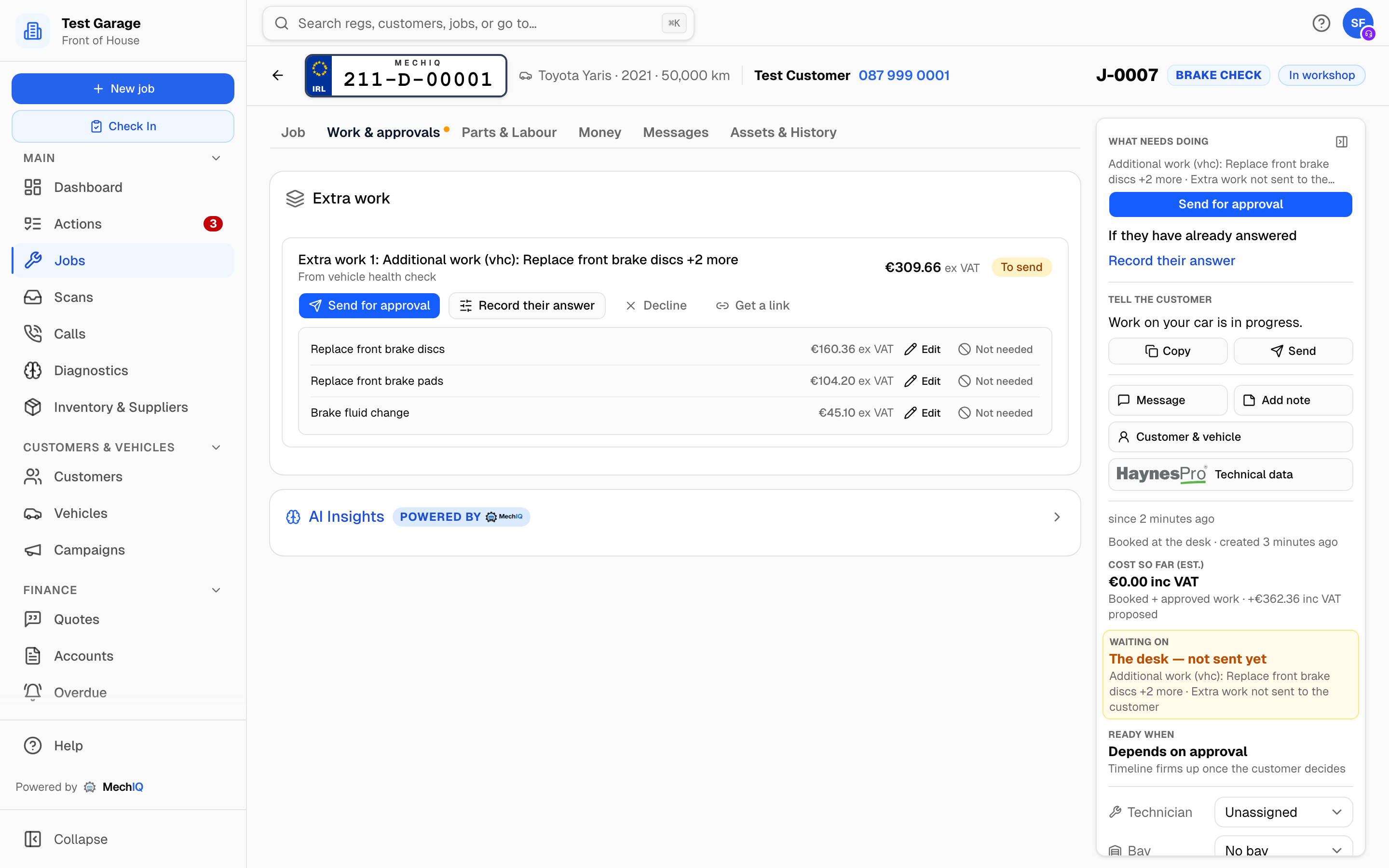 A proposed package: each item priced on its own line, still outside the job total until the customer decides.
Pending work never touches the job's money, the invoice, or the technician's plan. The job's money (the Money summary on the Overview, and the Money tab) shows it as a separate if approved figure.
Three ways to settle it:
| Button | When to use it |
|---|---|
| Send for approval | The normal path. Opens the Message customer composer with the approval request: it lists the items, and the approval link is made when you press Send email. The card reads Awaiting customer only once it has gone. A customer with no email on file: Email is greyed out with the reason -- choose Text (SMS) to send the link by text, or Save draft (the package stays Proposed, its lines stay editable, and the card says a draft is saved). Saved or refused, nothing has gone to the customer. |
| Record their answer | The customer is on the phone or at the desk. It opens the dialog: Approved or Declined per item. |
| Decline | The customer has said no to the lot. |
Before you send, each line on the card has Edit (description, labour hours, part quantity and unit price) and Not needed (pick a reason -- already done, not required on this car, customer declined at the desk, tech over-recommended, or other with a note). A not-needed line is struck through, leaves the package total and is never put to the customer; Needed again brings it back until the package is sent. Once a message carrying the link has gone, the lines are frozen and a not-needed line is gone for good -- never approved, invoiced, given to the technician or ordered. See Reviewing and Sending a Vehicle Health Check.
The technician can take a line out too: when they mark found work not needed, it leaves the package -- before or after it is sent, and after approval -- and shows struck through as Technician: not needed -- [reason]. If the customer already has the link or approved it, you get an action. See When the technician says a line is not needed.
The package's labour and parts lines also appear in the Parts & Labour tab flagged as pending approval, where you can adjust a price or remove a line before sending. Changing a line there follows the same rule as the card: a link you got by hand is cancelled, and once a message carrying the link has gone the line is locked and says why.
Package statuses you will see on the card: Proposed -- review & send, Draft -- not sent or Not sent -- failed (the approval request has not reached the customer -- the reason is on the card), Awaiting customer, Approved, Waiting on parts, Parts ready, Sent to tech, With technician, In progress, Done, Declined, Cancelled.
3. The customer decides -- item by item
The approval link lists each item with its price and a photo or clip if the technician attached one. The customer must choose approve or decline for every item -- they can take the brake pads and skip the wipers. Where a part has real alternatives they can also pick Budget, Standard or Premium. The full page is described in Customer Approval.
The same applies when you Record their answer: the dialog gives you an Approved / Declined toggle per item.
When the decision lands:
- Approved items step into the job total from that moment.
- Declined items are struck out and their lines deleted -- declined work can never reach an invoice. The card shows Some items declined.
- The package title rewrites itself to describe only what is left.
- The job never pauses -- the technician keeps working the original booking.
- If the customer declines everything on their link, a Customer declined extra work follow-up action asks you to call them before writing it off. A decline you record yourself raises no action. A partial decline made online raises the same kind of follow-up so a human checks the approved work still makes sense.
Trade-account customers: when account auto-approve is on in Settings, packages for account customers are approved on their behalf from Send for approval (Approve for the account) -- no link is sent.
4. The parts fork
The moment any item is approved, an approved-work parts action lands on your board and the card shows the state of its parts:
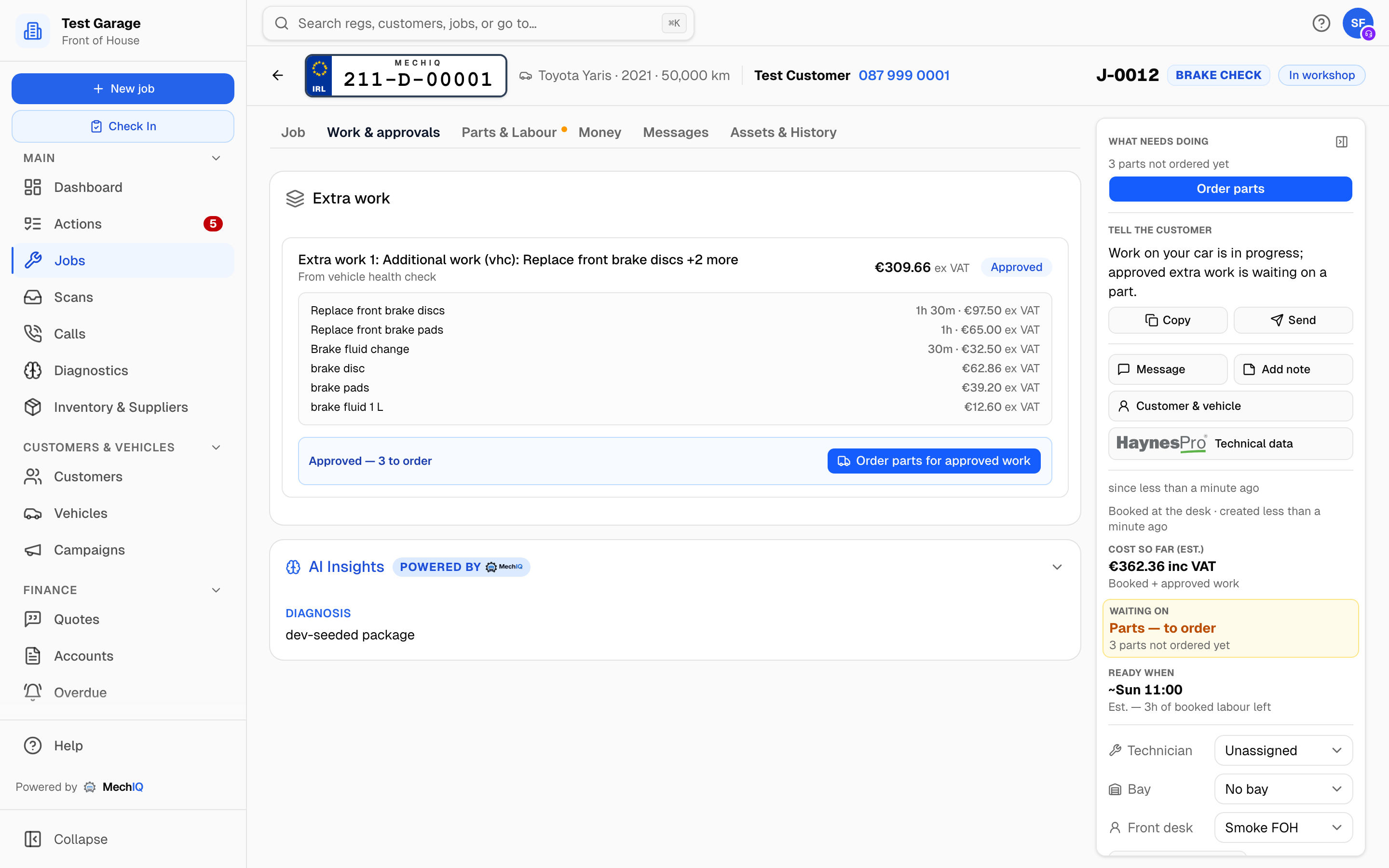 Approved -- the card says what is still to order.
The card says the state of the approved work's parts -- for example Approved -- 2 to order, 1 in stock. It has one button at a time:
- Order parts for approved work -- shown while any part is still to order. It opens the job's Order parts box. The matching action on the board has an Order parts button, and it closes by itself once every part for the work is ordered or in stock. See Parts on a job.
- While parts are on order, the card says Goes to a technician when they arrive. Receiving them moves the work on by itself.
- Parts in stock -- ready to hand off -- every part is here. Put them at the hand-off point.
- Send to a technician -- the work needs no parts.
Supplier orders for work the customer has not approved yet are created held and only released when the customer approves, so a decline never leaves a real order behind (see Parts on a job). The exception is a garage that has turned Pre-order parts on in Settings: that opts out of the hold: its orders are not held, approval or not.
The hand-off point is set by a garage admin under Settings → Notifications (Parts hand-off location) and is shown on every Parts arrived action.
5. The work lands back with the technician
Press Hand parts to technician on a Parts ready package. That is your last action. The same button is on the Parts arrived row in Actions (web and app): it does the same thing, and the row closes.
The technician is told about the parts only once the work is theirs. Parts for extra work that is still with the desk do not ring the technician when they arrive; the work itself reaches them when you give them the parts.
- If the job has an assigned technician, the work is added to their plan automatically as new tasks underneath their current ones, and they get a New approved work added pop-up on their device. The card reads With technician.
- If the job has no technician on it (handed back to the desk, or the technician moved on), the card reads Sent to tech · any tech can confirm and the work is offered to the whole technician pool with a Confirm action. Whoever confirms it gets it added the same way.
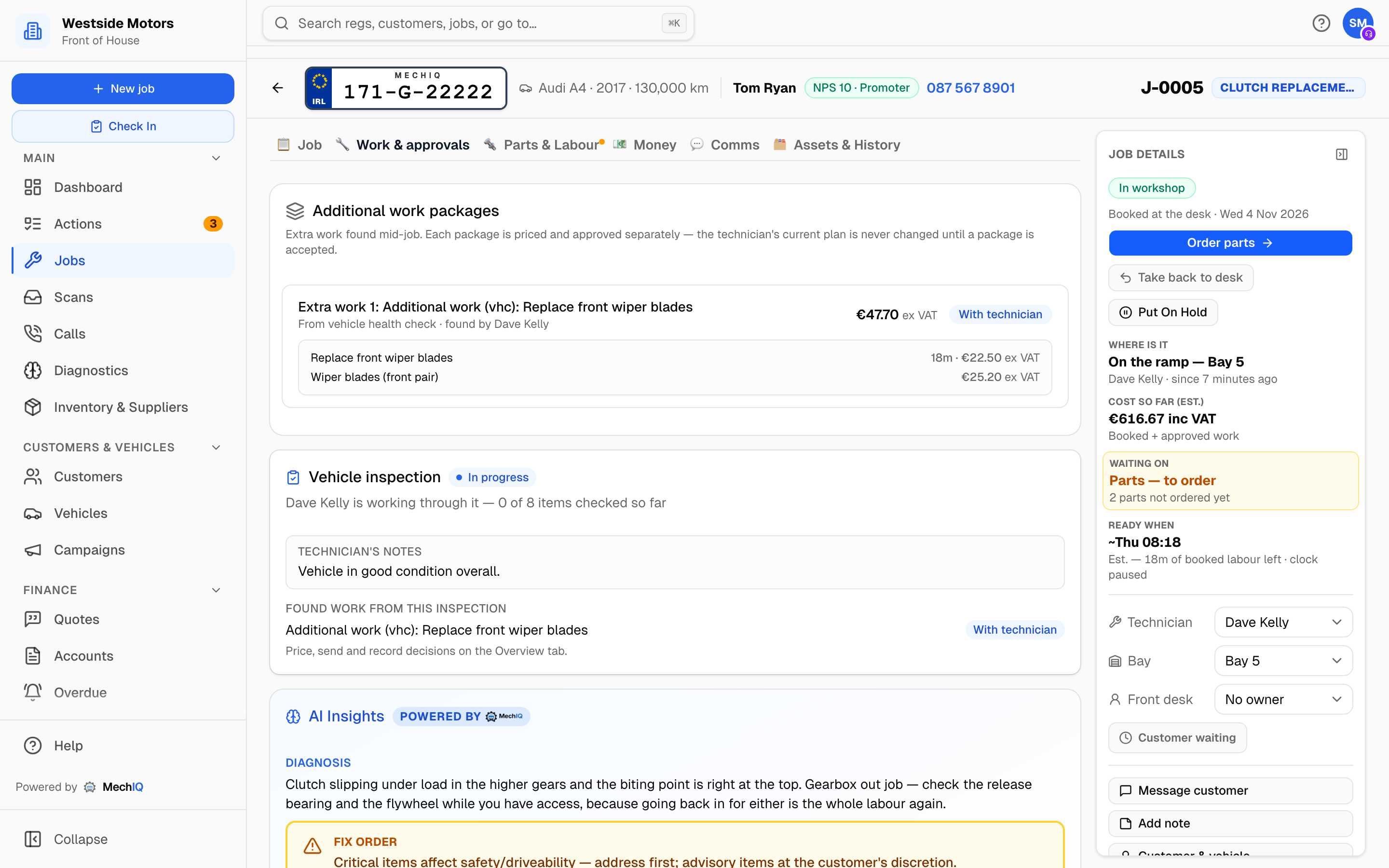 Parts confirmed and the work with the job's technician. Their existing tasks, clock and job status are untouched.
Every step is recorded in the job's Notes card on the Job tab (sent, decision, parts check, hand-off) with who did it and when.
What you will never have to worry about
- Unapproved work being done or billed. It is not on the technician's plan and not in the money until the customer says yes.
- Declined work sneaking onto an invoice. Declined lines are deleted on the spot, and any held supplier order for them is cancelled.
- Sold work being silently forgotten. If anyone tries to complete a job that still has approved work nobody started, MechIQ blocks it with the list of what would be dropped and makes you confirm.
- Undecided work vanishing at completion. If found work is still waiting on the customer when someone completes the job, MechIQ stops and asks: keep the job open, or decline the work with a reason. See Completing a job.
- Chasing a quiet customer. While a sent approval sits unanswered, a With customer row stays on your board with a Chase button.
Related articles
- Customer Approval -- the link and the verbal-decision dialog in detail.
- Reviewing and Sending a Vehicle Health Check
- Parts on a job
- Technicians: Found Work covers their side.