Customer Approval
When a technician finds extra work on a vehicle, that work travels in its own additional-work package and needs the customer's say-so before it is done or charged. Approval happens per package, item by item -- the customer can take the brake pads and skip the wipers -- and the original job never pauses while you wait for an answer.
This article covers the approval step itself. For the whole loop (tech finds it → priced → approved → parts → back to the tech) see Found Work & the Technician Handoff.
Where approvals live
- On the job -- the Extra work card on the Work & approvals tab lists every item with its status. A package waiting on you shows Proposed -- review & send; one with the customer shows Awaiting customer.
- On the Actions board -- the package lands on the job's Price extra work row once MechIQ has finished pricing it. Its Send for approval button opens the package card, and Record their answer opens it at the buttons that record a decision. A request saved as a draft, or one that could not be sent, stays on that row and says so -- it is part of Send for approval, not a separate "message to send". While a link is out, a With customer row with a Chase button stays on the board.
The job itself does not change status. There is no job-level approval any more -- the technician keeps working the original booking, and the job's timer keeps running on that work.
Three ways to settle a package
Open the package on the job. The card shows each item with its price, so you can read it to a customer on the phone before you do anything.
| Button | When to use it |
|---|---|
| Send for approval | The normal path. Opens the Message customer composer with the approval request by email -- an approval has to spell out the work and what is covered, so the message type decides the channel. The approval link is made when you press Send email. With no email on file, Email is greyed out with the reason: choose Text (SMS), or Save draft. Later, the Job Summary card shows the Approval request with Send again and Copy link. See Customer Communications. |
| Record decision / Approve | The customer is on the phone or at the desk and has already answered. A single-item package is a plain Approve; a multi-item package opens the per-item dialog. |
| Decline | The customer has said no to the lot. |
None of these pauses the running job. All three are FOH and garage admin only.
Sending the approval link
Press Send for approval and send the request. Once it has gone, the package moves to Awaiting customer and the card shows the link with a Copy button, so you can also paste it into a message yourself if the customer wants it somewhere else.
A saved draft is not a send: the package stays Proposed, its lines stay editable, and no link exists until the message goes. To pass the link on yourself with no message from MechIQ, press Get a link on the card. While the link is live it stays on the card -- copy it again at any time, or Withdraw request to stop it working; Get a link shows only when there is no live link. Changing a line afterwards cancels that link (the customer's page says it has expired), so nobody can approve an old estimate; press Get a link again for a new one. Once a message carrying the link has gone, the lines are frozen until you record the answer or withdraw the request.
Under each item the card notes any parts with grade options (Front brake pads set: 3 grade options on the link).
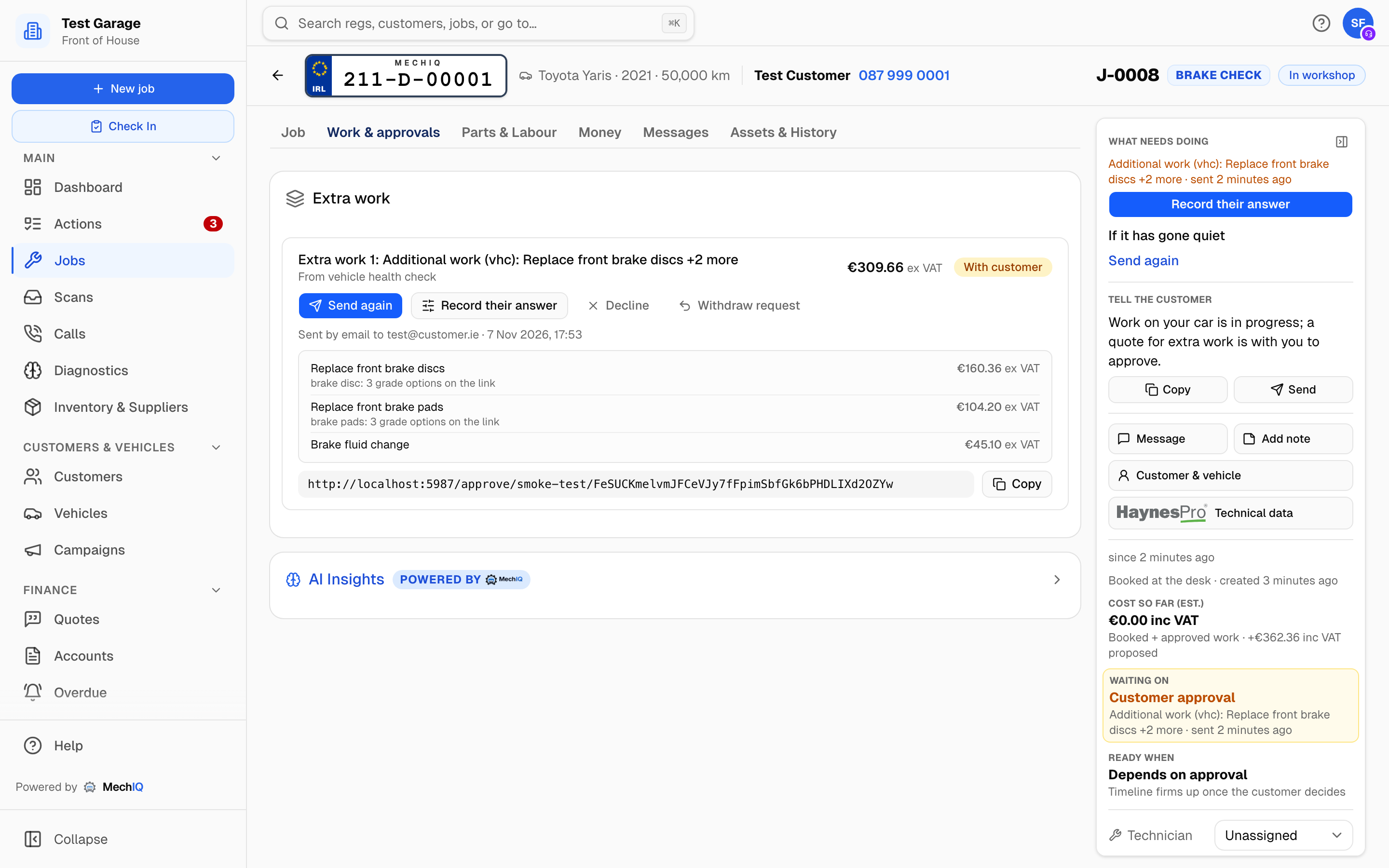 While the customer decides: the link, and the buttons to record a decision that comes back by phone, or to withdraw the request.
What the customer sees
The link opens a page headed Work approval with your garage's name and logo, the registration and job type, then Choose what to approve -- each finding grouped under Needs Attention (red) or Advisory (amber) with the technician's notes, any photo or video, and its price inc VAT. An item the technician marked red on the inspection is always under Needs Attention. Every price on the page is inc VAT.
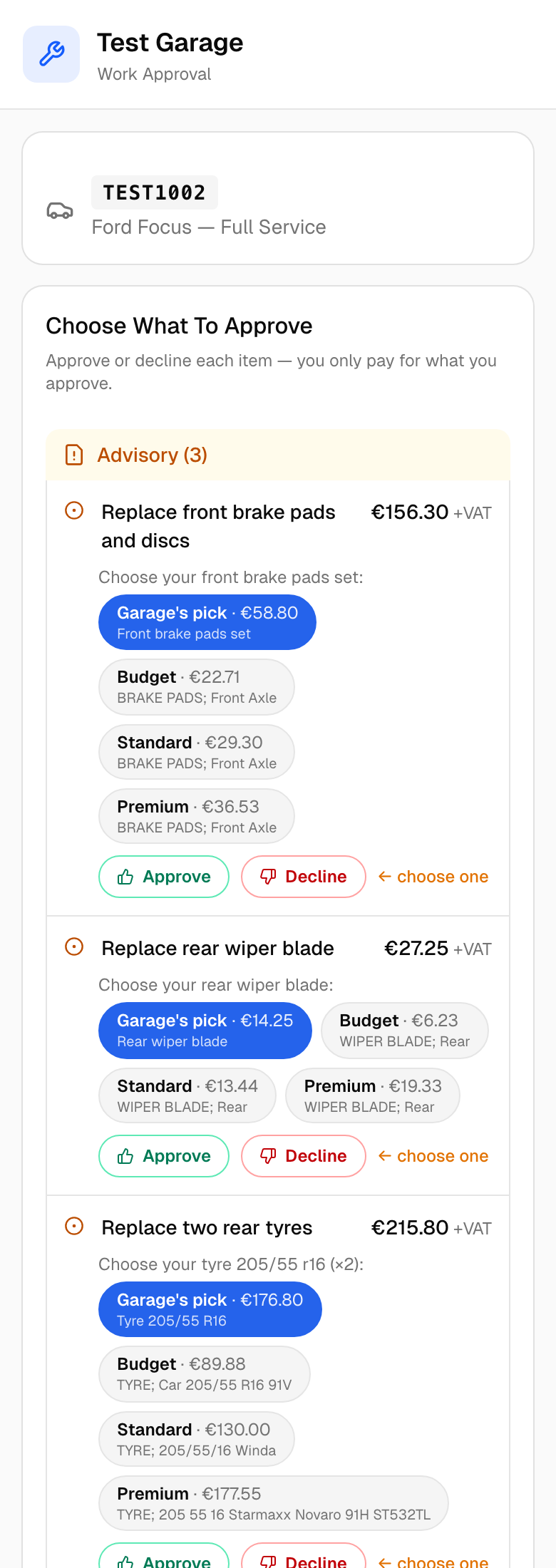 The approval link on a phone. Every item needs an answer before the confirm button unlocks.
- With more than one item, the customer must press Approve or Decline on every item (an orange ← choose one sits beside any they have skipped). The button at the bottom tracks their choices: Approve or decline each item (1/3), then Approve all work -- €491.20 inc VAT, Confirm -- approve 2 of 3 (€457.68 inc VAT) or Decline all -- I'd like to discuss.
- With a single item the page offers Approve work -- €[total] inc VAT and Decline -- I'd like to discuss.
- A Your price card shows what the work they have chosen ADDS to their bill: each line and the consumables charge inc VAT, then Total (inc VAT), the VAT it includes (a row per rate when the work mixes rates, for example VAT 13.5% on €120.00) and the price before VAT. It follows every tap -- a declined item leaves the card and the total, a part grade re-prices its line. MechIQ works the figure out itself, by the same rules as the invoice (each line's VAT rate, the consumables charge once per job, any account discount), so it is the same to the cent as the +€X proposed on your job page, the package card, and what the job's bill moves by when they confirm. The confirm button waits a moment while a new price is worked out.
- After submitting they see Response recorded, then every item marked Approved or Declined, the Approved work (inc VAT) total, any part grade they chose and -- when the garage has the job tracking link switched on -- a Track your job link. A Questions? Call [garage] on [phone] button is on the page throughout.
Budget, standard or premium parts
Where MechIQ found real alternatives for a part -- a genuine spread of products at different price points -- the item shows chips: Garage's pick (the line you priced), Budget, Standard and Premium, each with the product name and price. Picking one re-prices the item and the total on the page. Parts with no genuine spread show no chips.
Choosing a grade swaps the actual part on the job -- name, part number, cost and markup -- not just the price. That is what gets ordered, and the card afterwards reads Customer chose Premium: [product].
Link rules
- A link is good for 7 days. After that the page reads Link Expired and the customer is told to contact the garage.
- A decision can only be submitted once. A second attempt is refused with an error and records nothing; reopening the link instead shows them the Response recorded summary of what they already chose. If the customer genuinely changes their mind, ring them and record the new decision yourself.
- If the customer has no sendable channel (a landline and no email), or MechIQ has switched off every channel that could reach them, Send for approval is greyed out with the reason. Read the items to them and use Record decision.
While the customer decides
The card keeps the package in Awaiting customer with a Customer confirmed? row:
- Record decision -- they rang back or came in. Opens the per-item dialog.
- Decline -- they said no to everything.
If it went astray, send it again from the Job Summary (Approval request -> Send again).
Withdrawing a request
If you sent a request with a mistake in it, press Withdraw request on the card, or beside a locked line on the Parts & Labour tab. Confirm it and:
- The customer's link stops working. Their page says Request withdrawn and asks them to contact the garage, and it can't be approved.
- MechIQ doesn't tell the customer. Nothing is sent, so ring them or send the corrected request.
- The package goes back to Proposed. Change the lines, then press Send for approval. The new message carries a new link at the new price.
- The job's timeline records who withdrew it and when.
If the customer has already answered, Withdraw is refused and says so. Technicians can't withdraw a request.
Recording a verbal decision
For a package with more than one item, Record decision opens Record the customer's choices. Each item shows an Urgent (red) or Advisory (amber) badge and its price, with Approved / Declined toggles -- the same choices the customer would get on the link. The button confirms what you are about to record: Record -- approve 2 of 3 (€372.10 +VAT). If you decline every item the dialog warns Recording a full decline -- this extra work comes off the job and won't be charged.
Verbal decisions are recorded as made by you, so the audit trail shows who took the call.
After the decision
- Approved items join the job total from that moment and the package moves to the parts check (Approved -- do you have the parts?). See the parts fork.
- Declined items are struck out and their lines deleted -- declined work can never reach an invoice. The package title rewrites itself to describe only what is left and the card shows Some items declined.
- A full decline on the customer's link raises a Customer declined extra work action so you call the customer before writing it off. A partial decline on the link raises a Customer declined some items action so a person checks the approved work still makes sense. A decline you record yourself raises no action: you have already spoken to them. Either way the decline stays on the job's record and timeline. The desk hears about the answer once: one bell per front-desk person, grouped with the action when there is one -- the owner is not rung (an action left too long escalates to them by itself).
- Once the parts are at the hand-off point, Hand parts to technician puts the work on the technician's plan.
Audit trail
Every step is written to the job's Notes card with a timestamp and who did it: Sent '[package]' to the customer for approval, Customer approved 2 item(s), declined 1 (via approval link) or Customer decision on '[package]' recorded by FOH: partially_approved, and any grade the customer chose.
Tips
- Read it before you send it. Many approvals never need the link at all.
- Partial is fine. Declined items stay on the vehicle's history as declined advisories and can be quoted again any time.
- Trade and fleet accounts: when account auto-approve is on in Settings, pressing Send for approval for an account customer offers Approve for the account, which approves the package on their behalf -- no link is sent, and the card shows the decision.
- On the move, the native app lets you approve or decline each item and run the parts check. Sending the link and copying it are desktop actions.