Creating a Job
Every vehicle visit starts with a job. Booking always runs through the same New job dialog, so a job and a quote can never be priced two different ways.
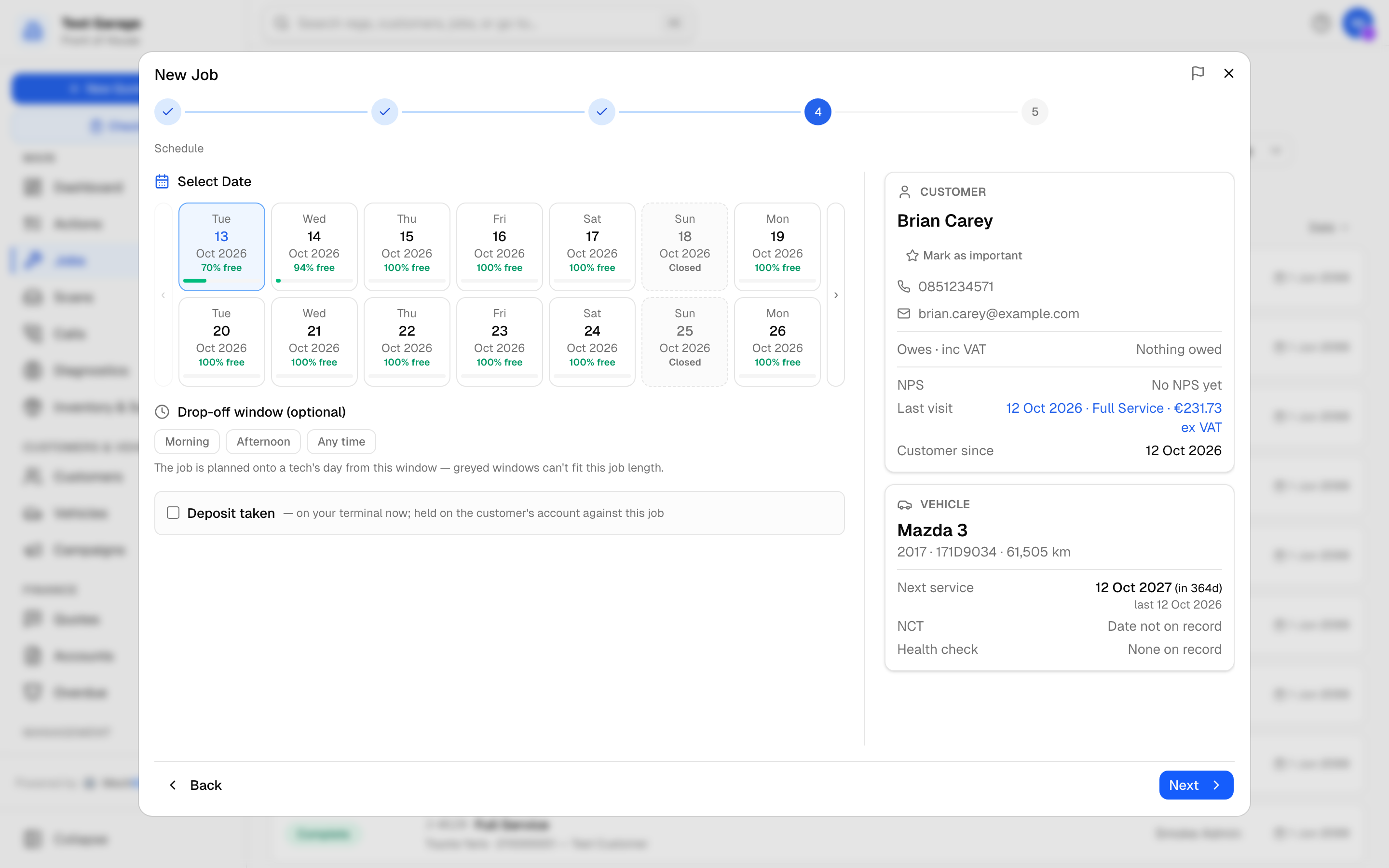 The Schedule step. Each day shows how much capacity is free; greyed drop-off windows cannot fit the job. The customer and car stay in view beside every step.
Where the dialog opens from
- New job in the sidebar. Price the work first, then click Book and the dialog opens with the car, the service and the request already filled in. This is the normal path for a phone enquiry. See New job.
- Check In in the sidebar, when a car turns up with no booking. Type the reg and click Find Job; if nothing is booked the dialog opens with the reg carried in, and the car is checked in the moment you confirm the booking. See Checking in a vehicle.
- The Tech Board, by clicking a free gap in a technician's day. The day and drop-off window come pre-picked.
- The Quotes page, from the Quotes given -- not booked panel, when a saved quote or an online estimate turns into a booking.
- Log Return Visit on a collected job, to book the same car back in as a comeback.
The steps
The dialog runs Vehicle → Customer → Job Type → Schedule → Confirm. The numbered dots along the top show where you are; click a completed dot to go back to it. Every step has Back and Next.
What we already know about the car and customer
On a computer or tablet the dialog opens wide: the step you are on is on the left, and a panel on the right shows what MechIQ already knows. It starts empty and fills in once the reg matches a car on file (the owner comes with it) or once you pick a customer. Everything in it comes from your own records, so filling it costs no lookup.
Customer
- Name, phone and email, and the Important badge if the customer is flagged. FOH and the garage admin can set or edit the flag from here with Mark as important.
- Owes: what they owe the garage, the same figure as their statement and the money-owed list. Credit due to customer: money held on their account, shown only when there is some.
- NPS: their latest score, or No NPS yet.
- Last visit: the date, job and value of the last time the car actually came in. Booked jobs that have not arrived yet and cancelled jobs are not counted. Shows First visit if there has not been one.
- Customer since.
Vehicle
- Make, model, year, registration and the last mileage on record.
- Already open on this car: any other job on the car that is booked or in the workshop. Check it before booking the car in again.
- Next service (from the last service and your garage's service interval), the NCT or MOT date and the last Health check with its result. Dates turn amber when they are close and red when they are overdue. These are the same as on the job page's Vehicle card.
- Advised before, not yet done: work flagged on earlier visits that has not been carried out yet. It is worth mentioning while the customer is on the phone.
Links in the panel, such as the last visit or an open job, open in a new tab so you don't lose the booking you are in the middle of.
For a car that is not on file, the panel shows the reg (and make and model once you have them) and says there is no history yet. For a new customer it shows the name you are typing.
On a phone the panel is folded away. Tap Customer & vehicle on file above the step to open it.
1. Vehicle
Type the Registration and click Look Up (or press Enter).
- If the car is already on file you see On file: make model and Owner: name -- we'll skip straight to the job. The customer step is skipped.
- If it is not on file, MechIQ looks the plate up with its registration provider (Irish and UK plates) and fills in Make and Model. If nothing comes back, type them yourself.
- Current mileage is optional. It grounds the service schedule from booking rather than waiting for check-in.
A registration is required to book a car. A quote can go without one; a car's job cannot, because check-in, the job card, reminders and the invoice all key off the plate.
No registration? For work with no plate -- a counter sale, a trailer, an unregistered car, a wheel or part brought in -- click No registration? Counter sale, trailer, wheel only -- book it for a customer under the Registration box. Say what it is in What is it? (optional, e.g. Trailer), click Next, and pick the customer. The job is booked against that customer's own no-reg record -- never a shared made-up plate such as NOREG, which MechIQ refuses -- and shows No reg wherever a registration would. Reg lookups and reminders don't apply. It has a reg switches back. See also New job -- No registration.
2. Customer
Search with Select Customer (by name, phone or email) and pick the person. Their phone, email and number of vehicles on record are shown so you can confirm you have the right one.
For someone new, click New Customer and fill in:
- Customer Name (required)
- Phone (required, unless you tick No contact details (walk-in) for a customer who will not give any -- for example a quick puncture repair paid on the spot)
- Email (optional)
- Address (optional; type an address or an Eircode)
Back to existing customers returns to the search. When you started the dialog fresh, this step also offers Quick Quote -- no customer needed for a caller who only wants a price.
3. Job Type
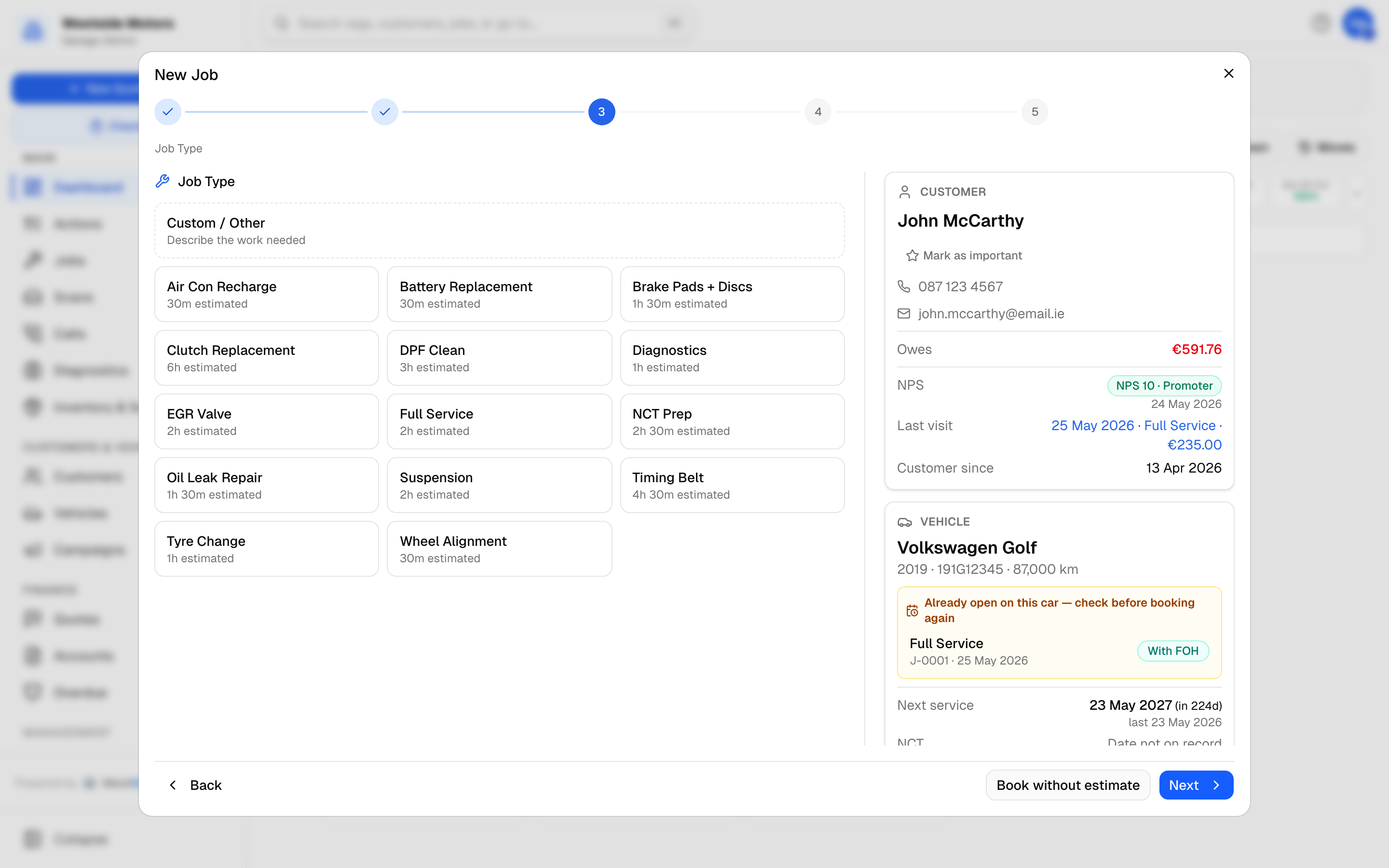 The Job Type step. Book without estimate skips the AI price when a caller is waiting.
Pick one of your garage's job types (each shows its estimated time) or Custom / Other.
- One booking can hold several job types ("Full Service + Brake Check"): after the first, use Add another job type. Each job type brings its own hours, health check rule and charges; the booking's hours are their sum. Remove one with the x on its chip.
- For a job type, Any further details? is optional, for example "Also check brake pads while servicing".
- For Custom / Other, Customer's complaint is required. Describe what the customer reported.
- Change swaps the job type.
- If your garage offers Call-out / recovery (Settings), tick it and say Where is the car?. The call-out charge is added on top of normal labour and the technician navigates to that address.
Click Next and MechIQ prices the job (MechIQ'ing your quote...). If you would rather not wait, for example with a caller on hold, click Book without estimate and add the price on the job later.
4. Schedule
- Select Date: the strip shows two weeks at a time with how much of each day is free (3h free; hover for 3h free of 22h 30m) and which days are closed. Use the arrows to page forward; garages book months ahead.
- The day is asked once. If you already picked it -- on the New job day strip, or by clicking a free gap on the Tech Board -- this step shows it as a summary (Thu 15 Oct 2026 · 3h free of 22h 30m) with Change, instead of asking again.
- A red or amber banner warns when the workshop is nearing or at full capacity on that day. It is a warning, not a block: you can still book, and the booking tells you it is over capacity.
- Drop-off window (optional): Morning, Afternoon or Any time. You are booking when the car arrives, not a clock time for the work. A greyed window shows why: (past) or (won't fit) for this job length.
- For a trade or fleet account that uses order numbers, a reference field appears. When the account requires one, you cannot continue without it.
- If the customer paid a deposit, tick Deposit taken and enter the Amount (€) and How it was paid (card, cash or bank transfer). It is recorded against the customer and comes off the invoice at checkout. See Taking a deposit.
5. Confirm
The Job Summary shows the customer, vehicle, job type, date (with the day's free hours) and drop-off. A job priced on New job keeps the job types you picked there -- Full Service + Brake Check, not General -- with their health check rules and hours. A deposit you take while booking is kept whether the job is booked from a quote or not. If MechIQ priced the job, the quote lines are shown and can be edited here before you book.
A day that has passed cannot be booked.
A day the garage is closed asks first: The garage is closed on Sun 18 Oct 2026 with Book anyway, for the day you open specially.
Confirm Booking creates the job in Booked status and opens its job page.
Save as Quote keeps the price on the Quotes page without booking anything. See Quoting.
If MechIQ could not price the job and the job type has no price of its own, the dialog stops you with a message rather than booking a €0.00 shell. Go back and choose Book without estimate if you mean to book it unpriced.
After booking
- A job booked for today is recorded as a walk-in; any other day as booked at the desk.
- A diagnostic booking opens the Symptom questionnaire straight away so you can fill it in while the customer is on the phone. Closing it loses nothing; you can fill it later from the job.
- A booking has no technician. The technician is chosen when the car is checked in -- by you on the Tech Board, or by a technician taking it with Get next job. Until then it waits in that day's To plan list on the Tech Board, and nobody gets a "New job assigned" message. See The Tech Board.
- The bay is not set at booking. That happens when work starts.
Interruptions
Closing the dialog mid-booking (a phone call, an outside click) keeps everything you typed. Reopen it within 30 minutes and you see Resumed your unfinished booking, with Start over if you would rather begin again.
Return visits
On a collected job, Log Return Visit opens the dialog with the customer and car filled in. On the Confirm step you must pick a Severity (Minor, Medium, Major or Safety) and can describe What went wrong?. The new job carries a Return Visit banner with a link back to the original.
Related: Checking in a vehicle · The Jobs list · The job page and job statuses