Quoting
Quotes (under Finance in the sidebar) is where every saved quote lives. MechIQ prices quotes with AI from your own labour rate, parts catalogue, markup and past jobs, and this page is where you review them, chase them and book them in.
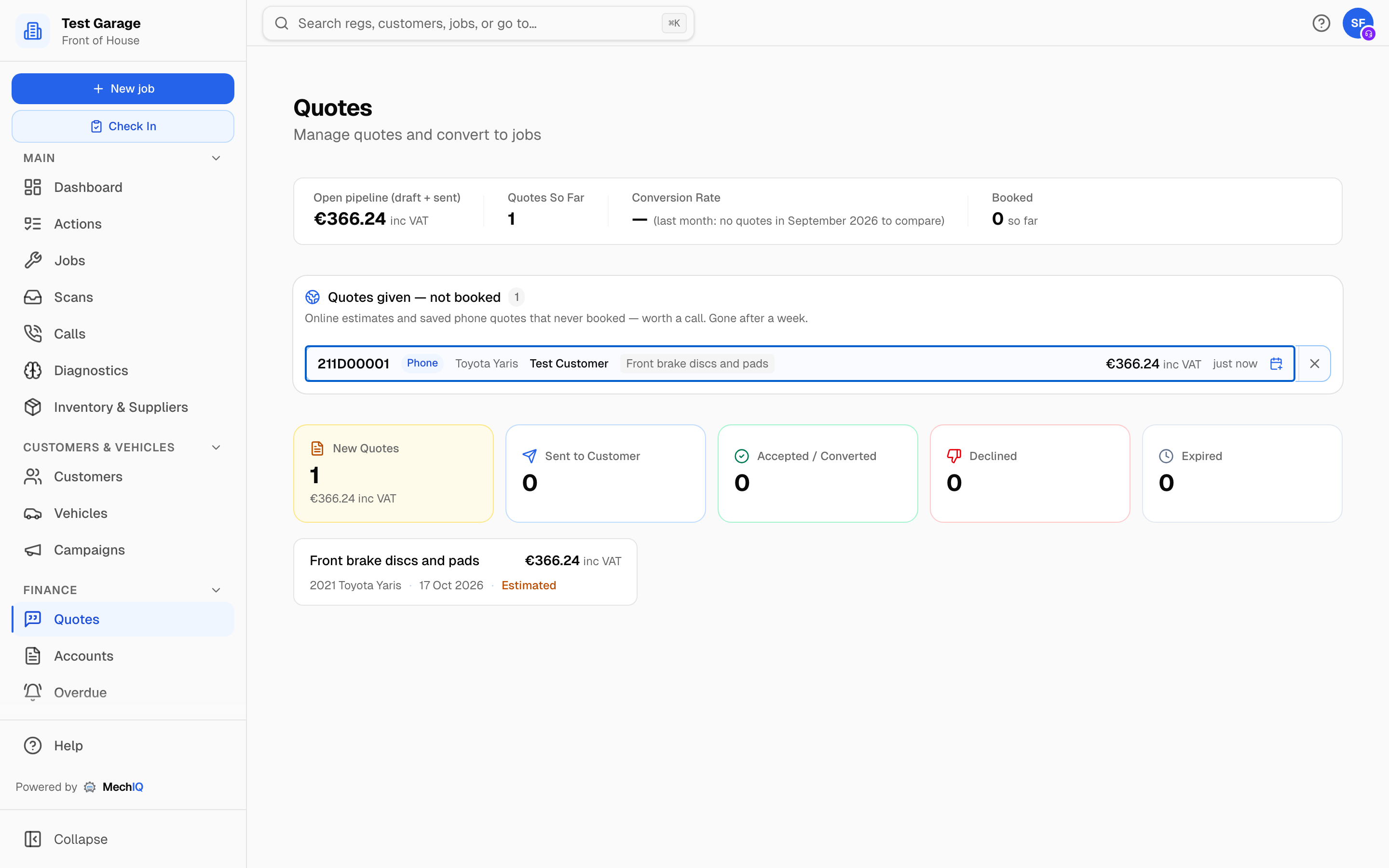 The Quotes page. Headline figures across the top, then the queues that need working today.
Where quotes come from
There is no "new quote" button on this page. Quotes are created in two places:
- New job -- the blue button at the top of the sidebar. Price the work, then click Save as quote to keep it for a ring-back, or Book to book it. See New job.
- Quick Quote inside the New job dialog -- on the customer step, choose Quick Quote -- no customer needed, enter the car and the work, and click Save as Quote on the summary step. See Creating a Job.
A saved quote is priced once. Booking it later never re-prices it, so the customer is booked at the figure they were given.
The headline strip
- Open pipeline (draft + sent) -- the value of quotes still undecided.
- Quotes So Far -- quotes created this month, with last month beside it.
- Booked of quotes made -- of the quotes made this month, the share that were booked. The bracket shows the same figure for last month.
- Booked -- quotes converted to jobs this month.
The queues
Below the strip, MechIQ lists only what needs a decision:
- Quotes given -- not booked -- online estimates from your booking page and phone quotes saved from New job that never became a job. Each row IS the quote (the same quote that is in the quote list below and in the totals): it shows the reg, how the enquiry arrived (Phone, Email, Walk-in, Social or Online), the car as typed, the price given and how long ago. Click a row to open the quote -- its labour, parts, your Consumables charge (with Remove / Add it back) and the total -- then Send to Customer (when a customer is on it), Book, Edit Quote or Discard. Sending and then booking use the same quote. Booking the car by any route takes the row off the list and marks the quote converted. The X at the end of a row discards it without opening (the quote closes as Expired). Rows drop off after a week.
- Accepted -- book it in -- the customer has said yes and no job exists yet. Book it opens the quote.
- Sent -- gone quiet -- sent three or more days ago with no answer. Chase opens the quote with the follow-up tools.
- Expiring or expired -- re-quote or let go -- quotes inside seven days of their expiry date, or already expired. Re-quote opens the quote.
- Worth Following Up -- MechIQ's own shortlist of sent quotes worth a call, tagged with why: High value, Repeat customer, Requested date or Strong quote. Rows fade once someone has logged a follow-up, and show who last made contact.
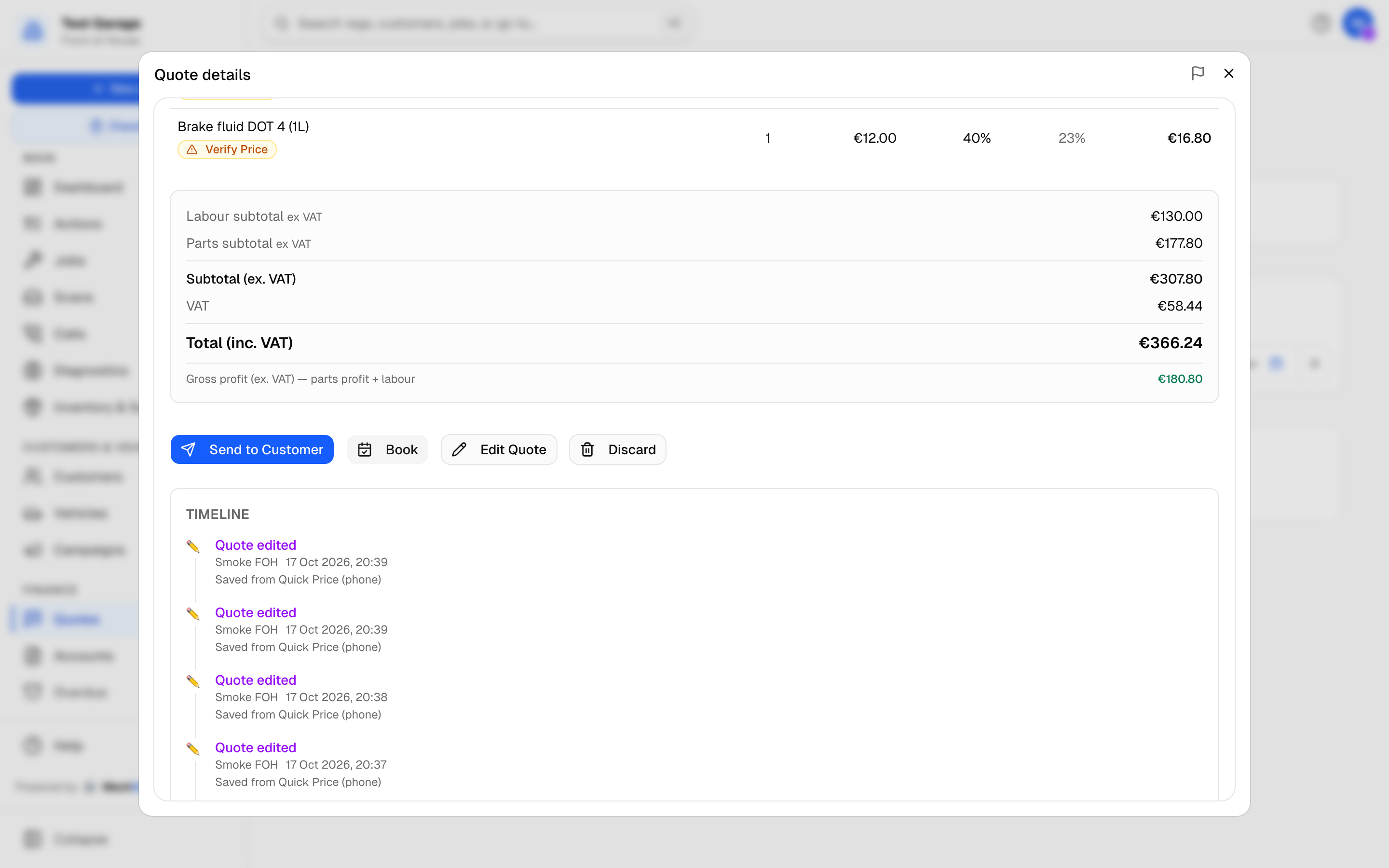 A quote from the "Quotes given -- not booked" panel, in the same Quote details dialog the list uses. Nothing is created until you click Book.
The quote list
The five tiles -- New Quotes, Sent to Customer, Accepted / Converted, Declined and Expired -- show the count in each stage. The first three also show the value sitting in that stage; Declined and Expired are counts only, since money you didn't win isn't a figure worth totalling. Click a tile to filter the cards beneath it; click it again to show every quote. Each card shows the request, the vehicle, the total inc VAT and, for sent quotes, how old it is -- amber from three days, red from seven.
A card marked Review or Low confidence is one the AI was unsure about. Estimated means the price came from the fallback estimate rather than a full AI quote.
Quote lifecycle
- Draft -- saved but not yet given to the customer.
- Sent -- the customer has the price. Sending it starts the clock for the "gone quiet" queue.
- Accepted -- the customer said yes; book it.
- Converted -- booked into a job. The quote shows a View Job link.
- Declined -- the customer said no.
- Expired -- past its validity date. MechIQ expires draft and sent quotes automatically; the validity period is set by your garage admin in Settings -> Quotes (Quote validity period (days)).
Working a quote
Click any card or queue row to open Quote details.
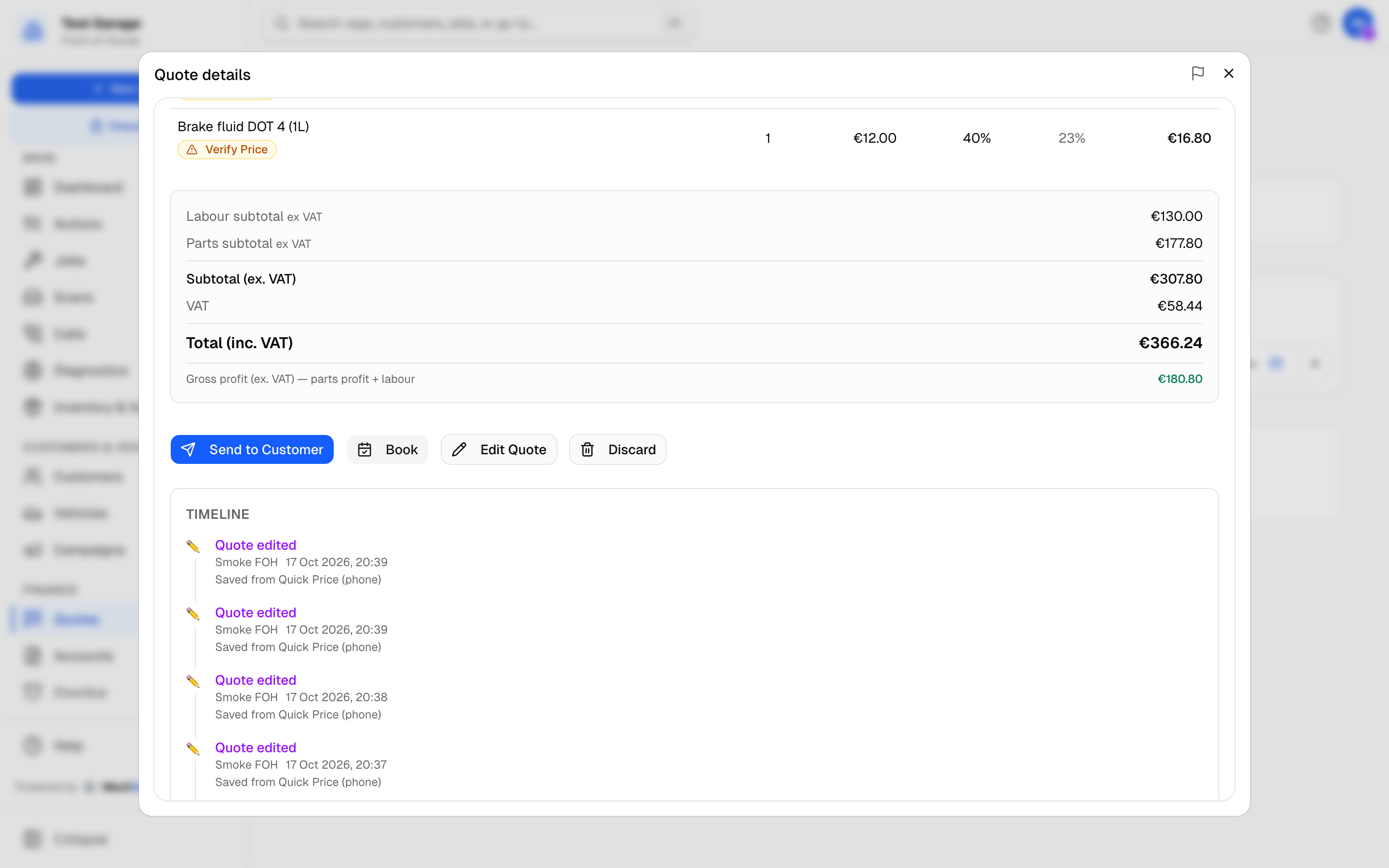 Quote details. The amber grounding badge says exactly what to check before you quote the figure.
At the top you get the customer and vehicle, a confidence badge, and a grounding badge: green Grounded when labour is on manufacturer book times AND every part has actually had its fitment checked for this exact car (via a fitment provider, a VIN-matched OE lookup, or a supplier catalogue basket on the reg); amber AI estimate -- check before quoting otherwise, saying how many part lines are not fit-checked and to confirm them when ordering. The AI's notes sit underneath. Lines whose hours have no manufacturer operation are marked No book time. A quote that could not be checked says Not checked against book times and why; check the hours before you send it.
Each part line also says where its number and price came from, so a price is never mistaken for a fitment check: Fits this car (...) when a fitment provider actually confirmed it; From your catalogue -- Check it fits when it was matched to your own parts list by name or number; From a supplier price list -- Check it fits for a published factor price or a cross-garage benchmark; AI estimate for the model's own guess; Needs a part number / Needs a price when nothing has priced it yet. Only the first of these is a fitment claim -- the others are real numbers, just not yet checked against this car; ordering genuine parts from the supplier catalogue on the reg is where that check happens. Parts that were not priced from your catalogue carry Verify Price; parts not in stock carry Needs Ordering.
The Labour and Parts tables are followed by the totals -- labour, parts, Workshop consumables (when your garage charges a consumables fee), subtotal ex VAT, VAT and Total (inc. VAT) -- and a garage-only Gross profit (ex. VAT) line.
The consumables charge on a quote
If your garage charges consumables (Inventory -> Charges -> Consumables / sundries charge), every quote carries it as its own Workshop consumables line at your standard VAT rate, worked out exactly as the invoice will work it out -- so a quote booked and done as quoted invoices at the quote's total. It is on the quote screen, the PDF, the customer's quote page, the New job price and the Quotes given -- not booked quote. A garage with no consumables charge sees no line.
To leave it off one customer's quote, click the line, then Remove, before you send it; the total drops straight away and the line reads Removed. Add it back puts it back. You can change it while the quote is a draft, sent or accepted. When the quote is booked, the job keeps your choice -- a quote sent without the charge is invoiced without it.
The same Consumables line, with Remove and Add it back, is on the price in New job and on a quote opened from Quotes given -- not booked. A price saved or booked without the charge stays without it: the quote, the job and the invoice all leave it off.
What you can do depends on the status:
- Draft -- Send to Customer (only when a customer is attached; a phone-enquiry quote with nobody on it shows a note instead), Book, Edit Quote, Discard.
- Sent -- Send again, Book, Edit Quote, Declined.
- Accepted -- Book.
- Converted (booked into a job) -- Send copy to customer: their copy of the price for the work booked in. The message says it's booked in rather than asking them to accept, and their quote page shows no Accept or Decline. It lands on the job's Comms tab.
Send to Customer sends the quote to the customer and marks it sent. Choose how:
- Text -- a short message with the total and a link to the quote. Needs a mobile number; a landline on file can't be texted.
- Email -- the total, a View and accept your quote button, and the quote attached as a PDF.
The dialog shows where it's going and what they'll get before you send. If it can't go out (outbound email switched off for your garage, an address that bounced before), it says why and offers the quote link to copy instead.
The link opens the quote on the customer's phone or computer: the work with every price inc VAT, the total inc VAT with the VAT it includes and the price before VAT underneath, and the validity date, with Accept quote and Decline buttons and a PDF download. When they open it, the quote's Timeline records it and the panel shows opened; when they accept or decline, the quote moves to that stage and the front desk gets a notification; an online accept also puts a Quote accepted online action on the board, which closes when the quote is booked. An accepted quote then sits in Accepted -- book it in.
Send again on a sent quote re-sends the same link -- useful after an edit, since the link always shows the quote as it stands. The message is also kept on the customer's record in Customer Communications.
From the job. On a job booked from a quote, the Job Summary card shows View original quote, which opens the quote over the job -- close it and you're still on the job -- and Send quote to customer (Send quote again once sent), with a line saying when it was sent, opened and answered.
Prices: ex or inc VAT
On a quote, every line, rate and subtotal is ex VAT (the tables and the Labour / Parts subtotals say so); the Subtotal (ex. VAT), the VAT and the Total (inc. VAT) follow. The quotes list, the pipeline figure and the follow-up queue show each quote's total inc VAT -- what the customer was quoted. That stored total is always worked out from the quote's lines, whenever a line changes and again when it is sent and when the customer answers, so the desk, the customer's page, the PDF and the text all show the same figure. The customer's own page shows every price inc VAT. More in New job.
Editing a quote
Edit Quote lets you change hours, rates, quantities and prices, add or remove labour and parts lines, and add FOH Notes for the technician (for example "customer wants OEM parts only"). Totals update as you type. Save Changes keeps it; the quote then carries an Edited badge. Only draft and sent quotes can be edited.
Editing a quote the customer already has. If the quote has been sent, saving a change does three things:
- The customer's link shows the new price straight away.
- If they had the page open before your change, their Accept is refused. They see "The garage has updated this quote since you opened it", the page shows the new price, and they accept that one. Nobody can accept a price that changed after they opened it.
- The quote shows Changed since it was sent with Send updated quote. The text or PDF they already have still shows the old price, so send it again. Nothing is re-sent automatically, which means several edits in a row don't send the customer several messages.
The quote's Timeline records each edit and notes when it came after the quote was sent.
Editing a saved quote (Quotes given -- not booked)
A quote you saved from New job is an ordinary quote. Open it from Quotes given -- not booked (or the quote list) and click Edit Quote: the same editor as every quote, with the lines as you saved them. Save updates the same quote. You won't get a second copy.
Editing never re-prices anything with AI. The car (as typed, or the car on file for the reg) and the customer stay with the quote. For a different car, price a new quote.
Following up
On a sent quote with a phone number, the Follow Up panel offers Call (dials on a phone or softphone) and Log Follow-Up Call, then asks the outcome: Customer Wants to Book, No Update -- Follow Up Again or Not Interested. No Follow-Up Needed removes it from the follow-up list. Every follow-up is written to the quote's Timeline, alongside generated, edited, sent, opened, accepted, declined, expired and converted events.
Booking it
Book opens the New job dialog with the quote's customer, vehicle and priced lines already in place. The job-type step is skipped because the quote already states the work; you pick the day and drop-off window and confirm. A green Booked banner with View Job appears when it is done.
When parts get ordered
By default MechIQ waits for the customer's approval before prompting you to order parts. If your garage admin turns on Pre-order parts in Settings -> Workshop Options, you are prompted to order the draft parts as soon as they are confirmed, even while the job is still awaiting approval. It applies to every job.
Tips
- Treat an amber grounding badge as a checklist, not a warning to ignore: verify the parts it names before you commit to the figure.
- Quote the total inc VAT to the customer and say it is an estimate whenever lines carry Verify Price.
- Use Log Follow-Up Call even when there is no news -- the timeline is what tells the next person on the desk what has already been said.
Related: New job · Creating a Job · Customer Approval