The Jobs list
Jobs in the sidebar is the full list of work, past and present. The dashboard tells you about today; this is where you go to find a particular job or look across all of them.
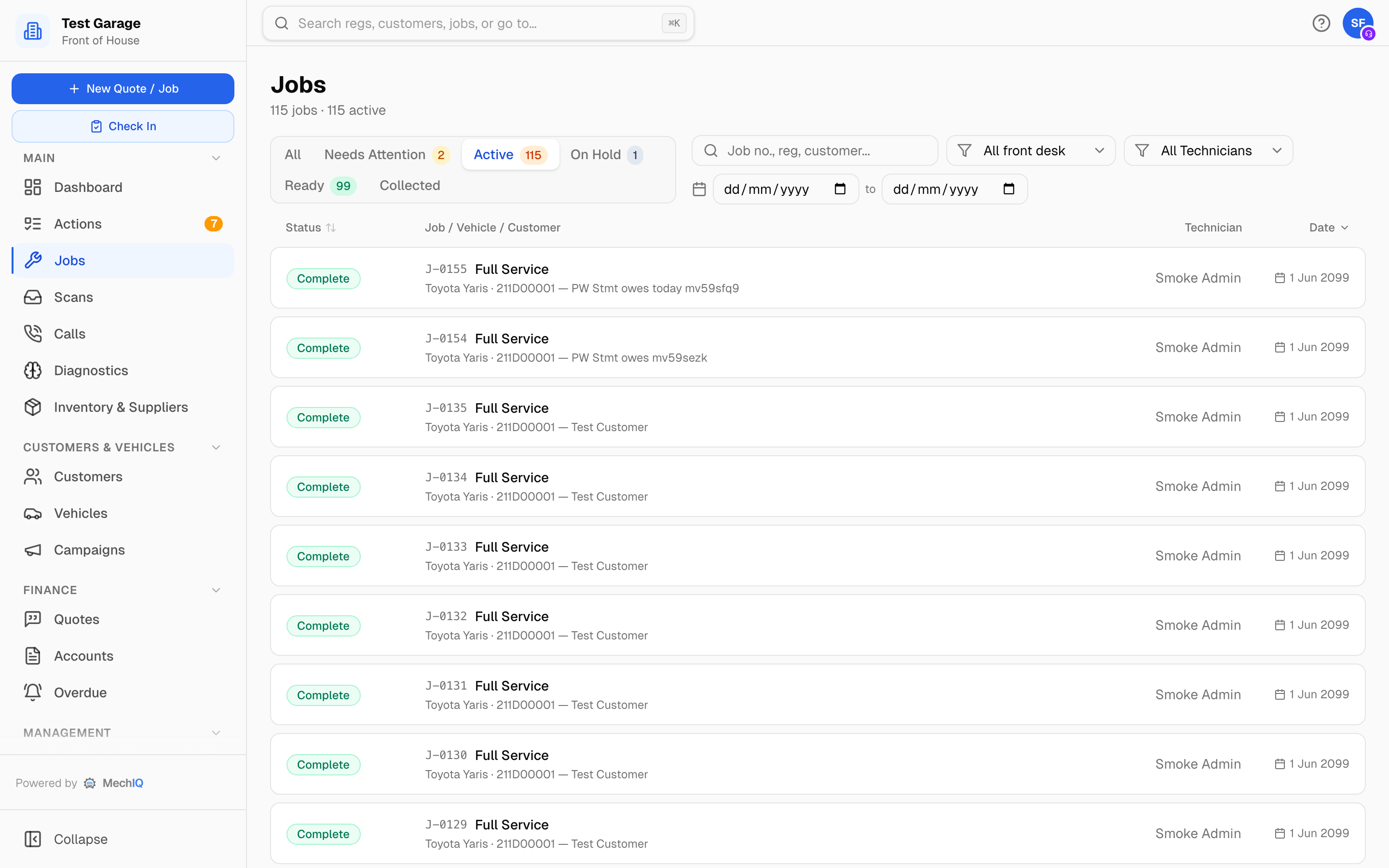 The Jobs list. Each row is one job; click it to open the job page.
Under the Jobs heading you see how many jobs match the tab and filters, and how many are active. The list shows 200 at a time -- Show more at the bottom loads the next 200, and Showing N of M says how many there are in all.
The tabs
Each tab answers a different question. The number beside a tab is how many jobs are in it right now, counted across the whole garage (the Collected tab has no number -- it holds the full history).
| Tab | What is in it |
|---|---|
| All | The live board plus anything collected or cancelled in the last couple of days. A search on All looks through every job, however old |
| Needs Attention | Jobs blocked on the desk: With the desk (handed back) or Waiting for QC |
| Active | Live work: Booked, Arrived, In workshop, With the desk, Waiting for QC and Ready to collect (finished, not yet collected) |
| On Hold | Parked cars, waiting on parts, the customer or an insurer. Kept out of Active so they do not read as workshop load |
| Ready | Finished and still on the forecourt. The handover queue |
| Collected | Gone. Cancelled jobs land here too |
A job handed back to the desk by a technician (With the desk) is under Needs Attention and Active, on the dashboard under Handed Back -- Choose Next Step and on the Actions board.
The list opens on Active. A list that includes every car you have ever collected is mostly history, and Collected is one click away.
It remembers how you left it
Your tab and sort order stick between visits, per browser. If you always work from Needs Attention sorted oldest first, that is what you get next time.
A link into the list still wins. The dashboard's Ready -- uncollected tile takes you to the Ready tab regardless of what you last had open.
Finding one job
- Search box (Job no., reg, customer...) matches the job number, job type, description, registration, make, model and customer name as you type, across every job in the garage -- not just the ones on screen. Dashes and spaces in a registration don't matter:
191-D-10001and191D10001both find it. Jobs booked with No registration show No reg and what the item is; searchno regto list them. On a tab it searches that tab; to find an old or collected job, search on All or Collected. - All front desk narrows to one front-desk owner. My jobs shows the ones you own; Unowned is the queue nobody has picked up yet.
- All Technicians narrows to one technician's jobs.
- The date range (Booked from / to) filters on the booked date and reaches past the 200-job limit, so it is the way to find older or imported work. Clear removes it.
Sorting
Click the Status or Date column headings to sort; click again to flip the direction. Status order runs In workshop, With the desk, Waiting for QC, Arrived, Ready to collect, Booked, On hold, Collected, Cancelled.
Reading a row
Each row shows the status badge, the job number and job type, the vehicle (make, model and reg) and customer, the technician (or Unassigned) with their bay, and a date that says which day it is: Booked and the day the job is booked for, In and the day the car came in once it has arrived, or Out and the day it was collected. Date sorts by the booked day.
Click any row to open the job. Everything else, such as pricing, approvals and checkout, happens on the job page. See The job page and job statuses.
On a phone
In the mobile app, Jobs is a card feed grouped by where each car is -- Needs attention, Ready for collection, In progress and Booked -- with a filter chip above for the bay view. There are no tabs; the grouping does that job.
Opening the portal in a phone browser gives you a different, simpler feed: the same cards with All, Active and Ready chips across the top. Either way the owner, technician and date filters above are desktop only.
Related: Creating a job · The Actions board · Search