Search
The search box in the top bar reads Search regs, customers, jobs, or go to…. It finds records across your garage and it takes you to places in the portal.
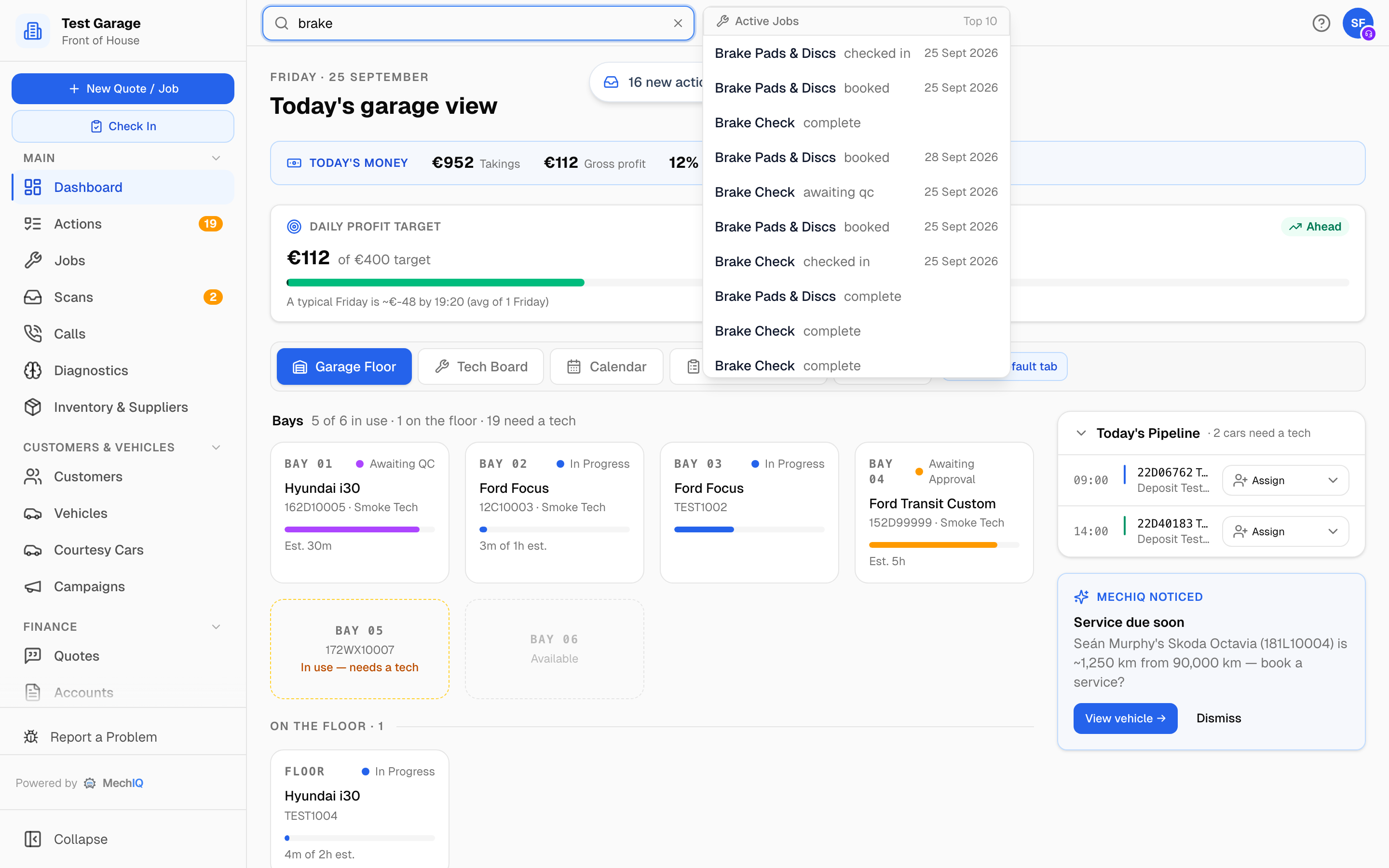
How to search
Click the box, or press Cmd+K (Mac) / Ctrl+K (Windows) from anywhere, and start typing. Results appear after two characters. Use the arrow keys to move down the list and Enter to open the highlighted row. Escape closes the dropdown.
Enter with nothing highlighted runs a full search of the vehicle list for what you typed, the same as the Search all vehicles for "…" link at the bottom of the dropdown. The dropdown itself only shows the top 10 in each section. Most sections say Top 10 when they have hit that cap; purchase orders and suppliers are capped the same way but don't say so, so narrow your wording if either list looks short.
Go to a page
The Go to section at the top matches places in the portal: pages, tabs and named things inside Settings. Type stock and it offers Stock count and Inventory; type payments and it offers the Payments tab under Accounts. The grey text beside each row says where it lives, for example Inventory & Suppliers or Settings › Money.
Only places your role can open are listed. Settings-only spots such as the chart of accounts appear for garage admins.
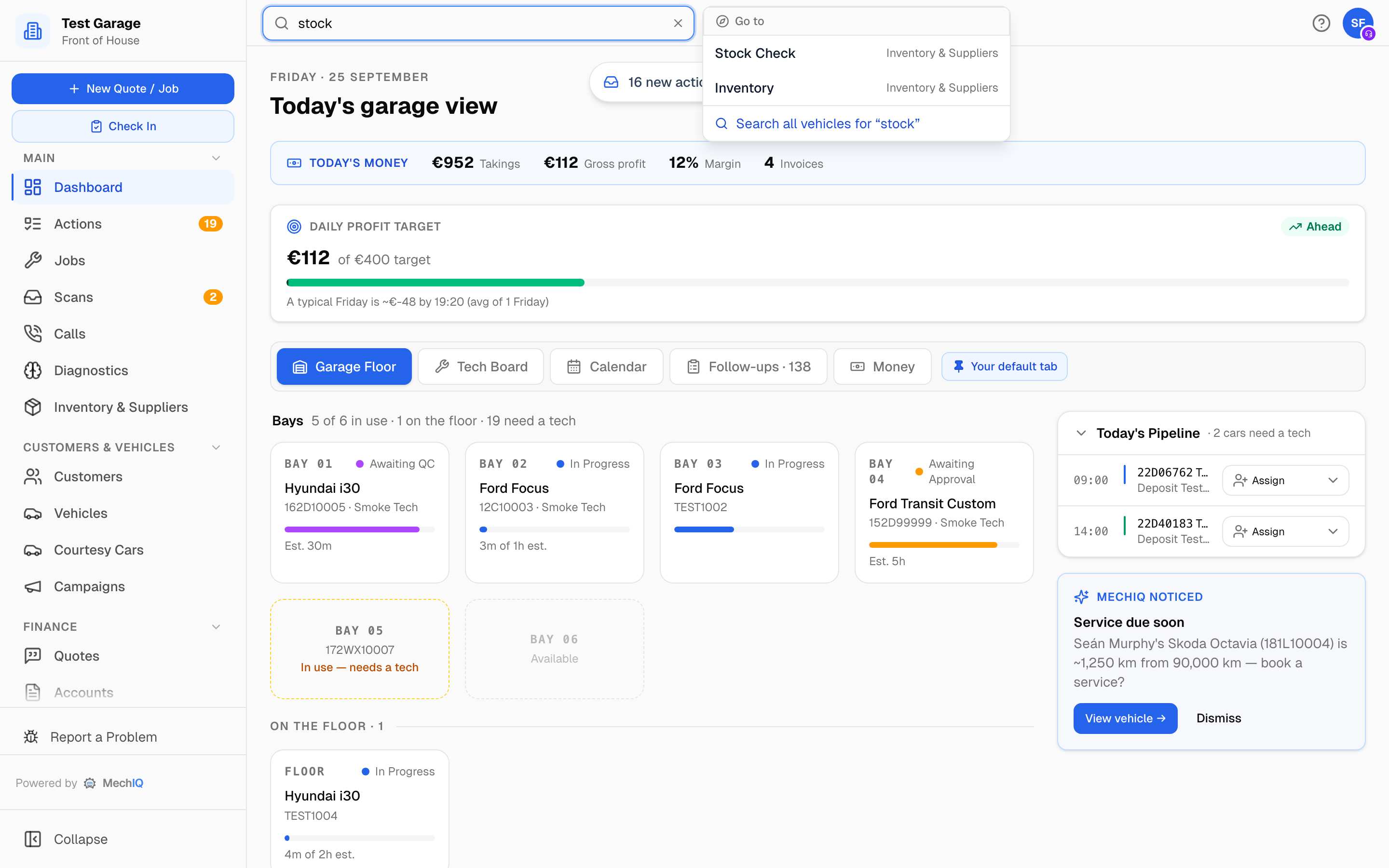
What you can find
- Customers -- name, phone or email. Phone numbers match digits to digits, so 0861234567 finds a stored 086 123 4567 or +353 86…. A number two customers share (see Customers) finds both.
- Vehicles -- registration, make, model or VIN. Dashes and spaces are ignored, so 191D12345 finds 191-D-12345. A customer's vehicles also appear when you search the customer.
- Active Jobs -- open jobs for the matching vehicle or customer, or by job type. A job number finds that job even when it is finished, which is what you need when a customer rings about last month's invoice.
- Invoices -- an invoice number opens the invoice: the Money section of its job, or, for an invoice imported from your old system with no job, the customer invoices list under Accounts filtered to that number (across all dates).
- Purchase orders -- by PO number or the supplier's invoice number; opens the order under Accounts.
- Parts -- by part number or name; opens Inventory filtered to that part.
- Suppliers -- by name.
- Part serial numbers -- finds the job the part was fitted on, including finished jobs, so a warranty claim can be traced back.
How results are ordered
Type digits and Vehicles come first; type letters and Customers lead. When what you type looks like a document number from the start -- INV-2026, a job number, a PO number or a part number -- that section jumps to the top.
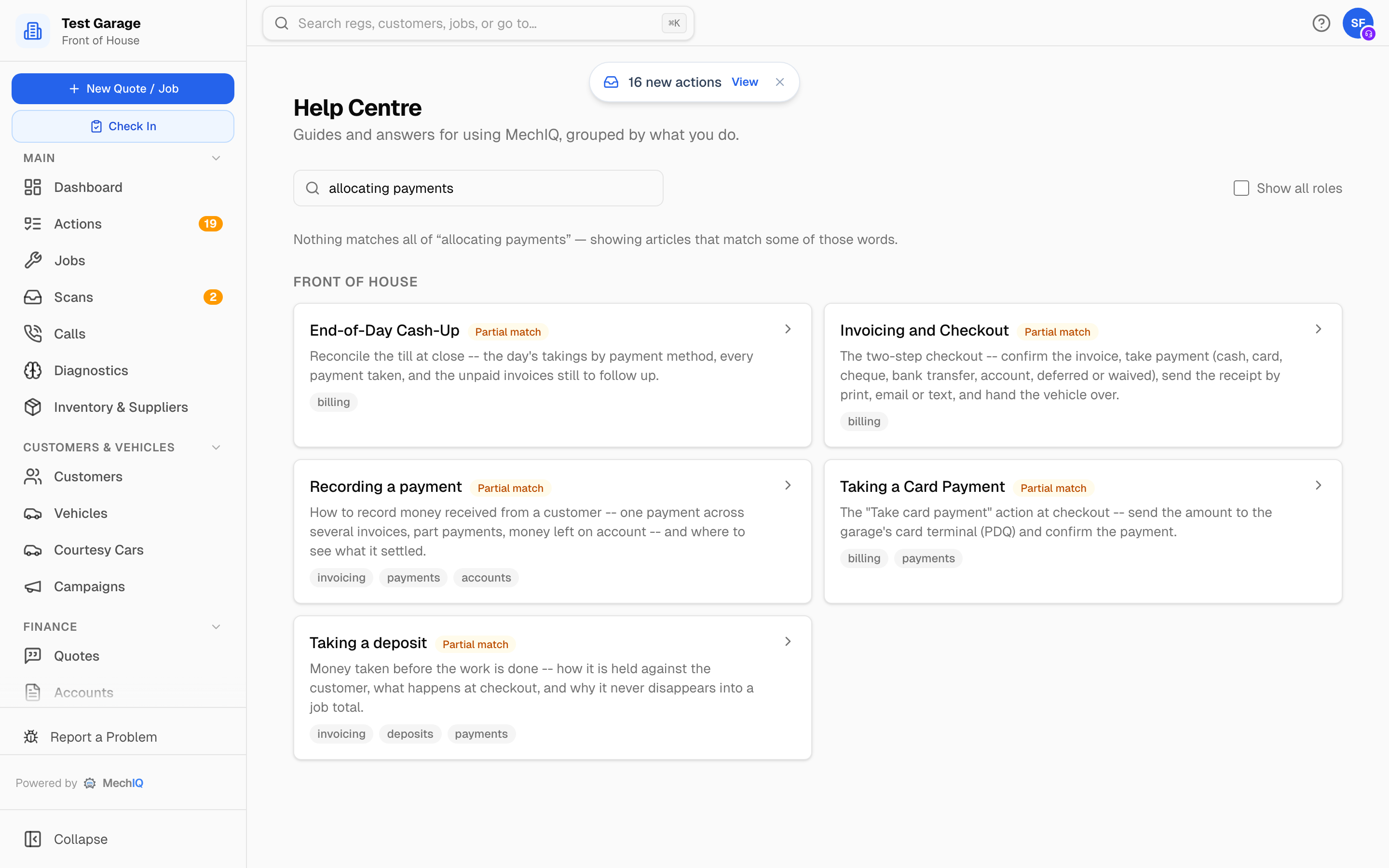
Searching the Help Centre
The Help Centre has its own search box, Search help articles.... It matches word by word across titles, summaries and tags: an article that contains every word you typed is listed first, and articles that match only some of the words are shown after it with a Partial match chip. Article body text is searched too, and a hit found only in the body is shown as a Partial match even when every word matched. When nothing matches all your words the page says so and shows the partial matches, so allocating payments still finds Recording a payment.
On a phone
On the web app on a phone, Search on the Home screen opens a full-screen lookup with a Vehicles | Customers toggle. Type at least two characters of a registration or a customer name and tap a row to open it.
The native app's Search has no toggle: one box -- Reg, make, model, customer name or phone -- and the matches come back grouped as Customers, Vehicles and Jobs, each with its count, in whichever order fits what you typed. Two characters there too.
Tips
- Use search to jump straight to a record instead of browsing through lists.
- If you cannot find a vehicle by registration, try without dashes or spaces.
- Type the first few letters of a page name to jump to it without touching the sidebar.