The job page and job statuses
Open any job from the Jobs list, the dashboard or an action and you land on its job page (JobIQ). Everything about the car, the customer, the money and the work is here. This article walks the page, then explains the statuses and the buttons that move a job between them.
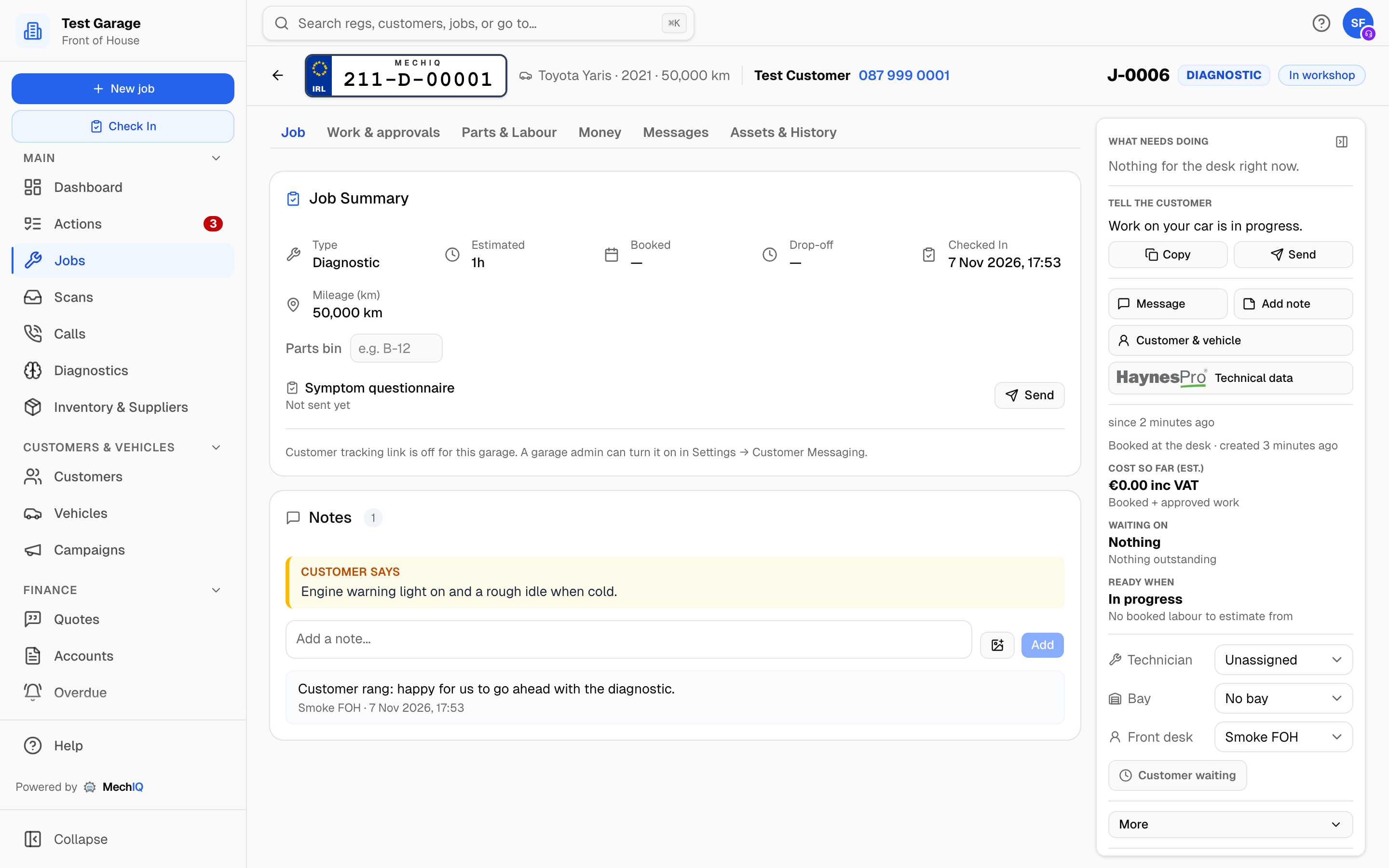 A job in progress. The Job details panel on the right is the job right now, on every tab.
The page
The header row stays at the top while the page scrolls: the back arrow, who and what. The tabs sit straight under it, and the Job details panel runs down the right beside them and stays in view while the tab scrolls. If the panel is taller than the window it scrolls on its own.
Hide the panel with the button at its top right: it folds to a thin strip with a count of its alerts, and its first row's button moves to the header row. MechIQ remembers this on your browser. Not enough room? When the tabs would have less than 640 pixels beside the panel (a tablet, or a small window with the sidebar open), the panel folds behind a Details button in the header row, with the alert count on it. Minimising the sidebar can bring the panel back. MechIQ never changes the sidebar for you.
The panel is the job right now, on every tab; the tabs are records. If it moves the job on, it is in the panel, once. In order:
- Who and what (the header row). The registration plate (click it for the vehicle page), make, model, year and mileage; the customer's name (click for their profile), phone (click to dial) and NPS badge. On the right: the job number, the job type and the status.
- What needs doing. At most three rows, most urgent first, then N more if there are others. The first row's button is the only filled one: what the desk does next, chosen by MechIQ from the same facts as Waiting on, so the two always agree. It is a form you fill in for an online booking to confirm and for the quality check; otherwise Check In, Send for approval (it opens the composer) with Record their answer beside it (it opens the dialog), Price & send extra work when a line still has no price, Order parts (it opens the order box), Chase short parts, Choose a technician, Mark complete when every task is done and nothing else waits, Check out when the car is ready, Take payment when the car went with the bill still owed, or Invoice again after Credit & amend. While extra work is with the customer the first row is Record their answer, with Send again under it. The row says why in one line, for example what the technician said when they handed the job back. A row turns red only when it is late, and amber when it waits on someone. Choose next step shows only when nothing else says what is next on a job handed back: it opens the real choices (Mark complete or Move job back to the workshop).
- Tell the customer. One sentence in the customer's words, to read out when they ring. Copy copies exactly that sentence; Send opens the composer on that same sentence -- as a Ready to collect message when the car is ready, else a Progress update. Edit it there before you send. A closed job has no Send.
- Message, Add note, Customer & vehicle and Technical data open a panel at the side without changing the tab: the job's messages and the composer; the job's Notes (the same notes as on the Job tab -- a note added here shows there and on the Assets & History timeline); the Vehicle and Customer cards; recalls, bulletins, torque figures and wiring for this car. Technical data shows how many recalls (in red: tell the customer) and TSBs the car has, or Recalls not checked on a booking that has not arrived or a closed job, until you open it. Those lists open inside it. More bulletins there asks DDTSB, only when you press it, so the TSB count on the button is HaynesPro's and can be lower. With the job open, typing recall, TSB or technical data in the search box opens the same panel. A no-reg item has no car data, so neither the button nor the search offers it.
- Full spec, right under Technical data, opens everything the registry knows about the car (engine, fuel, dimensions, weights, tyres) -- the same as Full spec on the vehicle page, without leaving the job.
- The facts. Who has the car and since when, how and when it was booked, the key tag, Cost so far (est.) (or Cost once invoiced — the invoice's total, with whether it is paid), Waiting on and Ready when. MechIQ works out Waiting on and Ready when once, from the job's records, and every screen shows the same answer -- this page, the technician's view, the mobile app, the Tech Board and the workshop TV. An answer turns amber when it needs you. When several things wait, it shows the most pressing one and names the others. A closed job has neither, and a cancelled one says Nothing to bill.
- Technician, Bay and Front desk. The one place to give the job a technician and a bay. Pick someone else (or Unassigned) to move it to their queue on the Tech Board for its booked day; only people with Works on jobs switched on are listed, and it is read-only once the job is complete. A busy bay says (in use). Front desk is the job's owner on the desk; change it here any time. Technicians see these but cannot change them.
- More opens a menu of the moves that are not the next step, only those valid for the job's state: Mark complete, Take back to desk, Put On Hold, move back, Reschedule, and last, set apart, Cancel Job (it still asks you to confirm). A move that cannot run right now stays in the menu with the reason. Print job card is a button in the job's top row, beside the job number, on every job. See Printing a job card.
- Progress (folded at the bottom of the panel). Six steps: Booked → Arrived → In workshop → Ready to collect → Paid → Collected. When the job waits inside the workshop the step turns amber with the real words: Waiting for QC, With the desk or On hold -- waiting for parts (or the customer, or the insurer). The Paid step reads the bill: Paid, Part paid, On account, Pay later or Written off. On a collected job every step shows a tick. It is not there on a cancelled job.
Customer & vehicle shows:
- Vehicle: what the car is (engine and engine code, fuel, gearbox, colour, mileage, and the VIN -- the last six characters, with a copy button) and what it is due: Next service (the last service plus your garage's service interval), its NCT or MOT, and the last Health check and its result. A date within 30 days shows in amber and an overdue one in red, so you can offer it while the car is in. The car's name opens its vehicle page. Full spec opens the full registry record.
- Customer: phone and email, the Important flag (front desk and admins can set it -- see Customers), their latest NPS score or No NPS yet, their Last visit (date, job and amount -- click it to open that job) and Customer since. Messages opens the job's messages; Customer profile opens their record.
Extra work found during the job is listed as Extra work 1, Extra work 2 and so on, in the order it was found. The booked work is not numbered.
On an iPad wide enough for the desk layout (landscape, or a 12.9-inch in portrait -- 1024 pixels or more) the front desk and the owner get this same page. A narrower screen gets the phone job page.
What needs doing carries these when they apply. Record the mileage is one line: press it to open the box.
- Request -- to confirm: an online booking not yet confirmed to the customer (the job's status reads Request -- to confirm everywhere -- the board, the lists, the job page -- until you confirm it): check the quote and drop-off time, then Confirm booking, Edit date/time first, or Decline. Tick Deposit taken if you took one. When the customer hasn't paid the deposit the banner says Deposit not paid: you can still confirm, and a confirmed booking is kept (only an unconfirmed request is released when its deposit time runs out). A new date is checked like any booking -- not a past day; a closed day asks Book anyway -- and the move is listed on the Tech Board's Moves. See Online booking.
- Return Visit: severity, what went wrong, and View original job.
- On hold: what it waits on and the expected parts date, with Resume Work.
- Quality check to do: the checklist to tick before QC Pass -- Complete, or Send back with a required reason: QC failed -- the work needs fixing (recorded as a fail), or Not finished -- it came to QC too early (not recorded as a fail). See Quality check before handover.
- Invoiced, not checked out: an invoice was raised but the keys were never handed over. It names the invoice, its status and what is still owed. Check out on the row resumes on that invoice.
- Customer not told it is ready: Send under Tell the customer opens the prepared message. If you told them another way, Told them records it: In person, or Ring them, which shows the number and logs the call. See Customer communications.
The tabs
Six tabs, one per task. The page keeps them as tabs on purpose: each task has one place.
Job: the record of the job. Job Summary (type, estimate, booked date, time slot, the symptom questionnaire, the parts bin, the original quote), the vehicle inspection summary, Notes, the Job Timer, MechIQ's watch-outs for the job, and the courtesy car (if your garage lends them).
An amber dot on a tab means something inside needs a decision: on Work & approvals, a finding nobody priced or extra work not sent to the customer yet; on Parts & Labour, a part still to order or delivered short; on Money, an invoice to raise or a bill still owed.
The tab you are on is part of the page address (for example ?tab=money). The browser's Back button returns to the tab you were on before, a reload keeps the tab, and a copied link opens the same tab. Actions and notifications open the right tab for their task. Old links keep working: ?tab=overview opens Job, ?tab=messages opens Messages, and ?tab=photos or ?tab=timeline open Assets & History.
Work & approvals: the Extra work card (Send for approval and Record their answer first, then each line to price, and parts to order for approved work), the vehicle inspection (where it stands, and the red/amber/green report with photos once the technician has results -- see Reviewing and Sending a VHC), the AI diagnosis and findings, additional issues from the health check, and likely parts to pre-order on a booked job. In paper-card mode this is also where the desk keys in the VHC. See Found work and the technician handoff.
Parts & Labour: service components, VAT on this job (put the whole job on one rate with Set whole job to..., or Back to category defaults), parts (with Order parts in their header), labour and Save as Canned Service on a finished job. Locked once the job is invoiced. See Parts on a job.
Money: everything money on the job in one place — the breakdown (booked work plus each package, consumables, VAT per band, estimate until invoiced — once invoiced, the invoice's own subtotal, VAT and total, headed As invoiced; see Invoicing and checkout), payments taken and what's left to pay, Take deposit before the invoice (or Take payment once the car has gone and the bill is still owed — see Taking a deposit), the invoice(s) with their status and credit notes, and warranty or insurance split billing (folded until you need it). On a car ready to collect it says Check out takes the payment. A cancelled job says Nothing to bill. This is the one place on the job to take a deposit or a payment; Check out in the head is the one way to invoice and hand the car back.
Gross profit shows labour sales, parts sales, parts cost (and labour cost when your garage costs its labour), and the gross profit with its margin, all ex VAT. It is the same definition as the dashboard and Reports: a credit note raised against the job's invoice is shown as its own Credit notes row and comes off the profit, and charges and fees (a test fee, a levy) are not in it. Before the invoice it says (so far). The owner always sees it; the front desk sees it while Settings → Dashboard shows the desk money figures (the same switch as the dashboard's money); technicians never.
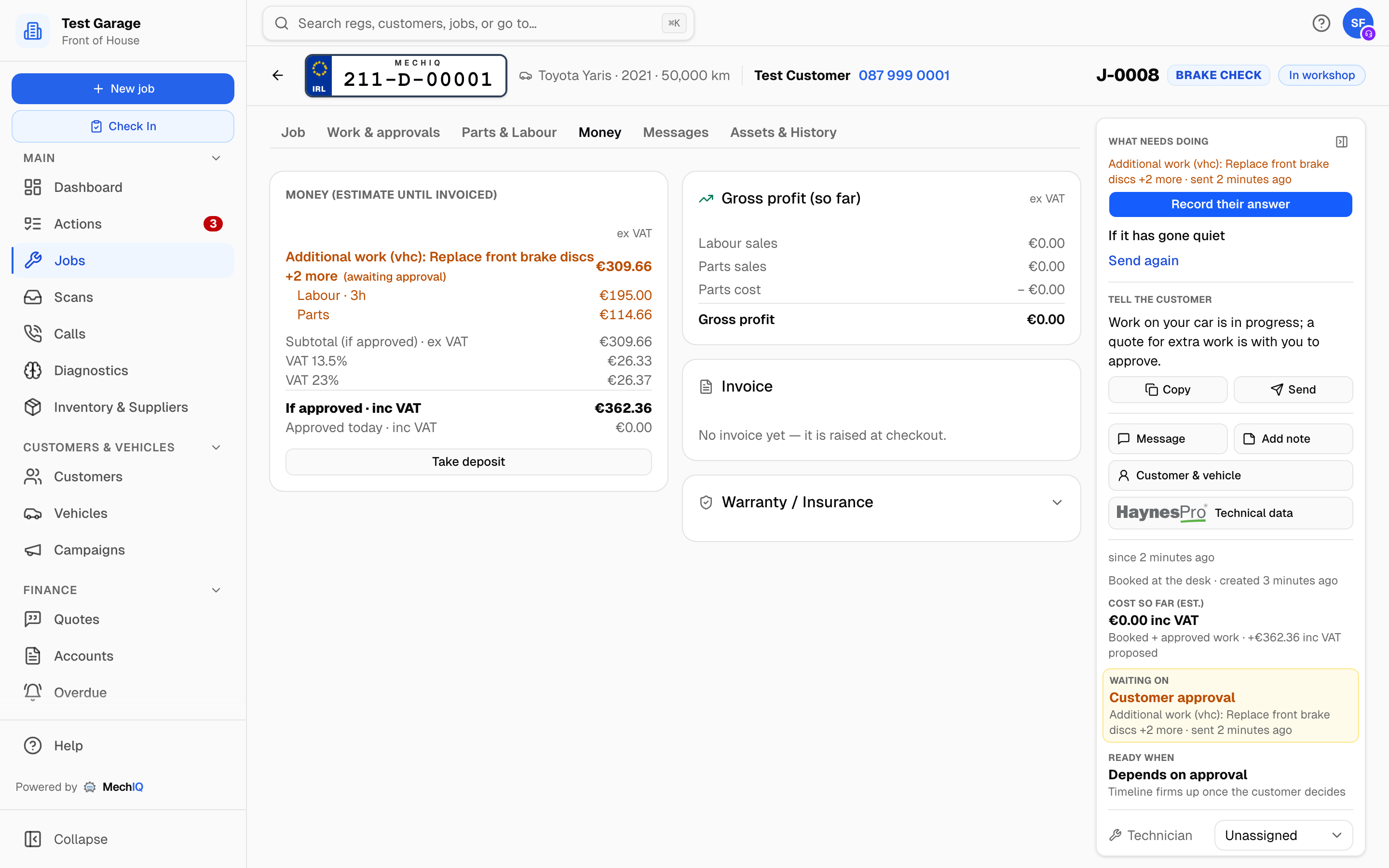 The Money tab, estimate until invoiced. Warranty and insurance split billing sits beside it.
Messages: every message to and from the customer, and the drafts not sent yet. Message in the panel opens the same panel from any tab. Technicians never see a send button.
Assets & History: first the Assets card -- the job's photos, files and scan reports, with how many there are (check-in photos, tech photos, the inspection PDF -- see Job notes, photos and the tracking link) -- then the Activity Timeline (every status change and note, with who and when), and the car's earlier visits (Service history, with any advisories still outstanding, a PDF download and Email to customer).
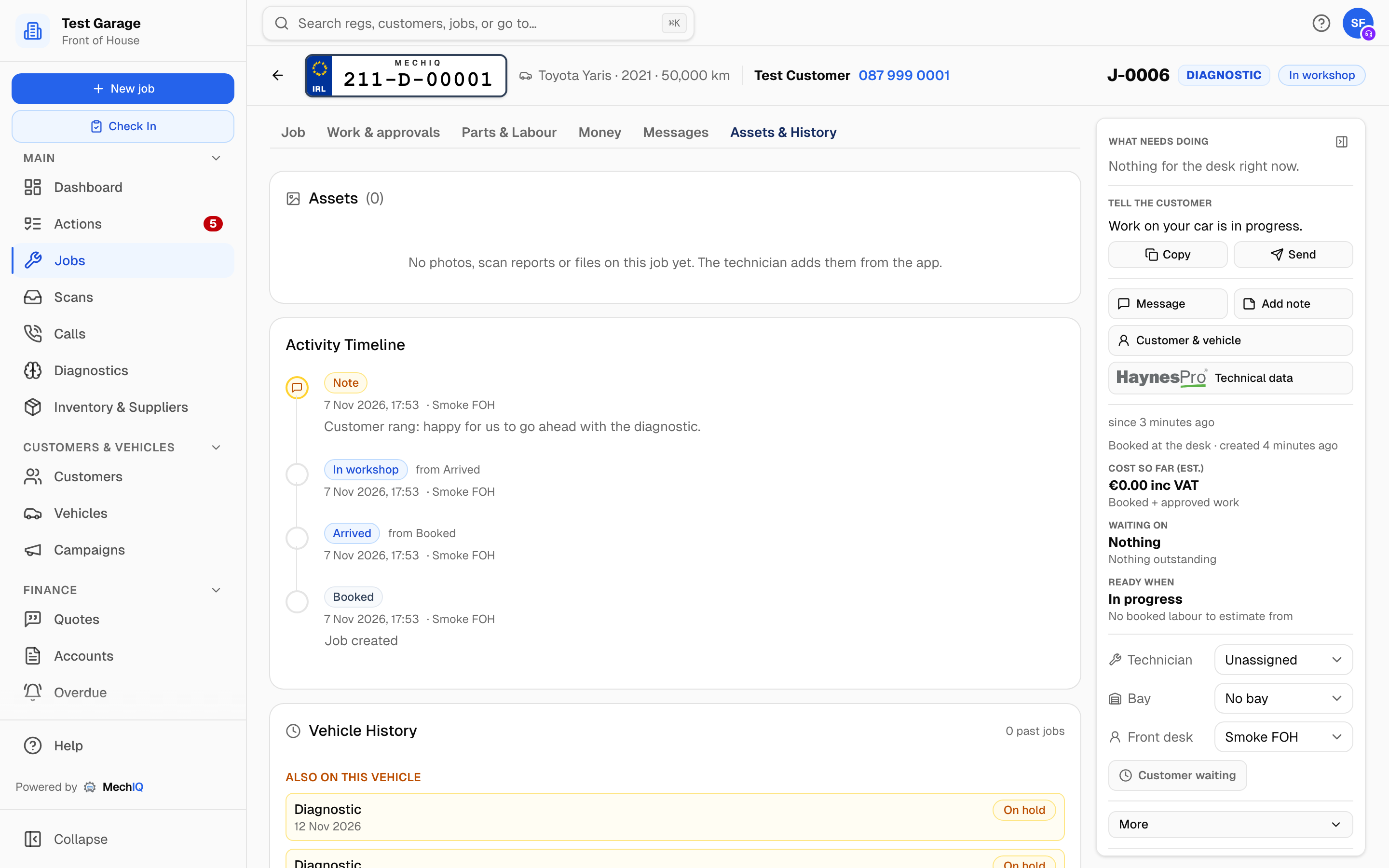 The Timeline is the audit trail: every move, who made it, and the note attached.
The statuses
Every screen uses the same names for the statuses -- the web, the mobile app, the Tech Board, the TV and the reports.
| Status | Meaning |
|---|---|
| Booked | Scheduled; the car has not arrived |
| Arrived | Checked in: on site, keys handed over; mileage recorded at the desk or, if left blank, by the technician before the job can finish |
| In workshop | A technician has started the work. Extra work the customer must approve does not change the status: it travels as its own item, and Waiting on says Customer approval once the request was sent |
| On hold | Parked for a reason you record: waiting for parts, waiting for the customer, waiting for the insurer or other |
| With the desk | The technician clocked off and handed the job back to the desk for the next decision. A sideways move, not a step forward |
| Waiting for QC | Work finished, waiting for the quality checklist. Only when QC is on (it is by default) |
| Ready to collect | Finished and verified |
| Collected | The customer has the car. The job is closed |
| Cancelled | It will not happen. The job page becomes read-only; book the car again rather than rewinding it |
| No-show | The customer never came. Recorded from Follow-ups → Never arrived (one click), and counted on the customer's record (No-shows on their card). Rebook on the job page books it again on a new day |
Moving a job
The quick-actions row shows only the moves allowed from the current status. Buttons say what they do, not where they land.
| From | Buttons |
|---|---|
| Booked | Check In (opens the check-in dialog), and under More: Reschedule (new date and slot -- then Tell the customer opens the prepared Booking moved message, with the day and the drop-off window, for you to send), Cancel Job |
| Arrived | The technician starts the work (and picks the bay). The desk can give it to a technician (Assign Technician, the Tech Board), and under More: Move job back if the car leaves again, Cancel Job |
| In workshop | Under More: Mark complete, Take back to desk, Put On Hold, Cancel Job. Mark complete is also the first row of What needs doing once every task is done |
| On hold | Resume Work |
| With the desk | Under More: Mark complete, Move job back to the workshop |
| Waiting for QC | The Quality check to do form (QC Pass -- Complete or Send back), or Move job back to the workshop under More |
| Ready to collect | Check out (invoice, payment, keys -- this is what marks the job collected; the keys go only when the invoice is paid, put on account or Pay later), Move job back to the workshop under More to reopen it |
| Collected | Log Return Visit under More |
| Cancelled | None -- there is no way back from the job page (Print job card stays in the top row) |
Every backward move and every cancellation asks you to confirm and lets you add a reason. The reason goes on the Timeline.
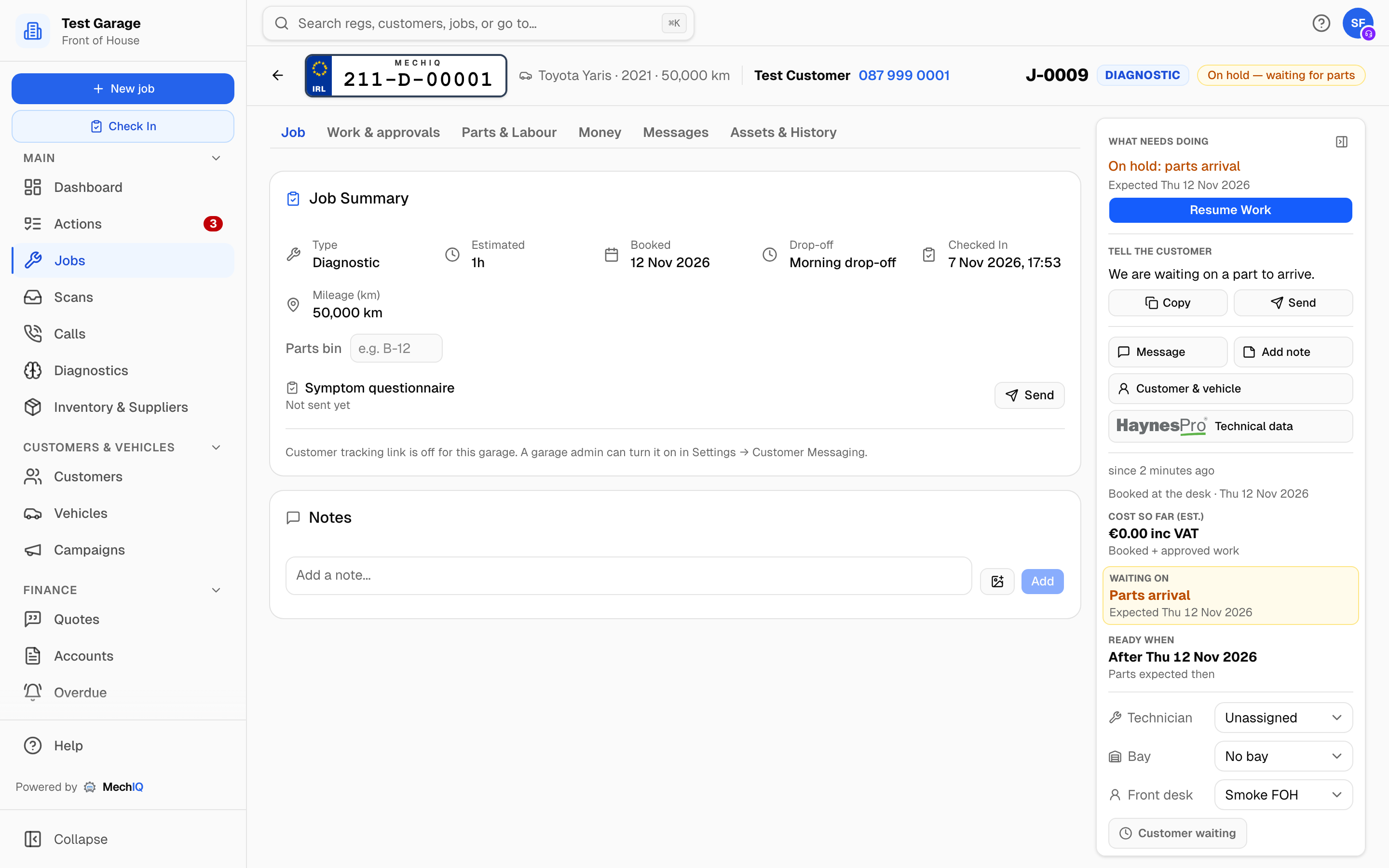 On hold, waiting on parts. The timer is paused and the car is out of the tech queue until you resume.
Putting a job on hold
Put On Hold opens Put job on hold?. Pick the Reason; for a parts hold add Parts expected (optional) (suggested from the latest supplier order on the job) and Notes. The timer pauses, the car leaves the tech queue, and the customer's tracking page shows the job is waiting with no dates. A parts hold with a future date rebooks the remaining work onto that day's Tech Board and reminds you when it arrives. Resume Work brings it back to In Progress. Only FOH and garage admins can park or resume a job.
Handed back to the desk
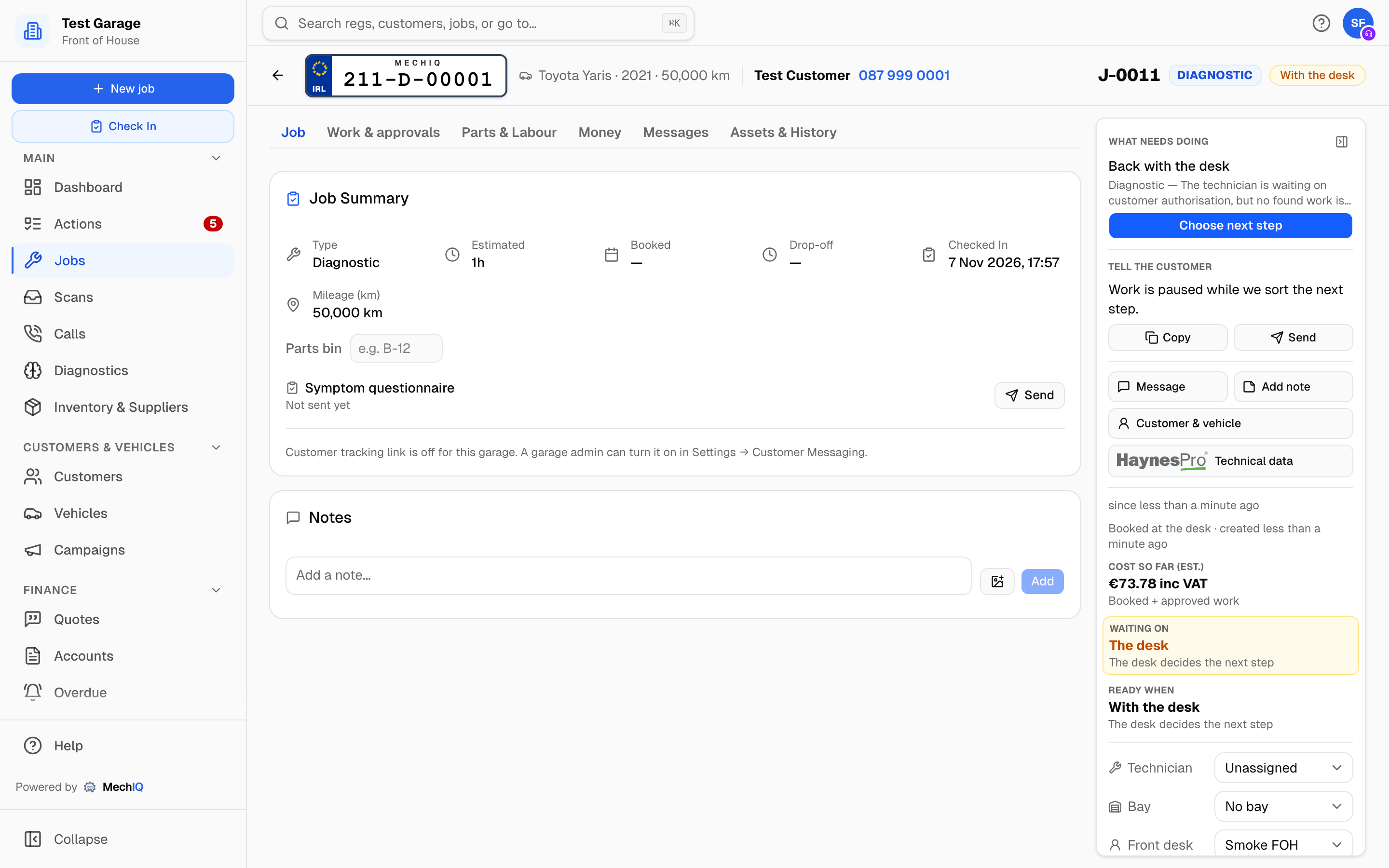 With the desk. What needs doing says what the technician asked for.
A technician clocks off with a next action (tag parts, awaiting authorisation, return to customer). Real blockers land on the Actions board as Blocked: reg with Choose next step. From the job, Choose next step (or More) offers Move job back to the workshop, which resumes the work (the technician who resumes claims it), or Mark complete, which finishes it. The desk can also pull a running job back with Take back to desk.
Completing a job
Mark complete opens the Job Completion Summary: time on the clock, tasks handled, labour and parts, and the QC checklist. When QC is on, every item must be ticked before a job can reach Complete, whoever completes it. A technician without QC permission sends the job to Waiting for QC instead; the desk and garage admins are the checkout authority and complete directly.
MechIQ also stops you when:
- a part on the job still shows Confirm for its quantity. The summary names the part and has a Quantity used box on it: type how much went in, even if it is 1, and press Save quantity. An override reason does not pass this. An AI-suggested part nobody confirmed comes off at completion and needs no quantity, nor does a part marked not used or left off.
- a part on the job has no price. The summary names the part and has a Unit cost box on it, directly under the quantity box if the part owes both. Type the ex VAT cost and press Save price: your markup is added, and the sell price shows before you save. An override reason does not pass this. If the part is free or was not used, Open the parts and set a sell price of 0, or take it off. An AI-suggested part nobody confirmed needs no price, nor does a part marked not used or left off, or a booked part on a fixed-price job. If a technician finishes a job with no QC step while a part has no price, the job comes to you as With the desk with a Blocked action: price the part, then complete the job;
- a part on the job is still To order, On order or Short. The summary shows Waiting for parts -- N parts not here yet, lists them, and Open the parts takes you to the order box. Order or receive them, then complete. If the job must finish anyway (the customer supplies the part, or collects now and comes back), tick Override -- finish anyway and write the reason. Confirm Complete stays off until there is a reason. The timeline then shows Finished with parts not here, who did it, the reason and the parts. Only the desk and garage admins can override; a technician can't submit for QC or complete while parts are not here. The same rule applies to the QC Pass;
- the job type needs a post-work road test that has not been recorded or skipped -- on every path, the technician's clock-off Return to customer included;
- the customer approved extra work that was never started. Approved work not done lists it; Drop it & complete cancels it unbilled, Go back returns to the job.
- found work is still waiting on the customer's decision (a package that is Proposed or Awaiting customer). Found work not decided lists each package and its value. You have two choices:
- Keep open -- don't complete -- the job stays as it is. Send the work to the customer (or record their answer) first, then complete.
- Decline & complete -- pick why (Customer said no, Couldn't reach the customer, Not needed or Other, which needs a note) and the job completes. The work comes off the job, its approval link stops working, and the package reads Declined by the desk to complete the job (reason). The timeline records it as the desk's decision, not the customer's.
Nothing undecided is ever dropped without one of those choices. A technician can't decide for the customer: if they try to complete a job with undecided found work they are offered Hand to front desk, and the job comes to you as Blocked on customer authorisation. When QC is on, the Waiting for QC action says how many found-work packages still need a decision, and the QC pass asks the same question.
Reopening a completed job
Move job back to the workshop on a completed job reopens it. The confirm step asks Who's doing the work? -- the technician who did the job is picked for you; choose someone else if another tech is finishing it. The job moves to that person and their clock runs from then, so they are the one who can clock it off. Only people set up to work on jobs are listed (see Team management). The same question is asked whenever you move a job back to the workshop from With the desk or Waiting for QC.
If found work was cancelled when the job completed without the customer ever deciding it (this could happen before the change above), the confirm step says so. Once the job is back in progress the Additional work packages card shows This found work was cancelled when the job completed -- the customer never decided. Restore it? Press Restore to put the package back as Proposed, with its lines exactly as they were, ready to send. A package cancelled before MechIQ kept its lines shows Price it again instead: its findings go back through pricing and arrive as a new package for you to review and send.
Cancelling
Cancel Job is under More in the panel. Before work starts: Cancel this job? says what happens to money and parts -- a deposit already taken is not refunded: it stays on the customer's account as credit (use it on their next job, or pay it back with Refund on the customer's page); a part on order from a supplier is not cancelled with the supplier; parts set aside from stock go back on the shelf. Add an optional reason and click Cancel job (Keep job leaves it as it is). You can reopen a cancelled job later. Once work has started it runs the same checkout as collection, charging for the work done: the reason, which parts go back (a returned part comes off the bill and back to stock at once), the same Invoice step (or Charge nothing), the same Payment step, then Cancel job. See Invoicing and checkout.
A cancelled job is the end of the line on the job page: there is no More and no reopen button. Print job card is still in the top row. If the customer rebooks, create a new job -- the car and customer are already on file, so it takes seconds. Cancel with that in mind -- the reason you type on the confirm step is the only record of why.
Once the invoice is paid
When the invoice is Paid or Written off, the backward moves and cancel disappear. Reworking a paid job means a credit note or a new job (Log Return Visit), not rewinding the status.
Who can do what
- Check-in, checkout, putting a job on hold and resuming it are front-desk moves (FOH and garage admin).
- Technicians start work, hand jobs back, and submit for QC; their completions route through QC unless they hold the QC permission. The technician's main button is the same on the web and in the app: Start work, Confirm parts, Waiting for parts -- N not here, Record the road test, Submit for QC or Finish job.
- Sending anything to the customer is FOH and garage admin only. Technicians can draft, never send.
Related: Starting work on a job · Quality check before handover · Invoicing and checkout · Customer approval