Quality Check Before Handover
The quality check (QC) is a gate between "work finished" and "job complete". It is on by default. While it is on, a job a technician finishes does not go straight to Complete -- it stops at Awaiting QC, where someone inspects the car against a short checklist before it is released for checkout. A two-minute look catches missed work, new damage or a grubby interior while it is still cheap to fix.
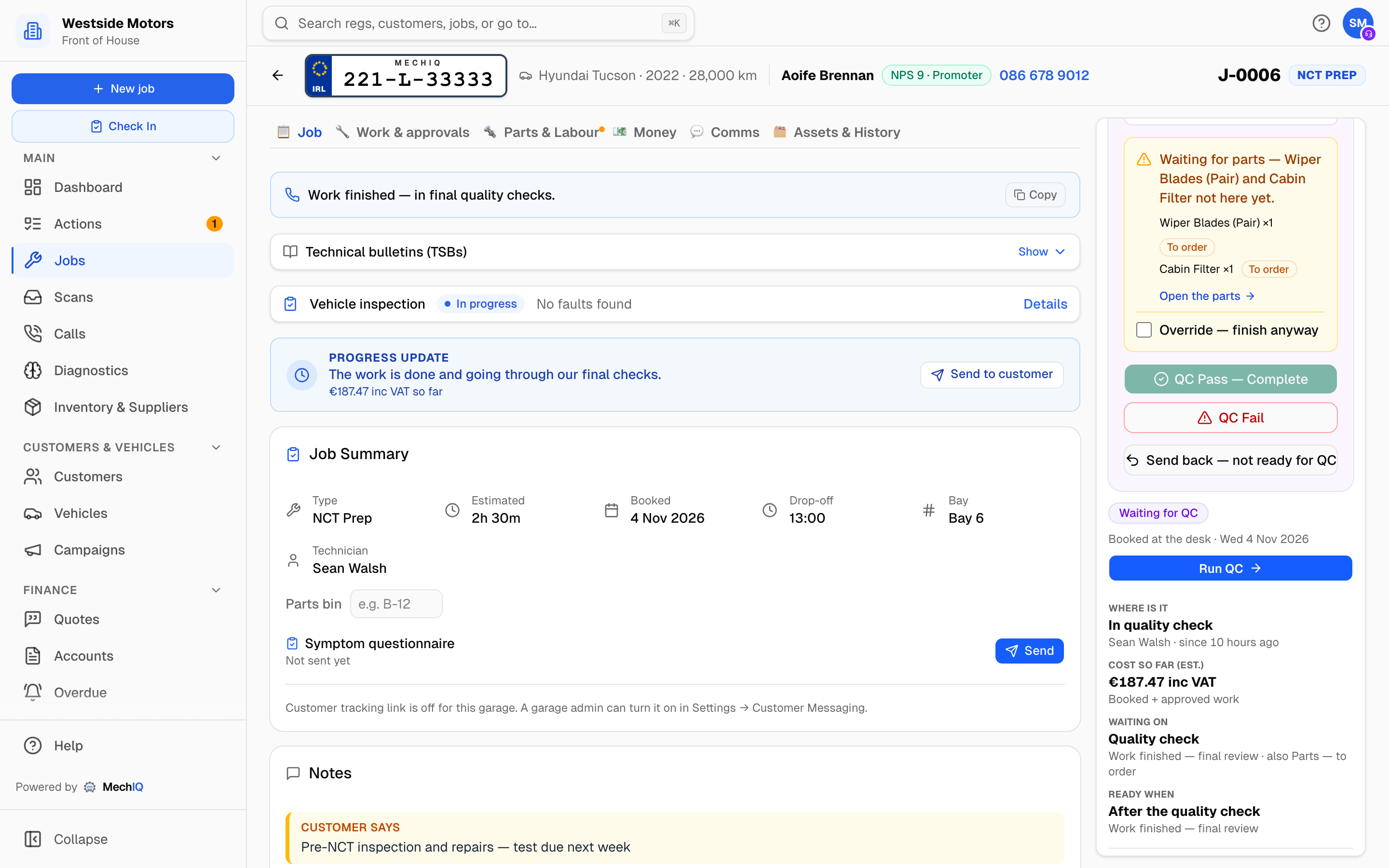 The Quality Check panel on an Awaiting QC job. Every item must be ticked before the pass button unlocks.
How a job reaches Awaiting QC
When a technician finishes a job in a QC-enabled garage, their Job Completion Summary ends with Submit for QC rather than Confirm Complete, and the job moves to Awaiting QC. The technician's write-up is saved as the job's completion notes.
Two kinds of user skip the gate and land the job straight in Complete -- because they are the QC:
- FOH and garage admins completing a job themselves.
- Technicians with the QC permission (set on their user record by a garage admin).
They still tick the checklist -- it appears inside their completion dialog instead. The server refuses a completion in a QC-enabled garage until every item is ticked, whichever screen it comes from.
Do the quality check
Open the job while it is in Awaiting QC. Above the tabs you will see the purple Quality Check panel: Inspect the vehicle and work completed, then approve or send back.
- Inspect the car and the work done.
- Tick each checklist item. The defaults are Vehicle is clean (exterior wash / interior tidy), All work items completed and No new damage to vehicle; your garage may have its own list.
- Choose the outcome:
- QC Pass -- Complete -- unlocks once every item is ticked (and, if a part is still To order, On order or Short, once it is here or you tick Override -- finish anyway and write why). A QC passed note is added, the ticked items are recorded on the job history, and the job moves to Complete, ready for checkout.
- Send back -- choose QC failed -- the work needs fixing, write the reason (required: Send back stays off until you do, and says why) and press Send back. The job returns to In Progress with the note QC failed: [your reason]. It goes back into its technician's queue with the job clock paused (Paused -- back from QC): the clock does not start until they press start, and the job they are working on now stays theirs. Nobody is asked to switch jobs. The technician sees a red QC Failed -- Rework Required banner with your reason on their job and in their notification, and the job's Notes list it. When they finish again the job comes back to Awaiting QC.
You can also use Move job back to the workshop under the panel (it asks Who's doing the work?), but that returns the job without recording a QC reason -- use Send back so the technician knows what to put right.
Not ready for QC? Send it back
Sometimes a job lands in Awaiting QC before the work is finished -- the technician pressed Submit for QC by mistake, or there is still a part to fit. That is not a quality failure, so don't fail it. Press Send back, choose Not finished -- it came to QC too early, write a short reason (for example pads not fitted yet) and press Send back.
If the technician finished with a step not ticked, the panel says so above the buttons: Finished anyway -- 1 step not ticked: [task]: [step].
- The job goes back to In Progress, to the same technician, with the job clock paused until they start it -- as after a QC fail. The job they are on now is not touched.
- The technician gets a Sent back: not ready for QC notification with your reason, and the timeline shows Sent back -- not ready for QC.
- Nothing is recorded as a QC fail: no red QC Failed banner, no QC failed note, no QC-failed notification.
FOH, garage admins and technicians with the QC permission can send a job back. The technician whose job it is can also take it back themselves from their Awaiting QC banner.
Every job waiting on QC
Technicians with the QC permission see a purple jobs need QC banner. It opens the Waiting on QC list (/qc) -- every job awaiting QC, oldest first, with the registration, make and model, customer, job number, who submitted it, how long it has waited, and any flags (Urgent, High priority, Call-out). It opens the list even when only one job is waiting. They also have Waiting on QC in their menu. A technician without the QC permission gets no list -- the page says who does QC. Tap a row to open that job's QC. The desk sees the same jobs under Awaiting QC on the dashboard.
Completing from the desk
If a part still shows Confirm for its quantity, QC Pass -- Complete stays off and the panel names the part with a Quantity used box. Type the quantity and press Save quantity. An override reason does not pass this.
If a part has no price, QC Pass -- Complete stays off and the panel names the part with a Unit cost box. Type the ex VAT cost and press Save price. Your markup is added, and the panel shows the sell price before you save. An override reason does not pass this. If the part is free or was not used, Open the parts: set a sell price of 0, or take it off. A technician who can pass QC sees the part named and cannot price it: the desk does that.
If you press Mark complete (under More, or What needs doing's first row once every task is done) on an In Progress or With FOH job, the Job Completion Summary opens. It shows the time on the clock, tasks handled, AI findings reviewed, labour and parts totals, recent notes and a warning if labour ran more than 30% over the estimate. In a QC-enabled garage the same Quality Check checklist sits at the bottom, with QC failed -- send back and Confirm Complete buttons. Confirm Complete stays disabled until every item is ticked.
Things that can block a pass
- Approved work not done -- if the customer approved extra work that nobody started, MechIQ blocks completion with a list of what would be dropped and its value. Go back to get it done, or Drop it & complete to finish without it (it will not be billed).
- Found work not decided -- a found-work package still waiting on the customer. The pass shows Found work not decided: Keep open -- don't complete and send it to the customer first, or Decline & complete with a reason. See Job Status Transitions.
- Post-work road test -- job types that require a road test after the work must have it recorded (or skipped with a reason) before the job can complete. This is the technician's step; the job page shows This job type needs a post-work road test if it is missing.
- QC by a different person -- when this setting is on, the technician who did the work sees This garage requires the quality check to be done by someone other than the technician who did the work and the pass button is disabled. The server enforces it too.
Settings
A garage admin manages QC under Settings → VHC & QC checklists, on the Quality Check Checklist card. Press Edit to change:
- QC Required -- the master switch, on by default. Off means every completion goes straight to Complete with no checklist.
- QC by a different person -- only shown while QC is required. Leave it off in a one- or two-person garage where there is nobody else to sign off.
- The checklist items -- edit the wording, remove items, or Add Item. If the list is empty the three defaults are used.
Press Done to close the editor, then Save in the sticky bar. Nothing changes until you save.
Related articles
- Job Status Transitions
- Invoicing and checkout
- Found Work and the Technician Handoff -- why "approved work not done" can block a pass.