Online Booking — Website & Google
Every garage on MechIQ gets a ready-made online booking page. Customers book a service (or tyres) 24/7 and the job lands straight in your calendar — no phone tag. Everything below is in Settings → Online Booking (garage admin only).
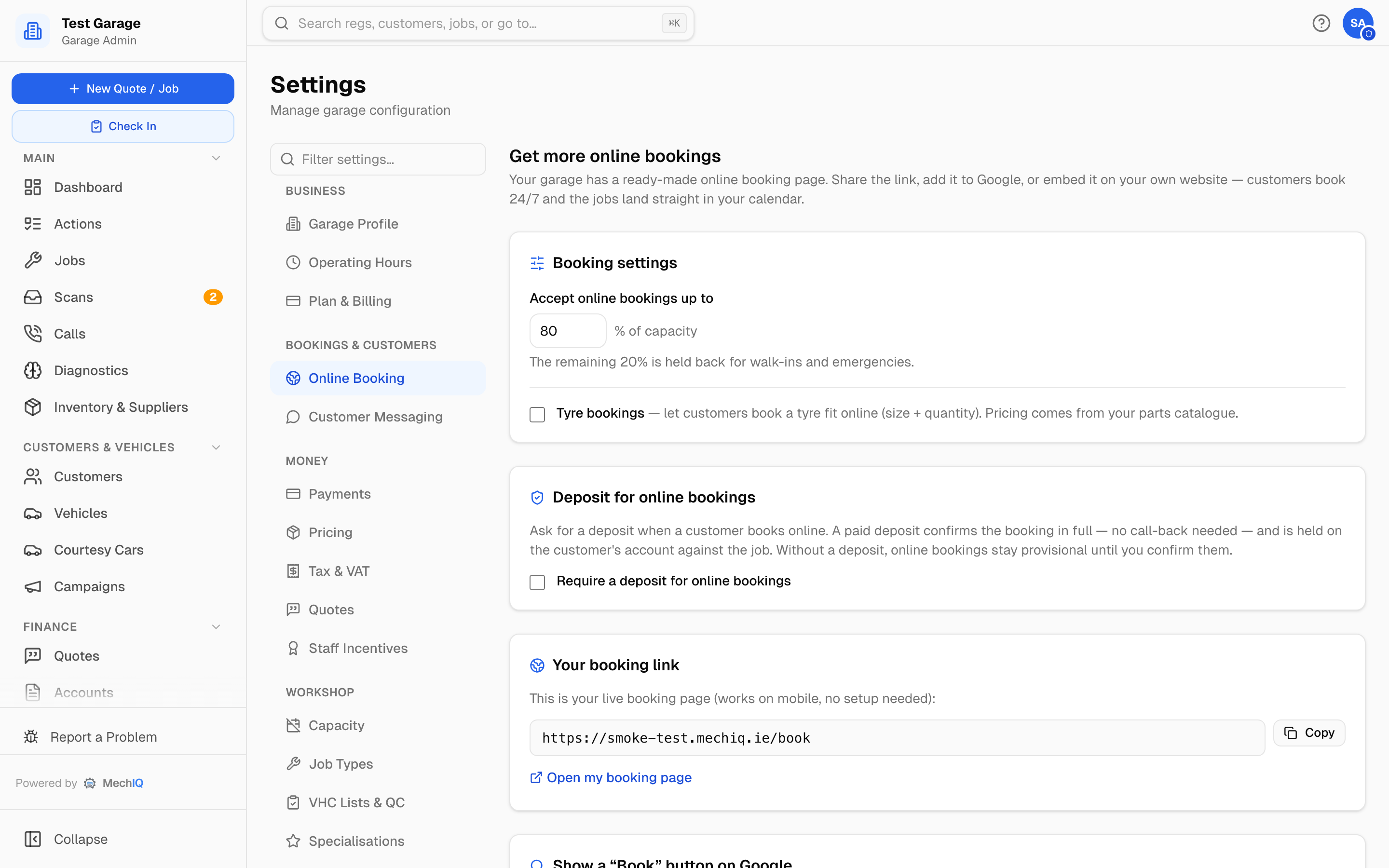 Settings → Online Booking. The two cards at the top are the settings; the rest is how to share the page.
Booking settings
- Accept online bookings up to N% of capacity — default 80%. The rest is held back for walk-ins and emergencies: once a day is that full, the booking page stops offering it. Tune it to how much walk-in traffic you actually get. The page checks again when the customer presses Confirm Booking — a page left open for an hour can't book a day that has filled since, a past day, or a day you're closed; the customer is asked to pick another day. Capacity is your technicians' hours in the diary, less their leave — the same figure as the desk's calendar.
- Which days customers can book — every open day takes all services online unless you change Online bookings for it in Operating Hours. Off keeps the day open for your front desk and walk-ins but shows it as closed on the booking page. Selected services only takes just the services you tick — a Saturday for tyres only, say — and shows the day as closed to anyone booking something else (see Opening at Weekends).
- Tyre bookings — off by default. Tick it to let customers book a tyre fit online (size and quantity), priced from your parts catalogue. See Tyre Booking.
Save with the bar at the bottom of the page.
Deposit for online bookings
The deposit is set in Settings → Payments, beside the payment account it is paid on; this page shows whether it is on, with a link there. Off by default. Tick Require a deposit for online bookings and set the Deposit amount (a flat figure inc VAT -- the money actually taken -- default €100). Every online booking pays it: services, diagnostics and tyre orders. The customer sees the deposit on the Review step, before they tap Confirm Booking, and pays it on the next screen. A paid deposit confirms the booking in full — no call-back needed — and is held on the customer's account against the job.
The deposit is taken on your own Stripe, Revolut Business, SumUp or AIB Merchant Services account, connected under Settings → Payments. The card tells you whether an account is connected; until one is, online bookings stay provisional and you confirm them by phone.
Your booking link
Your booking page lives at:
https://{your-garage}.mechiq.ie/book
It works on phones, needs no app, and is always up to date with your services and availability. The tab shows your exact link with a Copy button and an Open my booking page preview.
The three things below all point customers at this one link.
Show a "Book" button on Google
This is the highest-value, no-cost step — when someone searches your garage on Google or Maps, a Book button appears that opens your booking page:
- Sign in at business.google.com and choose your garage.
- Open Edit profile → Booking (sometimes "Add a booking link").
- Paste your booking link and save.
It can take Google a little while to show the button. The same link also works for Bing Places and a Facebook Book Now button.
Add a "Book online" button to your website
Copy the button snippet and paste it into your website where you want the button. There's a live preview so you can see what it looks like. If you'd rather use a button you already have, just link it to your booking link.
Most website builders (WordPress, Wix, Squarespace, Shopify) have a "Custom HTML / Embed" block — paste it there.
Embed the whole booking flow on your site
To keep customers on your own site, copy the widget snippet instead. It drops the full booking flow into one of your pages inside a frame that resizes itself as the customer moves through the steps (no awkward scrollbar). Paste it into a Custom HTML / Embed block. Inside your site the widget shows the booking steps only — your logo, phone number and address are left off, because your own page already shows them around it.
If your website builder doesn't allow custom HTML, use the button or plain link instead — the experience is the same, just on a MechIQ page.
Already have your own website or domain?
You don't need to move hosts or change anything technical. The easiest option is simply to add the link, button or widget above to your existing website.
If you'd like bookings on a tidy address on your own domain (for example book.yourgarage.ie), ask your website/hosting company — or do it yourself at your domain provider — to add a URL redirect (forward) from that address to your booking link.
What to tell them:
"Please set up a 301 URL redirect/forward from
book.ourdomaintohttps://{our-garage}.mechiq.ie/book."
It has to be a redirect/forward, not a plain DNS record. A CNAME pointing your subdomain straight at MechIQ won't work yet, because the booking page is served on the .mechiq.ie address (with its own security certificate). Hosting the booking page directly on your own domain is on our roadmap.
What your customers see
- Their vehicle — they type the registration and MechIQ looks it up, showing the car on a number plate with the make and model confirmed.
- "Something's wrong / not sure what you need?" — alongside your service menu there's an option to just describe the problem. It books as a diagnostic visit and the customer's own words land on the job, so you take a look and confirm the price before any work.
- Your services — everything you've marked Available for online booking in Job Types, each with its rough duration. A job type with Show an instant price online ticked gives the customer a price for their car before they book; with it unticked the service is tagged Priced by phone on the menu, and the summary reads This job is priced after a quick chat with your number to call.
- A phone number and email that work. The phone number needs at least 7 digits and an email needs a full address (name@example.com). A customer who types "12" or "aoife@" sees how to fix it under the box and can't go on until it's right, so a booking never lands with contact details your reminders can't reach.
- The year of the car. When the registration lookup finds the car, its year is saved on the vehicle with the booking.
- The price includes your consumables charge. If you charge for consumables / sundries (Inventory → Charges), the online price carries it -- See what's included lists it as its own line, Workshop consumables & sundries, inside the total, on top of a fixed menu price just as the invoice adds it. The job the booking creates is invoiced at that same total, so the customer is never shown one price and billed another. If you remove the charge from the job at the desk, it comes off that job only. A tyre-only booking shows the charge beside the tyres too.
What happens to a booking
Online bookings land on the dashboard's Follow-ups tab and the Actions board as Online booking to confirm. FOH reviews the quote and drop-off time and confirms — unless a deposit was paid, in which case it is already confirmed.
Tips
- Put the link everywhere: website header, footer, Google, Facebook, Instagram bio, email signatures, even a QR code on the counter.
- It's always live: services, prices and available slots come straight from your MechIQ setup, so there's nothing to keep in sync.