Calendar and Scheduling
Your schedule lives on the dashboard, on two tabs:
- Calendar -- the wider view: how booked each day of the week or month is.
- Tech Board -- the day itself: one column per technician, with the jobs they are booked to do.
There is no separate Calendar page in the sidebar. Old bookmarks to /calendar open the dashboard.
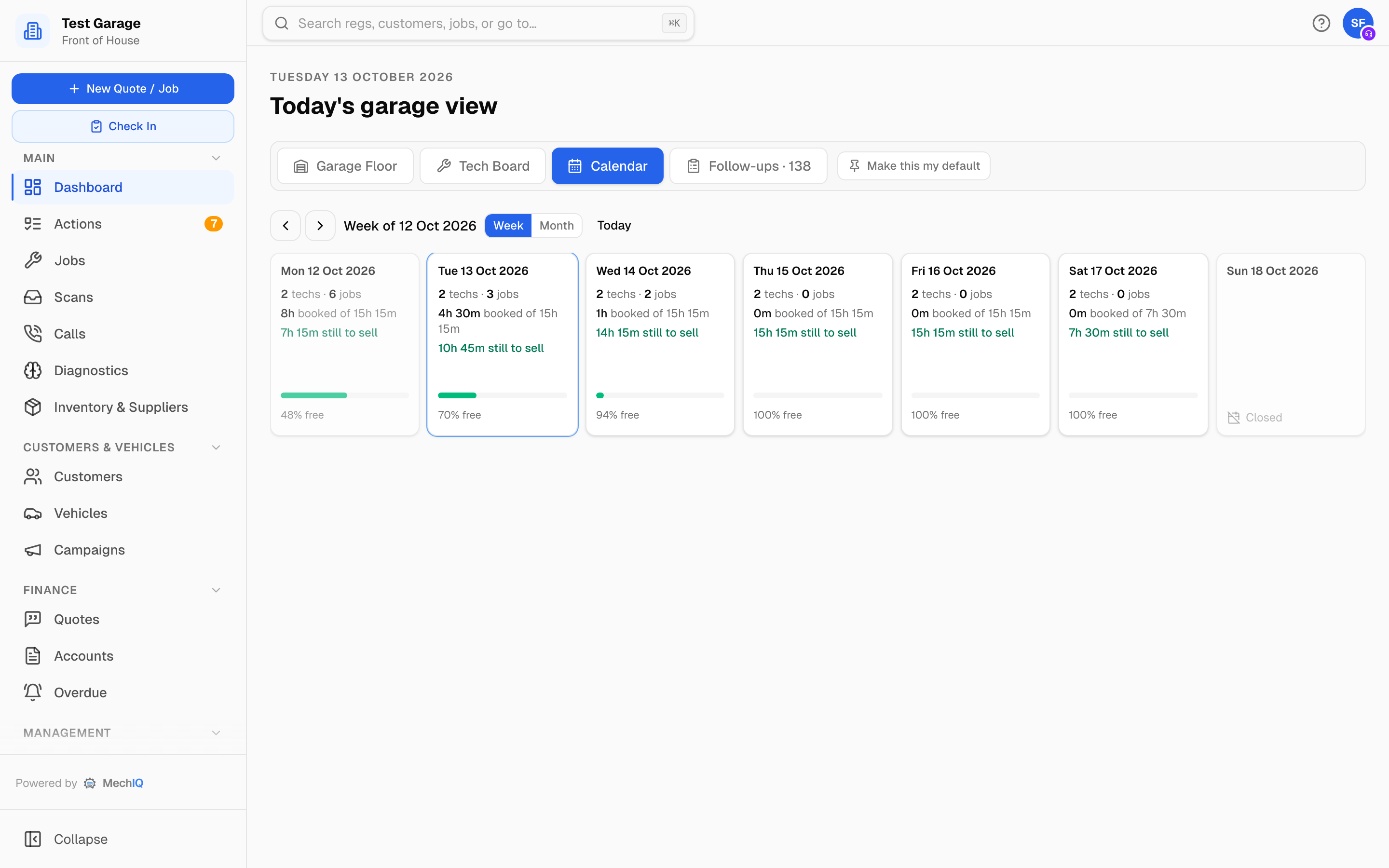 Week view. Friday and Saturday are full; Sunday is closed.
Week view
Use the arrows to move a week at a time and Today to come back. The heading reads Week of 21 Sept 2026.
Each day card shows:
- techs · jobs -- how many technicians are in and how many jobs are booked.
- booked of -- hours booked out of the day's total.
- Xh free of Yh -- the hours you can still fill, in green. A day that is over reads Day finished.
- Off: the first names of anyone on leave that day.
- A bar that turns amber at 70% booked and red at 90%.
The day's total is the hours of every technician planned in the diary that day, less anyone off, at your garage's productivity -- the same figure the Tech Board, the booking screens and your online booking page use. Only technicians count: a front-desk person on leave changes nothing, and a technician off on a day they weren't rostered isn't taken off twice.
A closed day reads Closed. Today has a blue ring; past days are faded.
Click any day to open it on the Tech Board, where the detail lives.
Month view
Switch with the Week | Month toggle. The month shows the rhythm -- busy and quiet weeks, closures and leave.
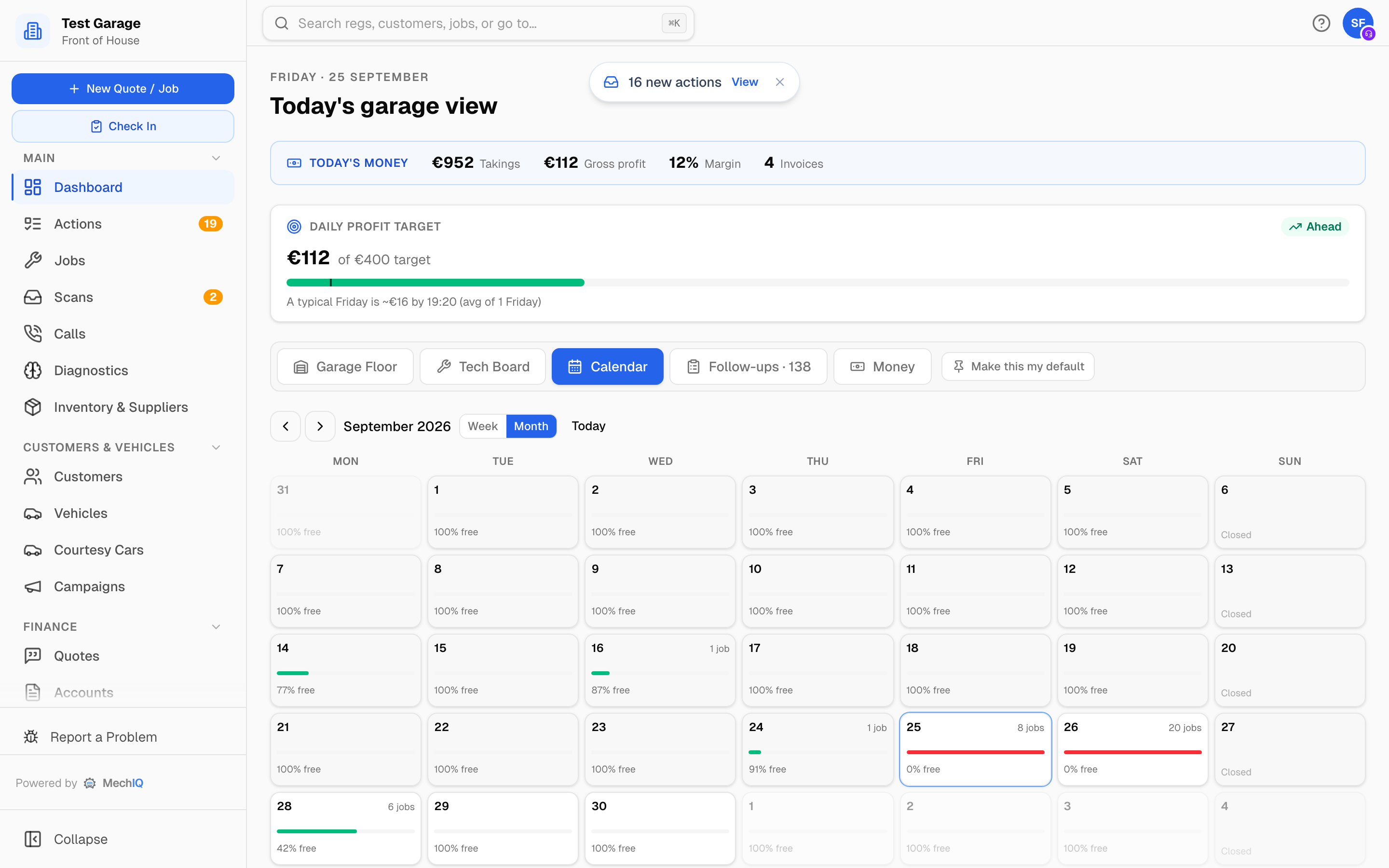
Each cell shows the day number, N jobs when anything is booked, N on leave when someone is off, a capacity bar and Xh free of Yh. Closed days read Closed. Days outside the month are faded. Click a day to open it on the Tech Board.
The Tech Board
The Tech Board shows a single day, one column per technician, with the arrows stepping a day back or forward and a two-week strip for jumping further. On today's board, drag a job between columns or down a column to plan it; drop it onto a day in the strip to move it to another day. A later day shows its bookings in a To plan list -- a booking has no technician until the car is checked in. Cards are drawn to scale against the hours of the day.
Reading a card, the status and front-desk pills, rebalancing a day and recording a tech off or a ramp down all have their own page: The Tech Board.
Technician availability
Both views reflect technician leave and absence -- annual leave, sickness and training. The week view names who is off, the month view counts them, so you do not book work for someone who is not in. Leave is managed under Team; a same-day absence can be recorded straight from the Tech Board with Tech off / ramp down.
Capacity and online booking
The capacity figures come from the same source online booking reads, so what a customer can book and what you see always agree. Your garage can hold back a share of each day for walk-ins and phone bookings under Settings → Online Booking, and set closures and reduced hours under Settings → Operating Hours. Both show up here automatically.
On a phone
On the web app on a phone, Calendar in the bottom bar opens a day agenda: a week strip along the top, a Day | Week toggle, then that day's bookings as a list. Tap a booking to open the job.
In the native MechIQ app, Calendar is under More -- not on the native app's bottom bar and not a Home tile: the same week strip and day agenda, with a dot on days that have bookings. See Using the App on Your Phone.
Tips
- Use the week view for planning ahead and spotting a quiet day worth filling.
- Click a day in either view to drop straight onto that day's Tech Board.
- The Tech Board's day strip answers "when can you fit me in?" without leaving the page.