Work Schedules & Operating Hours
Three things decide when work can be booked: the garage's operating hours, the closures and overrides for particular dates, and each person's own working pattern. Together they feed capacity, the calendar and the online booking page.
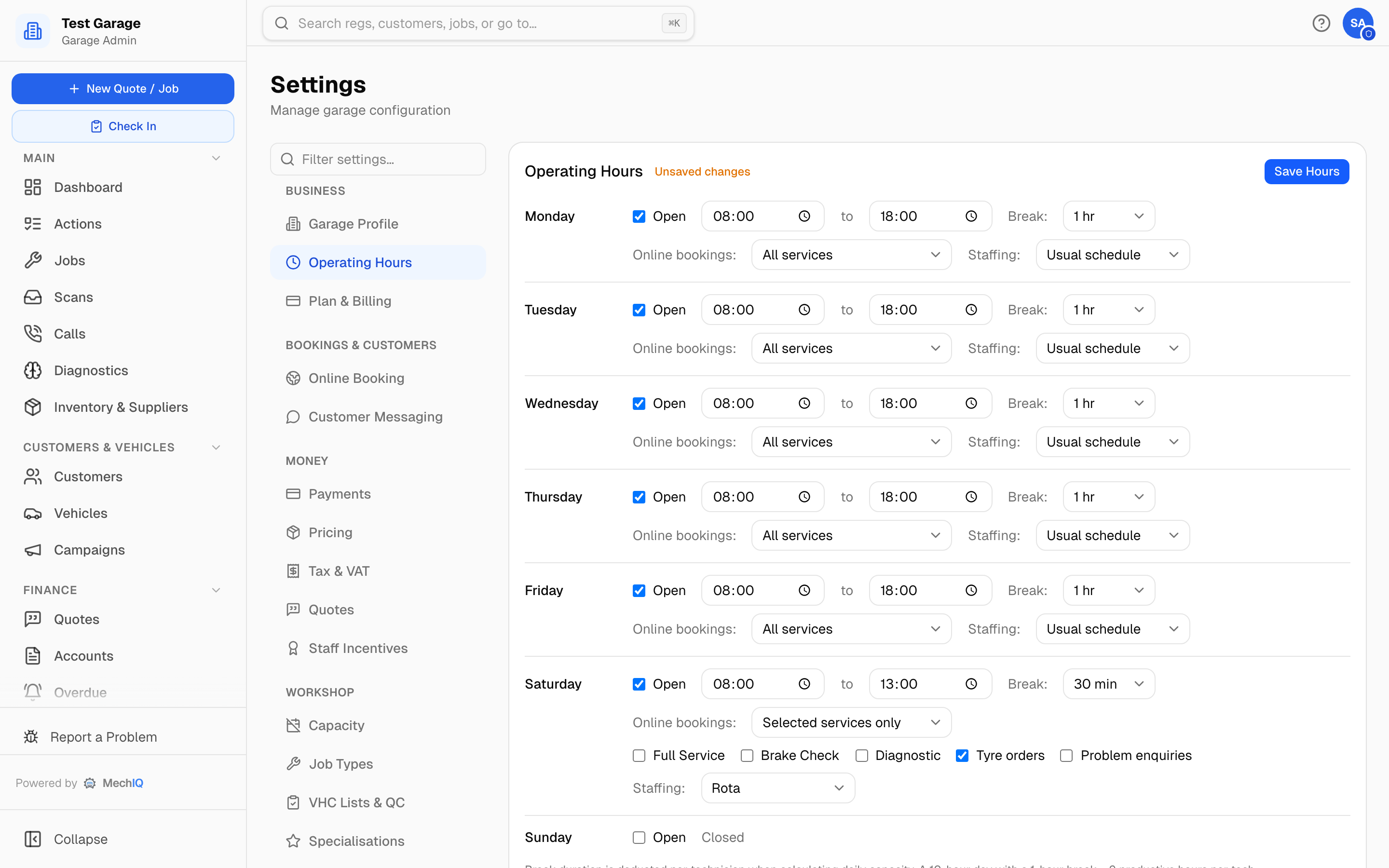 Settings → Operating Hours. Changes are saved with Save changes on the bar at the bottom of the screen, like every other setting; overrides save as you add them.
Garage operating hours
Settings → Operating Hours (garage admins change the weekly hours; front of house see them read-only and can add closures below). For each day of the week tick Open, set the open and close times, and pick a Break (None, 15, 30 or 45 min, 1 hr or 1.5 hr). New garages start at Monday–Friday 08:00–18:00 with a 1-hour break, Saturday 08:00–13:00 with 30 minutes, Sunday closed. Click Save changes on the bar at the bottom of the screen — it stays there, with an "Unsaved changes" tag on the card, until you do. Leaving the page with changes unsaved asks first.
The break is deducted per technician when working out daily capacity: a 10-hour day with a 1-hour break is 9 productive hours per tech (before the productivity percentage under Capacity).
Two more settings on each open day:
- Online bookings — All services by default. Off keeps the day open for the front desk and walk-ins, but customers can't book it on your online booking page — it shows as closed there. Selected services only lets customers book just the services you tick that day (job types, Tyre orders, Problem enquiries); for anything else the day shows as closed. Ticking nothing is the same as Off.
- Staffing — Usual schedule (everyone works their normal pattern) or Rota (nobody works that day unless they're rostered for it — see Weekend cover on a rota).
Closures & Overrides
Underneath the weekly hours. Click Add Override:
- Type — Garage Closure (bank holiday, shutdown), Reduced Hours (set the open and close time for that day), Bay Out of Service (set how many bays remain available), or Custom. Front of house can add and remove a closure or reduced hours; a bay out of service and a custom bay count change capacity numbers, so they are the owner's (the desk sees them marked Owner only).
- Start Date, and an optional End Date for a multi-day closure (one override is created per day).
- Reason — e.g. "August Bank Holiday", "Ramp 2 service".
Upcoming overrides are listed with a coloured tag; Remove deletes one. Overrides are reflected on the calendar, in capacity and in online-booking availability. They never move booked work by themselves: if a closure or reduced hours leaves jobs that no longer fit, move them from the Tech Board with Tech off / ramp down, which proposes which bookings to shift and waits for you to confirm.
Individual working patterns
A person with no pattern of their own works every day the garage is open, at the garage's hours — Saturday included when the garage opens on Saturday (except on a rota day — above).
Team → Schedules shows the week as the Tech Board will plan it — not just the patterns. Each person's row has one cell per day with the hours they work (or Off) and, under it, why:
- Garage hours — no pattern of their own; they work the garage's opening hours. Their row says No pattern — works the garage's hours.
- Own pattern — their weekly pattern decides the day.
- One-off change — a schedule override for that date.
- Rota — a rota day; Off — not on the rota until they're ticked on Team → Weekend rota.
- Garage closed — the garage is shut that day (closed in Operating Hours, or a closure override).
- Leave — approved leave that day.
Use the arrows to move a week back or forward; This week returns to today's week. For a part-timer or a different shift:
- Weekly Pattern — click Set (or Edit) on a person's row and enter their hours per day. A new pattern starts from the garage's hours, so saving it unchanged keeps their week as it is.
- Import CSV — only for bulk rotating shift patterns.
- Schedule Overrides — a one-off date for one person: Add Schedule Override with the date, start and end time, and a note ("Covering for Dave").
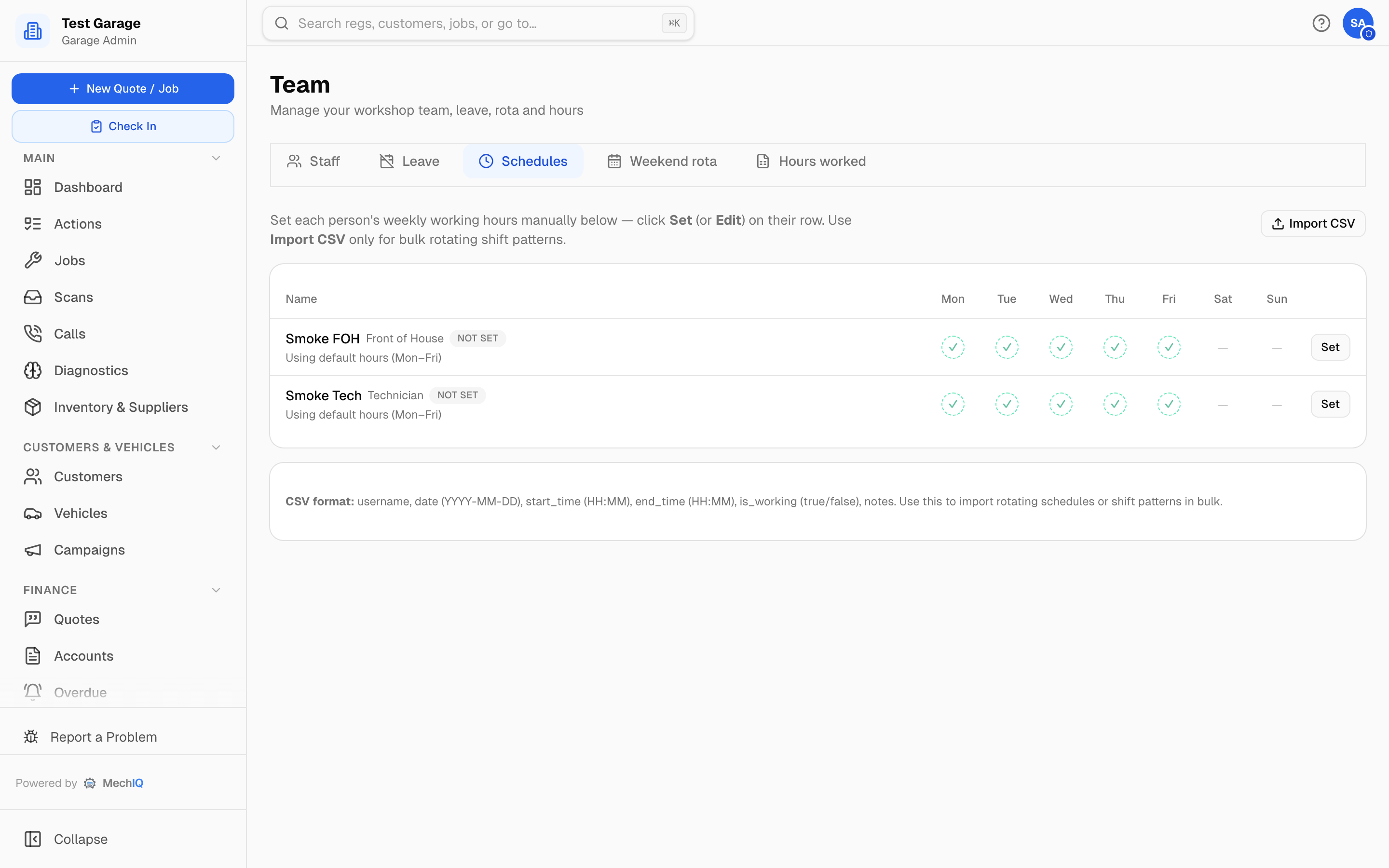 Team → Schedules.
Staff can see their own pattern and the next four weeks under My Profile → My Schedule.
Weekend cover on a rota
For the whole job start to finish — opening the day, online booking, the rota and payroll hours — see Opening at Weekends.
For a day that isn't part of everyone's normal week — Saturday cover by one or two people, say — set that day's Staffing to Rota in Settings → Operating Hours. On a rota day nobody is working unless they're ticked for it, whatever their weekly pattern says.
Then go to Team → Weekend rota. The next eight weeks of rota days run across the top and your staff down the side:
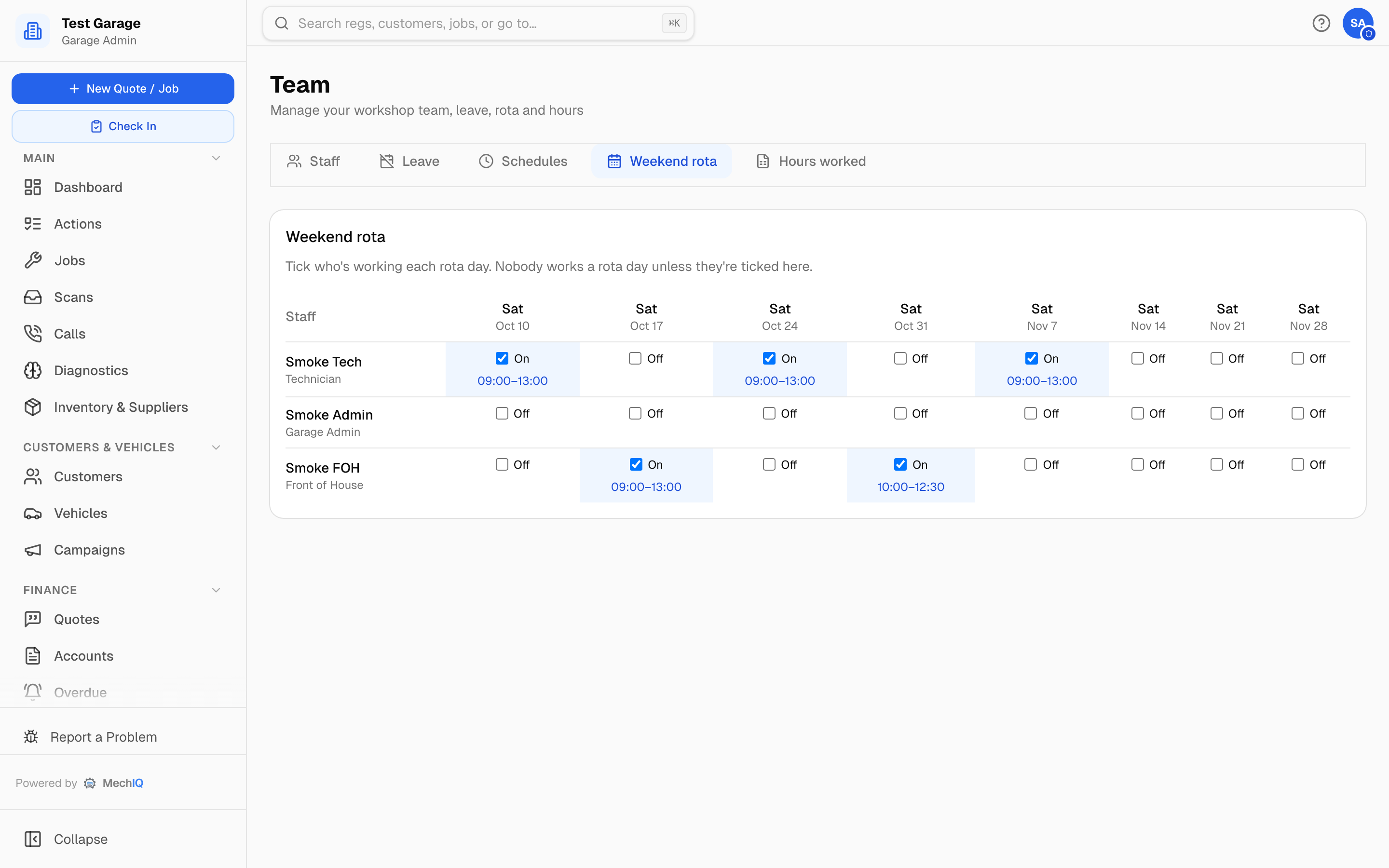 Team → Weekend rota. Click the hours under a tick to change them for that person.
- Tick someone to put them on that day. They work the garage's hours that day; click the hours under the tick to change them for that person.
- Untick to take them off.
Capacity, the Tech Board, the calendar and online booking all follow straight away. A garage that genuinely runs weekend shifts as part of the normal week can leave the day on Usual schedule and use weekly patterns instead.
Tips
- Set up known closures (bank holidays) at the start of each year.
- If a bay is out of service, add an override so the booking system doesn't overcommit.
- Leave is separate — see Leave Management.