Found Work -- Flagging It & Getting It Back Approved
You are mid-job and find something the customer has not agreed to -- worn pads, a blown bulb, a tired battery. The deal MechIQ makes with you:
You flag it once, then forget about it. You never price it, never chase the customer and never send anything to them -- front of house own that. You keep working the original job. If the customer says yes, the new work comes back into your plan.
Flagging found work
During the Vehicle Health Check -- anything you mark amber or red is picked up when you complete the check. MechIQ prices each item and hands the lot to the desk on the job's Price extra work action. Nothing else to do. See Vehicle Health Check.
Finishing a job with found work still undecided. Only the front desk can decline found work or send it to the customer. If a found-work package is still waiting on the customer when you finish, the Finish button reads Finish -- hand to the desk: the job goes to the desk blocked on the customer's authorisation, and your part is done.
Mid-job -- tap Found something in the quick-action row (on the native app, + then Send to the desk to price):
- Send to the desk to price -- describe it, add a photo and send. It is extra work for the desk at once; MechIQ prices it when it can, and the desk puts it to the customer.
- Continue as part of this job -- for small stuff already covered by the booked work. It folds into your plan with no pricing and no approval round-trip.
See Found Something Else for the sheet itself.
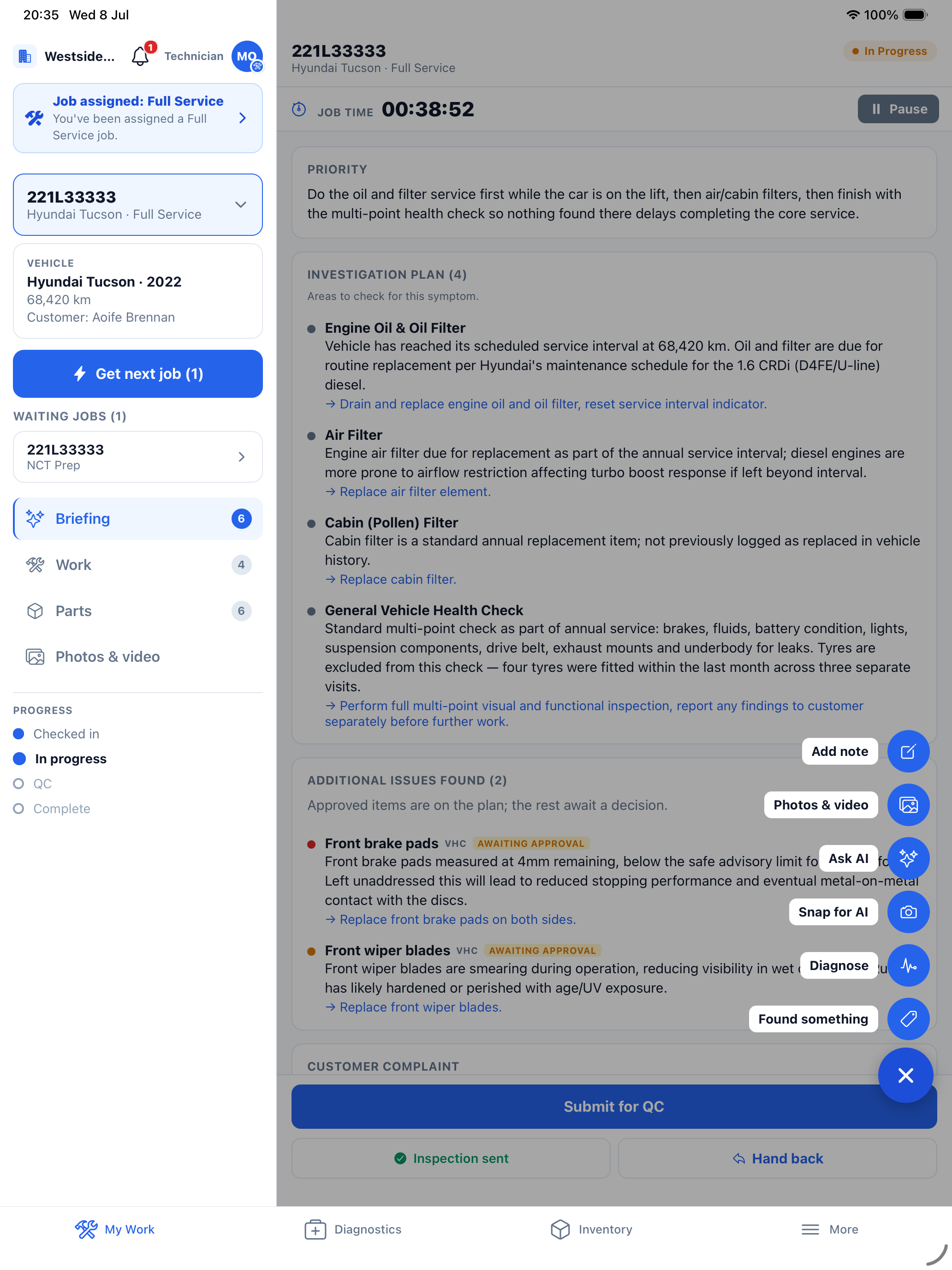 On the native app everything you put into a job lives behind the + button -- five items: Add note, Photos & video, Ask MechIQ, Diagnose, and Send to the desk to price. The last one is what starts the approval loop; photo diagnosis lives inside Diagnose rather than as its own item.
While the customer decides
Your job stays In Progress, your plan does not change and your clock keeps running. The flagged items show as:
- Additional Work Found on the Work tab -- each item with its estimate and Awaiting customer approval.
- An Awaiting Approval chip on the group in the Workflow, and an amber row in the All view.
- On the native app, Additional issues found on the Briefing tab, each tagged with where it came from (VHC, Investigation, Scan) and its status: Awaiting approval, Approved, or Declined (struck out).
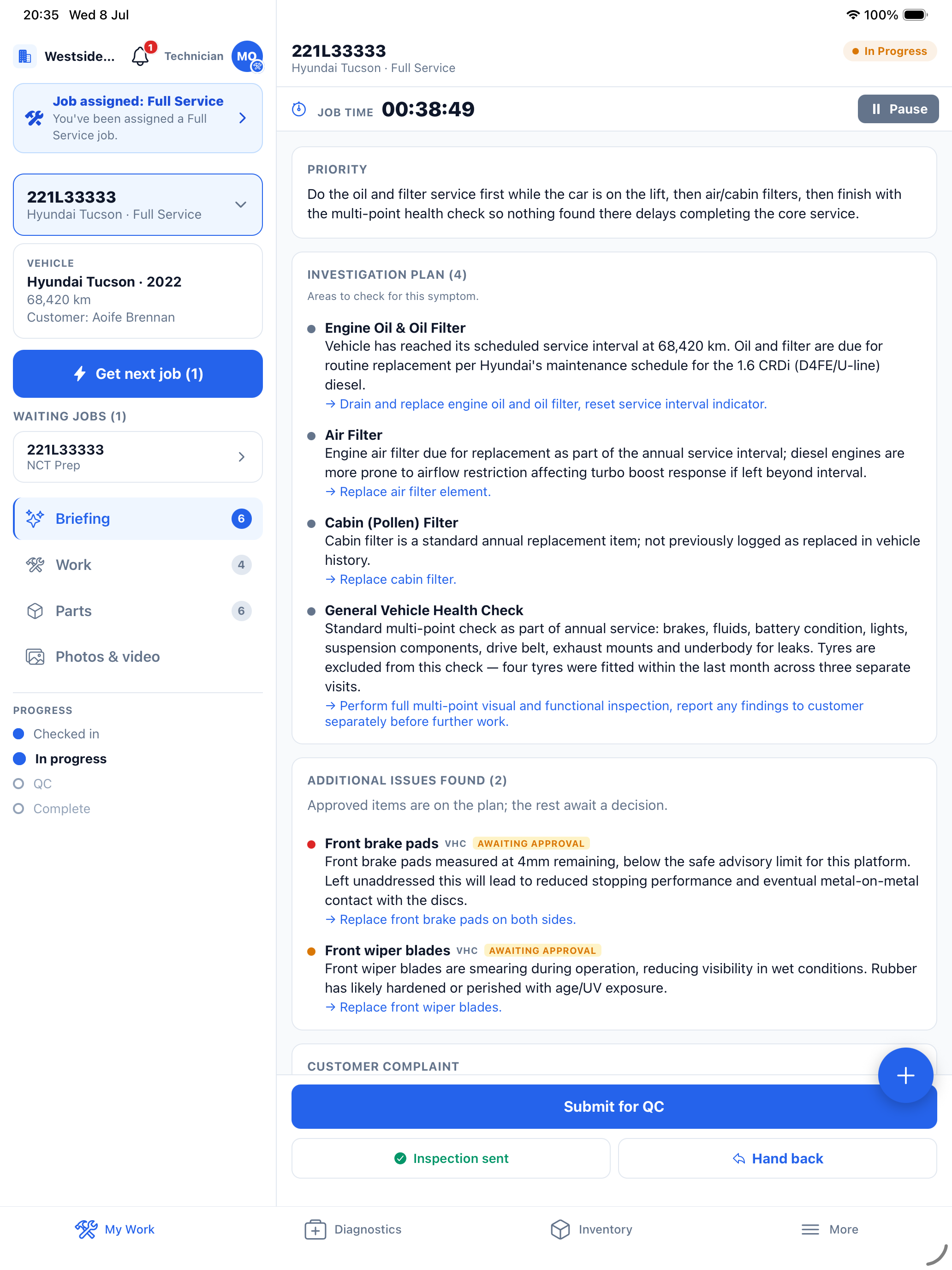 The briefing tells you where each finding stands -- none of it is yours to do until it is approved.
When it is approved
Approved work comes back to you in two stages:
- Approved -- awaiting parts -- as soon as the customer says yes, the package shows as a greyed row under the Workflow. You can see it is coming; it is not yours to do yet.
- Extra work approved: … Confirm -- when the desk confirms the parts are at the hand-off point, a blue banner appears on the Work tab. Tap Confirm and the package's task groups join your plan, badged Approved. Confirming never changes the job status, assignment or clock -- it just adds the tasks.
You also get a New approved work added pop-up naming the package, in the browser and on the native app, so you cannot miss it. On the native app the offer is the Next up -- extra work card on My Work as well.
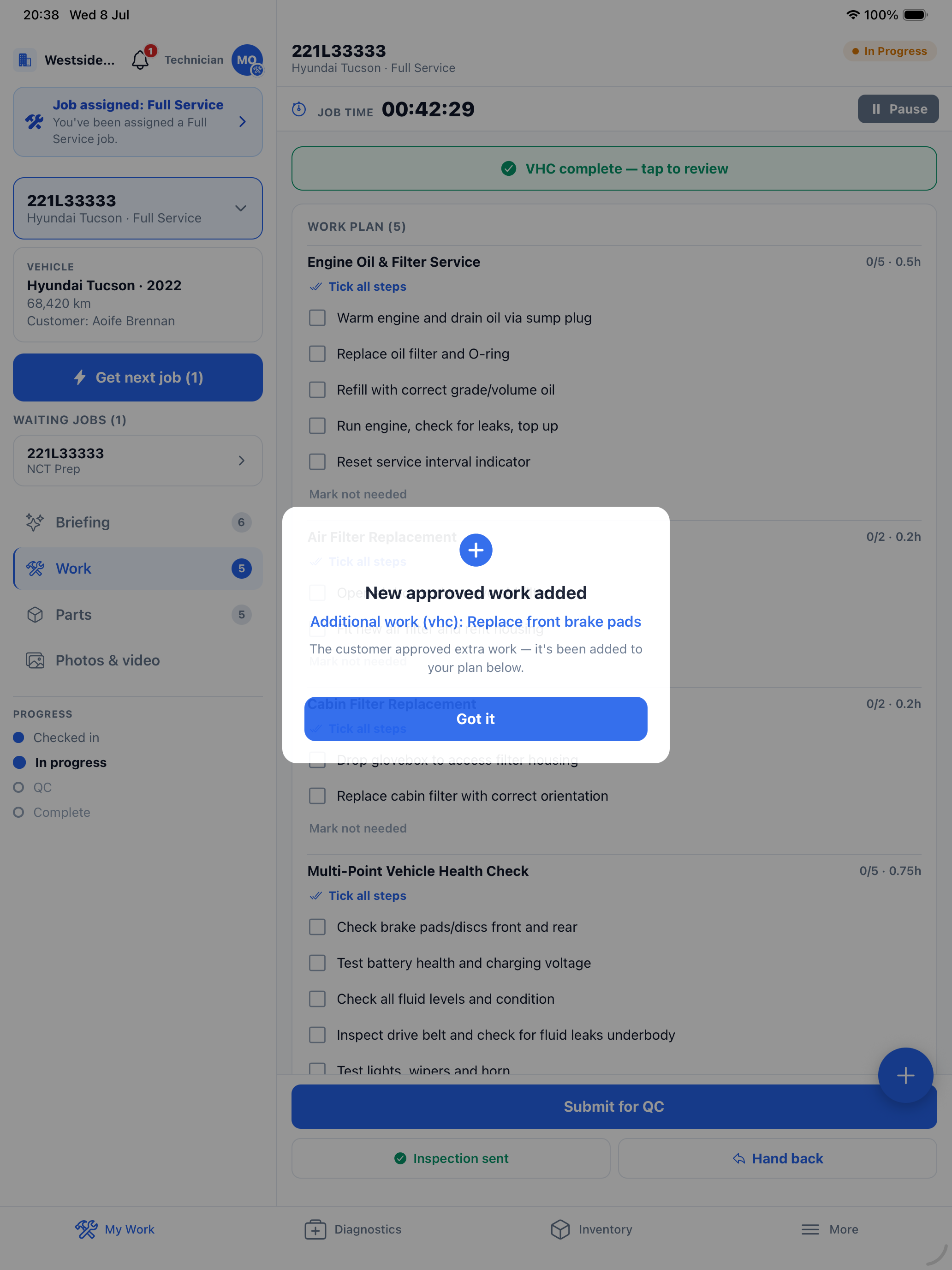 Approved work lands on the plan; the pop-up makes sure you see it.
Anything the customer declined never reaches your plan. If only some items were approved, you get exactly those.
Tick the new steps off like any other work. The Workflow also shows a Work plan updated -- N tasks added notice when the plan changes underneath you.
The one rule
You can generate anything -- notes, customer updates, findings, diagnoses -- but sending things to customers is front of house's job, and MechIQ enforces it. If the customer needs to hear something, flag it or tell the desk.