Vehicle Health Check (VHC)
The VHC is the structured inspection of the car. On a service it comes first and drives the work plan; on any other job you can run one whenever it is useful. Front of house use it to talk to the customer about what you found.
Starting the check
The VHC lives on the Work tab. On a job that requires one you see Step 1 -- Start the Vehicle Health Check to begin work; the work plan is shown under it but locked until the check is done or skipped.
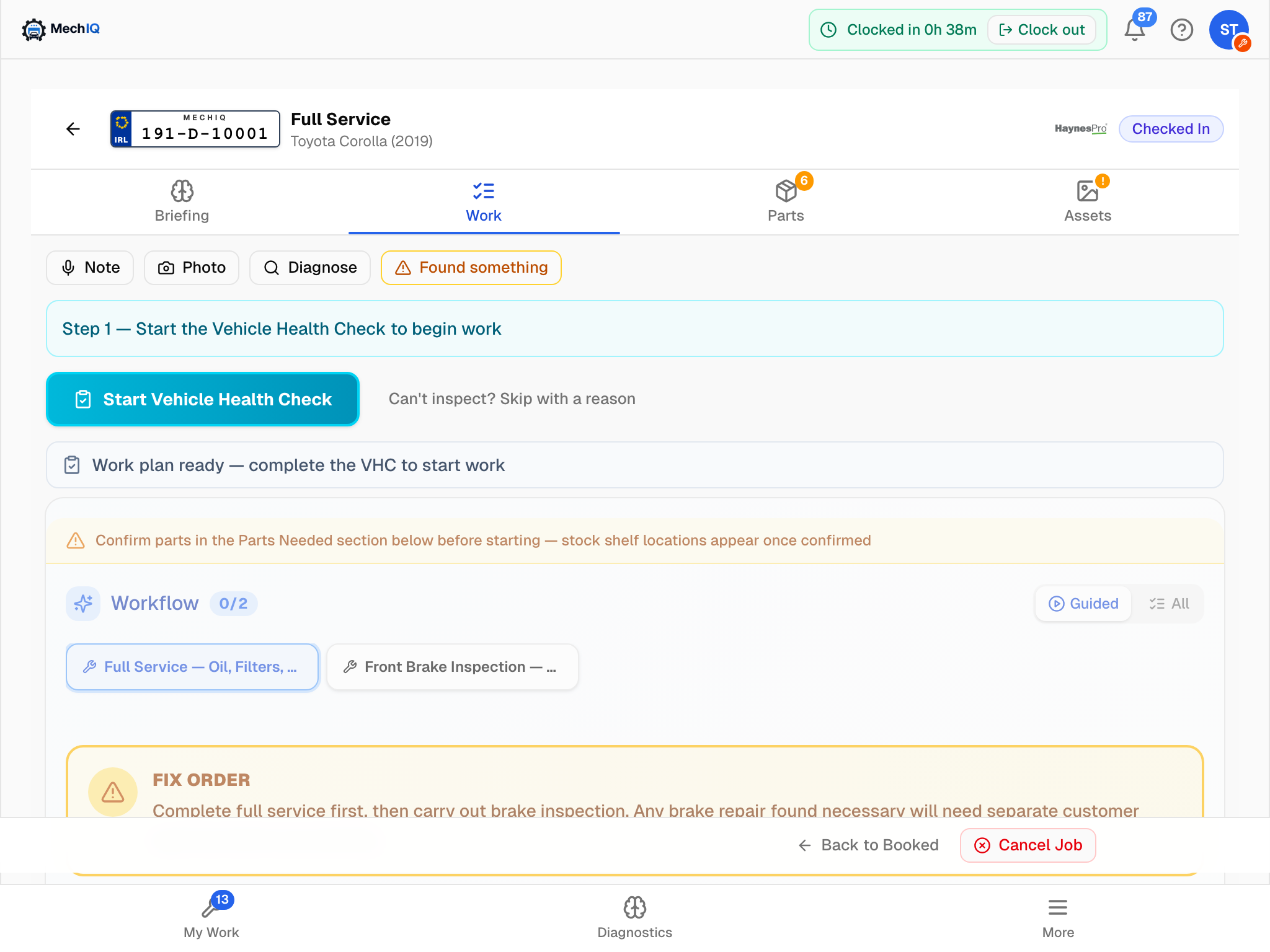 A service that needs its inspection first. Starting the VHC also starts the job.
Tap Start Vehicle Health Check. The check starts from the job type's own checklist (an EV gets the EV check when your garage has one), in a browser and in the native app. If your garage has more than one active checklist you are asked Which inspection? -- the job type's default is marked Suggested, with the number of checks in each. Once a check exists the button reads Continue VHC; once it is complete it reads View or amend VHC.
Starting the check on a checked-in job also starts the job, so you do not need a separate Start button.
Rating the items
The checklist is grouped by category (Tyres, Brakes, Suspension, Under Bonnet, Lights and so on -- your garage sets the template in Settings). Tap a category to expand it. The checklist shows the categories of the inspection you picked. A category shows N of M checked until every item in it is rated; it gets a green tick only when every item is rated OK. Each item has three named buttons:
- OK (green) -- good, no action.
- Advisory (amber) -- will need attention in the future.
- Needs attention (red) -- needs doing now. Same word and same rating in a browser and the native app.
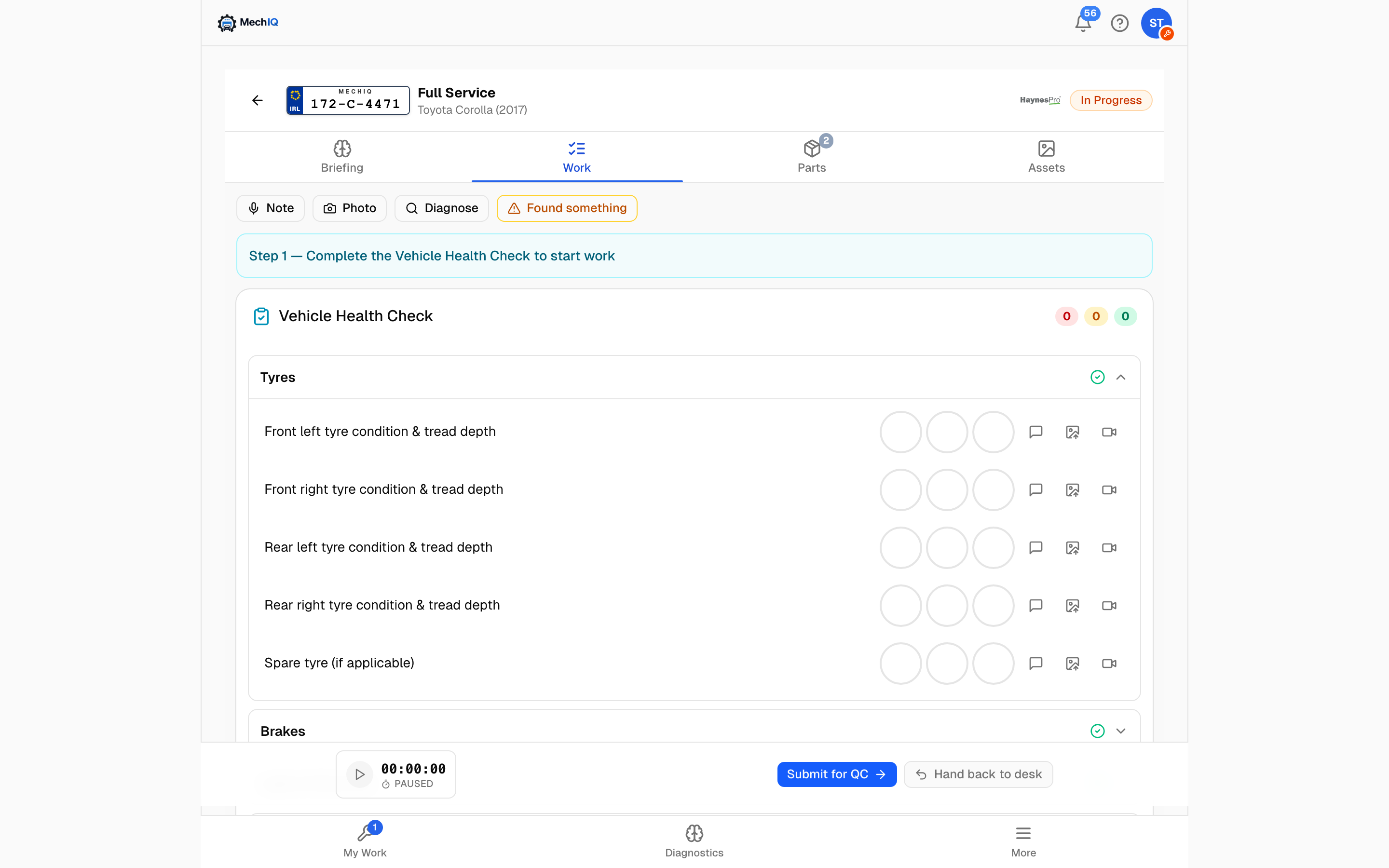 The checklist, just started. The header counts red, amber and green as you go; each item has its own note, photo and video buttons.
Every item needs a result. Nothing is pre-set to green, and an untouched item is never treated as a pass. The complete button reads Check N remaining items until they are all set.
Under the tyres section, record the Tyre sizes -- front and rear, or one size with Front and rear are the same ticked. You cannot complete the check without them. Type the size as it is on the tyre wall, with the load index and speed rating (235/55 R19 101V). MechIQ keeps all of it and tidies the spacing to 235/55R19 101V; the report shows the same.
Items already covered by the booked service are badged Covered by service -- in a browser and in the native app. You do not rate them and they do not count towards Check N remaining items: you are not checking the same thing twice, and MechIQ records them as OK when you complete. An amber on a covered item never goes to the desk as found work.
Notes, photos and video
Next to each item:
- Notes (speech bubble) -- type or dictate a short note on what you found. Save it.
- Camera -- take or upload a photo of the finding. In a browser on a computer you can pick several at once.
- Library (tablet and phone browsers) -- choose several existing photos or clips from the device at once.
- Video -- record or upload a short clip for the things a photo cannot show: a rattle, a leak, play in a joint.
An item can hold several photos and clips (up to 20). They sit on the item as a row of thumbnails in the order you took them -- tap one to view, x to remove just that one. After the first photo, an Add another tile (Take another on a tablet) at the end of the row opens the camera again, so you can shoot the same finding from several angles without leaving it. While photos upload the row shows Uploading 2 of 3…. The customer sees every photo next to that item on their tracking page and approval link, and they all appear in the job's Assets under Health Check Photos.
There is an Overall VHC notes box at the bottom for anything about the check as a whole.
Saving and completing
The check autosaves a moment after every change while it is open, and Save Progress saves on demand (the time of the last save shows beside it). Minimise folds the card away without losing anything.
When every item has a result, tap Complete VHC. Completing does two things:
- It builds the work plan. Your findings become the job's task list, so your inspection -- not just the booking title -- drives the work. Items you verified as OK are left out.
- It hands amber and red items to front of house by itself. MechIQ prices them as their own package and puts them on the job's Price extra work action at the desk. There is no send button. They put the extra work to the customer while you carry on. See Found Work.
Completing also makes a PDF report of the inspection -- every item, red then amber then green, with your notes and all your photos (a video shows its still and watch it in MechIQ), and no prices. It appears at the top of the job's Assets as Vehicle inspection report a few seconds later (until then it reads Report being prepared…); tap it to open the PDF. The report is the garage's: the desk can print or hand it over, but the customer can't download it -- they see your findings and photos on their approval link and tracking page. If the inspection is changed afterwards, the report is made again and replaces the old one.
Changing a finished check
Found something after you completed the check -- or got one wrong? Open it again with View or amend VHC. It opens read-only; press Amend inspection to change it. You can turn an item amber or red (or back to green), edit a note, and add photos or videos. Then press Save changes (Cancel puts it back as it was).
Saving sends the front desk only what changed, and the screen tells you exactly what went:
- A new amber or red item (or an amber turned red) is priced and handed to the desk the same way as when you completed the check -- it joins the found work waiting for the customer, or becomes a new package if that has already gone to the customer. Work already priced, approved or declined is never added twice.
- An item you turn back to green is flagged to the desk. If the customer was already quoted for it, the priced line stays until the desk decides -- nothing is removed behind their back.
- A new note or photo on an amber or red item is passed on so the desk sees it.
- A note or photo on a green item just updates the report.
The PDF report is made again with your changes. If nothing you changed needs the desk, the screen says Saved -- nothing new for the desk. Saving the same check again without changes sends nothing.
Skipping the check
If the whole inspection cannot be done -- no key, car not accessible, customer declined -- use Can't inspect? Skip with a reason (before you start) or VHC not needed? Record a reason (inside the card). Pick a reason from the garage's list, or something else with your own words, and tap Skip Inspection. The reason is recorded for the desk and the work plan is generated from the booking instead. A skipped check shows Inspection skipped -- reason with Do the inspection anyway if the situation changes.
Skipping is normally the technician's call -- it is your screen and your reason. The one exception is a garage running paper job cards: there, front of house have the same checklist (and the same skip control) on their own job page, because they key in what you wrote on paper. If your garage works that way, a check can be skipped from the desk, so say so on the card if an inspection genuinely could not be done.
On the native app
The native app opens the check as its own full-screen page with the same three circles (red reads Needs attention), a note box on each item, Add photo, Video and Library buttons on each amber or red item (after the first photo Add photo becomes Take another; Library picks several photos or clips at once; you can keep shooting while earlier photos upload -- a spinner tile shows each one still going up), Overall notes, and Skip in the header (Skip the health check? with the same reasons, confirmed with Skip VHC). The complete button reads Check N remaining items until everything is rated, then Complete VHC. Your ratings and notes are kept on the tablet as you go and autosave a couple of seconds after each change, so a refresh or a photo upload never wipes them. If the tablet closes the app while the camera is open, reopen the check: what you had done is restored and the photo lands on the item you took it for. With no connection, your ratings and notes stay on the tablet and are sent when the connection is back; a photo or clip that could not upload is kept and shows N photos or videos waiting to upload on its item until it goes. Complete the check when the connection is back. It ends with VHC complete -- Done, and the Work tab then shows VHC complete -- tap to review. Opening a completed check there lets you change it straight away; the button reads Save changes, and it ends with Inspection updated, listing what was sent to the front desk (or Saved -- nothing new for the front desk).
Tips
- Do the check early so the desk can talk to the customer while the car is still on the ramp.
- A photo or a short clip on an amber or red item does more to win approval than any note.
- Be specific in notes: "front pads 2 mm, discs lipped" beats "brakes worn".