Paying suppliers
When you pay a supplier, record it in MechIQ and the bills it covers are marked paid. You don't need an accounting package for this: a garage without one can run its whole supplier side here. If you do use one, every payment goes to your accounts in the next Export to accounts ZIP. FOH and garage admins can pay suppliers. Technicians can't.
Where to pay from
- The supplier's statement. Go to Inventory & Suppliers → Suppliers → Statement, or View statement on the supplier's page. Pay supplier opens the payment screen. Pay on a bill's row opens the same screen with that bill already ticked.
- Accounts → Supplier Invoices. Click Pay (or Pay rest if the bill is part paid) on the bill. You get the same screen with that bill ticked, and the supplier's other open bills are listed too.
Recording a payment
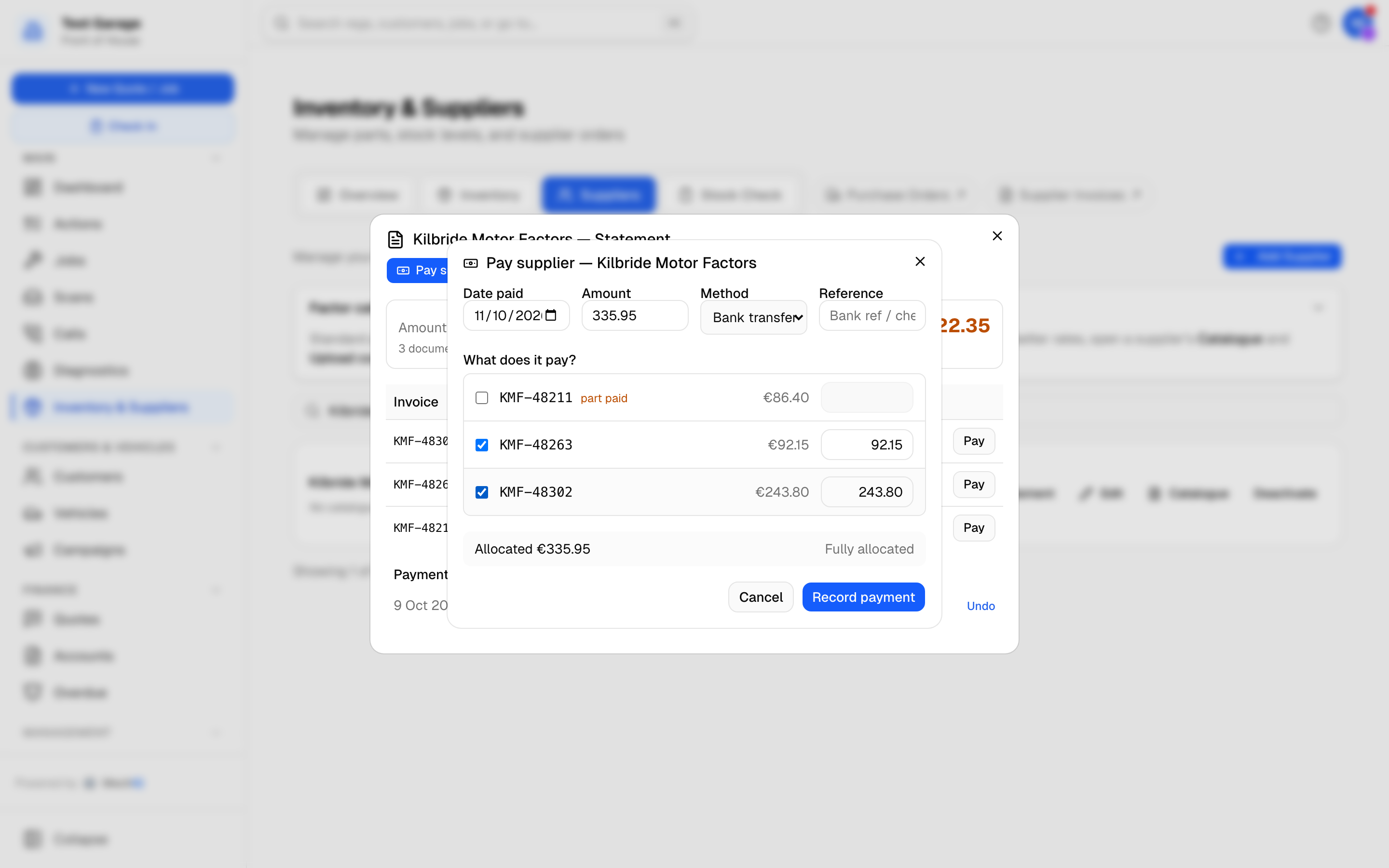 Pay supplier: tick the bills the payment covers. The amount follows what you tick, and the line at the bottom says whether it's all allocated.
- Enter the Date paid. This is the day the money left your account, not the day you're typing it in. It can't be in the future.
- Pick the Method: bank transfer, card, cash, cheque or other. The method decides which bank account it posts to in your accounts (Settings → Accounting).
- Add a Reference, such as the bank reference or cheque number, so you can match it against your bank statement later.
- Under What does it pay?, tick the bills it covers. Ticking a bill fills in what's still owed on it. The Amount at the top adds up the bills you tick, unless you've typed a different amount yourself.
- Check the running total, then press Record payment.
The bills you paid show as paid on the statement. Anything you paid only part of shows as part paid. The payment is listed under Payments on the statement with its date, method, reference and the bills it paid.
One payment, several bills
Tick every bill the transfer covers. If the supplier issued a credit note, tick that as well. Its amount is negative, so it reduces the payment. For example, two bills of €100 and €50 less a €30 credit note is one payment of €120.
Part payment
Tick the bill and type a smaller figure on its line. The bill shows part paid with the rest still owed. Pay the rest later from Pay rest.
Settlement discount
If the supplier agrees to take less than the bill (for example, paying within 7 days for 2.5% off), type what you actually paid on the bill's line. A discount €X box appears beside the line. Tick it and the gap is recorded as a settlement discount, so the bill is settled instead of being left part paid.
The discount is recorded separately from the money. The statement shows it on the bill's line (€X discount) and as a Settlement discounts taken total.
Paying more than the bills: money on account
If you pay more than the bills you ticked, whether by mistake or because you paid ahead, the difference is held on account with that supplier. The screen won't record it until you tick Hold €X on account with supplier. That's so a typo can't quietly become an overpayment.
Money on account:
- is shown on the statement as On account with supplier, and is taken off the Amount owed;
- can be put against a later bill. Open Pay supplier, choose Money on account, tick the bill and press Apply money on account. No new money moves;
- can come back to you as a refund (see below).
A refund from a supplier
When a supplier pays you back, either to settle a credit note they issued or to return an overpayment, press Record refund on their statement.
- Enter the date, amount, method and reference.
- Tick the credit notes it pays out. Any part of the refund not covered by credit notes comes out of money you hold on account with them.
- Press Record refund.
You can't record a refund for more than the credit notes you ticked plus what's on account. That would show the supplier owing you money they never owed.
Undoing a payment
If a payment was entered wrongly, click Undo beside it on the statement and say why. The payment is never deleted. It stays on the statement, struck through, with your reason. The bills it paid go back to owed.
If the payment has already gone to your accounts in an export, MechIQ asks you to confirm. Undoing it here does not undo it in your accounting package, so reverse it there too.
You can't undo an overpayment that has since been refunded. Undo the refund first.
How it reaches your accounts
Every payment, discount and refund goes in the next Export to accounts ZIP, once, like everything else. The export dialog counts them as Supplier payments, discounts & refunds. In the Sage audit-trail layout they go into the same transactions file as your bills:
| What you recorded | Sage type | Amount |
|---|---|---|
| Payment against bills | PP -- Purchase Payment | What went against the bills |
| The part held on account | PA -- Purchase Payment on Account | The amount left over |
| Settlement discount | PD -- Purchase Discount | The discount |
| Refund from a supplier | PR -- Purchase Receipt | The refund |
Amounts are positive and include VAT, with tax code T9: the VAT was on the bill itself. The bank nominal comes from the payment method's account in Settings → Accounting. Discounts post to the purchase-discount nominal (5009 unless your accountant gave you another code). Each row carries the supplier's account reference, so it posts to the same supplier account as their bills.
Money put against a bill later, out of money already on account, adds nothing new to the export. It went out as a PA when it was paid. Allocate it against the bill in your package.
Payments recorded before this screen existed (with the old Mark paid) count towards what's paid, but they're never exported. Those were already paid in your accounting package.
Related
- Suppliers -- the statement
- Supplier invoices
- The Accounts page
- Recording a payment -- the customer side