The App in the Workshop
The native MechIQ app is the primary way to work jobs on the floor. Everything for the car in front of you is on the tablet, laid out to be read and tapped with dirty hands at arm's length. This article walks the technician flow end to end; each part has its own article with more detail.
Signing in and the tabs
Sign in with your garage code, username and password. If your login holds more than one role you are asked How do you want to work today? -- pick Technician. See Using the MechIQ Mobile App.
The bottom bar has My Work, Diagnostics, Parts, and Time Clock when your garage runs the attendance clock. Your avatar at the top right opens My Profile, notification preferences, Help (every help article, searchable), Switch to … for your other roles, and Sign out. The bell beside it is your notifications. Where your garage has switched it on, the avatar menu (and My Profile) also has Report a Problem (tell MechIQ something is broken, confusing, or an idea -- add a screenshot or photo) and My reports, where our replies arrive; you get a notification when we reply.
On a tablet the app opens a two-pane workspace: your job list in a rail on the left (Collapse tucks it away), the job on the right, with a progress line for the day. Select a job, or pull the next one to start work.
My Work -- one job at a time
Working on is the job you are on -- Open job goes into it. A job you submitted for QC is listed under Waiting for QC, never as Working on: it is the reviewer's now. A job with no parts still has Add a part in its Parts section. When you have nothing active, Get next job opens the pick list: your planned queue first, then unassigned vehicles, then other techs' queues, with the suggested pull marked -- and, last, any car here early for a later day under Early — booked for
Finish a job, submit it for QC, or hand it back before you take another.
The job
A job has a header (reg, car, job type, status) and four section tabs. If the desk checked the car in without the mileage, a Record the mileage box sits above them: read the odometer, type it in and tap Save. It's needed before you can submit, complete or hand back the job -- the Finish job screen and the Hand back sheet each show the same box at the top and hold their button until it's saved.
- Briefing -- the MechIQ Briefing card (what MechIQ thinks is going on; Refresh rebuilds it from your latest notes and health check; when there is none yet it says why -- Briefing generates at check-in, …from the health check, No faults found, No briefing yet). While it is being written you see Preparing your job briefing; after 2½ minutes it says This is taking longer than expected with Retry. Then Priority, the Investigation Plan or Findings (with a count beside it) with Confirmed / Not found / Defer on each (mark what you actually found -- this trains MechIQ), Additional issues found with their approval status, Customer complaint, your Tech write-up, Customer update and Vehicle history. A call-out job shows the customer's address with Tap to open in maps.
- Progress update -- Generate writes a short plain-English status for when the customer rings; press and hold the text to copy it. It is saved to the job notes so the desk reads the same words. You never send it -- the desk does.
- Vehicle history -- the car's other jobs: Also on this vehicle (open or booked), the last mileage, and past jobs (View full history). Tap one for its date, mileage, what the customer said, diagnosis, findings, work done, tech notes and labour / parts (ex VAT).
- Work -- the road test, the VHC, the work plan and the guided diagnosis.
- Parts -- the parts, where you confirm what you used.
- Assets -- check-in walk-around and dashboard photos, the drop-off vs collection comparison, your photos, health check photos (captioned with their item), the vehicle inspection report and scan PDFs -- Open PDF and Play video open inside the app.
If the desk checked the car in without photos, Vehicle condition not recorded sits at the top: tap Capture, record the walk-around, photograph the dashboard and tap Save condition. The photos go on the job's Assets. You need at least one of the two to save. If the upload fails, the screen says why, with Retry. Skip for now leaves without saving, and the card stays.
A JOB TIME banner under the header shows the job clock with Pause. The first time you pick up a job with no bay the app asks Which bay? -- pick one or No bay (floor work).
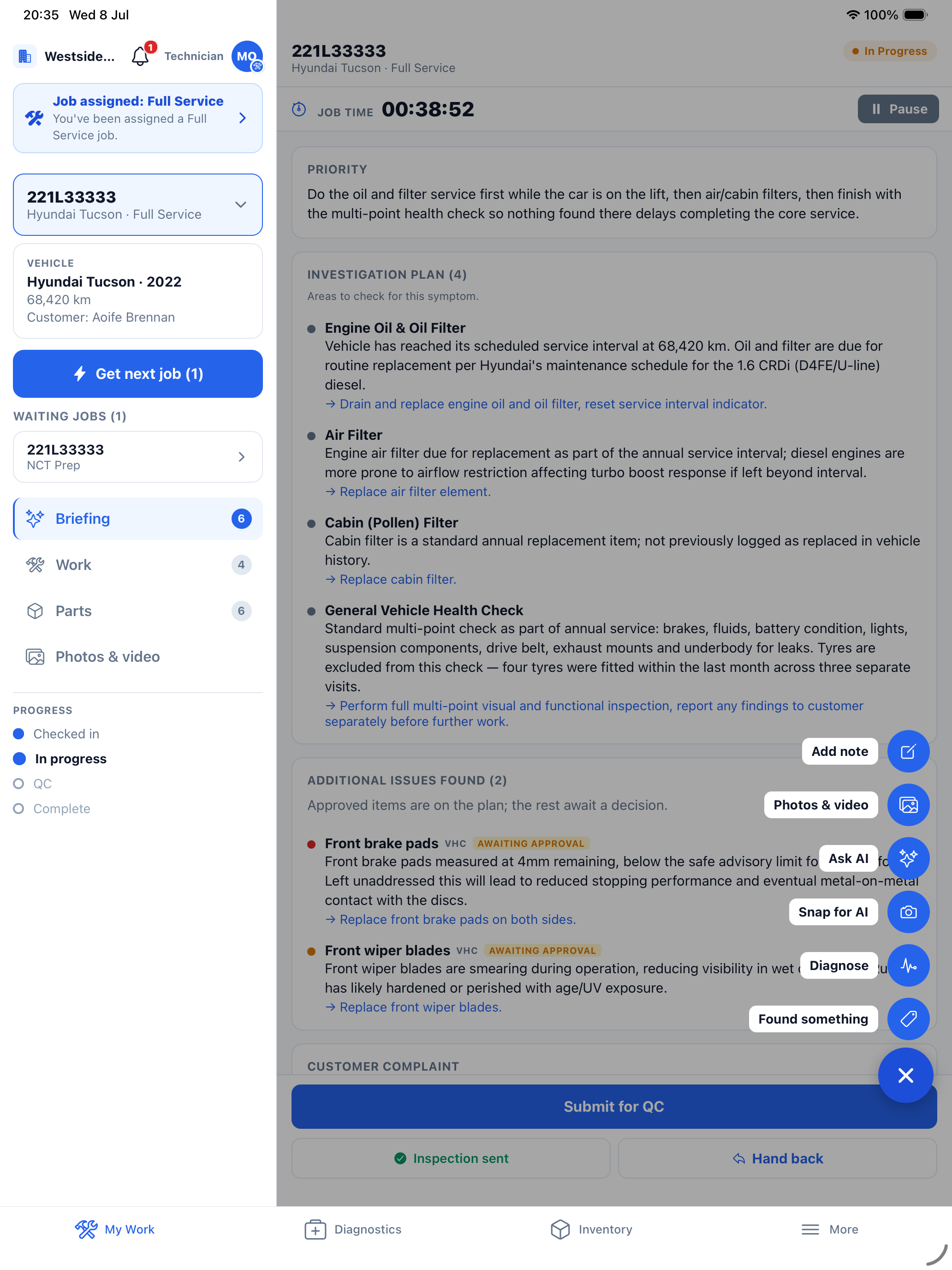 The tablet workspace with the + button expanded. Everything you put into a job is behind it.
The + button
From any tab, + offers five actions:
- Add note -- type it, or Dictate and check the text, then Save note.
- Photos & video -- Take a photo or pick from the library; straight to the job's Assets.
- Ask MechIQ -- a question about this car; the answer and question are saved as a note. See Ask AI.
- Diagnose -- fault codes or a dictated description, or show MechIQ the part -- photos and a clip and Diagnose from what I captured. If the AI needs one detail it asks; Answer & re-run. See AI Diagnosis in a Job and Snap for AI.
- Send to the desk to price -- describe extra work and send it for pricing, or Continue as part of this job for small stuff already covered. See Found Something Else.
The Work tab
- Road test -- when the job type needs one, before the work and/or after: type what you notice, Road test done, or Can't road test this vehicle with a reason and Skip road test.
- Vehicle Health Check -- opens as its own screen. Rate every item, add notes, photos and video, Overall notes, and complete; or Skip with a reason. The Work tab then reads VHC complete -- tap to review; tap it to change the finished check, and only what you changed goes to the desk. On a service the plan is locked until then: Complete the VHC to start work on this job. See Vehicle Health Check.
- Work plan -- groups of steps. Tick steps, or Tick all steps. A conditional group asks Is this needed? -- Not needed drops its labour and parts, Confirm reveals the steps. Not needed / Needed again on any group -- on extra work found on the job, this takes the line out of the package (no customer approval, no invoice) and puts it back. Approved extra work waiting on parts shows Approved -- awaiting parts. A not-needed group shows a grey Not needed, never a done tick. See Task Checklist.
- Found work -- under the work plan: each piece of work you found and what happened to it (With the desk, Sent to customer, Approved, Declined, Not needed). No prices.
- Guided diagnosis -- on a diagnostic job, Start guided diagnosis, record each test, Get next steps, and at Fault confirmed tap Build work plan from this.
- HaynesPro -- under the work plan: Torque & specs and Technical data doors, the red recalls line (View opens the list), the TSB card, and Guide chips on steps. See Technical Data.
Found work
Amber and red VHC items go to the desk when you complete the check; anything else goes through Send to the desk to price. Approved work comes back as the Next up -- extra work card on My Work, where Confirm takes it, and as a New approved work added pop-up on a job you are already in -- Got it closes it and the tasks are on your plan. See Found Work.
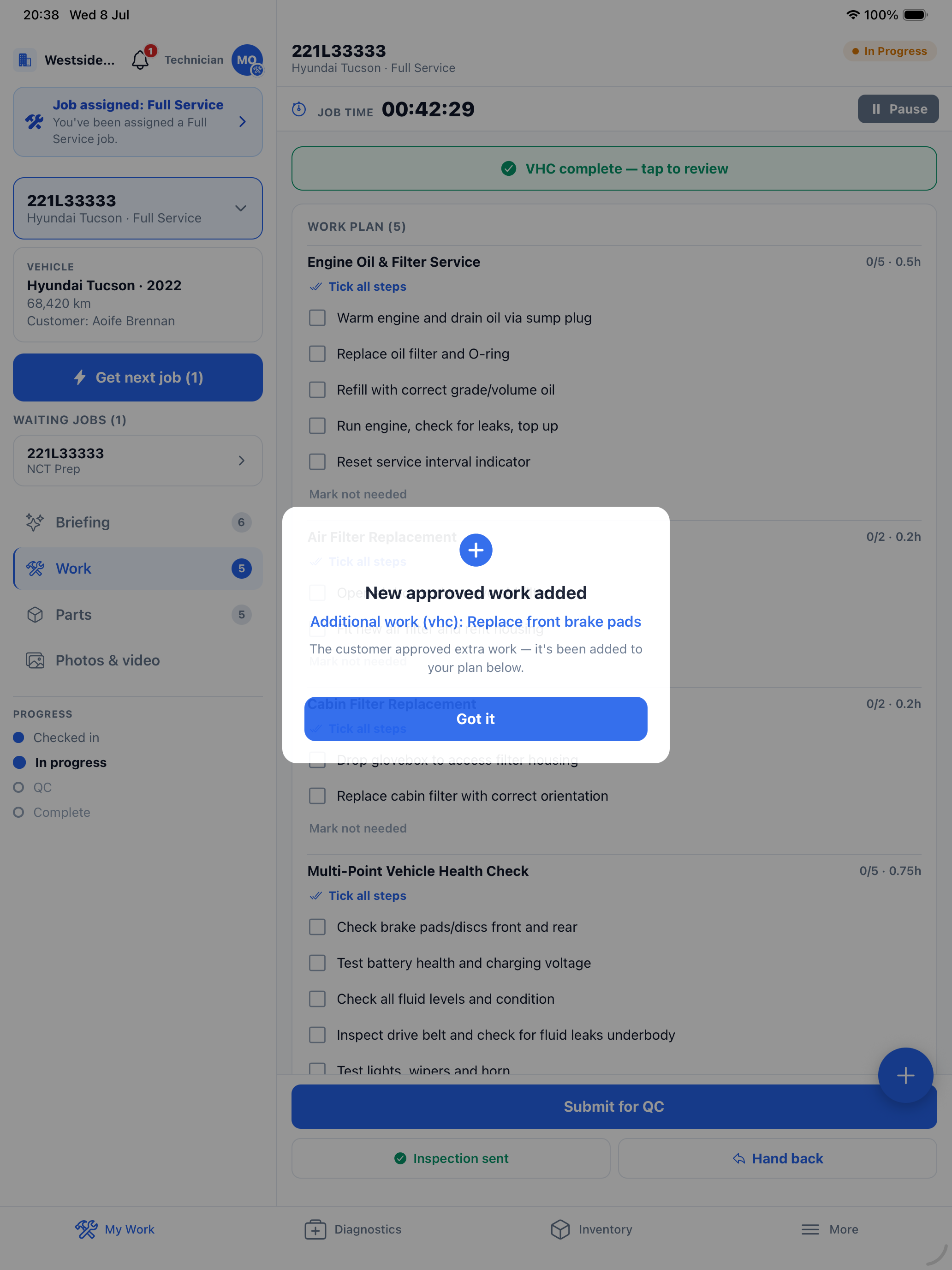 Approved work lands on your plan by itself; the pop-up makes sure you see it.
Confirming parts
Open the Parts tab at the end: adjust each − N + stepper (taking 1 down marks it Not used), tap Correct on a fitment chip if the app asks, report a Problem with this part?, Add a part that was not listed (type its name or part number and tap a match, or just type a name; then the quantity), then Confirm remaining parts used. You cannot finish until this is done: Confirm the parts you used before finishing. See Parts Logging.
Finishing
The bottom-bar button opens the Finish job screen: the parts you used (already ticked -- untick one you did not use), your garage's finishing checks (tick each one), a note (type or dictate), what a diagnosis found, and any steps or VHC not done (tick Finish anyway to finish with them open). The one button says where the job goes -- Finish -- send to QC, Finish -- hand to the desk or Finish job. The job leaves your list and you take the next one. With no signal, the finish waits in Waiting to sync. See Finishing a Job and the QC Handover.
Submitted it before the work was finished? Open the job and tap Send back -- not ready for QC under the Submitted for QC banner, with a short reason. It comes back to you In Progress; it is not a QC fail.
If you can pass QC, a purple strip on My Work shows how many jobs are waiting. Tap it for the Waiting on QC list -- oldest first, with reg and car, customer, job number, who submitted it, how long it has waited and any flags -- and tap a row to review that job. A job that reached QC unfinished can be sent back from there with Send back -- not ready for QC instead of failing it.
Handing a job back
Hand back in the bottom bar opens Hand back to desk: choose What's next? from your garage's reasons, add a note if asked, explain an overrun if the job ran over, and Clock off. The job leaves you and the desk is told. See The Job Clock.
No connection
Workshop Wi-Fi drops. When the tablet has no connection, these are kept on the tablet and sent when the connection is back: ticks on the work plan, Is this needed? answers, health check ratings and notes, Confirm remaining parts used, notes, and Hand back to desk. A Waiting to sync box on My Work and on the job lists what is waiting; Try now sends it at once. A clock-off made offline stops the job clock at the time you pressed it, not when it is sent.
If the server refuses something when it is sent -- for example a clock-off on a job that overran, which needs a reason -- a Could not sync -- do it again box says why. Do it again, then tap OK.
Health check photos and clips that could not upload are kept and sent later (see Vehicle Health Check). A dictation that could not be turned into text is kept too: tap Try again to send the same recording.
A job that will not open -- deleted after its notification was sent, or no connection -- says so: This job is not here any more with Go back, or No connection with Try again.
Diagnostics, Parts and Time Clock tabs
- Diagnostics -- a standalone AI lookup from fault codes, symptoms, a photo or clip, or a scan PDF, with a reg look-up. Year and Mileage take numbers only; a year that cannot be right says so under the box (Year must be between 1900 and …) and Run Diagnosis waits until it is fixed. See Standalone Diagnostics.
- Parts -- the parts for your jobs first, then a stock lookup.
- Time Clock -- clock in and out for the day. See Clocking In and Out.
Tips
- Read the Briefing before you start.
- Do the VHC early so the desk can talk to the customer while the car is still on the ramp.
- Confirm parts once, at the end.
- You get push notifications for your own jobs -- parts arrived, work approved, QC result -- so keep them allowed. The one that is not about your jobs is an urgent job: when anything is marked urgent, everyone on shift hears about it. Tapping one opens the job at the right tab (a parts notification opens Parts).
- On a shared tablet, Sign out when you finish: the tablet then stops getting your notifications, and the next person gets only theirs.
- My Profile → Account shows the App version on this tablet -- read it out when you report a problem.