Standalone Diagnostics
Diagnostics is the middle tab in the bottom bar (and /diagnostics in a browser). It runs an AI fault-code or symptom lookup with no job attached -- handy for a quick check, a phone enquiry, or exploring before you commit a diagnosis to a job.
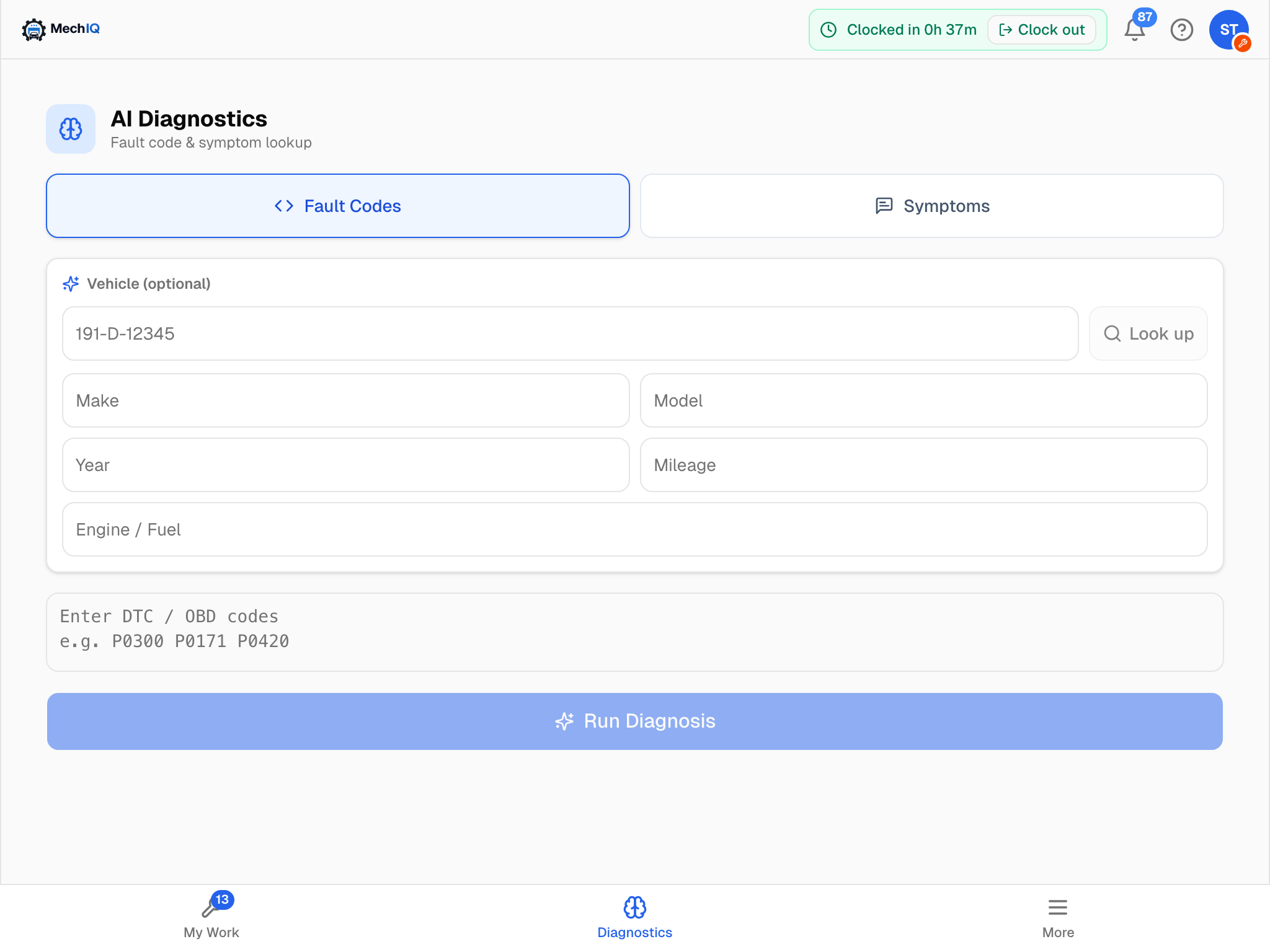 Standalone Diagnostics. Pick an input type, add the car if you can, and Run Diagnosis.
Running a lookup
- Choose Fault Codes or Symptoms.
- Vehicle (optional) -- type the reg and tap Look up to fill make, model and year from the registry, or enter Make, Model, Year, Mileage and Engine / Fuel by hand. Vehicle details are optional but change the answer: P0171 on a diesel BMW is not P0171 on a 1.0 petrol Toyota.
- Enter the codes (several at once -- P0300 P0171 P0420) or describe the symptoms.
- Tap Run Diagnosis. It can take a minute or two; you get a taking longer than expected note if it runs long.
See Diagnostic Input Types for how to get the best out of each input.
The result
- Diagnosis -- the AI's summary.
- Fix Order -- what to address first, when the findings are linked.
- Findings -- each with a severity (Critical, Warning, Advisory), a description, the recommended action and an estimate. Open a finding for a Step-by-Step Guide -- fetched on demand, so the first tap takes a moment.
- Recommendations and any follow-up.
If the AI is unavailable you get a clearly-marked general estimate instead of a real diagnosis -- retry, or enter the codes on the job.
Saving it to a job
Results are not linked to anything by default. To keep one, scroll to Attach to Job (optional): search your active jobs in Search active jobs…, pick one and tap Save to Job. The lookup is re-run through that job's own diagnosis engine, so the job gets real findings, task groups and parts -- not just a pasted paragraph. It then reads Saved to job with a View Job link.
On the native app
The native Diagnostics tab takes four inputs: Fault Codes, Symptoms, Photo/Video (with a What am I looking at? line) and a Diagnostic scan (PDF) via Choose a diagnostic PDF, plus the reg Look up. The result comes back as Diagnosis, Priority, Findings and Recommendations.
Tips
- Always add the car if you know it.
- Enter every stored code, not just the one you think matters -- the AI spots cascades.
- Front of house use the same page for phone enquiries.