Clocking In and Out
If your garage tracks attendance, you clock in when you start your day and clock out when you finish. This is your attendance -- the hours you were at work. It is completely separate from the job clock that runs on a vehicle; see The Job Clock.
Where it is
- Top bar (browser) -- a Clock in button, which becomes a green Clocked in 0h 37m · Clock out pill once you are on the clock. It is on every page.
- Time Clock screen (browser) -- More → Time clock, or
/time-clock. A bigger version of the same thing. - Native app -- the Time Clock tab in the bottom bar, with a green dot on the tab while you are clocked in.
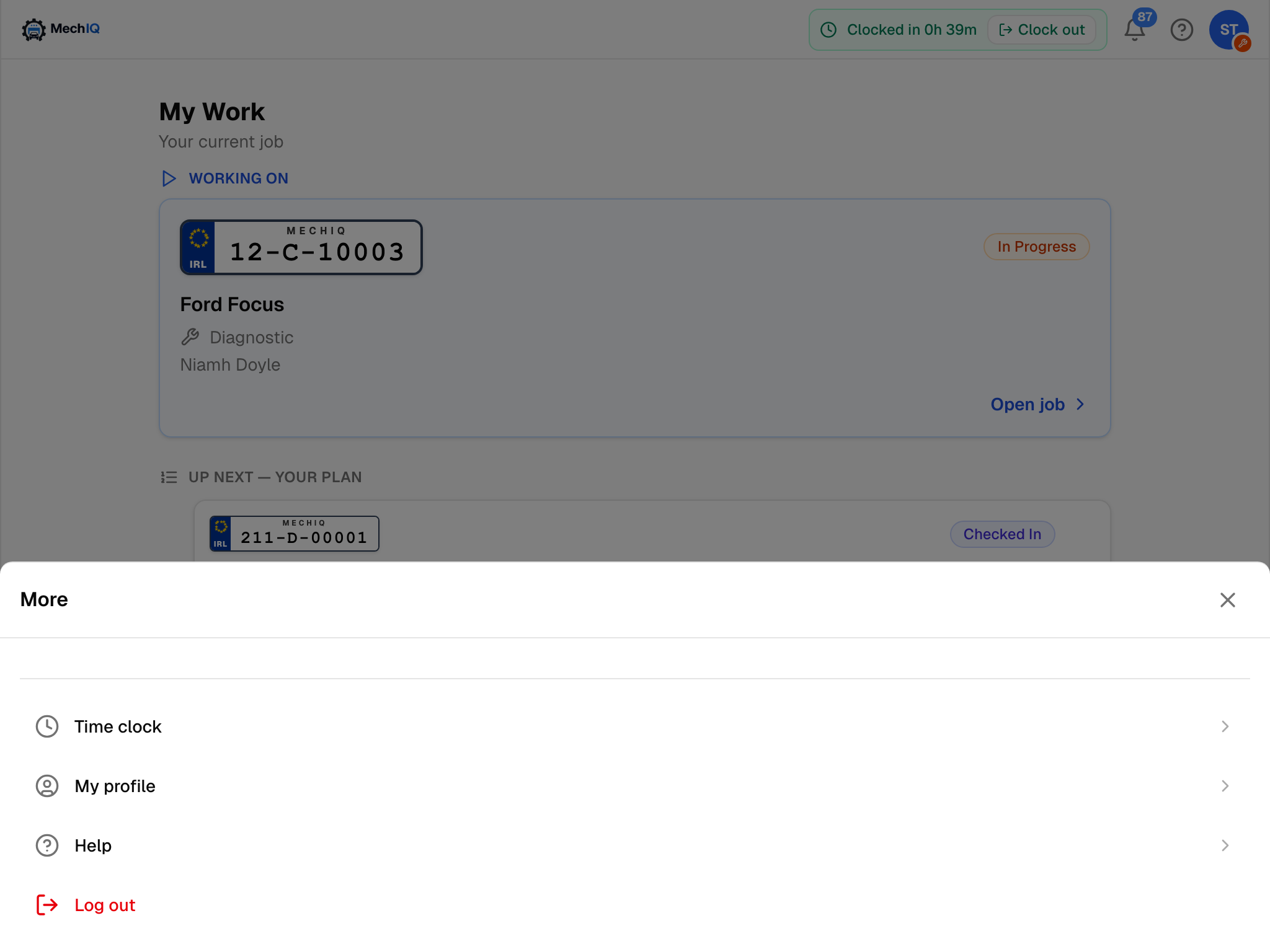 More → Time clock. The link only appears when clocking is enabled for your role.
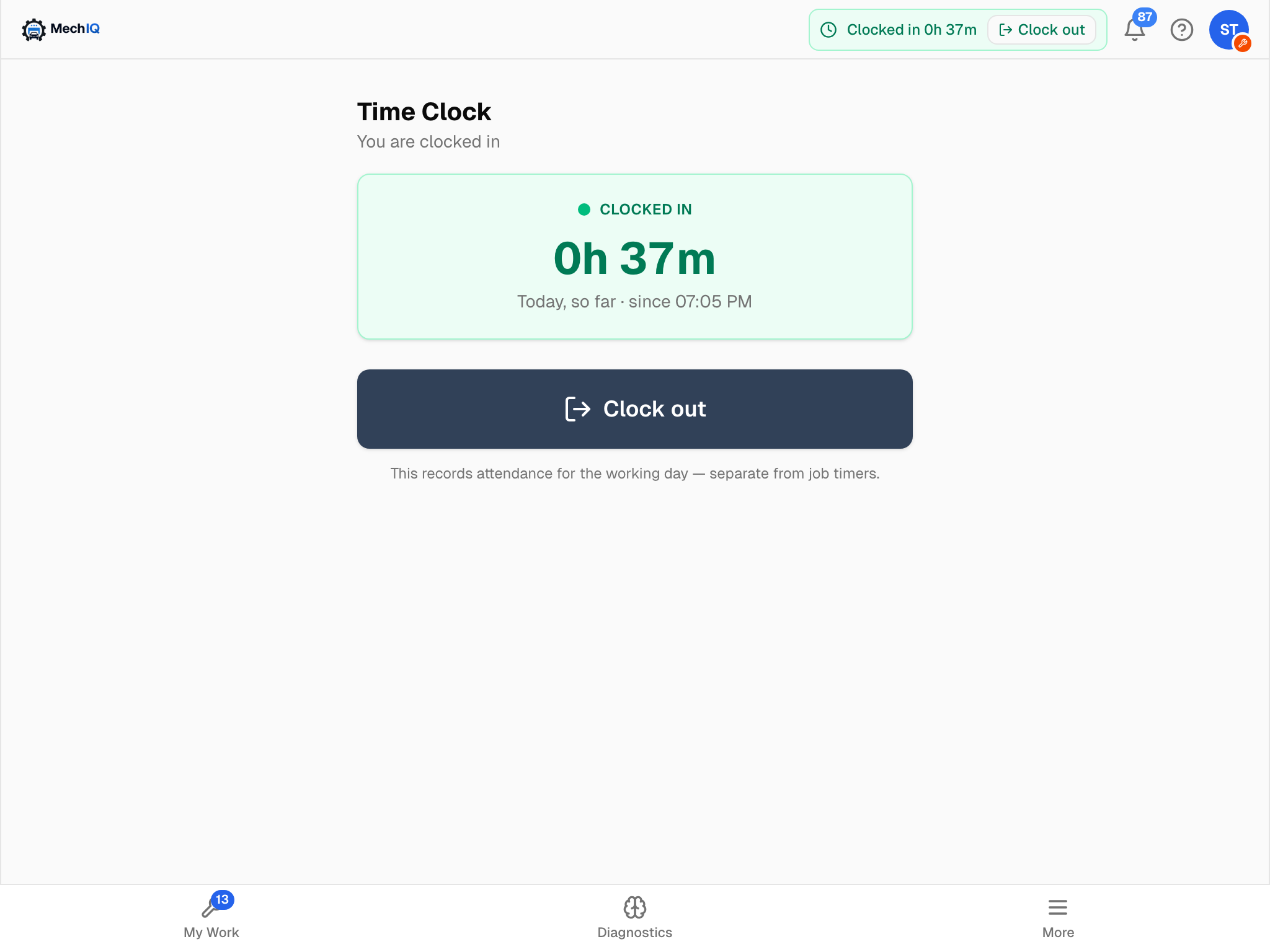 The Time Clock screen. It only appears once your garage has turned attendance clocking on for technicians.
When you will see it
The clock only appears when your garage has enabled it for technicians (Settings → Time Clock). If you do not see it, your garage does not track attendance this way -- carry on with your jobs. Opening the screen anyway tells you Clock-in isn't enabled -- your garage hasn't turned on attendance clocking for your role.
Clocking in
The first time you open MechIQ each day you get a Start your day prompt: tap Clock in. If you dismiss it, use the top-bar button or the Time Clock screen when you are ready. The screen then shows Clocked in, your hours so far today and the time you started, ticking live.
Clocking out
Tap Clock out in the top bar or on the Time Clock screen. Your session is recorded.
If you forget, MechIQ closes the shift for you at your scheduled end time, so your hours are not left running overnight, and marks the entry as auto-closed for your garage admin to review.
Tips
- Clock in once at the start of the day and out at the end -- not per job.
- Clocking in does not start a job, and starting a job does not clock you in.
- If your hours look wrong, tell your garage admin -- they can correct an entry.