Snap for AI
Sometimes a photo says more than a description. MechIQ can look at a picture of a part, a fluid or a leak and diagnose it against the vehicle on the job.
In a browser (tablet or desktop)
- Tap Photo in the quick-action row. The Assets sheet opens.
- Tap Snap for AI. A camera opens inside the page. Take your shots -- up to four captures, photos or a short clip -- and remove any you do not want with the x.
- Tap Analyse & Save to Job.
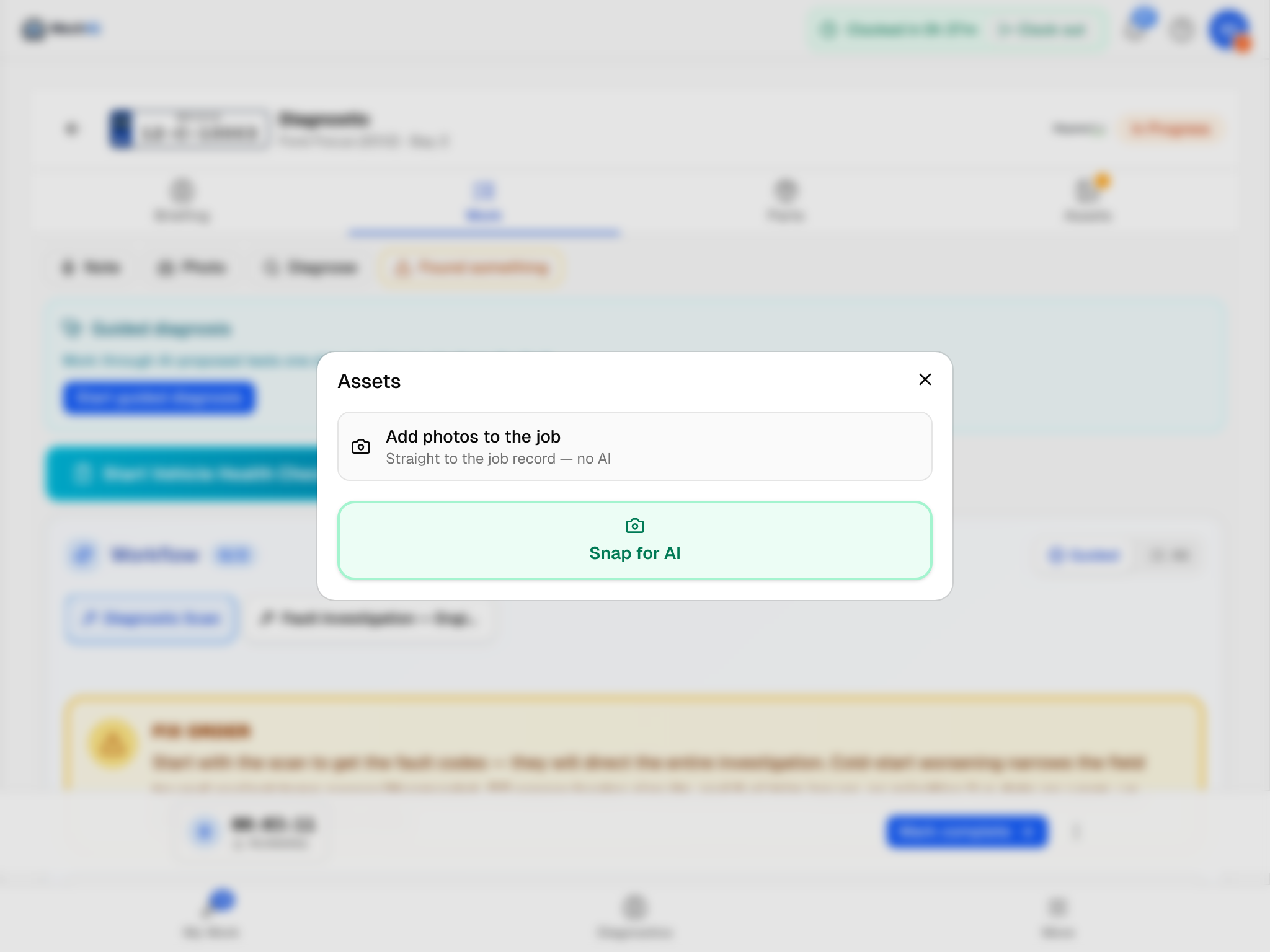 The Photo sheet. The top option files a photo; the green one asks the AI about it.
On the native app
The native app folds this into Diagnose:
- Tap + on the job and choose Diagnose.
- Under Or show MechIQ the part -- photos and a clip, capture what you want to show.
- Tap Diagnose from what I captured.
Type a short description first if you can -- the AI uses your words and the image together.
What happens
The AI describes what it sees, and that description is fed into the job's own diagnosis engine -- the same one that handles typed fault codes. So you do not just get a paragraph back: findings, task groups and parts are added to the job's work plan, grounded in this car's make, model, engine and mileage.
In a browser you see Visual diagnosis saved -- see AI Diagnosis below; on the native app a line tells you how many findings and tasks landed. Because it is saved to the job, the desk sees it too.
Photos you just want on record
Snap for AI is for getting an answer. If you only want a photo or clip kept as evidence, use Add photos to the job -- straight to the job record, no AI on the same sheet (native: + → Photos & video). Those go to the Assets tab. See Job Assets.
For a finding on the Vehicle Health Check, use the camera on the VHC item itself -- that photo goes to the customer next to the finding.
Tips
- Good light makes the difference. Use the torch under the car.
- Get close and keep still.
- Say what it is: "coolant leak near thermostat housing" beats "leak".