Job Card
The job screen is where you work a vehicle. It is laid out for a tablet, and both surfaces give you the same four areas -- Briefing, Work, Parts, Assets -- a compact header, the input actions, and a sticky bar at the bottom with the job clock and the next step.
How you move between the four areas differs:
- In a browser (tablet or desktop) they are four tabs under the header, with a row of four quick-action buttons beneath them.
- On the native app, a phone shows the same four tabs; a tablet uses the left-rail section menu on My Work instead, and the input actions live behind a + button rather than a row. See Found Work for the + menu.
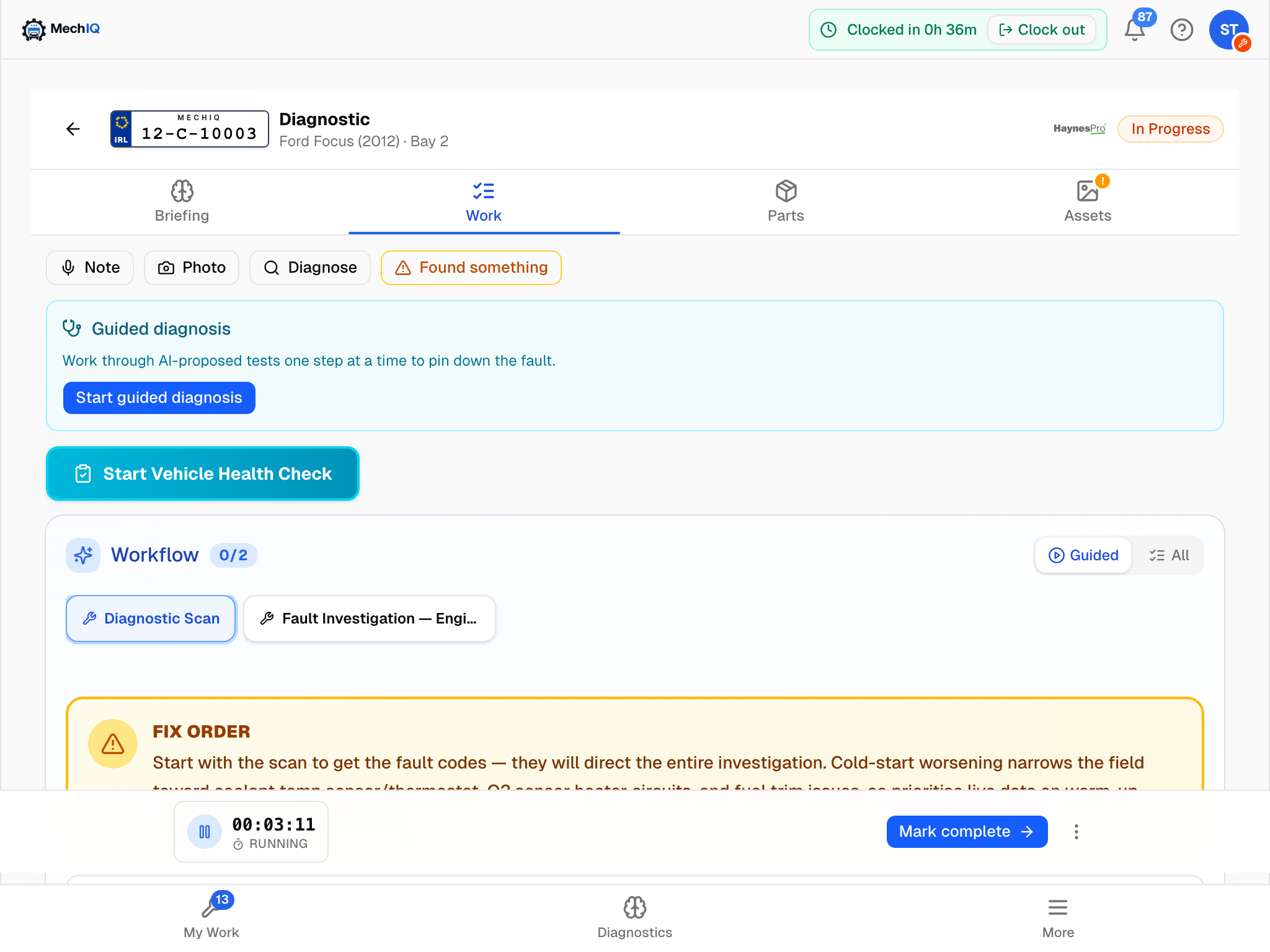 The job screen on a tablet. The Work tab is home once the job is underway; the bottom bar keeps the clock and the next action in reach while you scroll.
The header
Back arrow -- returns to My Work.
Registration plate, the job type and the make, model (year) · Bay N. Tap this block to open the vehicle sheet: booked date and slot, bay, mileage at check-in, status, the car's reg, year, engine, fuel, colour, mileage and VIN, and its previous jobs at this garage.
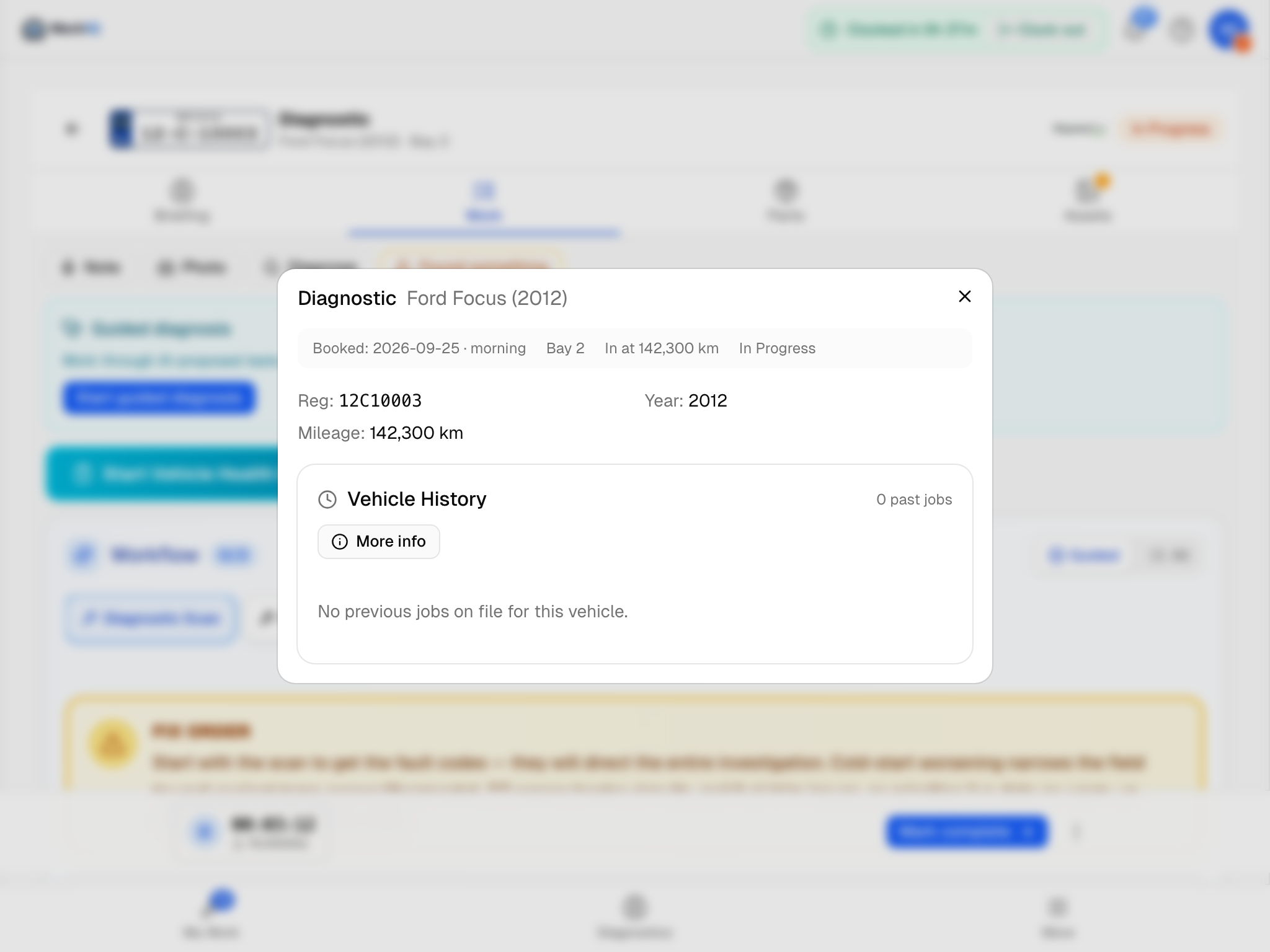 Tap the plate or job title for the vehicle sheet -- the car's details and its history at this garage, from any tab.
HaynesPro button -- browser only. Opens the manufacturer's technical data for this car from any tab, landing on Recalls & TSBs. On the native app there is no header button: open the vehicle sheet from the header and use the technical-data link there, or use the Repair guide / Torque & specs chips on the task you are working. See Technical Data.
Status badge -- Checked In, In Progress, Awaiting Approval, Awaiting QC and so on.
On the native app the header also names the job's Front desk owner.
The four tabs
- Briefing -- what the customer reported, the MechIQ Briefing, a plain-English customer update you can generate, and the vehicle details and history. A fresh job opens here.
- Work -- the road test, the Vehicle Health Check, the guided diagnosis and the Workflow: the steps you tick off. A job that is underway opens here.
- Parts -- the parts for the job, where you confirm what you used. The badge is the part count; it turns amber until the parts are confirmed.
- Assets -- check-in photos, your own photos, note and health-check photos, the vehicle inspection report and diagnostic scan PDFs. A ! on the tab means the car was checked in without condition photos and needs a walk-around.
A blue dot on Briefing or Work means that tab changed while you were elsewhere -- a re-diagnosis landed, or the work plan was updated.
The quick-action row (browser)
Four buttons sit under the tabs on every tab:
- Note -- hold to record a voice note, or hold to ask MechIQ a question. See Voice Notes and Ask AI.
- Photo -- add photos straight to the job, or Snap for AI to have a photo diagnosed. See Job Assets and Snap for AI.
- Diagnose -- run an AI diagnosis from fault codes, symptoms or a scan PDF. Only offered while the job is checked in or in progress. See AI Diagnosis in a Job.
- Found something -- flag extra work for the desk to price. See Found Something Else.
On the native app the same inputs are the five items behind the + button: Add note, Photos & video, Ask MechIQ, Diagnose (fault codes, symptoms and photos) and Send to the desk to price.
The Briefing tab
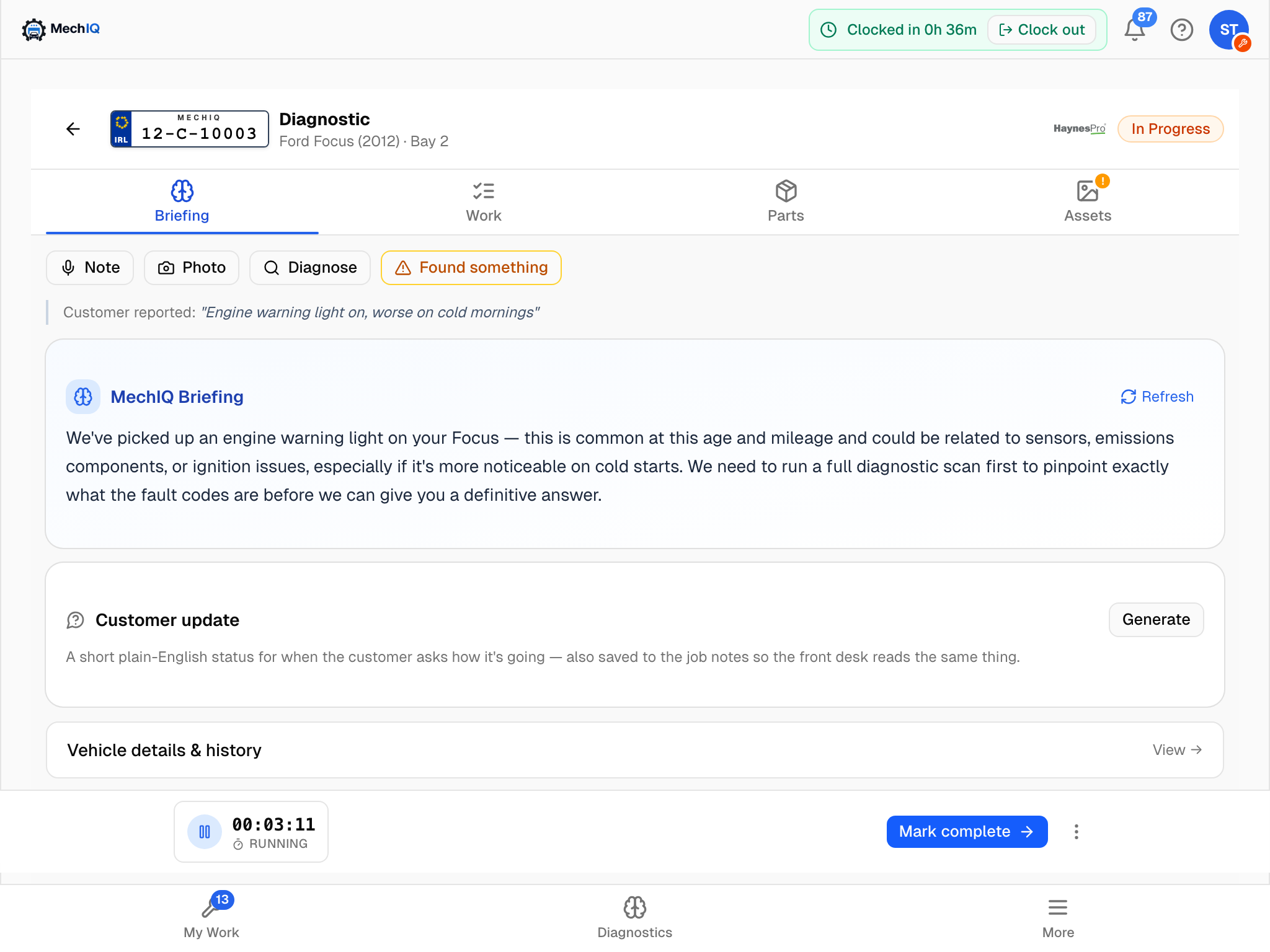 The Briefing tab. The briefing is built from the job's fault codes, symptoms, customer answers and history; Refresh rebuilds it from the job as it stands now.
- Customer reported -- the booking description in the customer's words. Answers from a symptom questionnaire or the pre-booking diagnostic form feed the briefing rather than showing here; see Customer Symptoms.
- MechIQ Briefing -- the AI's summary of the job. Refresh rebuilds it from the latest notes, VHC and findings. A Partial plan warning means the AI response was cut short on a large job -- review the plan or re-run.
- Progress update -- Generate writes a short plain-English status for when the customer rings. It is saved to the job notes so the desk reads the same thing, and you can Copy it. It is never sent to the customer -- the desk does that.
- Vehicle details & history -- opens the same sheet as the header.
The Work tab
What you see depends on where the job is:
- Step 1 -- Road test before bringing the vehicle in -- if the job type needs a pre-work road test. Type what you notice and tap Mark road test done, or Can't road-test with a reason.
- Step 1 -- Start the Vehicle Health Check to begin work -- if the job type needs an inspection. The work plan is shown underneath but locked (Work plan ready -- complete the VHC to start work). Can't inspect? Skip with a reason records why and unlocks the plan. See Vehicle Health Check.
- Generating your work plan -- the MechIQ spinner while the plan is built; up to two minutes.
- Working -- the VHC button (Start Vehicle Health Check, Continue VHC, or View or amend VHC once it is complete), any parts and approval banners, the after-work road test, and the Workflow card. See Task Checklist and AI Diagnosis in a Job.
Other things that appear on the Work tab when they apply:
- Parts on shelf X -- front of house have boxed your parts on a numbered shelf.
- Guided diagnosis -- on a Diagnostic job, the test-by-test loop. See AI Diagnosis in a Job.
- Work plan updated -- N tasks added · N marked not needed -- the plan changed underneath you (a re-diagnosis, the VHC merge). Dismiss with the x.
- Waiting on parts (N on order) -- parts are still inbound; move to your next job and the desk books the car back in.
- Extra work approved: … Confirm -- customer-approved work whose parts are at the hand-off point. See Found Work.
- Additional Work Found -- inspection items still awaiting the customer's decision.
- Quality Check -- the QC checklist, if you are a QC reviewer and the job is awaiting QC. See QC Handover.
State banners
- Record the mileage -- the desk checked the car in without a mileage reading. Read the odometer, type it in and click Save mileage. Until you do, the job can't be submitted for QC, completed or handed back to the desk. The reading updates the vehicle's mileage and service history.
- Waiting for Customer Approval -- the whole job is paused for a customer decision. The clock is paused and resumes when they approve.
- Awaiting Quality Check -- you have submitted the job; a QC reviewer will inspect and sign off. If you submitted it too soon, Send back under the banner (with a short reason) brings it back to you (not a QC fail).
- QC Failed -- Rework Required -- the job came back. The banner shows the reviewer's reason (QC failed: …); the QC Failed notification says it too.
On the web, a notification opens the job where it is about: Your parts have arrived opens the Parts tab, and QC Failed opens the job at this banner.
The bottom bar
The bar is pinned above the tab bar on every tab:
- Job clock -- elapsed time on this job with a Running or Paused label. Tap it to pause or resume. See The Job Clock.
- Primary action -- Mark complete once you are in progress. It opens the completion summary; whether that lands the job in Awaiting QC or Complete depends on your garage's QC setting and whether you can pass QC. When every task is ticked but the parts are not confirmed, the button reads Confirm parts and takes you to the Parts tab instead.
- Hand back to desk (browser) or Hand back (native) while the job is in progress. See The Job Clock.
There is no cancel and no step-backwards on a technician's bottom bar on either surface -- cancelling and rewinding a job are front-of-house actions on their own job page. If a job should not have been booked, tell the desk.
You cannot request customer approval or send anything to the customer from this screen -- that is front of house's job.
Who to ask at the front desk
Each job has a front-desk owner -- the person looking after that customer. It is usually whoever checked the car in. Ask them about parts, approvals or ringing the customer.
Tips
- Read the Briefing before you start -- the desk may have added customer requests.
- Use Get next job on My Work to take a job; opening a queued job from the list just lets you look.
- In a browser the HaynesPro button in the header is the quickest route to torque figures, wiring and bulletins from any tab. On the native app use the vehicle sheet or a task's Repair guide / Torque & specs chip.