The Day Plan
The Day plan shows the whole workshop's day as front of house have laid it out on their tech board -- one column per technician, the jobs in each queue, and how full the day is. It is the same board the desk plans on, but for you it is read-only: you can look, you cannot drag. Your own next job still comes through My Work → Get next job.
Open it from More → Day plan in the tablet layout, or Day Plan in the desktop sidebar; the address is /day-plan. It is a browser page -- the native app does not have it.
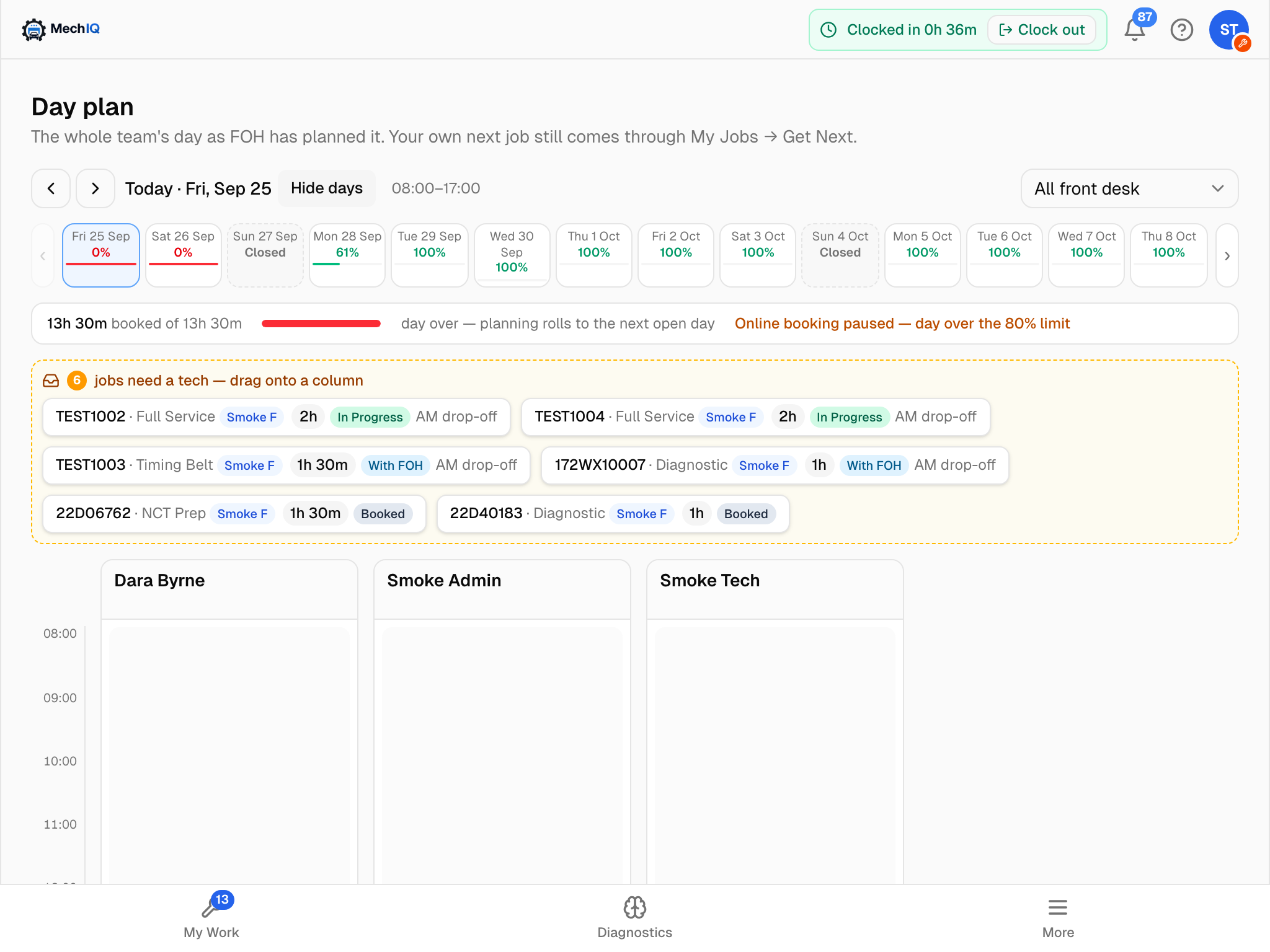 The Day plan is front of house's tech board, opened read-only. Each column is a technician; the dashed tray at the top holds jobs that have not been given to anyone yet.
What is on the page
- Day switcher -- the arrows step a day at a time; Today jumps back. The garage's opening hours for that day show beside the date.
- Capacity strip -- the next 14 days as tiles with the percentage of the day still available, so you can see how busy the week ahead is. Hide days tucks it away.
- Booked-of-available bar -- hours committed to technicians against the hours the garage can sell that day, and a note when the day is over capacity.
- Jobs need a tech -- the dashed tray of jobs booked for the day that have not been put in anyone's column. For you it is information only; the desk drags them.
- Technician columns -- a column per technician on a time axis. The card at the top of a column is the live job with its progress fill; the cards under it are that technician's queue with planned start times. Cards carry the reg, job type, front-desk owner, booked hours, status and drop-off window.
- All front desk -- the filter at the top right views the board by front-desk owner. Other owners' cards dim rather than disappear, so the columns still show the real load.
How to use it
- Glance at your own column to see the order of your day and roughly when each job should start.
- See who has the capacity to help if you are running over, and who is free.
- Check the drop-off window on a card before pulling it through Get next job -- a PM drop-off car may not be on site yet.
What you cannot do here
You cannot move cards, rebalance the day or put a job on hold from this page -- those are front-of-house actions on the same board. If the plan looks wrong, tell the desk.