VHC Templates & the Quality Check
Settings → VHC & QC checklists (garage admin only) has two cards: VHC Checklist Templates and the Quality Check Checklist.
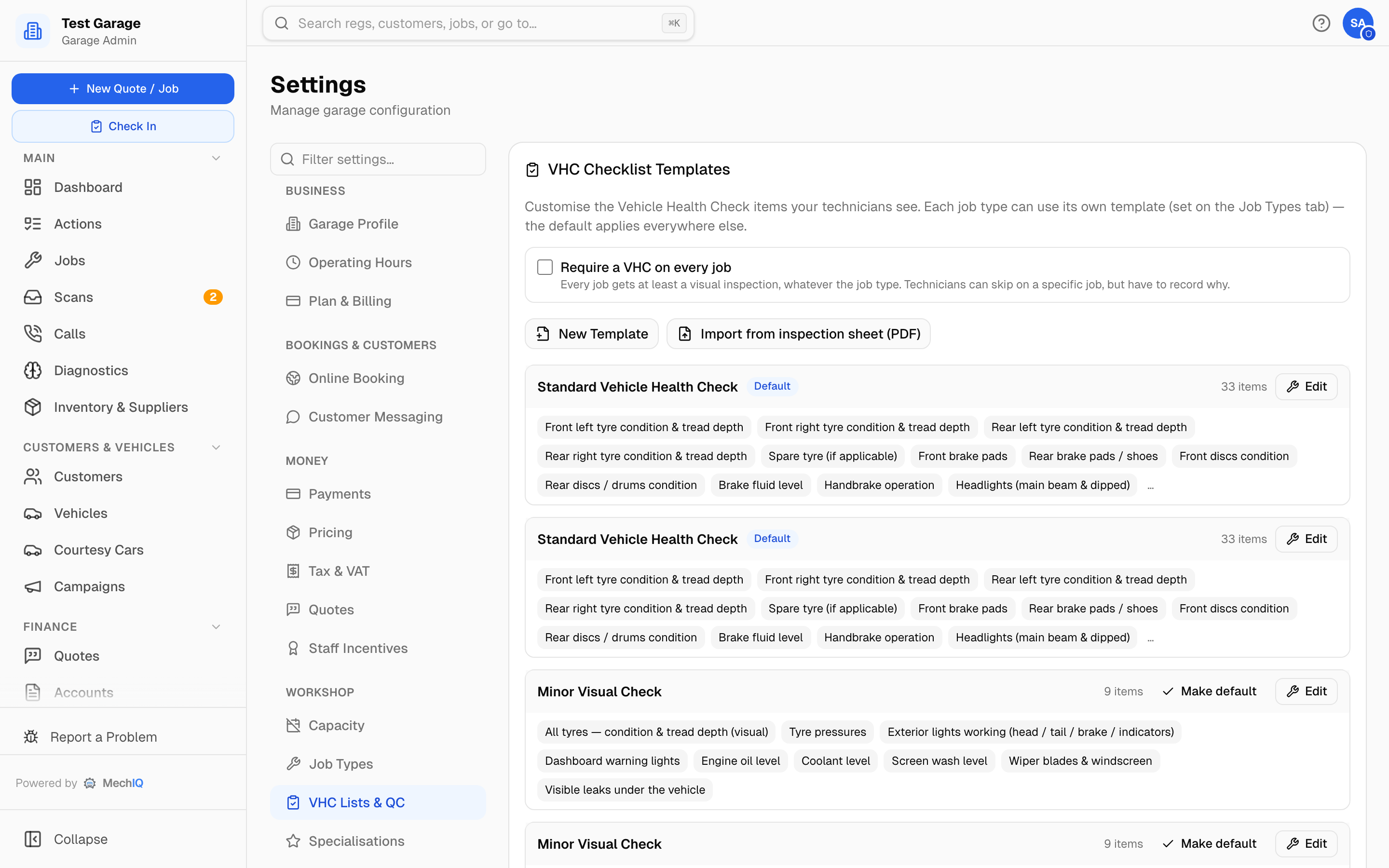 Settings → VHC & QC checklists. The VHC card saves as you go; the QC card saves with the Save bar.
VHC templates
A VHC template is the checklist a technician works through when inspecting a vehicle. Each garage starts with three:
- Standard Vehicle Health Check — the full inspection (your default).
- Minor Visual Check — a quick eyes-on check for small jobs (oil change, bulb).
- EV Health Check — for electric vehicles. It drops the items an EV doesn't have (oil, cambelt, exhaust) and adds the ones it does — charge port, high-voltage cabling, the 12V battery, brake corrosion.
When a technician starts a VHC on an electric vehicle, MechIQ uses the EV Health Check automatically (an EV badge marks it in the list). If a job type has its own template set, that always wins.
Require a VHC on every job
The tick box above the template list. On for new garages: every job gets at least a visual inspection, whatever the service. Untick it if you only want a health check on the job types you've marked as needing one. Technicians keep their judgement — a tech (or an admin) can skip the VHC with a reason on a specific job, recorded against the job. The front desk can't: skipping declares that nobody looked at the car, which is a call only whoever handled it can make. The one exception is paper job cards, where the tech's decision comes back to the desk on the printed card and FOH transcribes it. Saves immediately.
Editing a template
Click Edit on any template to add, rename or remove its categories and items. New items go to the bottom of their category. Changes apply to health checks started from then on.
Creating a new template
- New Template — pick what to start from (a blank template, one of the built-in checklists, or a copy of one of yours), give it a name, and it opens in the editor.
- Import from inspection sheet (PDF) — upload the inspection sheet you already use (for example one exported from your old system) and MechIQ lifts the sections and items into a new template for you to review. It needs a PDF with real text, not a scan or photo.
Using a template on specific jobs
Set a template per job type on the Job Types tab — e.g. a minor service using the quick "Minor Visual Check". Jobs without a specific template use the garage default (or the EV checklist for electric vehicles).
Quality Check Checklist
Click Edit on the card to change any of these, then Done and Save changes in the bar at the bottom of the page:
- QC Required — on by default. Completing a job requires a quality-check sign-off, which adds the Awaiting QC step to your job flow and an Awaiting quality check action (its button reads Run QC). Off, jobs go straight from work done to ready for collection.
- QC by a different person — off by default. The technician who did the work can't pass their own QC; needs a second person available. (It can't be used with paper job cards, which have no assigned technician to compare against.)
- Checklist items — the things the checker ticks through ("Vehicle is clean", "Road test done", "Tools out of the car"). Add Item and the bin icon to remove.
Who can sign off is a per-person permission: tick Can perform quality checks (QC) on a technician or admin on the Team page.
Tips
- Keep the default template as your everyday full inspection; use the per-job-type override for the exceptions.
- The EV checklist installs itself on existing garages and only ever applies to electric vehicles.