Dashboard Settings — Money View for FOH & Daily Target
Settings → Dashboard (garage admin only) controls what the dashboard shows. It has three cards: the Finish setting up checklist card, Financials on the dashboard (with the daily profit target) and Bay view alerts.
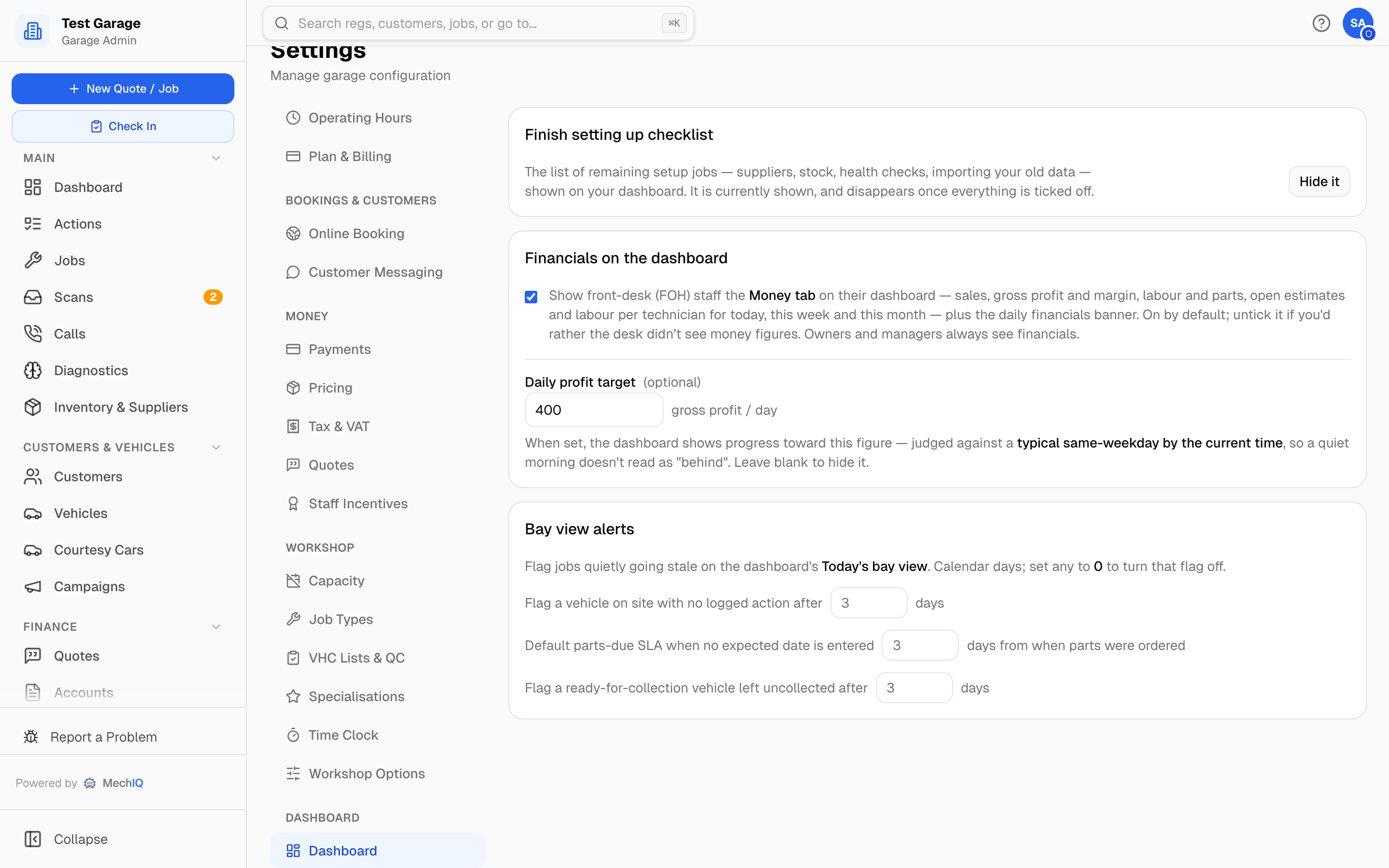 Settings → Dashboard. Fields on this tab are saved with the sticky Save bar at the bottom of the page — except the checklist button, which takes effect straight away.
Show or hide money figures for front-desk staff
The Financials on the dashboard card has one tick box: Show front-desk (FOH) staff the Money tab on their dashboard.
- It is on by default for every garage.
- Ticked: FOH see a Money tab on their dashboard (next to Garage Floor, Tech Board, Calendar and Follow-ups) and a Today's money banner at the top of the page showing today's sales, gross profit, margin and invoice count, plus the daily profit target bar.
- Unticked: the Money tab and the banner disappear for FOH. They still see a small Sales today card (sales and invoice count only, no profit or margin) on the Garage Floor tab. The Set-up check also leaves out its subscription, payment and accounting checks for FOH.
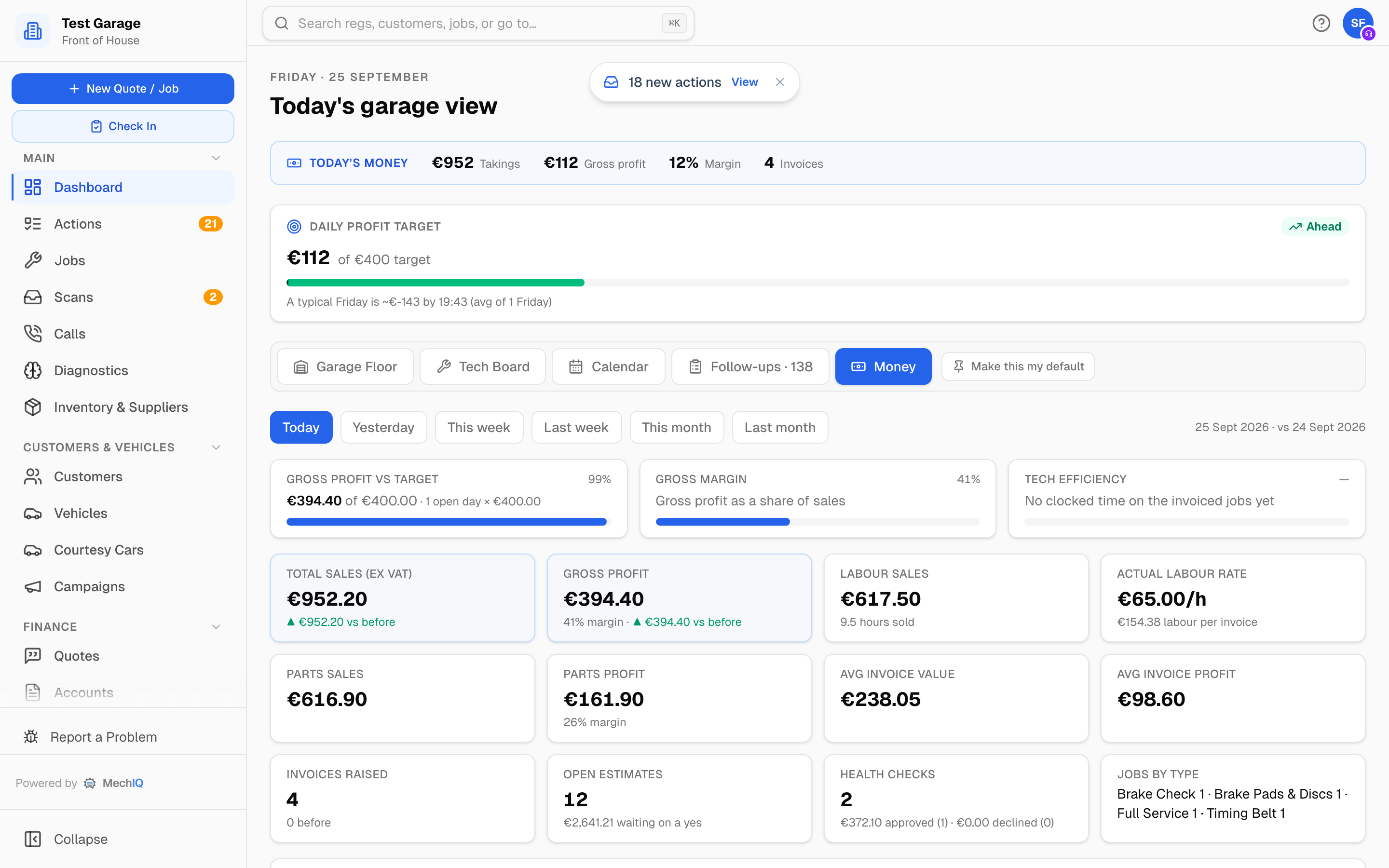 What front-of-house see while the box is ticked.
Garage admins always see financials; this switch only affects the front desk. Change it and click Save in the bar at the bottom — FOH see the difference the next time their dashboard loads.
What the Money tab shows
The Money tab is the desk's summary page. Pick a period — Today, Yesterday, This week, Last week, This month, Last month — and it shows, all ex VAT:
- three progress bars: gross profit vs target, gross margin, and tech efficiency (hours sold ÷ hours clocked, on the jobs each technician clocked; no figure under 1 hour clocked);
- tiles for total sales, gross profit, labour sales and hours sold, actual labour rate, parts sales and profit, average invoice value and profit, invoices raised, open estimates, health-check work approved and declined, and jobs by type;
- Labour sold by technician — sales, hours sold, hours clocked, efficiency and jobs per tech.
Every figure comes from the same source as Reports → Financial, so the two always agree. Gross profit is parts profit plus labour sales; labour cost only comes off it if you have turned on labour costing under Settings → Pricing.
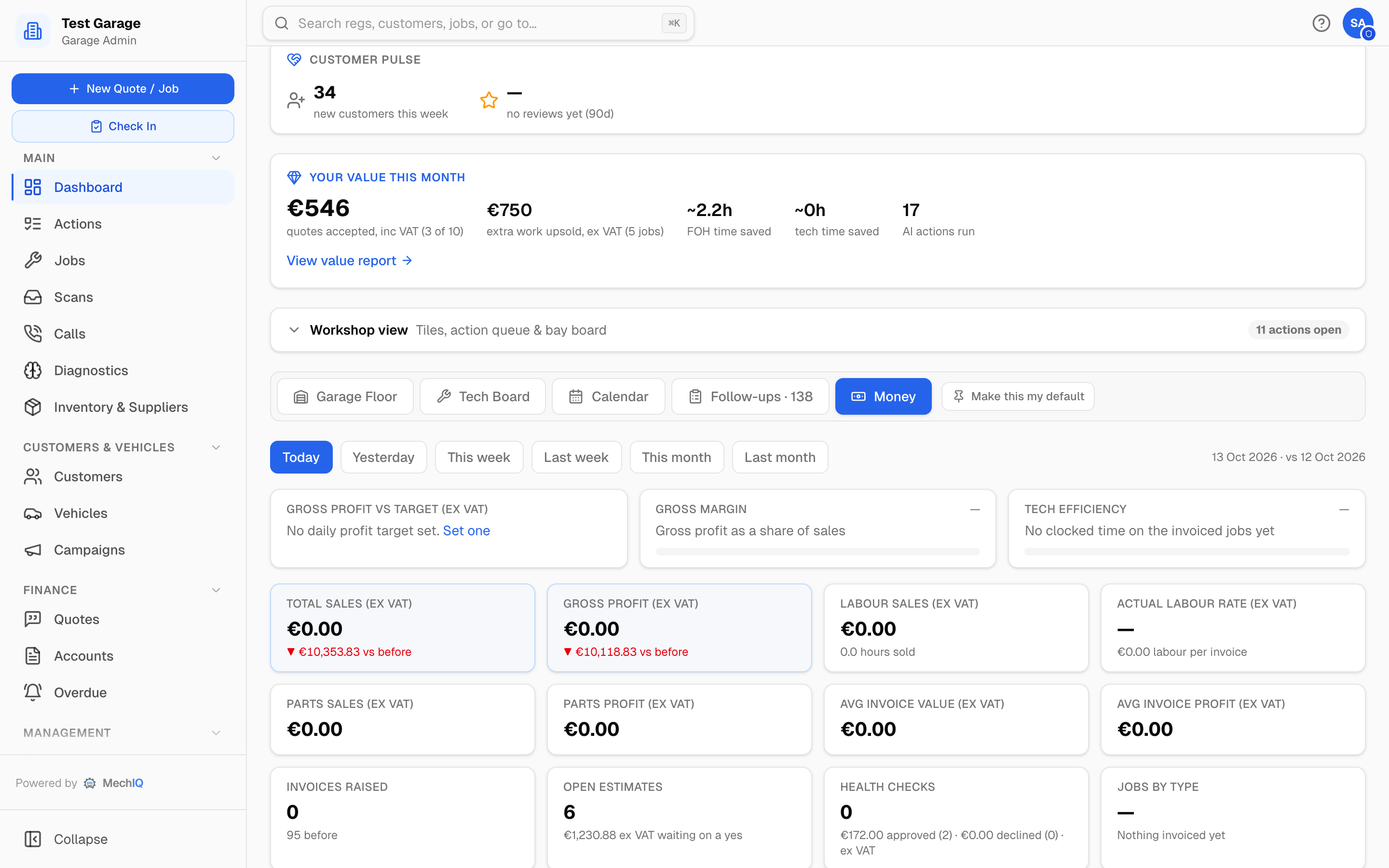 The Money tab. Owners always have it; FOH have it while the tick box above is on.
Daily profit target
Daily profit target is an optional gross-profit figure per day (for example 400). Leave it blank to hide the target bars.
When it is set:
- The Daily profit target bar on the owner dashboard (and on the FOH dashboard when financials are on) shows today's gross profit against the target. The verdict — Ahead or Behind — is judged against a typical same-weekday by the current time, so a quiet Monday morning isn't marked "behind" just because it's 10 am. Until there's enough history for that weekday the pace is estimated from your opening hours instead. Hit the target and the bar turns green.
- The Money tab's "Gross profit vs target" bar runs against the target scaled to the open days the period has had so far: with a €400 target, "This week" on a Wednesday runs to €1,200 (Mon-Wed), and reaches €2,000 only once the fifth open day arrives. Closed days (from Settings → Operating Hours) never count, and days still to come don't count yet. The bar reads N open days × €400 so you can see the sum.
If no target is set, the Money tab says so and links an admin here to set one.
Bay view alerts
Three thresholds, in calendar days, flag jobs going quietly stale on the dashboard's bay view. Set any of them to 0 to turn that flag off. Defaults are 3 days each:
- Flag a vehicle on site with no logged action after N days.
- Default parts-due SLA when no expected date is entered — N days from when the parts were ordered.
- Flag a ready-for-collection vehicle left uncollected after N days.
Bringing back the "Finish setting up" checklist
The owner dashboard shows a Finish setting up checklist until every item is done or you stop it. Stopping it used to be permanent; now the Finish setting up checklist card at the top of this tab tells you whether it is still showing and carries a Mark setup complete button -- which becomes Show it again once you have used it. Either way the card below it keeps listing what is still outstanding, with a link to each. The setting is stored on the garage, not per browser, so every device and every admin sees the same thing; it takes effect immediately, without the Save bar. See Setup wizard and the Finish setting up checklist.
Tips
- If you would rather the desk saw sales but not profit, untick the box: the small Sales today card stays and shows sales only.
- Set the target as gross profit, not sales — it is compared with the gross-profit figures on the dashboard and Money tab.