Vehicles
Every vehicle on file is linked to a customer and carries its own service history. Vehicles sits in the sidebar under Customers & Vehicles.
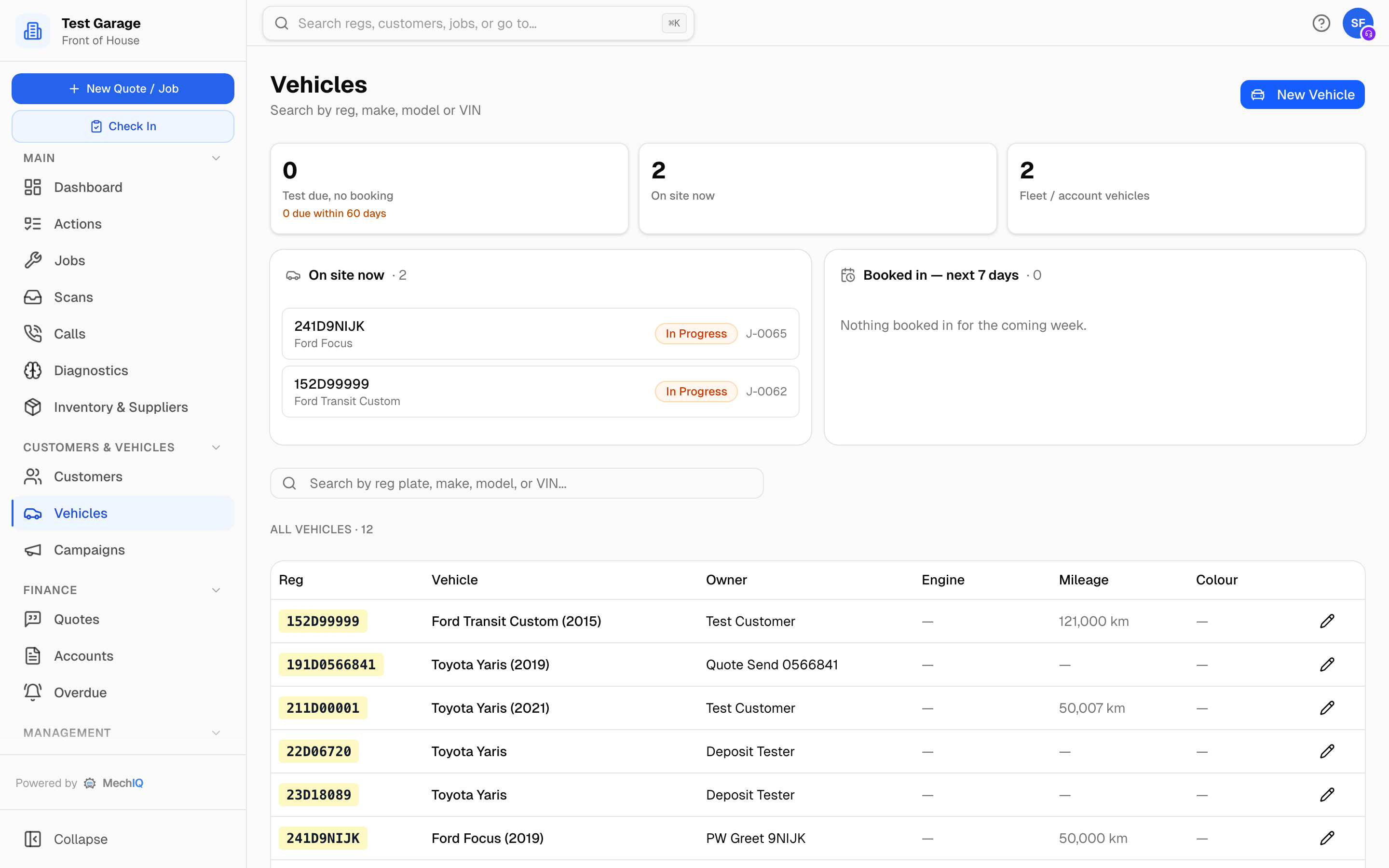 The Vehicles page: tiles and queues worth working across the top, then the vehicle list.
Search
The search box matches registration, make, model or VIN -- not the owner's name. To find a car by its owner, open the customer from the Customers page (or Cmd/Ctrl+K) and use their Vehicles tab. Registration search ignores dashes and spaces: 231D7987 and 231-D-7987 find the same car.
The tiles and queues
Three tiles sit across the top: Test due, no booking (with how many are due within 60 days), On site now and Fleet / account vehicles. Below them, the queues:
- Test due -- no booking on file -- vehicles whose NCT or MOT is due within 60 days with no booking. Each row shows the days left (red when 14 or fewer). Send reminders texts everyone on the list who can be texted; rows that can't be are marked with the reason (No textable number, No marketing consent, Customer test reminders are off in Settings).
- On site now -- cars in the workshop, with bay and job status. Click through to the job.
- Booked in -- next 7 days -- what is coming in this week.
The queues only appear when they have something in them.
The vehicle list
Columns: Reg, Vehicle (make, model and year), Owner, Engine, Mileage and Colour. An Acct badge next to the owner marks a trade or fleet account customer. Click a row to open the vehicle, or the pencil to edit it in place.
Add a vehicle
Most vehicles are created on the fly when you book a job. To add one directly:
- Click New Vehicle.
- Choose the Owner -- search by name or phone.
- Type the registration and click Lookup. Make, model, year, colour, fuel type and vehicle type fill in from the registry (Irish and UK plates). If the lookup fails, type them in.
- Set Vehicle Type; add fuel type, year, engine, colour and mileage if you have them (only make and model are required), and click Add Vehicle.
The registration is already on file? MechIQ says so and names the car's owner -- 201-D-12345 is already on file for Pat Murphy. One car has one record, so you do not add it again: Open the car takes you to it, and Move to
The vehicle record
The header shows make, model, the registration plate, the spec line (type, year, engine, colour, fuel, mileage) and, when the parts data has identified the exact variant, a line like Identified as Golf VII 2.0 TDI 150hp -- identified automatically from the VIN. Three buttons sit on the right: Full spec, Edit and Delete.
Below the header are three tabs: Overview, History and MOT & people.
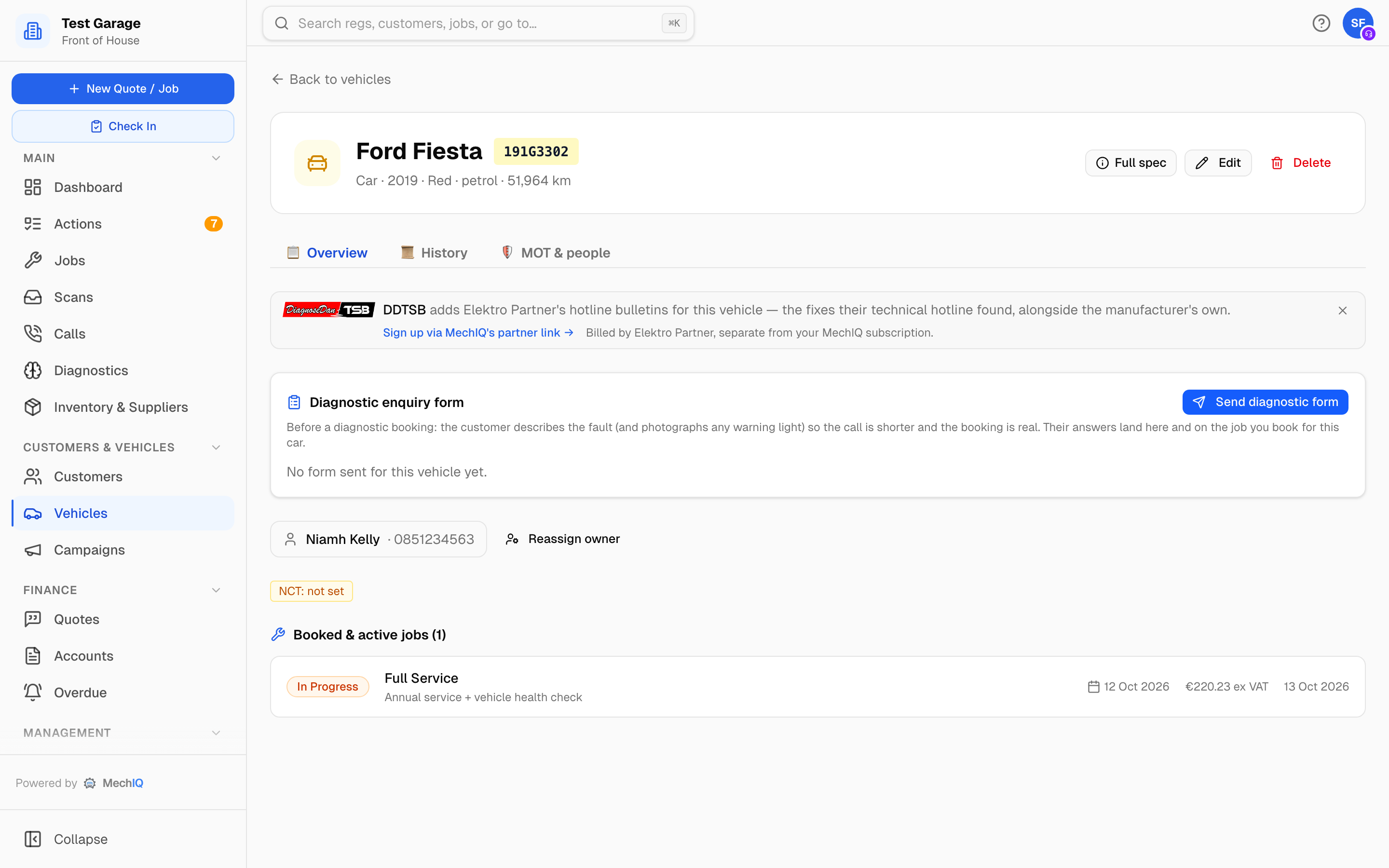 A vehicle record on the Overview tab.
Overview tab
Cards appear in this order; most only show when they have something to say.
Manufacturer recalls and bulletins. A red card, 2 manufacturer recalls on record, lists the recall subjects from HaynesPro, with Read the bulletins to open the technical data. Below it an amber technical service bulletins for this model line expands to the TSB list. Confirm a recall applies to this VIN and whether it has already been actioned -- the bulletins are for the model, not the exact car.
Recalls not checked for this car yet. A car with no open job in the garage is not looked up just because you opened its page, because each look-up is paid for. If MechIQ holds nothing for it you see this line. It does not mean the car has no recalls. Press Check recalls to ask HaynesPro. A car that has arrived for an open job is checked when you open it.
DDTSB bulletins. DDTSB is Elektro Partner's technical hotline -- the fixes their engineers actually found, alongside the manufacturer's own bulletins above. If your garage subscribes, the card shows how many bulletins exist for this vehicle (14 bulletins for this vehicle, with a 3 critical · 4 model-specific breakdown), the first six headlines as links, and Open in DDTSB to read them.
If your garage doesn't subscribe you get a line saying what DDTSB would add, and a sign-up link. A technician sees Ask the office about this instead -- they can't buy a subscription, so it tells the garage admin once (one notification, and a note in Settings → Workshop Options) rather than handing them a link they can't act on. Setting it up, connecting the garage's login and what it costs are in Workshop Options.
Diagnostic enquiry form. Send the customer a short form about the fault before you book a diagnostic; their answers and dashboard photos come back onto this card. See the Diagnostic Enquiry Form article.
Owner. The owner's name and phone link through to their customer record. Reassign owner moves the car to another customer (for example, it was sold); pick the new owner, read the warning and click Confirm reassignment. Its finished jobs, quotes and invoices stay on the previous owner's record -- that work was theirs -- and new work is for the new owner. If the car has open jobs (booked, in the workshop, on hold) the dialog lists them and asks: Move it to
A car on Unassigned vehicles (imported). A vehicle your import couldn't match to an owner sits on Unassigned vehicles (imported), and the Owner card says so. The button there is Move to customer instead of Reassign owner: pick the customer and click Move vehicle and history. Unlike a reassignment, its jobs, quotes, invoices and payments go with it, because they were never anyone else's. You can't book work on the car until it's moved. See Data Import.
Detail chips. The VIN, the test-due badge (NCT due 12 Nov 2026, red when expired or due within 14 days, NCT exempt for exempt vehicles) and the last service date.
Booked & active jobs. Every job for this vehicle that is not yet complete, collected or cancelled, with its status, type, description, booked date and value.
History tab
Service history lists everything done to this vehicle at your garage -- work carried out, parts fitted, mileage and job number -- with no prices, so it is safe to hand to a buyer or the next owner. Advisory work that was flagged but never done is called out in an amber panel at the top. Search by work, part or job number.
- Download PDF saves it as
service-history-231D7987.pdf. - Email to customer sends the PDF to the car's keeper -- the dialog names them and their email on file, and shows What they'll get before Send email. Email another address sends it there instead. When the car had an earlier owner at your garage, their work goes in as the work only: no job numbers, no job notes and none of the work they turned down.
MOT & people tab
MOT History (UK garages only) pulls the DVSA record for the registration: each test as a pass or fail card with the odometer, expiry, advisories and failure reasons. Refresh fetches it again.
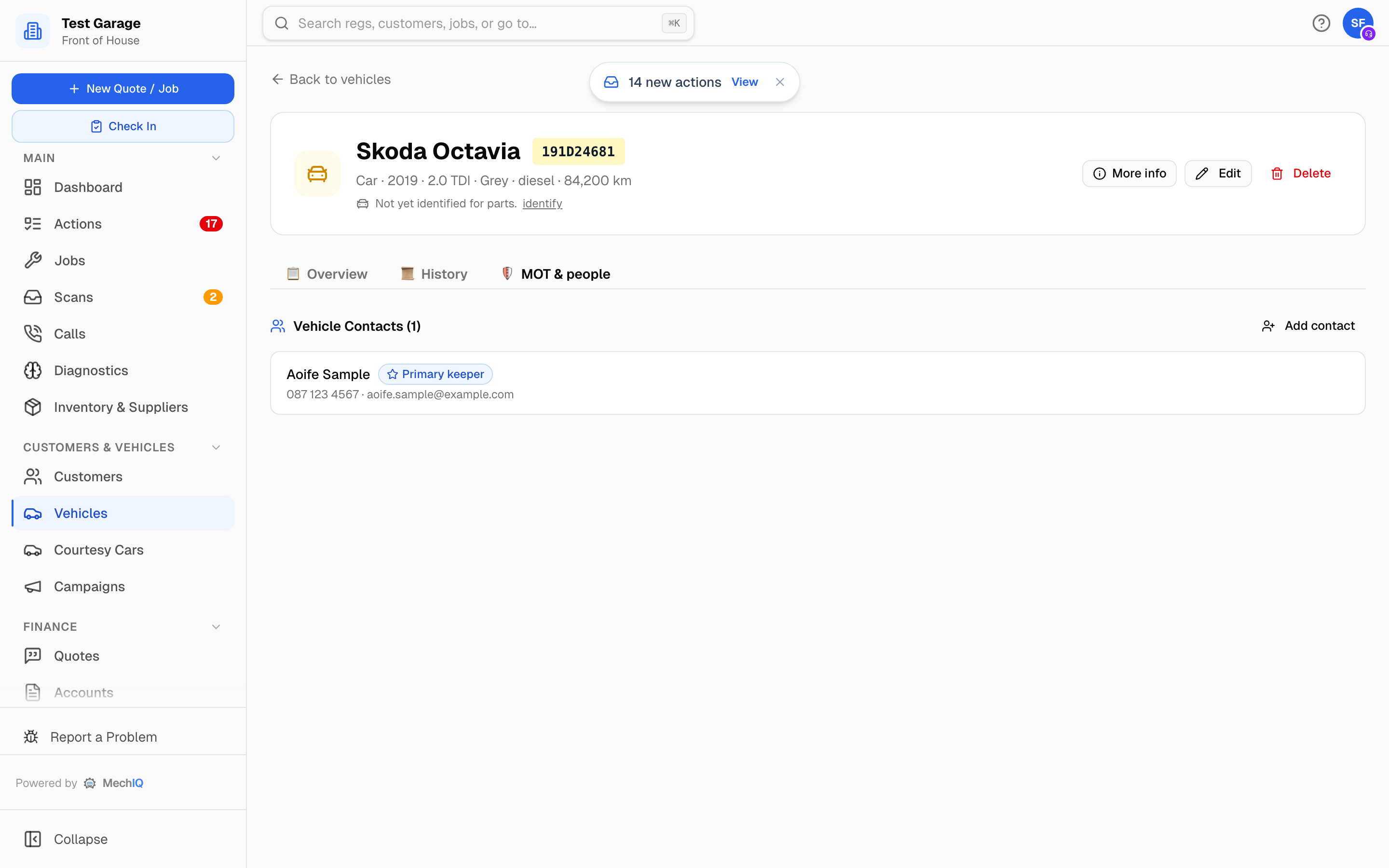 Vehicle Contacts on the MOT & people tab.
Vehicle Contacts lists everyone attached to the car. The Primary keeper (badged) is the customer the car belongs to. To manage contacts:
- Add contact -- search for an existing customer and click Add.
- Make keeper -- promote another contact to primary keeper, for example when a car changes hands within a household. The history stays with the car.
- The bin icon removes an additional contact. The primary keeper cannot be removed -- reassign the owner first.
Someone who books online for a car that is already on file but is not its keeper is added as an additional contact automatically; the keeper does not change.
Full spec: registry data
Full spec opens Full vehicle spec -- everything the registry (HaynesPro VRM, for Irish and UK plates) returned when the vehicle was created: identity, engine and drivetrain, performance, statutory tests and tax, weights, tyres and history, plus an Open guide link into HaynesPro. If the plate's official record disagrees with the make you have stored, the dialog says so; that usually means a mistyped reg.
Part-variant identification
For parts pricing MechIQ needs to know which exact variant the car is. It normally identifies this from the VIN the first time parts are quoted, and the result sits in the vehicle header. When the parts data cannot pin it down, click identify (or Identify the car on a job's parts board) and pick from Which car is this?. You pick once; it is saved on the car and every part after that is matched against it. change lets you correct it; None of these records that no listed variant fits.
A car with no VIN on file cannot be identified this way -- add the VIN through Edit.
Edit and delete
Edit changes registration, type, make, model, year, engine, colour, mileage and the NCT/MOT due date. Delete removes the vehicle permanently; it is refused while the vehicle has an active job.
Tips
- Search before you add. A duplicate vehicle splits the service history in two.
- Mileage is recorded on every job -- at check-in, or by the technician before the job can finish -- so the record stays current without anyone editing it.