Message History and Receipts
Messages are sent from the job (see Customer Communications), but everything you have ever sent a customer -- across every job -- lives on the Comms tab of their customer record. That is where you check whether a message landed, send another one, and keep a record of calls.
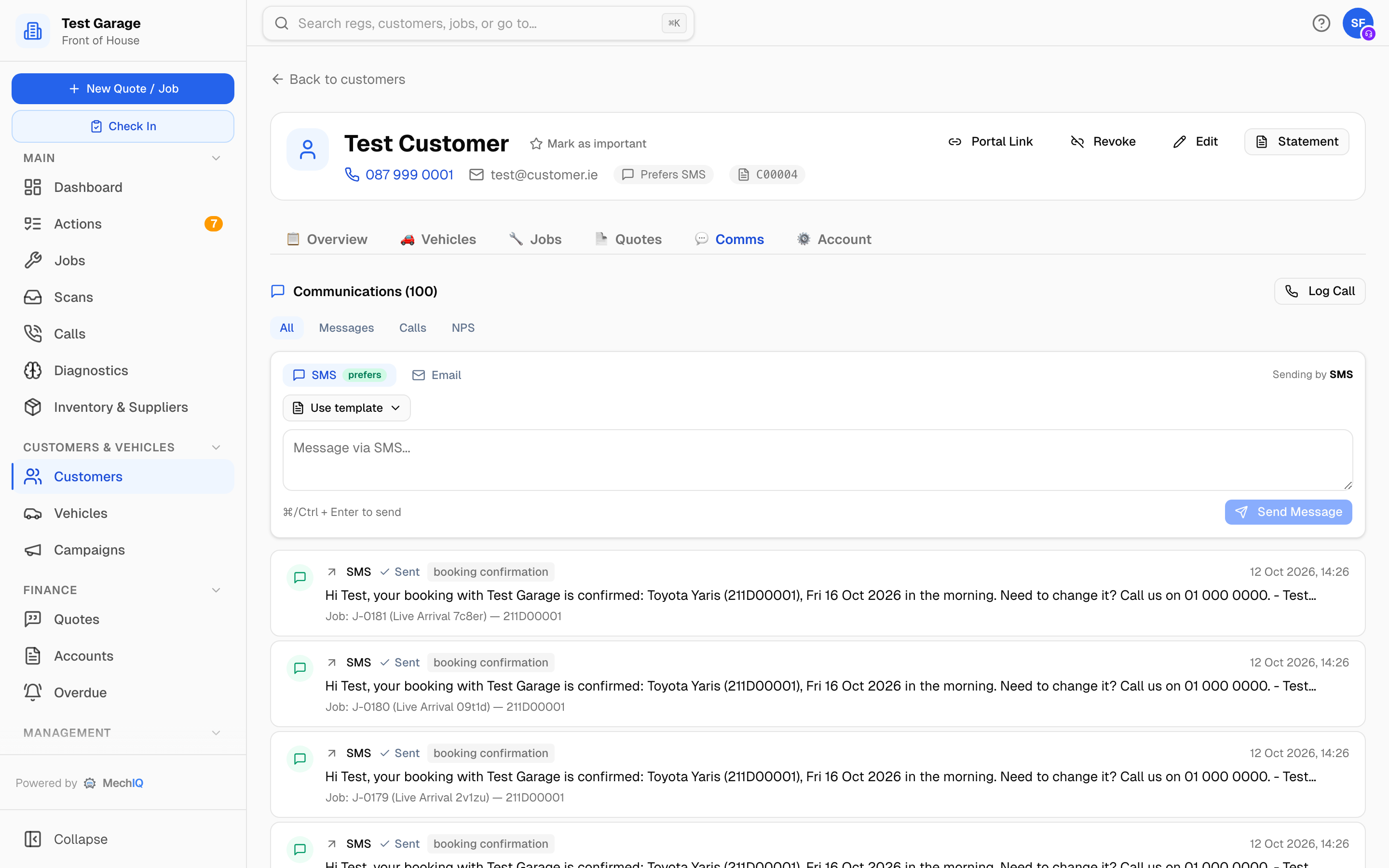 The Comms tab: the composer (with Use template) at the top, the timeline below.
Customers cannot message you back
MechIQ sends texts from your garage's sender name -- your garage's name, not a phone number. That is what makes the text recognisable, but it is also the trade-off: there is no number behind it, so a customer cannot reply to it. The same is true of email, which goes out one way.
If a customer wants to get hold of you they will ring, or text the garage's own mobile. That is normal and nothing is broken -- but it means the record is only complete if you put it there. Log the call or add a phone note (below) so whoever picks the job up next sees the whole story.
WhatsApp would be two-way, and the handling for it is built, but no provider is connected yet so it is not offered as a channel.
The timeline
Messages (6) lists everything, newest first. Filter with All, Messages, Calls or Feedback.
- Message rows show the channel (Email, Text (SMS) or Phone Note; WhatsApp on older messages), an arrow for direction, a sparkle if AI drafted it, what it was sent for (Ready to collect), the delivery receipt and the time. Click a row to expand the full text. Under it: the job it came from and who sent it.
- Call rows show Call · inbound or outbound with Answered (4 min 12 s) or Missed.
- Feedback rows show the score and band -- 8/10 · Passive -- and the customer's comment.
Delivery receipts
Every message carries its status:
- Sent -- it has left MechIQ.
- Delivered -- the provider confirmed it reached the phone or inbox, with the time.
- Not sent -- it could not be sent or delivered (the reason shows): a dead number, a bounced address. Fix the contact detail on the record and send again.
- Read -- WhatsApp only, so you will not see this yet.
A receipt tells you the message arrived. It cannot tell you the customer read it or agreed -- for anything that needs an answer, ring them.
Send a message
The Message customer composer sits above the timeline -- the same composer as on a job. It opens on the channel the customer asked for, and To: says where it goes. Pick Text (SMS) or Email to change it for this message; a channel that can't reach them is greyed out with the reason. Type, and click Send text or Send email. Message sent shows only when it left; a failure shows Not sent and why. It appears in the timeline and picks up receipts like any other message.
Use template puts one of your garage's own message templates in the box, filled in for this customer -- with no job open, the payment link and amount come from their most recent invoice that still has money owing, and a line says which invoice. On email it fills the Subject too. Edit it, then send.
Log a call
Click Log Call. Set Direction (Inbound / Outbound), Outcome (Answered / Missed), the Duration in minutes if answered, and a Note -- agreed pickup Friday 5pm. Click Log Call. The call joins the timeline (and the Calls page) and the note appears as a Phone Note. You can also log a call from the job's Messages.
Tips
- Log the call. A text that went out and a phone call that came back are the same conversation, and only one of them records itself.
- A Not sent receipt on a ready-to-collect text is easy to miss on a busy afternoon -- the customer simply doesn't turn up. Glance at the receipt before you file the job as done.