Report a Problem
Something not working, confusing, or you'd like it to work differently? Use Report a Problem. Every report reaches the MechIQ team with what you were looking at, so you don't need to describe the screen.
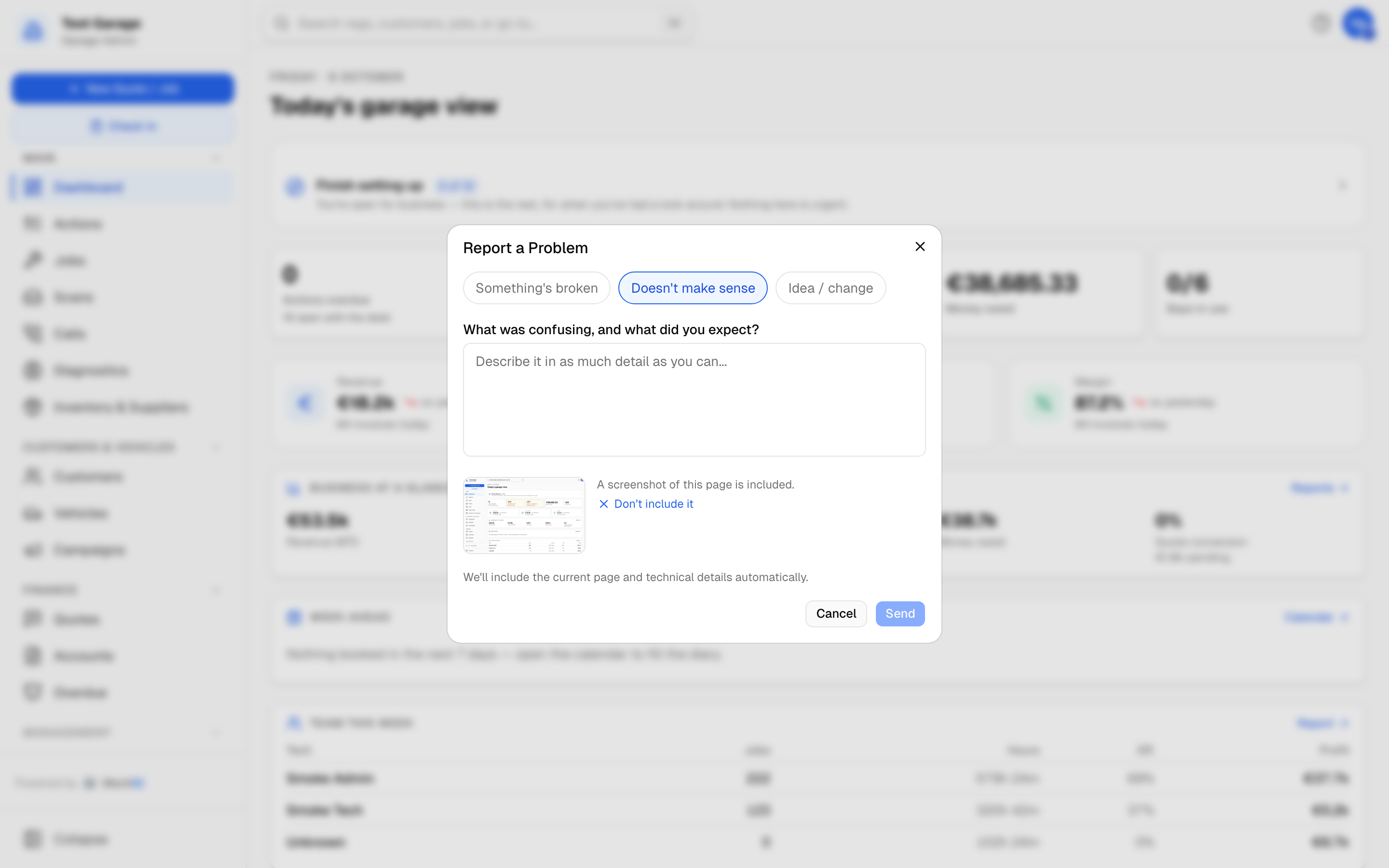 Report a Problem. Pick a type, describe it, and the screenshot is attached for you.
Where to find it
- On the web: click your initials at the top right and choose Report a Problem. It's there on every screen.
- Inside a pop-up on the web (New job, a payment dialog and so on): click the small flag in the pop-up's top corner. The report form opens on top, so the screenshot shows the pop-up you were in.
- In the MechIQ app (tablet or phone): tap your initials at the top right and choose Report a Problem (it's also in My Profile).
Garage admins and front-of-house can always report. Technicians see Report a Problem only where the garage has it switched on.
Sending a report
- Pick what kind of report it is:
- Something's broken — an error, a button that does nothing, a wrong figure.
- Doesn't make sense — it works, but it confused you or did something you didn't expect.
- Idea / change — something you'd like added or done differently.
- Describe it. A registration or job number helps us find it fast.
- Click Send. You'll see "Thanks — we'll get back to you".
The screenshot
- On the web, MechIQ takes a screenshot of the page behind the form as it opens -- including any pop-up that was open -- and shows it as a small picture in the form. If there's something on screen you'd rather not send, click Don't include it.
- In the app, tap Add a screenshot to pick one from your photos, or Take a photo (handy for a label, a part, or another screen). Tap Remove photo to take it off again.
MechIQ also includes the page you were on, which device and app version you're using, and technical diagnostics, so you don't need to gather any of that.
Replies — My reports
We reply inside MechIQ, and you'll know when we have:
- A red dot appears on your initials (top right) and My reports in that menu shows New.
- Technicians get it in the notifications bell; on the app it arrives as a notification.
- If you have an email address on your login, we email you the reply too.
Open My reports from the menu under your initials -- on the web and in the app -- to see everything you've reported, where each one is up to (Sent, Looking into it, Done) and our replies. If we've asked a question, answer it in the box under the reply and tap Send.
If support needs to look inside your garage to fix it, that access is recorded under Settings → Privacy & Access.
Related
- The Help entry in the sidebar opens this help centre; the ? at the top right opens the article for the page you're on.