Notifications
Notifications are the running feed of what just happened: a job assigned, a customer's reply, a scan diagnosed. What someone must actually do lives elsewhere -- the Actions page for the front desk and garage admins, My Work for technicians.
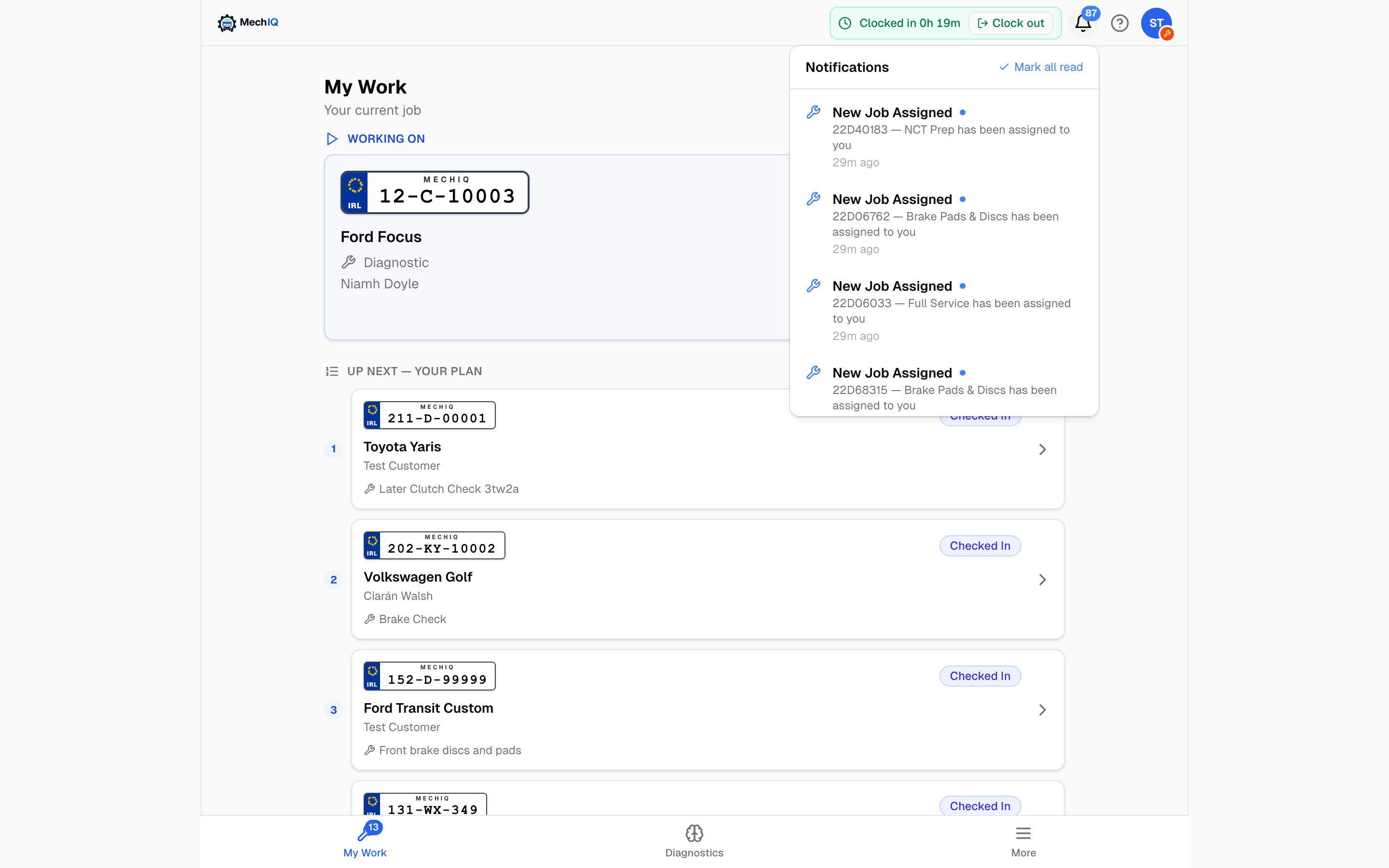
Where the bell lives
- Technicians have the bell in the top bar, with an unread count. It shows only notifications about their own jobs.
- Front of house and garage admins have no bell in the desktop top bar and no unread count. Their work is the Actions badge and the red pop-up pill for urgent items. The feed is still there as a readable history: on a phone open More and tap Notifications.
- In the native app the bell is on the Home screen for every role.
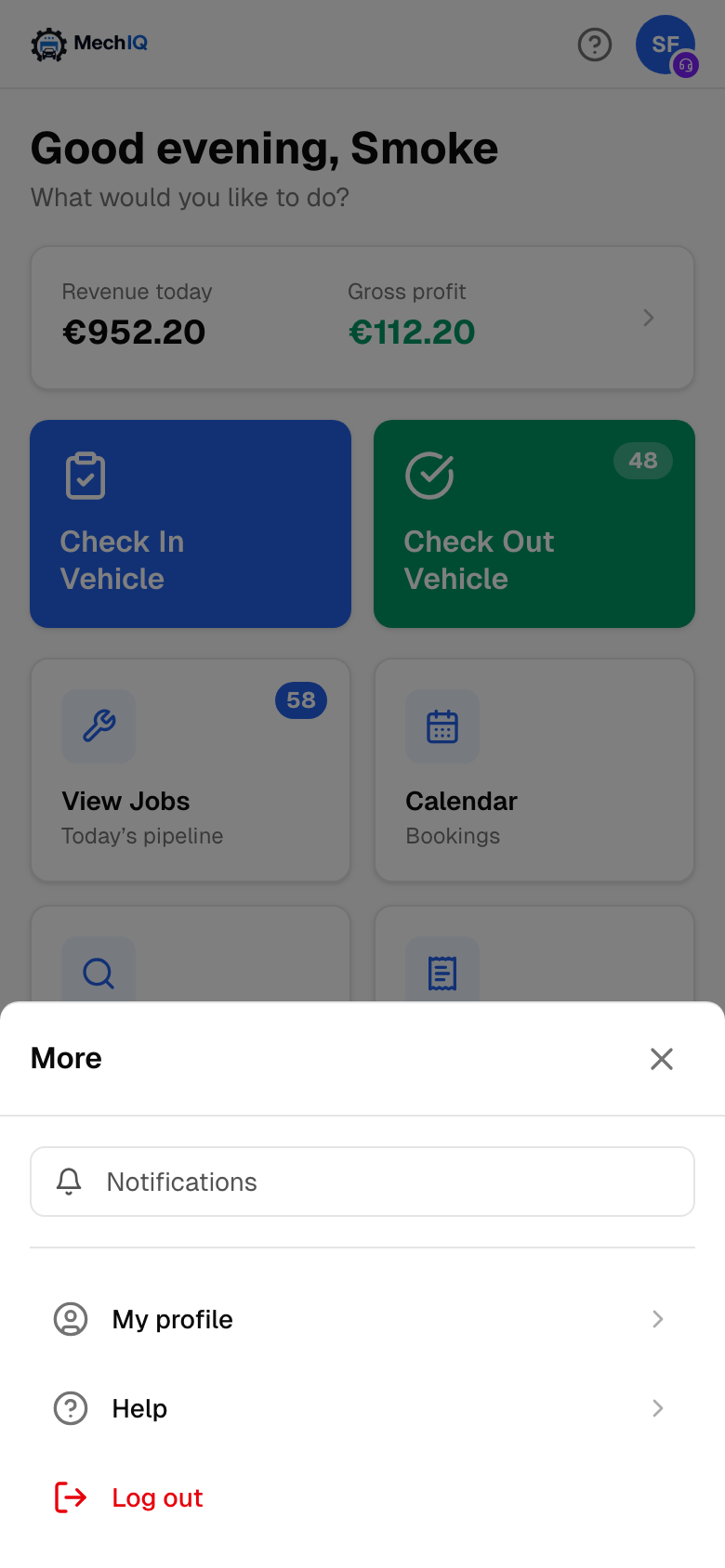 On a phone the front desk reaches the feed through More → Notifications.
Reading and clearing
Click a notification to jump to its context and mark it read. The header offers Mark all read while anything is unread, and for the front desk a View actions (N) → link across to the Actions board. Urgent items -- a declined approval, a job flagged urgent -- are highlighted in red until read.
Notification types
A bell is one of three things: the delivery of an action (a row on the Actions board -- the bell opens where the row opens and is read when the row closes), the garage admin's escalation, or news for one person (a technician's own job, their leave, a reply to their report). News that needs nobody to do anything is not a bell: you see it where it lives -- low stock in Inventory, a credit-limit warning and a supplier chase on the job's history, a quote declined on the quote.
Actions (front desk; leave requests go to garage admins)
- New action -- the bell of every action on the board: price extra work, order parts, hand parts to the technician, check a car out, a car on hold whose parts came in, missed calls to ring back, supplier invoices to import, a leave request (admins). One bell per action, not per order or per finding. It opens where the action opens and is read when the action is done.
- Customer replied, Customer declined extra work, Customer approved some extra work online, Low feedback score, Quote accepted online, Booking — check customer details, Booking — new contact added -- the bell of the action the customer's answer raised.
- Action assigned to you -- a teammate gave you an action.
Something a customer does (replies, answers a quote or an approval, rates you, books online) reaches the front desk once: one bell per front-desk person, all in one group, so when one of you reads it the badge clears for everyone. The owner is not rung for it -- an action left too long escalates to them by itself.
Garage admin
- Overdue or escalated work -- an urgent action, a quality check, parts saved for later, parts for approved work or a blocked job waited past its time in opening hours with nobody on it, or someone escalated a car from the bay view. It is read when someone claims the work or it is done. This is the only alert an owner gets about desk work.
- A technician asked about DDTSB bulletins -- see Settings → Workshop Options.
Technicians
- Job assigned to you, Urgent job flagged, Quality check failed, Sent back — not ready for QC, Customer approved — continue.
- Parts arrived for your job -- Your parts have arrived for each order, or All parts received when the last one comes in (once per delivery). Opens the job's parts.
- Extra work ready to confirm / Extra work added to your plan, Scan diagnosed.
Calls, team and other
- Incoming call -- the desk (opens the Calls page).
- Leave request reviewed (opens your profile).
- Diagnostic scan needs review -- opens the Scans page.
- Accounting connection expired -- opens Settings → Accounting. This one cannot be switched off.
- Reply to your report -- MechIQ answered something you reported.
Push notifications on the native app
The native MechIQ app (iPhone and Android) delivers the same alerts as push notifications, so you hear about what needs you when the app is closed. Allow notifications the first time you sign in; if you tapped Don't allow, turn MechIQ back on under your phone's Settings → Notifications. Tapping a push opens the job or page it is about -- the same place the action's row opens. A push leaves a moment after the work that raised it is saved; one whose action was already done by then is not sent.
A technician only receives push for their own jobs. A phone signed in as a technician never buzzes with front-desk escalations.
Muting a type
- For yourself: in the native app, open More → Notification preferences and switch push off for the types you do not want. The in-app row still appears.
- For the whole garage: a garage admin can switch a type off under Settings → Notifications. Off means nobody gets it -- no row, no push. Critical types are always on.
Tips
- The bell is history. If it needs doing, look on Actions.
- Clearing a notification in the app clears it on the web too; they are the same list.